Create a template for an endpoint
You use the Sitecore Content Editor to model the data synchronization processes. This lets you use a familiar interface for doing the configuration. The configuration requires a template that you can use to represent a text file that Sitecore can read from.
This configuration requires a template that you can use to represent a text file that Sitecore can read from.
Create a template
To create a template:
-
In the Content Editor, navigate to Templates.
-
On the menu ribbon, in the Insert group, click New Template.
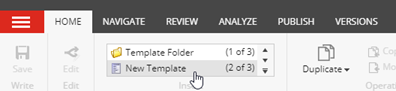
-
In the Select name dialog, enter the following values:
Field Value Name Text File Endpoint Base template Templates/Data Exchange/Framework/Endpoints/Base Template/ Base Endpoint -
Click Next.
-
In the Location dialog, select Templates/Data Exchange/Providers/File System/Endpoints. Click Next.
-
In the confirmation dialog, click Close.
Set an icon
To set an icon:
-
In the Content Editor, select the new template, for example, Templates/Data Exchange/Providers/File System/Endpoints/Text File Endpoint.
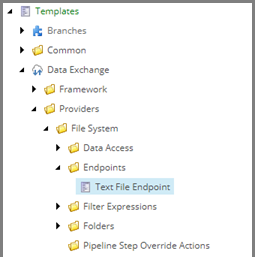
-
In the right-hand pane, click the Content tab.
-
On the Content tab, click the icon next to the title.
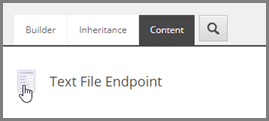
-
In the Change Icon dialog, in the Icon field, enter the name of the icon, for example,
Office/32x32/cloud.png. -
Click OK.
Add a template field
In the text file endpoint, you must configure the settings that tell Sitecore how to parse the text file. For example, you can specify if data is on a single line or multiple lines, which column separator the file uses, and whether the file contains a line with column headers.
To add these settings:
-
Navigate to Data Exchange/Providers/File System/Endpoints/Text File Endpoint.
-
Add a template section. Name it Settings.
-
On the Builder tab, in the Settings section, add the following template fields:
Name Type Shared Path Single-Line Text selected ColumnSeparator Single-Line Text selected ColumnHeadersInFirstLine Checkbox selected -
Save the item.