Rules
The rules in SPEAK are front-end (JavaScript) rules. You use these rules to add logic to SPEAK pages. You specify rules with the Rule component in combination with RuleDefinition items.
The Rule component listens for events from the other components in the SPEAK page, and it triggers a rule when another SPEAK component raises an event.
You create a rule by creating a rule item based on the RuleDefinition template and defining the rule in this item. You connect the Rule component to the RuleDefinition item in the RuleItemId property of the Rule component.
A rule consists of a condition and an action. The first line in a rule is the condition and the second line is the action.
If, for example, you have specified this rule:
where ListControl1 has a selected item
set component Button1 enabled to true
then the following happens:
-
The user selects an item in
ListControl1. -
The Rule component catches this event, and triggers the rule.
-
SPEAK checks the condition.
-
Because the condition is true, SPEAK executes the action.
-
SPEAK enables
Button1.
You add a Rule component to your page for each event that you are interested in, and a page can have multiple Rule components. Several different Rule components can point to the same Rule item.
SPEAK executes the rules of a page after the PageCode script file for the page has finished executing.
Configure the Rule component
Configure the Rule component
You specify the event that triggers a rule like this:
-
Specify the ID of the SPEAK component that you want to “listen” to in the TargetControl property.
-
Specify the event in the Trigger property. You can specify just the event (for example:
change, orclick), or you can specify an event and an attribute (for example:change:facets). If, for example, you specifychange:facets, the Rule component triggers a rule when the component raises thechangeevent for thefacetsattribute. The attributes are specific for each SPEAK component.
The default component is window. This means that if you do not specify a component, the Rule component listens for events raised by the window component. The window component is the dialog page itself. It has a resize event.
Components can have specific events, but all components have a change event. You can use a combination of the change event, an attribute, and the Rule condition (as described in the following section) to precisely specify when a rule is executed.
Create a rule
Create a rule
To create a rule, you create a Rule item, using the RuleDefinition template.
-
Add rules to the Rule item in the Rule field. Click Edit next to the field to open the Rule Editor dialog.
The Rule Editor dialog has three panes:
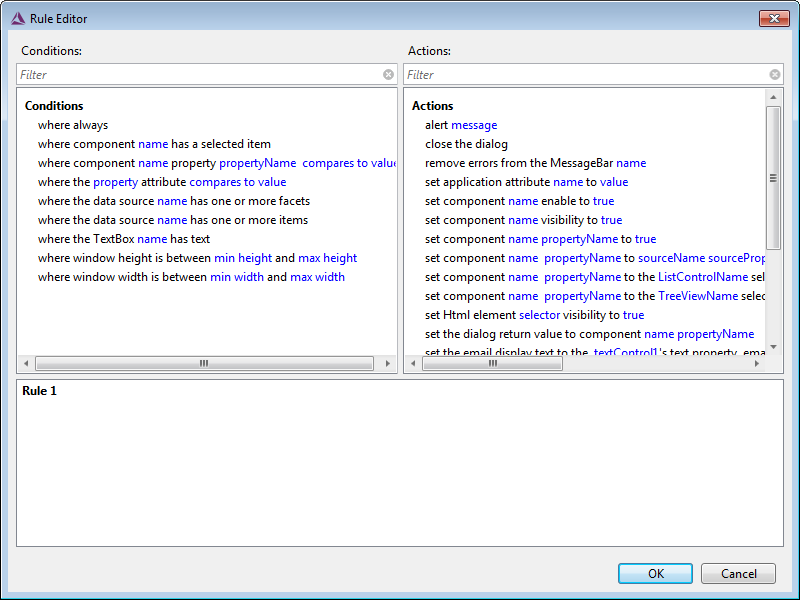
The Conditions and Actions panes are where you select conditions and actions, and the Rule pane is where you can see and edit the rules.
-
The Rule Editor creates an empty rule if there are no rules when you open it. If there are rules, you can add conditions and actions to an existing rule or you can create a new rule. You right-click and select Add New Rule from the context-menu to create a new rule.
-
You add conditions and actions to a rule by double-clicking in the Conditions pane or in the Actions pane. This inserts the condition or the action in the Rule pane. If a condition or an action is already there, the new one is added. You can use the context-menu to remove conditions and actions from the Rule pane.
Conditions
When SPEAK executes a rule, the first thing that happens is that the conditions are evaluated. A condition looks this:
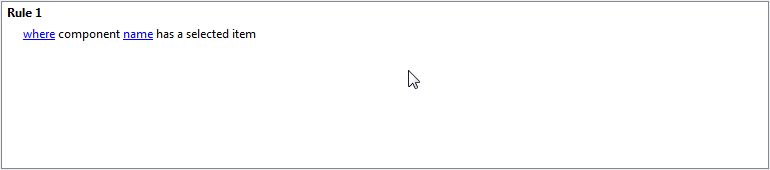
After you insert a condition like this in the Rule pane, you must edit it. The editor shows placeholders in blue. In this example, where and name are placeholders. You specify a value for a placeholder by double-clicking it.
The where placeholder can only have two values: where and except where. When you click the where placeholder, the value changes back and forth between these two values.
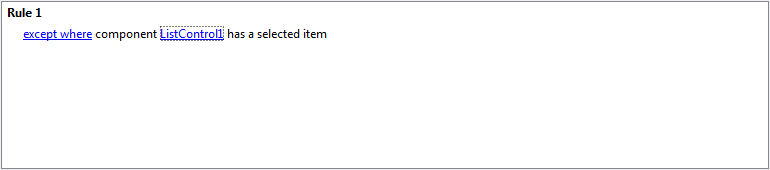
The name placeholder is the name (ID) of a SPEAK component. Click the placeholder, and enter the ID of the component:
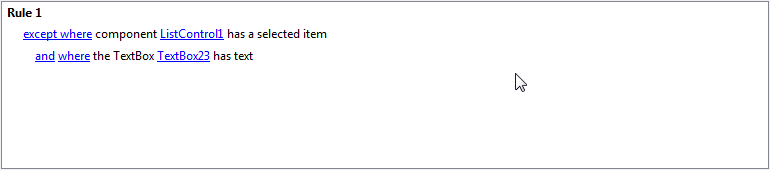
If you add another condition, it is inserted with an and placeholder. You can click this placeholder to toggle the value between and and or:
The conditions of a rule can be evaluated to either true or false. If the conditions of a rule evaluate to true, SPEAK executes the actions of the rule. If the conditions evaluate to false, nothing else happens for that rule.
You can specify conditions for other components than the component that raised the event that triggered the rule.
Actions
You add actions to the Rule pane in a similar way to adding conditions. Actions contain placeholders as well.
An action could be:
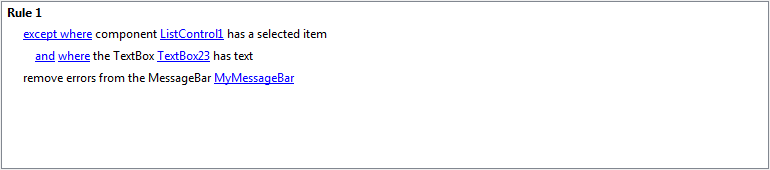
You can add multiple actions to one rule. Actions are always added together using “and”.
You can see the full set of conditions and actions available in the two panes in the Rule Editor dialog. You can also see the actions and conditions in the Content Editor under Client/Speak/Layouts/Renderings/Resources/Rule/Rules in the core database.