Import a JSS app into your JSS site
When you deploy a JSS application to an SXA environment, there are some differences to the general app deployment process. Because with JSS site creation, the default configuration settings are added in items (Site/Settings/), this means that you must skip the Config Deployment step of the general process described at jss.sitecore.com.
To import a JSS app into your JSS site:
-
Before you import the JSS app, you must follow the steps described on jss.sitecore.com including configuring your app's site and host name.
-
Create an API Key and note its Item ID for use in setting up the app.
-
To test whether the Layout Service is working, make a test request to Layout Service on your Sitecore host:
http://myapp.siteco.re/sitecore/api/layout/render/jss?item=/&sc_apikey={YOUR_API_KEY_ID} -
To configure the Sitecore connection, run
jss setupat a command line within your JSS app, and follow the prompts. You will be asked for several pieces of information:-
Path to the Sitecore folder: enter the path to the JSS site you created earlier. For example:
C:\inetpub\wwwroot\sxa92. -
Host name: enter the host name of your SXA site. For example:
http://sxa92. -
Import service URL: you do not need to change the default setting. For example, leave it at:
http://sxa92/sitecore/api/jss/import. -
API key: enter the GUID of the API key.
-
Deployment secret: enter the secret here or press enter to create one. If you choose to create a new deployment secret, you must enter it in the Content Editor (
JSS site/Settings).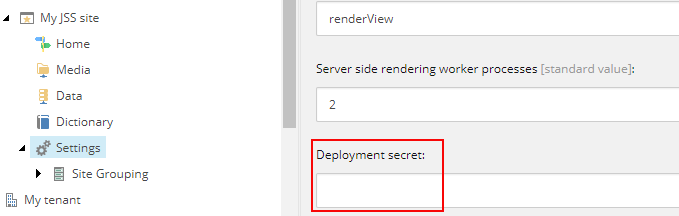
ImportantBecause you are working on a SXA deployment on JSS, you can skip the config deployment step.
-
-
If you want to use GraphQL for your web application, you must deploy GraphQl endpoints configuration in a config file placed in
\Website\App_Config\Include\zzz. You can use the example patch below. Make sure to update the URL and Template path. -
To import your app, open a command prompt/terminal within your JSS app and run:
jss deploy app --includeContent --includeDictionary