Solrスペルチェッカーの使用
このページの翻訳はAIによって自動的に行われました。可能な限り正確な翻訳を心掛けていますが、原文と異なる表現や解釈が含まれる場合があります。正確で公式な情報については、必ず英語の原文をご参照ください。
Solrにはスペルチェッカー機能があります。この機能を使って、他の類似した用語に基づいてユーザーにインラインクエリの提案を提供します。提案のソースは、Solr内のフィールド内の用語、外部テキストファイル、または他のインデックスのフィールドである場合があります。
ソースの設定方法は4通りです:
- IndexBasedSpellCheckerスペルチェック用の並列索引のソースとしてSolrインデックスを使用してください。インデックス用語の基礎としてフィールドを定義しなければなりません。
- DirectSolrSpellChecker。
- FileBasedSpellChecker。
- WordBreakSolrSpellChecker: 隣接するクエリ用語や複数の単語に分割する用語を組み合わせる
以下のベストプラクティスを推奨します:
- IndexBasedSpellCheckを使う場合は、タイトルや本文などの一部のフィールドからスペルチェック用に作成した別のフィールドに単語をコピーしてください。
- DirectSolrSpellCheckを使う場合は、スペルチェッカーのクエリフィールドを選ぶ際に、特にステミングなど分析が比較的少ないものを選びましょう。
Solrのドキュメントには詳細が記載されています。
ソルル構成
Solrの設定方法は2通りあります:
- すべてのリクエストが提案を生成する場合は、既存の選択リクエストハンドラを使いましょう
- スペルチェックの提案を提供するために専用のリクエストハンドラが必要な場合は、スペルリクエストハンドラを使用してください
Solrの設定はSolrConfig.xmlファイルを編集して行います。
既存のリクエストハンドラを使用
これにより、マスターインデックスの_nameフィールドのスペルチェックが可能になります:
- 例えばsolrconfig.xmlファイルを開いてみてください。C:\solr-6.3.0\server\solr\configsets\sitecore_core_index\conf\solrconfig.xml。
ノードを見つけて有効にしてください。デフォルトでは無効になっています。 ノードに spellcheck を追加します。ノードに行ってください。 ノードの下で、 _text_ を_name に変更して_nameフィールドのスペルチェックを有効にします。
動作を確認するために:
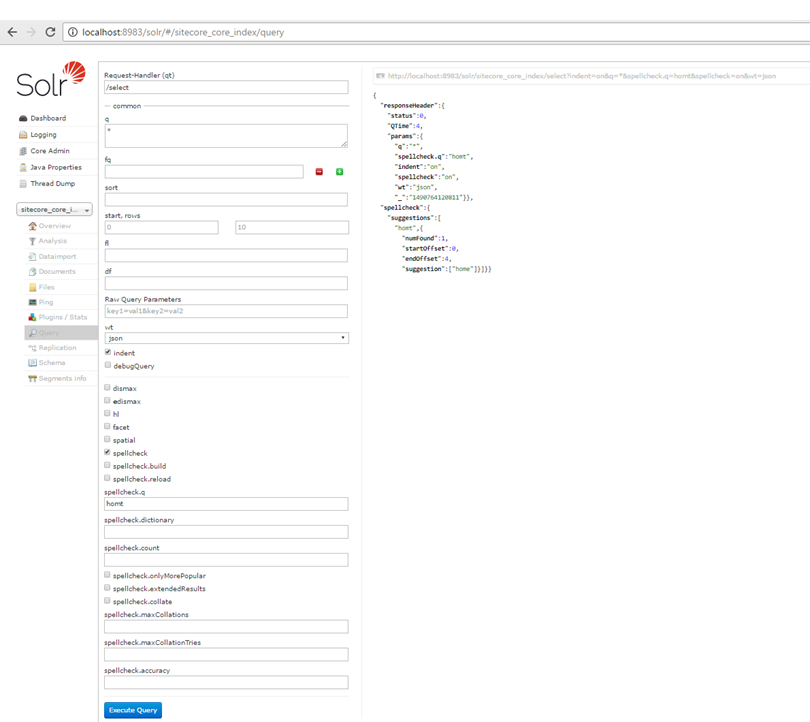
- ブラウザでSolr Adminを開き、コアインデックスを選択するか、このリンクから直接アクセスしてください:http://localhost:8983/solr/#/sitecore_core_index/query
- スペルチェックのチェックボックスを選択してスペルチェックを有効にし、spellcheck.qのテキストフィールド(homt)にスペルチェッククエリを入力します。
- クエリを実行するをクリックします。
Solrサーバーでスペルチェックが機能すれば、Solr Adminはこれに似ています:
複数のSolrコアを使用する場合は、それぞれのコアで同じ手順を繰り返す必要があります。
スペルリクエストハンドラの使用
これにより、マスターインデックスの_nameフィールドのスペルチェッカーが可能になります:
- 例えばsolrconfig.xmlファイルを開いてみてください。C:\solr-6.3.0\server\solr\configsets\sitecore_core_index\conf\solrconfig.xml。
ノードを特定しろ。 ノードの下で、 _text を_name に変更します。- SolrConfig.xmlファイルを保存してSolrを再起動してください。
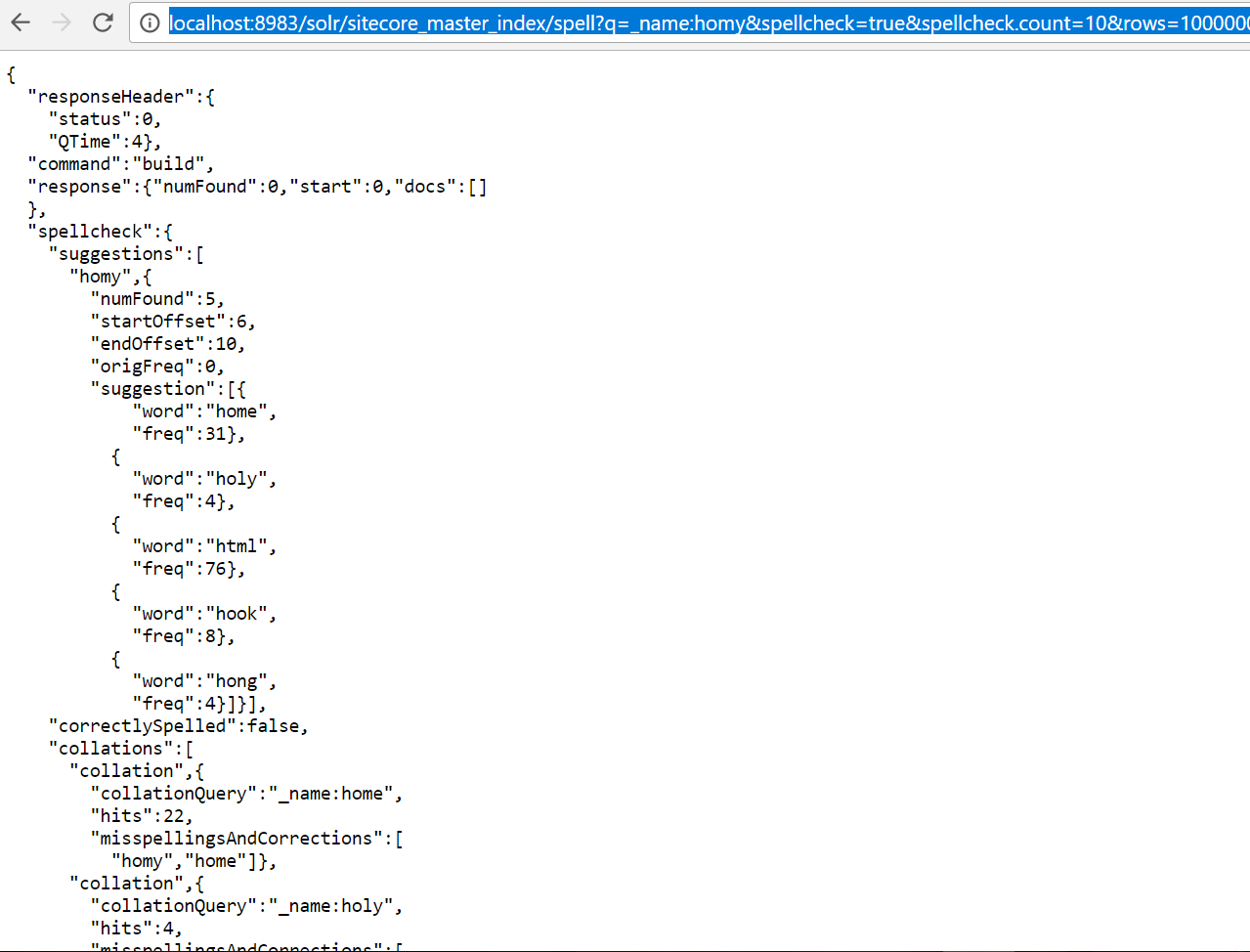
動作を確認するために:
もしうまくいけば、回答は次のようになります:
オプション構成
Solrスペルチェッカー機能の他の多くの側面も設定できます。これらのパラメータは、solrconfig.xmlファイルのリクエストハンドラセクションでノードを追加して設定
例えば、このスニペットはデフォルトカウントとして20の値を付けたspellcheck.countを加算しています:
https://cwiki.apache.org/confluence/display/solr/Spell+Checkingはより詳細に書かれています。
サンプルコード
このサンプルコードは、検索語が結果を得られなかった場合に提案リストを作成する方法を示しています。
例えば、ユーザーがhomyという用語を検索しても結果が出なかった場合、homyに近い提案のリストを返すことができます。home。
Sitecoreは、使用できる2つのAPIを公開しています:
-
もしコードがISolrQueryの実装を使っているなら、これを使ってください:
SolrNetProxy.Query public static SolrQueryResults
Query (this IProviderSearchContext context, ISolrQuery q, QueryOptions queryOptions) public static SolrQueryResults Query (this IProviderSearchContext context, string q, QueryOptions queryOptions) -
もしコードがISolrQueryを使っていない場合は、これを使ってください。こちらの実装はより簡単です:
SolrNetProxy.GetSpellCheck public static SolrQueryResults<Dictionary<string, object>> GetSpellCheck(this IProviderSearchContext context, ISolrQuery q, SpellCheckHandlerQueryOptions options)
以下の例は、SitecoreのSolrスペルチェッカーの2つの異なる使い方を示しています。
SolrNetProxy.Queryの使用
<%@ Page Language="C#" AutoEventWireup="true" CodeBehind="HighlightDemo.aspx.cs" Inherits="Sitecore.ContentSearch.SolrProvider.Example.HighlightDemo" %> <%@ Page Language="C#" AutoEventWireup="true" CodeBehind="HighlightDemo.aspx.cs" Inherits="Sitecore.ContentSearch.SolrProvider.Example.HighlightDemo" %> <%@ Import Namespace="Sitecore.ContentSearch.SearchTypes" %> <%@ Import Namespace="System" %> <%@ Import Namespace="System.Collections.Generic" %> <%@ Import Namespace="Sitecore.ContentSearch" %> <%@ Import Namespace="Sitecore.ContentSearch.SolrNetExtension" %> <%@ Import Namespace="Sitecore.ContentSearch.SolrProvider.SolrNetIntegration" %> <%@ Import Namespace="SolrNet.Commands.Parameters" %>
SolrNetProxy.GetSpellCheckの使用
<%@ Page Language="C#" AutoEventWireup="true" CodeBehind="SpellCheckDemo.aspx.cs" Inherits="Sitecore.ContentSearch.SolrProvider.Example.SpellCheckDemo" %>
SpellCheckDemo.aspx.cs namespace Sitecore.ContentSearch.SolrProvider.Example { using System; using System.Collections.Generic; using Sitecore.ContentSearch.SolrNetExtension; using Sitecore.ContentSearch.SolrProvider.SolrNetIntegration; using SolrNet.Commands.Parameters; using SolrNet; public partial class SpellCheckDemo : System.Web.UI.Page { protected void Page\_Load(object sender, EventArgs e) { } protected void OnClick(object sender, EventArgs e) { FirstSenario(); } private void FirstSenario() { var index = ContentSearchManager.GetIndex("sitecore\_master\_index"); var searchText = this.txtInput.Text; if (string.IsNullOrEmpty(searchText)) { //TODO prompt error this.ShowResult("Please enter a search text!"); return; } using (var context = index.CreateSearchContext()) { var results = context.GetSpellCheck(new SolrQuery(string.Format("\_name:{0}", searchText)), new SpellCheckHandlerQueryOptions() { SpellCheck = new SpellCheckingParameters() { Count = 10, Build = true } }); if (results == null || results.SpellChecking == null || results.SpellChecking.Count < 1) { this.ShowResult("No rows returned"); this.rptResults.DataSource = new List