Add the Product Gallery tab
Images are retrieved from Sitecore Content Hub for display in the D365 Product Gallery using a public link to a specific rendition. To achieve this, you need to add a Product Gallery tab to the product details page and create the Gallery Asset Selection component, the Gallery Asset Creation component, and the Product Gallery Asset Search component as shown in the following image.
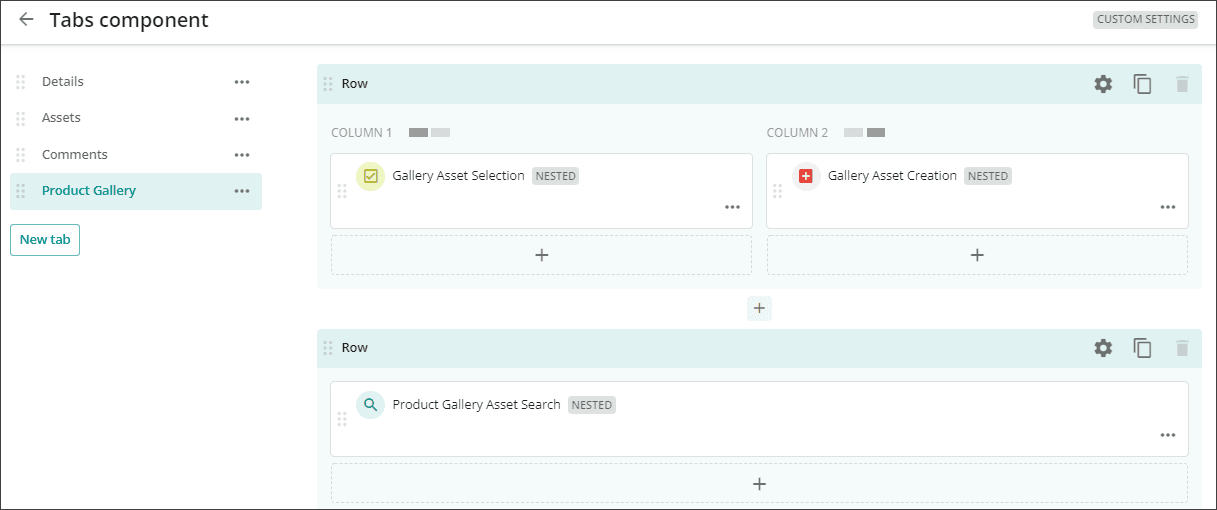
To add the Product Gallery tab to the product details page:
-
On the menu bar, click Manage
 .
. -
On the Manage page, click Pages and, in the search box, type Product details and press Enter.
-
In the left pane, click Product details.
-
On the Product details page, in the MAIN ZONE, click the Tabs component.
-
On the Tabs component page, in the left pane, click New tab.
-
In the New tab dialog, in the Name field, type Product Gallery.
-
Click the Visible switch to make it active if it is not already, and click Create.
-
With the Product Gallery tab selected, click Row
 to add a new row.
 -
In the top row, click Row settings
and, in the Row settings dialog, click the Columns tab, select the two column option, specify the settings shown in the following image, and then click Update.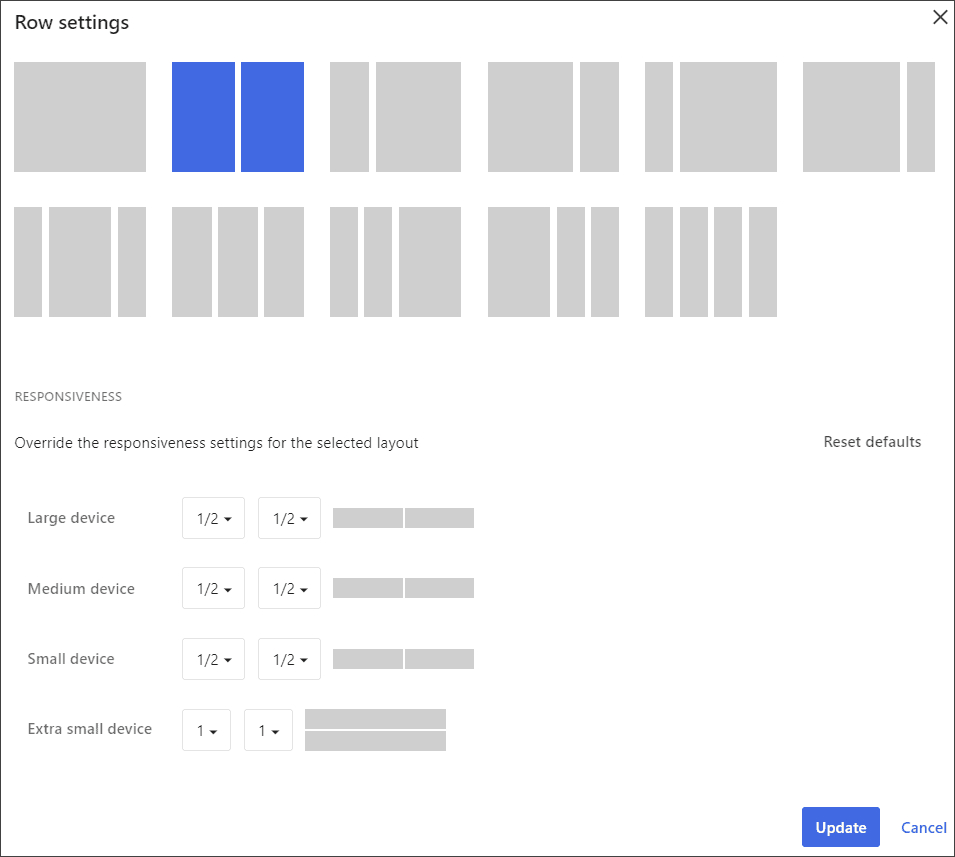
To create the Product Gallery Asset Search component:
-
On the Tabs component page, under COLUMN 2, click Add component
, and, in the Add component dialog box, select the Search component. -
In the Component settings dialog box, in the Title field, type Product Gallery Asset Search, click the Visible switch to make it active, and click Save.
-
Click the Search component you just created.
-
In the Filters section, on the System tab, click
Add filter and do the following:-
Select the Definition filter type.
-
From the Definition list, select Asset (M.Asset).
-
-
Click
Add filter again and do the following::-
Select the Relation filter type.
-
From the Definition list, select Status (M.Final.LifeCycle.Status).
-
From the Field list, select Assets (FinalLifeCycleStatusToAsset).
-
For the Operator list, select Equals.
-
-
Click
Status and, in the Status dialog box, select Approved and click Save. -
Click Save. With this defined search component, the search page displays only approved assets from the standard repository.
To add a fixed filter to the Product Gallery Asset Search component:
-
On the Search component page, in the Filters Section, click the Fixed tab.
-
Click
Fixed filter and do the following:-
From the Input type list, select Page entity.
-
From the Filter type list, select Relation.
-
From the Filter list, select Assets(ProductToGalleryAsset).
-
Choose the Parent option.
-
-
Click Save.
-
In the left pane, click Functionality, and click the following switches to make them active (On):
-
Full-text search
-
Refresh button
-
Manual relation sort
-
-
In the left pane, in the Tools section, click the following switches to make them active (On):
-
Facets
-
Selection
-
-
Click Save.
To update facets for the Product Gallery Asset Search component:
-
In the left pane, in the Tools section, click Facets.
-
On the Standard tab, click
Add facet. -
Define in the following settings to add a product color facet:
-
Next to Facet type, select the Taxonomy item option.
-
From the Taxonomy item list, select Localization (M.Localization).
-
From the Label type list, choose Default.
-
From the Sorting list, choose Count.
-
From the Direction list, choose Descending.
-
Next to Position, select the Top horizontal option.
-
-
Click Save.
-
Repeat steps 2 to 4 to create three additional facets using the following taxonomy items:
-
Asset type (M.AssetType)
-
Asset media (M.AssetMedia)
-
Restricted (M.DRM.Restricted)
-
-
Click Save.
To update the selection and output:
-
In the left pane, in the Tools section, click Selection.
-
Next to Selection pool, choose the Page-specific pool option.
-
In the left pane, in the Views section, click the List switch to make it active.
-
In the Image and icon tab, from the Image list, select Thumbnail (if available).
-
From the Icon and color list, select From taxonomy relation.
-
From the Relation list, select Asset media (AssetMediaToAsset).
-
On the Fields tab, click
Add field and define the following:-
Next to Type, select the Property option.
-
From the Field list, select Title(Title).
-
Accept the remaining default settings.
-
-
Click Save.
To add indicators to the Product Gallery Asset Search component:
-
On the Indicators tab, click Add Indicator.
-
From the list, select Duplicates exist and Public links exist, then click Save.
-
In the left pane, in the Views section, click the Inline preview switch to make it active.
-
In the Image and icon tab:
-
From the Image list, select Thumbnail (if available).
-
From the Icon and color list, select From taxonomy relation.
-
From the Relation list, select Asset media (AssetMediaToAsset).
-
-
On the Fields tab, click
Add field and choose From details component ‘AssetsEntityDetails. -
On the Operations tab, click Add operation and select View detail page.
-
In the View detail page section, in the Link field, click
, and select Asset detail for Link, accept the default values, and click Save. -
Repeat step 6 to add the following operations:
-
Download
-
Set as cover image
-
Archive
-
Delete
-
-
On the Indicators tab, click Add indicator and select Duplicates exist, leave the default values in the pop-up window and click Save.
-
Repeat step 9 to add Draft, Public links exist, Locked, and Processing indicators.
-
Click Save and close.
To add the Gallery Asset Selection component:
-
On the Tabs component page, with the Product Gallery tab selected, in COLUMN 1 beneath the Product Gallery Asset Search component, click Add component Add
. -
In the Add component dialog box, choose the Selection component and, in the Add component dialog box, define the following:
-
In the Title field, type Gallery Asset Selection.
-
Click the Visible switch to make it active.
-
Click Add.
-
-
On the Tabs component page, click the newly created Selection component.
-
On the Selection component page, on the General settings tab, from the Linked search component list, select ProductGalleryAssetSearch.
-
Click the Show select all switch to make it active (On).
-
From the Operations display format list, select Icon + Label.
-
From the Alignment list, select Left.
-
Next to Selection pool, select the Page-specific pool option.
-
On the Operations tab, click Add definition button and select M.Asset.
-
Click Add Operation and select the Delete option.
-
In the dialog box, from the Relations list, select Product Gallery (ProductGalleryToAsset) and click Save.
-
Repeat steps 9 to 11 to add a Create public links operation and a Refresh renditions operation.
-
Click Save and close.
To add the Gallery Asset Creation component:
-
On the Tabs component page, with the Product Gallery tab selected, in COLUMN 2, click Add component Add
. -
In the Add component dialog, select the Creation component and do the following:
-
In the Title field, type Gallery Asset Creation.
-
Click the Visible switch to make it active.
-
Click Add.
-
-
On the Tabs component page, click the newly created Creation component.
-
In the left pane, select General and, on the General page, click the Refresh page entity switch to make it active (On).
-
In the Linked search component section, select the Product Gallery Asset Search check box.
-
In the left pane, click the Linked items switch to make it active.
-
With Linked items selected, in the Linked items section, from the Label type list, select Custom.
-
Next to the Label field, click + Add translation.
-
In the Add translation dialog, click Choose existing and select T_system..AddToGallery.
-
For the search component, select Add approved assets for Product Gallery search.
-
Click Add definition and select Gallery Assets (ProductToGalleryAsset).
-
Click Save and close.
After you add the Product Gallery tab, you create the Product Gallery URL mapping asset Search component.