Create and use annotations
You can use annotations to comment on images and documents when reviewing content. This is useful when you want to provide feedback or collaborate with other reviewers.
You can also add annotations to video or audio files.
Create an annotation
To create an annotation:
-
On the menu bar, click Assets.
-
On the Assets page, click the asset you want to annotate.
-
On the asset details page, in the upper-right corner of the application window, click Annotate
 . The Annotations page opens. This page consists of a central pane, where you see the asset and the toolbar, and a side pane that displays comments.Tip
To mention a Content Hub user in an annotation, enter @ followed by the username. When you mention a user and their email notifications are enabled, they receive an email with your comment, a link to the asset, and links to projects that are related to the asset.
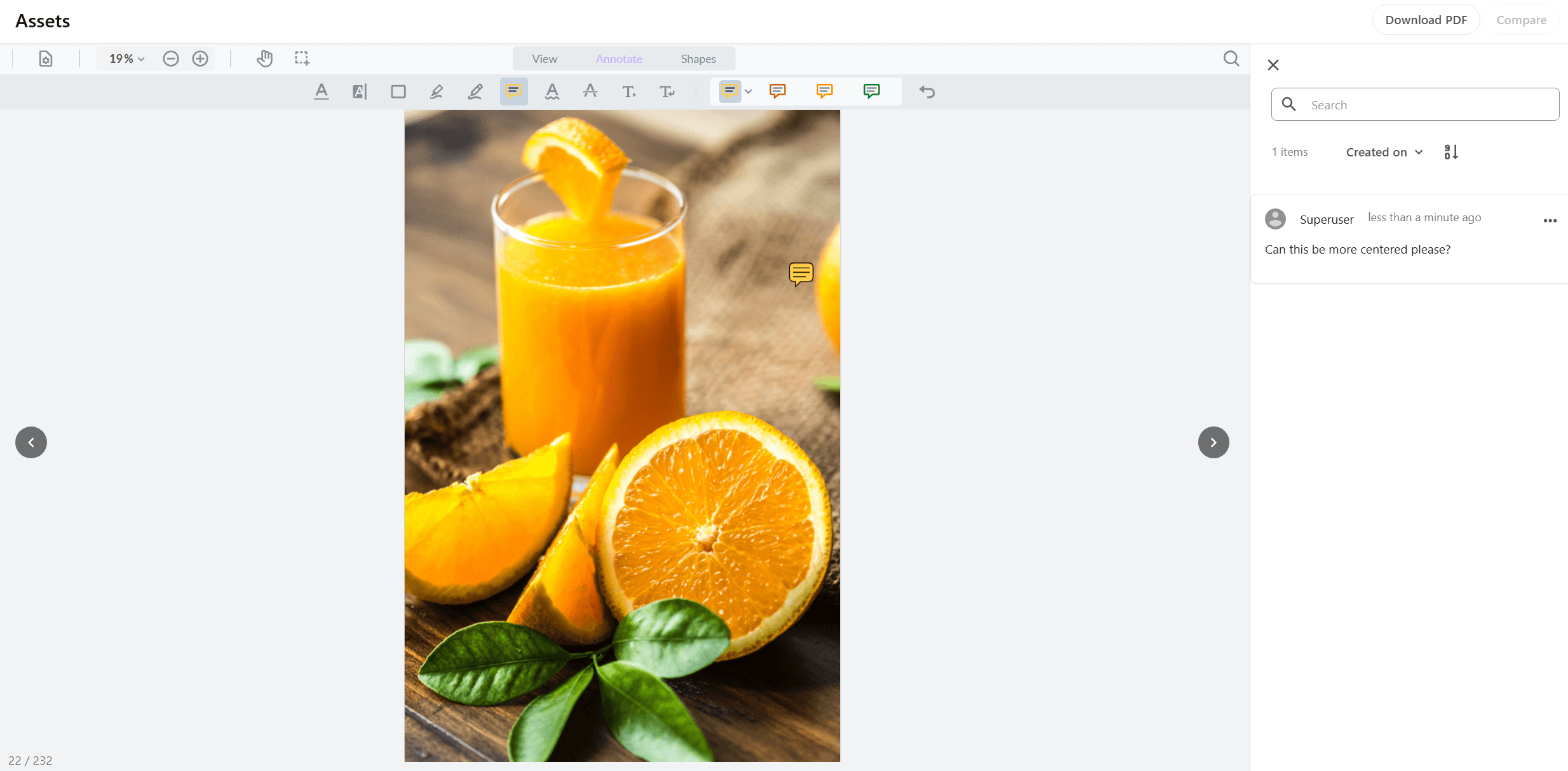
When the Annotate operation is added to a Search component, you can click Annotate directly from the Assets page. If state flows and their relevant transition operations are enabled on the Annotations page, you can also change an asset's state from there.
Reply to an annotation
To reply to an annotation:
-
On the Annotations page, click Reply
 next to the comment you want to respond to.
 -
In the Reply dialog, enter your response and click Save.
Edit an annotation
To edit an annotation:
-
On the Annotations page, in the comments pane, click More actions
 next to the annotation you want to edit and then click Edit
  .
. -
In the Edit dialog, make your changes and click Save.
Delete an annotation
To delete an annotation:
-
On the Annotations page, in the comments pane, click More actions
next to the annotation you want to delete and then click Delete  .
. -
In the Delete annotation dialog, click OK to confirm the deletion.
Search for an annotation
To search for an annotation:
-
On the Annotations page, in the comments pane, enter your search in the search box.
-
Press Enter. The annotations containing your search are highlighted.
You can also use the sorting options to sort annotation comments by order and date created.
Select an annotation
To select an annotation:
-
On the Annotations page, in the comments pane, click the annotation you want to select. The selected annotation is highlighted in the central pane.
-
Optionally, in the central pane, click Style
 to change the color and opacity of the annotation icon.
You can also delete the annotation from the central pane by clicking Delete .
Resolve an annotation
To resolve an annotation:
-
On the Annotations page, in the comments pane, click More actions
next to the annotation you want to resolve and then click Resolve  .
. -
Optionally, to reopen a previously resolved annotation, select the Show resolved check box in the upper right-hand corner of the comments pane, click More actions
next to the relevant annotation, and then click Unresolve  .
.