Trigger extract archive
Compressed files, such as assets of the type Archive contain multiple files. This can be a collection of related images, or a group of images that make up a 3D image. To extract and display the list of files contained in a compressed file, on the asset details page, you need to set the asset type to Archive.
To extract the files in a compressed file, the Triggers extract archives switch must be turned on for the asset type as it is, for example, for the Archive asset type. To verify this, on the Manage page, click Taxonomy and then search for and select M.AssetType. Next to Archive, click Show detail  to display the asset type properties.
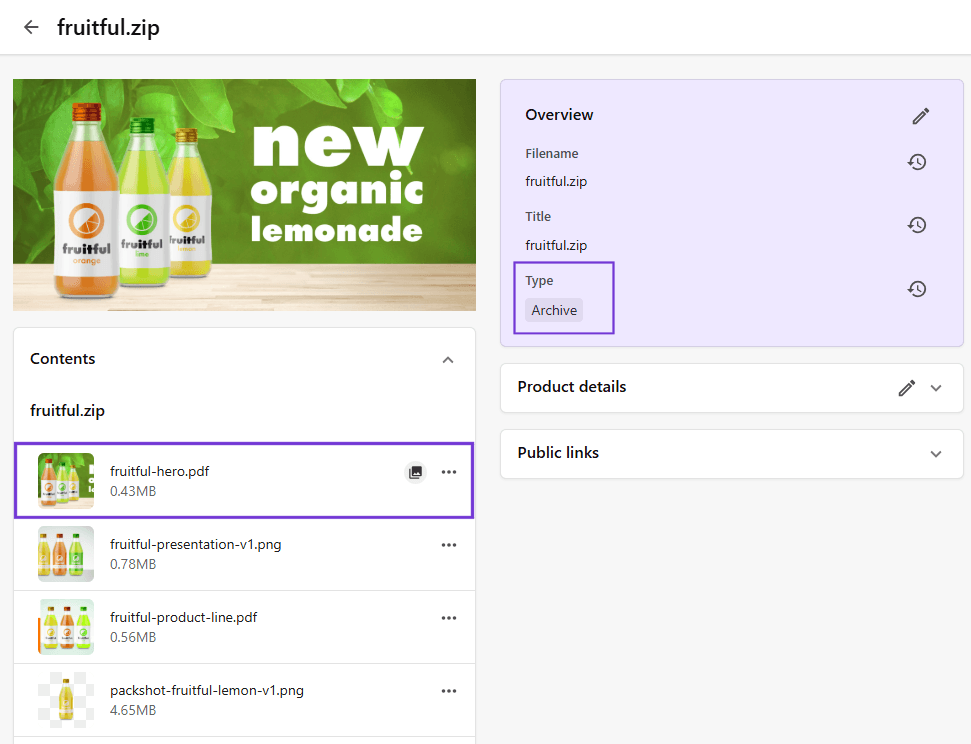
To provide a meaningful visual representation of a compressed file, you can specify a cover image, which makes it easier to browse and find files. In the following example, the file type is set to Archive and the fruitful-hero.pdf is set as the cover image. For 3D images, you can show a preview with a 360 asset spin.
-
For assets with a type of Archive, make sure that the Trigger vision switch is turned off in the asset type properties.
-
The
CompositeAssetsFlowTemplatesetting lists supported file types. Verify it to ensure the files in the Archive asset are valid.
To trigger extract archive:
-
On the menu bar, click Assets.
-
On the Assets page, click the asset you want to edit.
-
On the asset details page, in the Overview pane, click Edit
 .
. -
In the Type field, click Add
 and, in the Type dialog, select one of the following options:
-
Archive - a compressed file containing multiple files. You can specify a cover image for this type of asset.
-
Archive > 360° image spin - a compressed file containing a combination of images at small rotational increments. You can create a 360 asset preview for this type of asset.
You can also set the asset type when you create it.
-
-
To specify a cover image for an archive, in the Contents pane, next to the asset thumbnail you want to use to identify the compressed file, click
 Set as cover image.
The cover thumbnail image is identified with the Cover image
 icon and is used as the preview on the Assets page.
 -
Click Save.
You can also extract files from the Create and Review pages.