Component personalization
In SitecoreAI, component personalization lets you show different variants of an individual page component to different visitors.
Use component personalization when you want to tailor a specific component, such as a banner, message, promotion, call to action, or content block, without changing the rest of the page. For example, you can show one banner to visitors from the United States and a different banner to visitors from Canada.
Component personalization is different from page personalization. Page personalization changes an entire page experience. Component personalization changes only the components that you personalize.
What you can do with component personalization
With component personalization, you can:
-
Show targeted content to specific audiences.
-
Personalize multiple components on the same page.
-
Create multiple personalization rules, each with a corresponding component variant.
-
Build advanced targeting using profile data, conditions, and custom values.
-
Preview and test personalized components before publishing.
When to use component personalization
Use component personalization when you want to make targeted changes to part of a page.
Common use cases include:
-
Dynamic messaging - personalize content based on visitor context, such as sign-in status or return visits.
-
Audience targeting - show different component variants to specific visitor groups, such as prospects, existing customers, or visitors in different regions.
-
Campaigns and announcements - display relevant updates, campaigns, or informational content based on visitor behavior.
-
Regional content - show location-specific banners, offers, or calls to action.
-
Targeted calls to action - show different CTAs based on the visitor segment or context.
How component personalization works
Component personalization uses a decision table to determine which component variant a visitor sees.
In the decision table, you define inputs, such as visitor profile data, conditions, or custom values. You then create personalization rules based on those inputs.
Each rule is associated with an output or the component variant that appears when the rule matches. You configure these variants in Page builder.
When component personalization is live, SitecoreAI evaluates visitors against the rules in the decision table. The first matching component variant is displayed. If no rules match, the original component is shown.
Rule order matters. If a visitor matches more than one rule, SitecoreAI displays the variant for the first matching rule.
Analytics data becomes available as visitors begin seeing your live personalization.
Example: Personalizing a banner by visitor's country
Imagine you want to show different banner content based on a visitor’s country.
In the banner's decision table, you use the Country as the input. Then you create rules for the countries you want to target and map each rule to a banner variant.
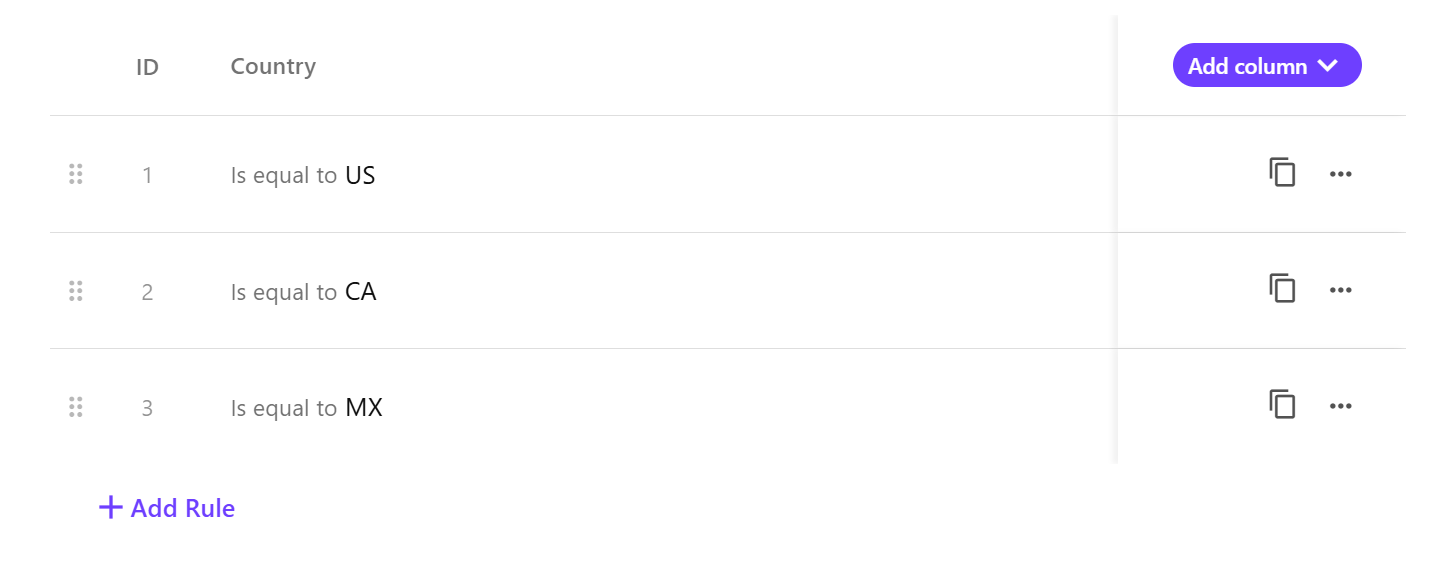
Each rule is mapped to a specific banner variant in Page builder. As a result, when the personalization is live, visitors are evaluated against these rules and shown the corresponding banner variant.
-
Visitors from the US see the US banner.

-
Visitors from Canada see the Canada banner.

-
Visitors from Mexico see the Mexico banner.

-
Visitors who do not match any rule see the original banner.
This setup lets you personalize one banner while keeping the rest of the page unchanged.
Related tasks
To set up and manage component personalization, use the following task guides: