View analytics for a personalized component
You can use component personalization analytics to see how often each personalization rule matched visitors over time. Analytics data becomes available after visitors begin seeing your live personalization.
You can access analytics from the component's personalization dialog or directly from the Page builder,
View analytics from the personalization dialog
To view analytics from the personalization dialog:
-
In the Page builder Editor mode, open the page containing the personalized component you want to view analytics for.
NoteAny page with component personalization is indicated by the
 icon next to it in the Site tree.
 -
Select the personalized component, then in the right pane, click Edit personalization rules
 .
. -
In the personalization dialog, select the Analyze tab.
-
Review the analytics for the selected personalized component.
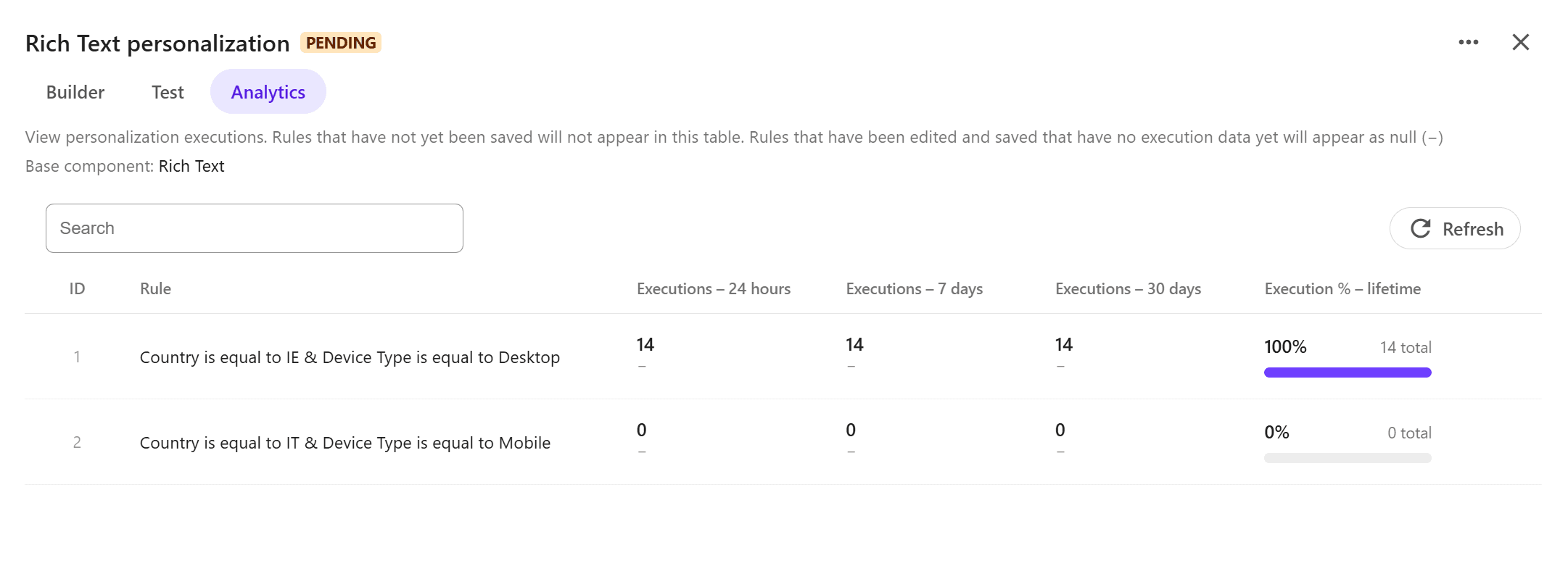
The following columns are available for each personalization rule:
-
Executions - 24 hours / 7 days / 30 days - the number of times the rule matched visitors during each time period.
-
Execution % - lifetime - provides the following information:
-
The percentage of all component personalization executions in which the rule matched.
-
The total number of times the rule matched visitors.
-
-
View analytics from the Page builder
To view analytics from the Page builder:
-
In the Page builder Editor mode, open the page containing the personalized component you want to view analytics for.
NoteAny page with component personalization is indicated by the
icon next to it in the Site tree. -
Select the personalized component, then in the right pane, click
 View analytics.
 -
In the analytics pane, review the analytics for the selected personalized component. Use:
-
the Sort dropdown to order personalization rules by most or least shown.
-
the Time dropdown to select the reporting period: 1 hour, 24 hours, 7 days or 30 days.
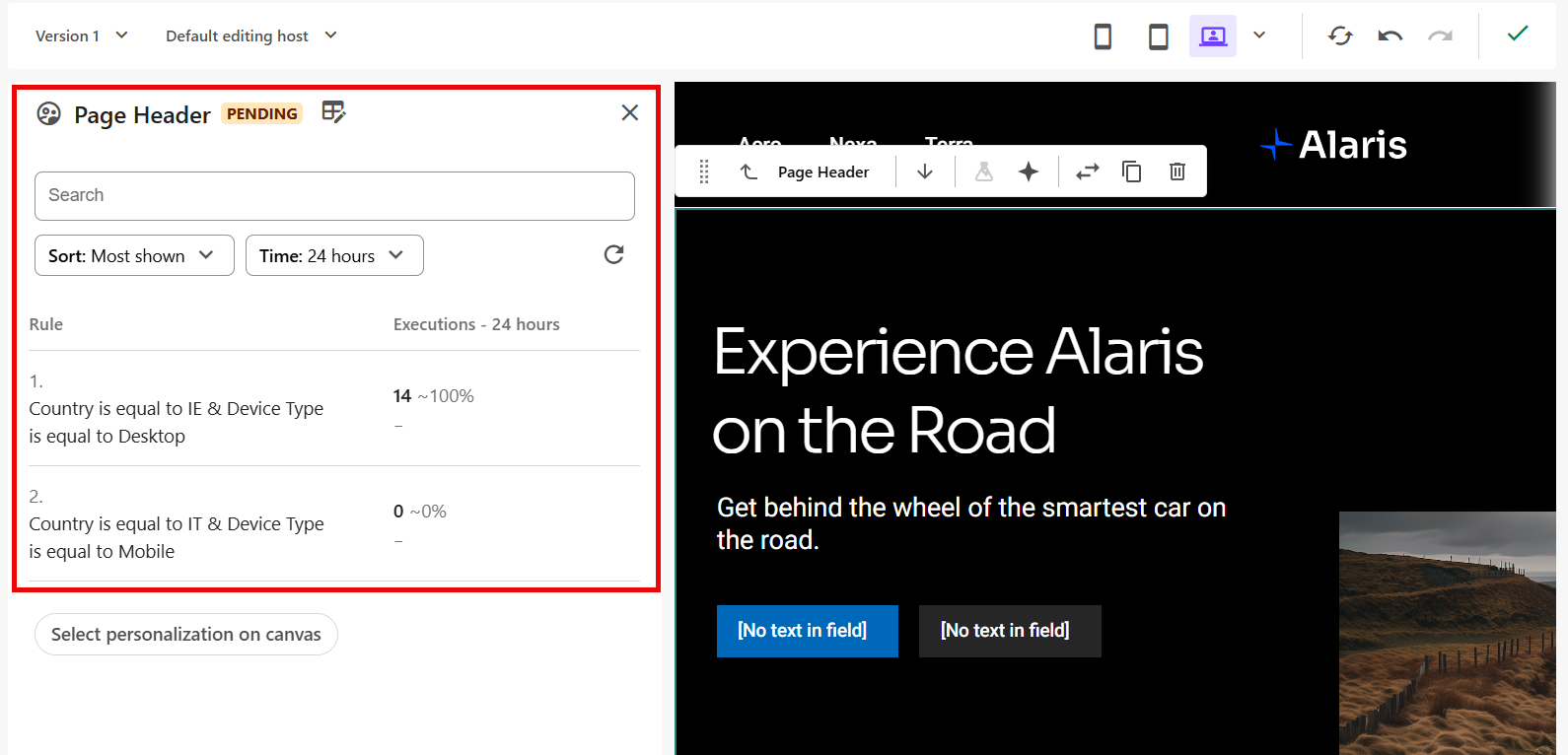
The Executions column shows the following information for each personalization rule:
-
The number of times the rule matched visitors during the selected time period.
-
The percentage of all component personalization executions in which the rule matched.
-