Add an image to a page
This topic explains how to configure components previously built with Content Editor. To learn about components built with Components instead, visit the Components documentation.
In the page builder, you can use an Image component or field to add an image in a webpage. Then you can add an image to the field by selecting an image from the Media Library or from SitecoreAI DAM Media page.
Add an image from the Media Library
To add an Image from the Media Library to a component on a page:
-
In the page builder Editor mode, in the left-hand pane, on the Sitemap tab, click the page you want to add a component to.
-
On the Components tab, click on an Image component and drag it onto the canvas of the page.
-
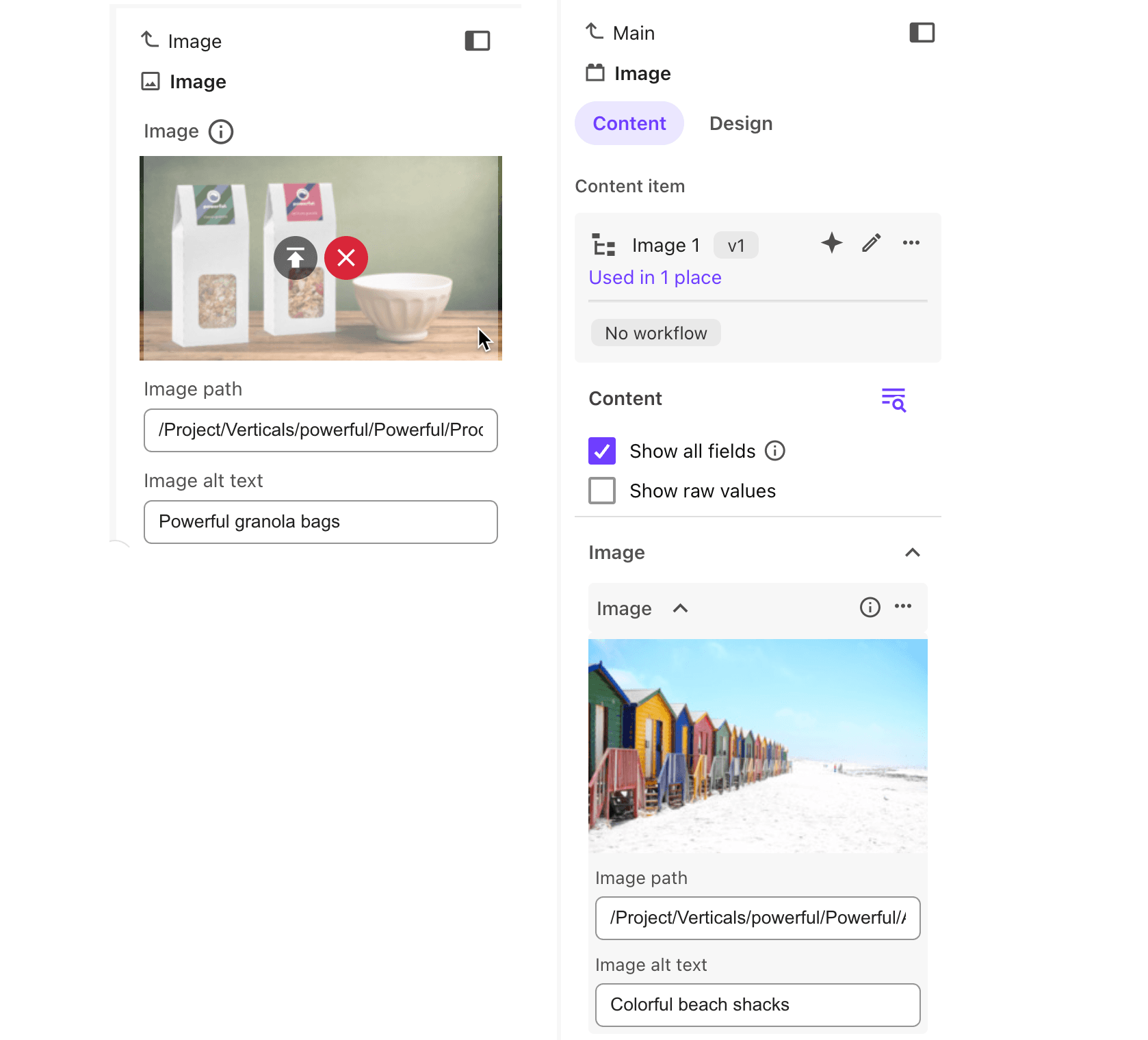
Click on the Image element in the page. In the right-hand pane, if you know the Media Library path to the image you want to add, you can enter it in the Image path field. Alternatively, click Add if the image field is empty, or Change if the field has content you want to replace.
-
In the Add media dialog, choose click Media Library.
-
Navigate to the image or search for it by name. You can type text in the Search field, the dialog displays all images that have the search string as a part of their name and that are in the current folder or one of its subfolders.
-
Optionally, you can upload a new media file in the Media Library: click Upload media
 and select a file with one of the following extensions: jpeg, jpg, gif, png, svg, webp, or bmp. You can see the new file in your library after it is indexed.
 -
Select the image you want and click Add selected in the Medial library.
-
To further configure the image, select the Image parent element. In the right-hand pane, click Content, then edit the image configuration options:
-
To add a caption to the image, use the ImageCaption field.
-
To add an alt text to the image, use the Image alt text field.
-
To use the image as a link, use the TargetUrl fields.
-
Add an image from the SitecoreAI DAM Media
To add an Image from Media to a component on a page:
-
In the page builder Editor mode, in the left-hand pane, on the Site tree tab, click the page you want to add a component to.
-
On the Components tab, click on an Image component and drag it onto the canvas of the page.
-
Click on the Image element in the page. In the right-hand pane, click Add if the image field is empty, or Change if the field has content you want to replace.
-
In the Add media dialog, click Media.
-
Navigate to the image or search for it by name. You can also use the filters available out of the box to only display a selection of the images available in Media.
-
Optionally, you can upload a new media file to Media: click Upload
and select a file. All file formats are supported with the exception of: .exe, .bat, .com, .cmd, .msi, .pdb, .vb, .vbs, .ws, .wsf, .scr, .pif, .jar, .reg. -
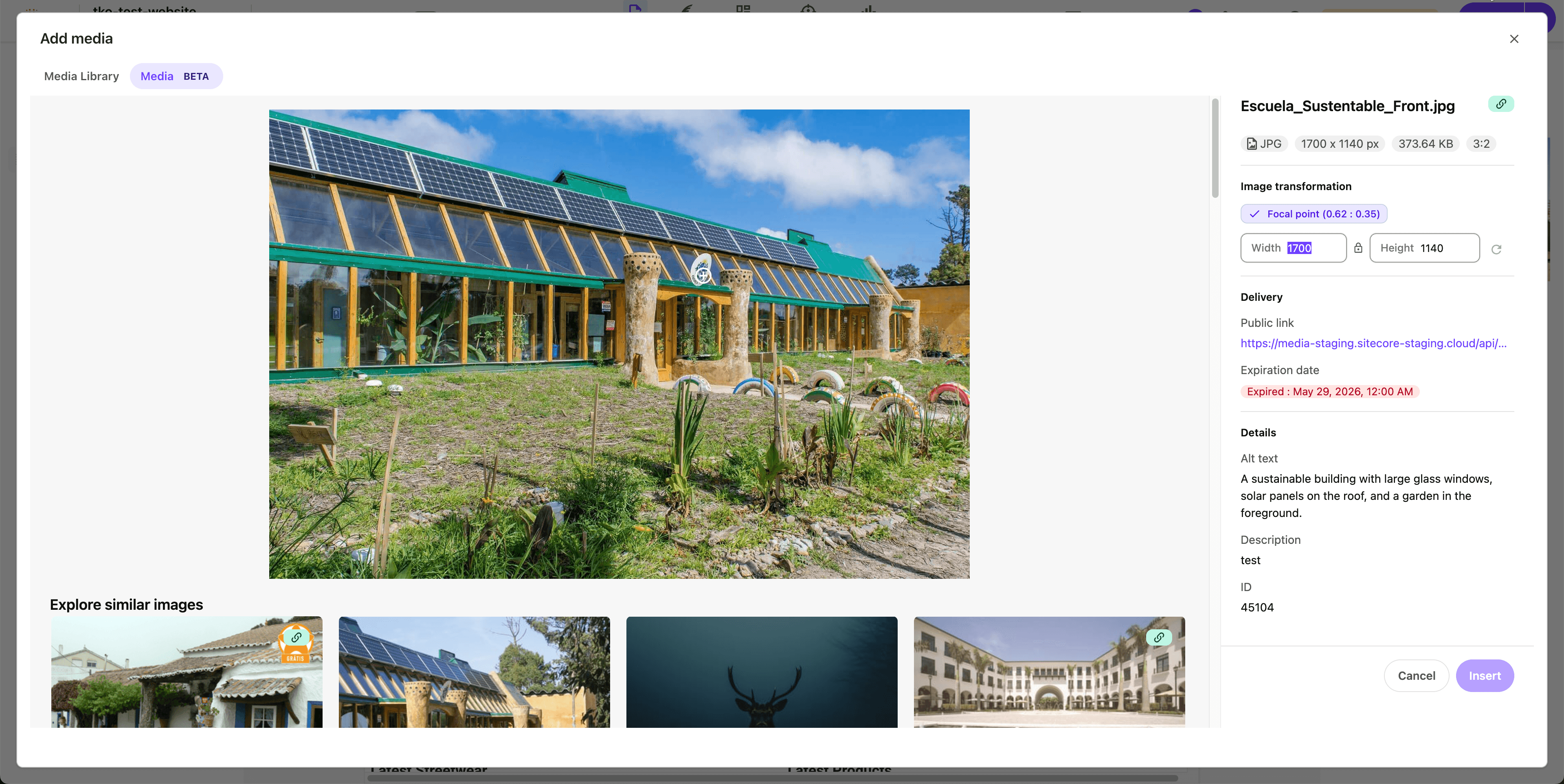
When using Media, you can crop or update the focal point of the image.
-
To crop, click the lock icon between height and width, then update the Width and Height values.
-
To update the focal point, hover the cursor over the location for the focal point and click.
-
-
Select the image you want and click Insert.
 Note
NoteIf the Insert button is disabled for the image of your choice, you must first add a public link to the image, or update the public link availability date of the image before you can use it.
-
To further configure the image, select the Image parent element. In the right-hand pane, click Content, then edit the image configuration options:
-
To add a caption to the image, use the ImageCaption field.
-
To add an alt text to the image, use the Image alt text field.
-
To use the image as a link, use the TargetUrl fields.
-