1. Search experiences

Ideas for search experiences

Version:

This topic describes examples of search experiences you can build using the Cloud SDK search package.

Note

This is not a comprehensive list of what you can build, and your implementation might differ depending on your application requirements and your website content that Sitecore Search indexed.

Search results page

Here's an example search results page built using the Cloud SDK:
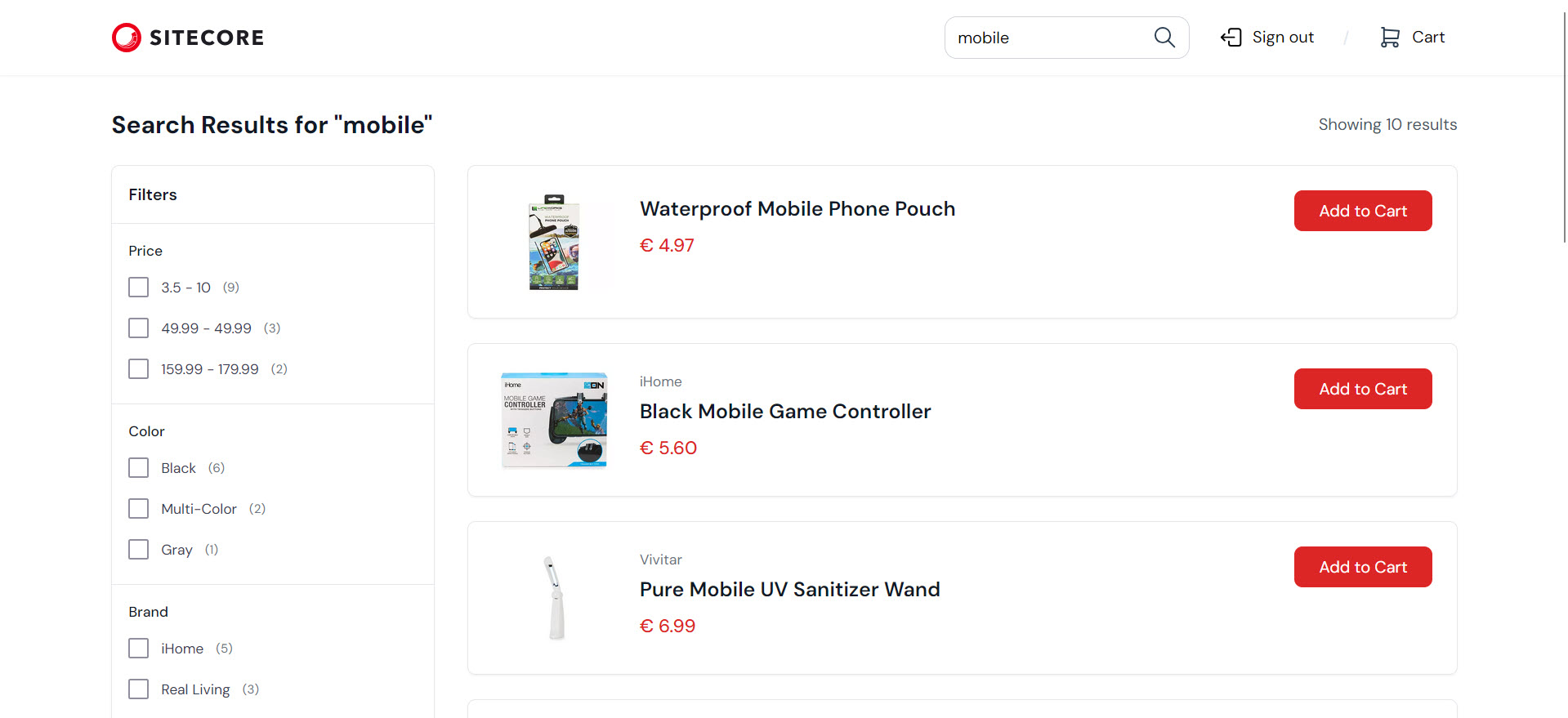
A search results page listing results for "mobile" and displaying faceted search for filtering results.

Configuring your request

When you build your own search results page, use SearchWidgetItem to configure your request and getWidgetData to make the request. You'll most often use the following to configure your request:

  • content - to select which attributes to return for each index document. Setting content to an empty object ensures that all attributes are returned.

  • limit - to limit the number of index documents to return. Used for pagination.

  • offset - to skip the first N number of potential index documents to return. Used for pagination.

  • facet - to create faceted search.

  • query.keyphrase - the text the site visitor enters in the search field to perform a search, such as "athletic sneakers". Capture this value using the tools of your web app's library or framework, for example, using React state and events.

  • sort - to apply sorting logic to the search results. For example, to enable site visitors to sort search results by their title.

  • filter - to exclude all index documents that don't match specific criteria, before they are returned to your app. For example, to exclude all index documents where the out_of_stock attribute is true.

  • context - to return personalized results using details such as the site visitor's locale, location, device, and web browser information.

  • sources - to return index documents only from the sources you choose. If you don't specify this attribute, index documents from all sources will be returned.

Example request

Note

To better understand the following code example, we recommend that you complete the Create a search results page walkthrough.

Here's an example script to request search content:

import { Context, getWidgetData, SearchWidgetItem, WidgetRequestData } from "@sitecore-cloudsdk/search/browser";

// Configure the request:
const widgetRequest = new SearchWidgetItem("product", "rfkid_7", {
  content: {},
  limit: 10,
  offset: 0,
  facet: {
    all: true
  },
  query: { keyphrase: "digital experience" },
  sort: { choices: true }
});

// Add context:
const context = new Context({
  locale: { language: "en", country: "us" }
});

// Call the `getWidgetData` function to request the data:
const response = await getWidgetData(new WidgetRequestData([widgetRequest]), context);

Example response

Here's an example response:

{
  "widgets": [
    {
      "rfk_id": "rfkid_7",
      "type": "content_grid",
      "used_in": "page",
      "entity": "content",
      "facet": [
        {
          "name": "product",
          "label": "Product",
          "value": [
            {
              "id": "facetid_eyJ0e...",
              "text": "[SitecoreAI]",
              "count": 30
            },
            { ... }
          ]
        },
        { ... }
      ],
      "content": [
        {
          "id": "https___www_sitecore_com_",
          "source_id": "1043833",
          "subtitle": "Sitecore offers an industry-leading digital experience platform...",
          "title": "The Only Complete, Composable, Cloud-Native Digital Experience Platform | Sitecore",
          "type": "Other",
          "url": "https://www.sitecore.com/"
        },
        { ... }
      ],
      "sort": {
        "choices": [
          {
            "name": "last_modified_asc",
            "label": "Last Modified Asc"
          },
          {
            "name": "last_modified_desc",
            "label": "Last Modified Desc"
          },
          {
            "name": "title_asc",
            "label": "Title ASC"
          },
          {
            "name": "title_desc",
            "label": "Title DESC"
          }
        ]
      },
      "total_item": 369,
      "limit": 48,
      "offset": 0,
      "errors": [ ... ]
    }
  ],
  "dt": 30,
  "ts": 1737107189724
}

In the response:

  • widgets.facet contains the requested facets.

  • widgets.content contains the index documents that match the request.

  • widgets.sort contains the sorting logic for sorting the index documents.

Recommendations

Recommendation widgets are suitable to display trending content, recently viewed content, or personalized recommendations.

Here's an example recommendation widget built using the Cloud SDK:
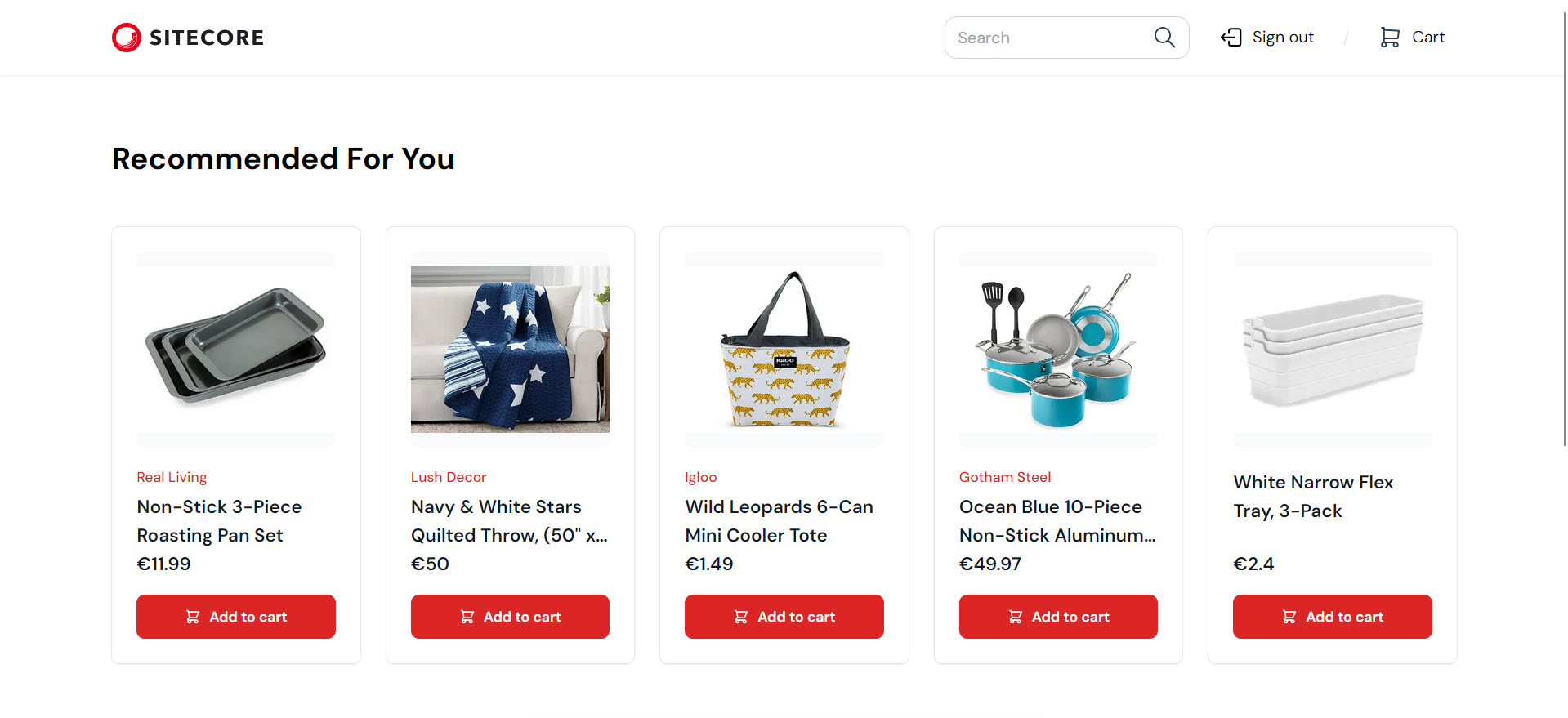
A webpage displaying product recommendations in the "Recommended For You" section.

Configuring your request

When you build this type of search experience, use RecommendationWidgetItem to configure your request and getWidgetData to make the request. You'll most often use the following to configure your request:

  • content - to select which attributes to return for each index document. Setting content to an empty object ensures that all attributes are returned.

  • limit - to limit the number of index documents to return. Used for pagination.

  • filter - to exclude all index documents that don't match specific criteria, before they are returned to your app. For example, to exclude all index documents where the out_of_stock attribute is true.

  • context - to return personalized results using details such as the site visitor's locale, location, device, and web browser information.

Example request

Here's an example script to request recommendation content:

import { Context, getWidgetData, RecommendationWidgetItem, WidgetRequestData } from "@sitecore-cloudsdk/search/browser";

// Configure the request:
const recWidget = new RecommendationWidgetItem("product", "rfkid_2", {
  content: {},
  limit: 10
});

// Add context:
const context = new Context({
  locale: { language: "en", country: "us" }
});

// Call the `getWidgetData` function to request the data:
const response = await getWidgetData(new WidgetRequestData([recWidget]), context);

Example response

Here's an example response:

{
  "widgets": [
    {
      "rfk_id": "rfkid_1",
      "type": "recommendation",
      "used_in": "page",
      "entity": "content",
      "content": [
        {
          "id": "https**_www_sitecore_com_explore_customers",
          "product": "[SitecoreAI]",
          "source_id": "1043833",
          "subtitle": "Discover how our customers use Sitecore to personalize their digital experience, drive revenue, and build brand loyalty.",
          "title": "Customer Case Studies for Digital Marketing Systems | Sitecore",
          "type": "Other",
          "url": "https://www.sitecore.com/explore/customers"
        },
        { ... }
      ],
      "total_item": 12,
      "limit": 12,
      "offset": 0,
      "errors": [ ... ]
    }
  ],
  "dt": 33,
  "ts": 1737108110524
}

In the response, widgets.content contains the index documents that match the request.

Search preview and suggestions

Here's an example search preview and suggestions widget. It lets you present site visitors with suggestions that update as they enter text in the search field:
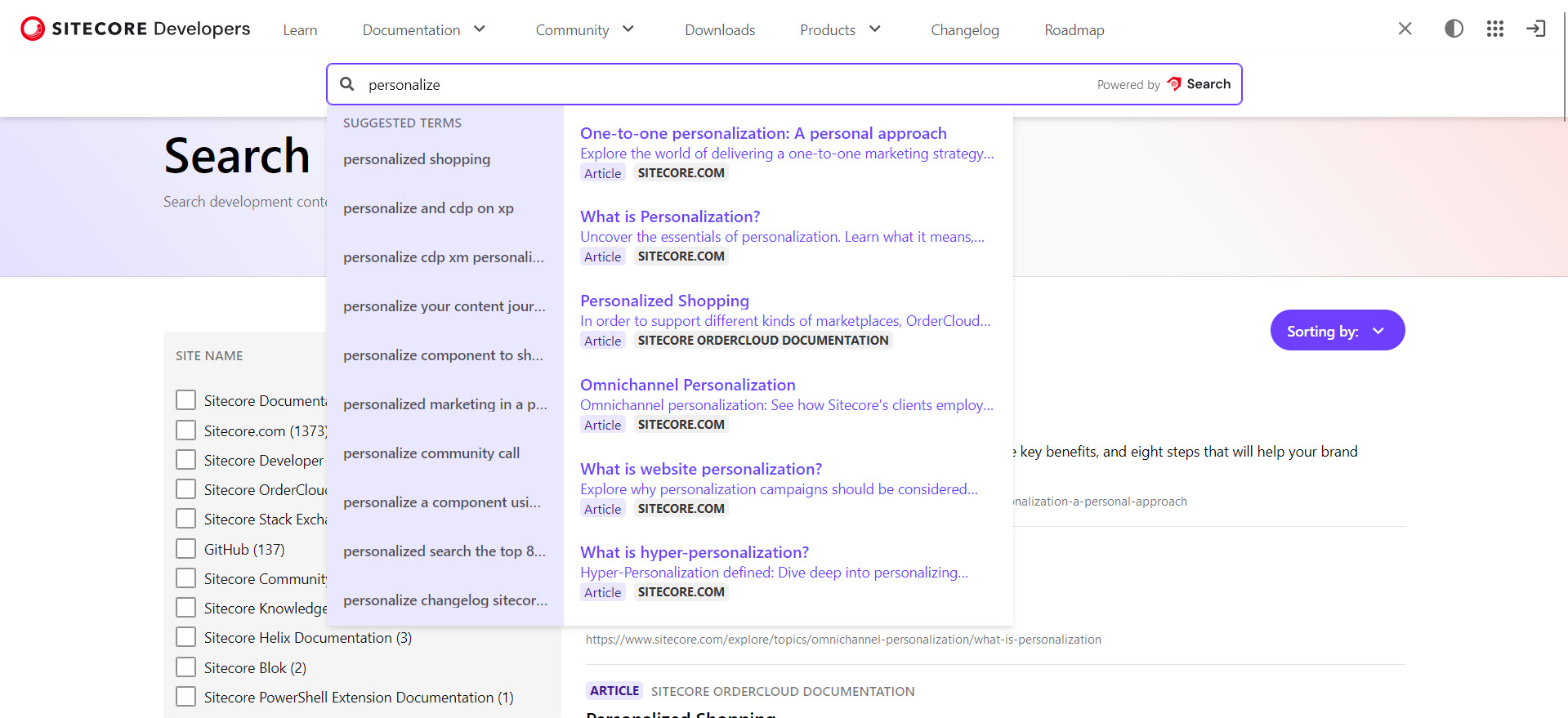
A list of search suggestions displaying as the site visitor enters text in a search field.

Configuring your request

When you build this type of search experience, use SearchWidgetItem to configure your request and getWidgetData to make the request. You'll most often use the following to configure your request:

  • content - to select which attributes to return for each index document. Setting content to an empty object ensures that all attributes are returned.

  • limit - to limit the number of index documents to return. Used for pagination.

  • query.keyphrase - the text the site visitor enters in the search field to perform a search, such as "athletic sneakers". Capture this value using the tools of your web app's library or framework, for example, using React state and events.

  • suggestion - to show suggested index documents to site visitors as they enter text in the search field.

  • context - to return personalized results using details such as the site visitor's locale, location, device, and web browser information.

Example request

Here's an example script to request search preview and suggestion content:

import { Context, getWidgetData, SearchWidgetItem, WidgetRequestData } from "@sitecore-cloudsdk/search/browser";

// Configure the request:
const searchWidget = new SearchWidgetItem("product", "rfkid_6", {
  content: {},
  limit: 6,
  query: { keyphrase: "athletic sneakers" },
  suggestion: [{ name: "context_aware", max: 5 }]
});

// Add context:
const context = new Context({
  locale: { language: "en", country: "us" }
});

const response = await getWidgetData(new WidgetRequestData([searchWidget]), context);

Example response

Here's an example response:

{
  "widgets": [
    {
      "rfk_id": "rfkid_6",
      "type": "preview_search",
      "used_in": "common_across_pages",
      "entity": "content",
      "suggestion": {
        "title_context_aware": [
          {
            "text": "sitecore connect",
            "freq": 12
          },
          { ... } , 
          {
            "text": "sitecore content hub",
            "freq": 2
          }
        ]
      },
      "content": [
        {
          "id": "https___www_sitecore_com_partners_marketplace",
          "source_id": "1043833",
          "subtitle": "Sitecore Marketplace: powerful, pre-built connectors and apps from Sitecore and our ecosystem partners extend Sitecore, and make integrating it with your business easy, fast, and flexible.",
          "title": "Sitecore Connector and App Marketplace - integrate and extend Sitecore | Sitecore",
          "type": "Product",
          "url": "https://www.sitecore.com/partners/marketplace"
        },
        { ... }
      ],
      "total_item": 187,
      "limit": 6,
      "offset": 0,
      "errors": [ ... ]
    }
  ],
  "dt": 12,
  "ts": 1737108610390
}

Questions and answers

If the Questions & Answers capability is configured in your instance of Sitecore Search and batch generation runs at least once, you can use the questions-answers widget that displays the site visitor's question, an AI-generated answer and, optionally, related questions. Here's an example widget:
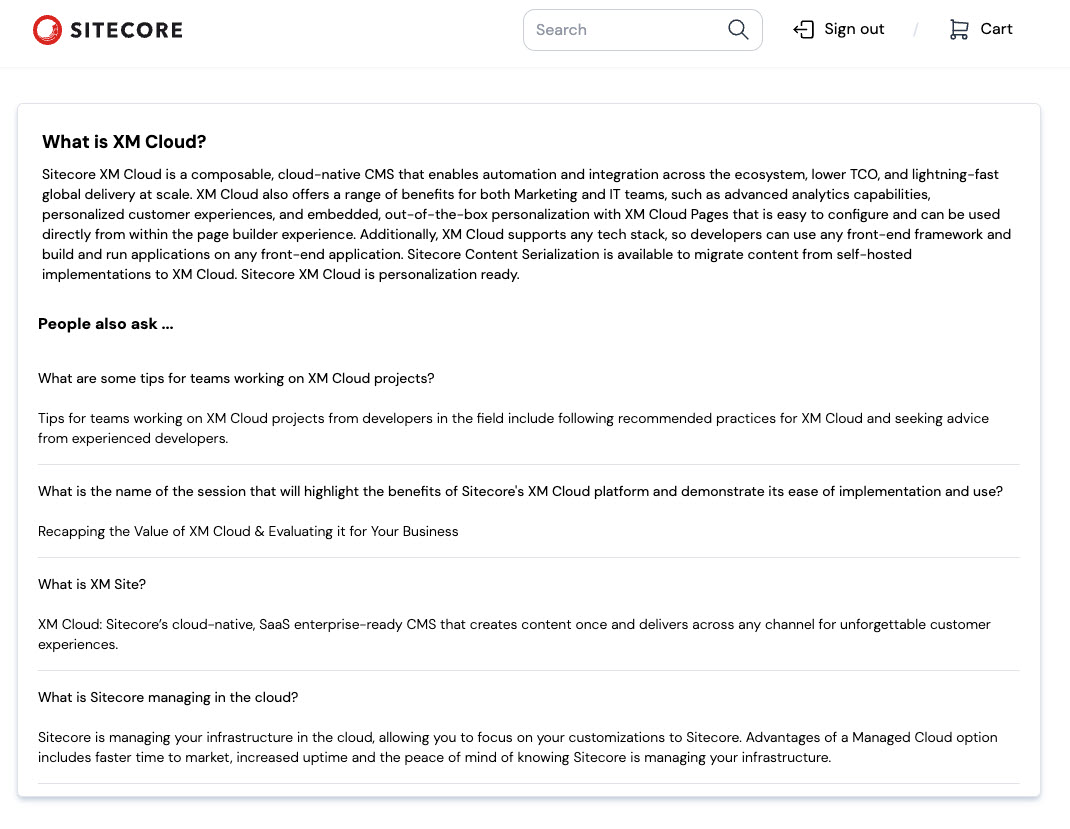
A questions-answers box displaying search results. The question, the answer, and related questions display.

Configuring your request

When you build such a search experience, use QuestionsAnswersWidgetItem to configure your request and getWidgetData to make the request. You'll most often use the following to configure your request:

  • keyphrase - the text the site visitor enters in the search field to perform a search, such as "what is sitecoreai". Capture this value using the tools of your web app's library or framework, for example, using React state and events.

    Note

    Sitecore Search returns exactAnswer and relatedQuestions only if the keyphrase qualifies as a question or statement. If instead the keyphrase qualifies as a keyword, the questions-answers widget returns empty.

    To ensure that the site visitor receives results regardless of the keyphrase type, we recommend that you request data for multiple widgets in a single request. For example, request data for both rfkid_7 and rfkid_qa. This way, if the keyphrase is a question or statement, the result is returned in rfkid_qa. If the keyphrase is a keyword, the result is returned in rfkid_7.

  • relatedQuestions - AI-generated question-and-answer pairs relevant to the site visitor's query.

Example request

Note

To better understand the following code example, we recommend that you complete the Create a questions-answers widget walkthrough.

Here's an example script to request questions and answers content:

import { Context, getWidgetData, QuestionsAnswersWidgetItem, WidgetRequestData } from "@sitecore-cloudsdk/search/browser";

// Configure the request:
const questionsAnswersWidget = new QuestionsAnswersWidgetItem("content", "rfkid_qa", {
  keyphrase: "what is Sitecore Search",
  exactAnswer: {},
  relatedQuestions: { limit: 5 }
});

// Add context:
const context = new Context({
  locale: { language: "en", country: "us" }
});

const response = await getWidgetData(new WidgetRequestData([questionsAnswersWidget]), context);
XM Cloud is now SitecoreAI

Some code examples, images, and UI labels may still use XM Cloud while engineering assets are being updated.

Example response

Here's an example response:

{
  "widgets": [
    {
      "rfk_id": "rfkid_qa",
      "type": "questions_answers",
      "used_in": "page",
      "entity": "content",
      "related_questions": [
        {
          "id": "3be0d52a8c3eba6564982e2dd0558ca8",
          "question": "What is Sitecore Search?",
          "answer": "Sitecore Search is an AI-powered, blazing-fast search that surfaces relevant content.",
          "type": "question"
        },
        {
          "id": "3c4415f3666d1e4f66d38f31b47cc53b",
          "question": "What can Sitecore focus on?",
          "answer": "Sitecore can focus on personalization, user testing and personas, and AI...",
          "type": "question"
        },
        { ... }
      ],
      "answer": {
        "id": "ac5f203c560e9be4fc4ca388dc228e3c",
        "question": "What is Sitecore?",
        "answer": "Sitecore is a corporation that offers a range of software solutions including Sitecore Experience Platform, Sitecore Experience Commerce, and Sitecore Content Hub...",
        "type": "question"
      },
      "total_item": 32,
      "limit": 4,
      "offset": 0,
      "errors": [ ... ]
    }
  ],
  "dt": 16,
  "ts": 1737108522065
}

In the response:

  • widgets.answer.question contains the site visitor's original question.

  • widgets.answer.answer contains the AI-generated answer.

  • widgets.related_questions contains questions related to the site visitor's original question.

Note

Q&A responses are generated from content across your entire index. A single answer may combine information from multiple documents and sources. Filtering Q&A responses by source or site is not currently supported.

If you have suggestions for improving this article, let us know!