The Questions and Answers capability
Questions and Answers (Q&A) is a Sitecore Stream capability that enables your site visitors to ask natural language questions and receive AI-generated answers sourced from your content collection and Sitecore Search domain.
This feature allows you to harness the power of AI to provide instant, on-demand customer support on your website, and engage customers by encouraging self-service.
Questions and answers can be:
- Automatically generated from your existing content catalog.
- Generated based on customer input, then indexed in your questions and answers collection.
- Added or edited manually by you.
Currently, this feature supports English language only.
Enable Questions and Answers
Question and answer items are generated using your existing content catalog. When you enable questions and answers, you create groups based on entities, sources, and attributes in your domain, and Search generates Q&A items based on those groups when you run your first batch generation.
To enable Questions and Answers:
-
On the menu bar, click Administration > Domain Settings > Feature Configuration and select Questions Answer Groups.
-
Click Create a Question & Answer Group.
-
Click the new group, then, in the Group Name field, add a unique name for this group.
-
Optionally, in the Description field, enter a description for this group.
-
Click the Sources field and select a source or sources from the drop-down list. Q&A items generated for this group will will be generated only from documents in the sources you select.
NoteIf no sources are selected, questions and answers will be generated using data from all sources.
-
Click the Entity drop-down list to select an entity.
-
Click Add Attribute to select up to five attributes that Search will use to generate questions and answers.
ImportantBefore generating questions and answers, ensure that textual relevance is enabled for each of these attributes.
-
Click Save.
-
On the Feature Configuration tab, click Publish.
After enabling Questions and Answers for at least one entity, you can further configure your chosen attributes and sources at any time. However, for your changes to take effect, you must click Publish on the Feature Configuration tab.
Generate questions and answers
After enabling Questions and Answers, you can trigger the generation of Q&A items in the Q&A Browser.
To generate questions and answers:
- In the Q&A Browser, click the Q&A Group drop-down list to select the required Q&A group.
- Click Run batch generation
 to open the batch generation pane.
 - Click Run Batch Generation.
After clicking Run Batch Generation, this pane will show the progress of the generation job. When there is no job actively running, the pane will show information related to the most recent generation job.
Access the Q&A Browser
After you have enabled Questions and Answers, the Q&A Browser tab provides access to various information and tools related to your questions and answers.
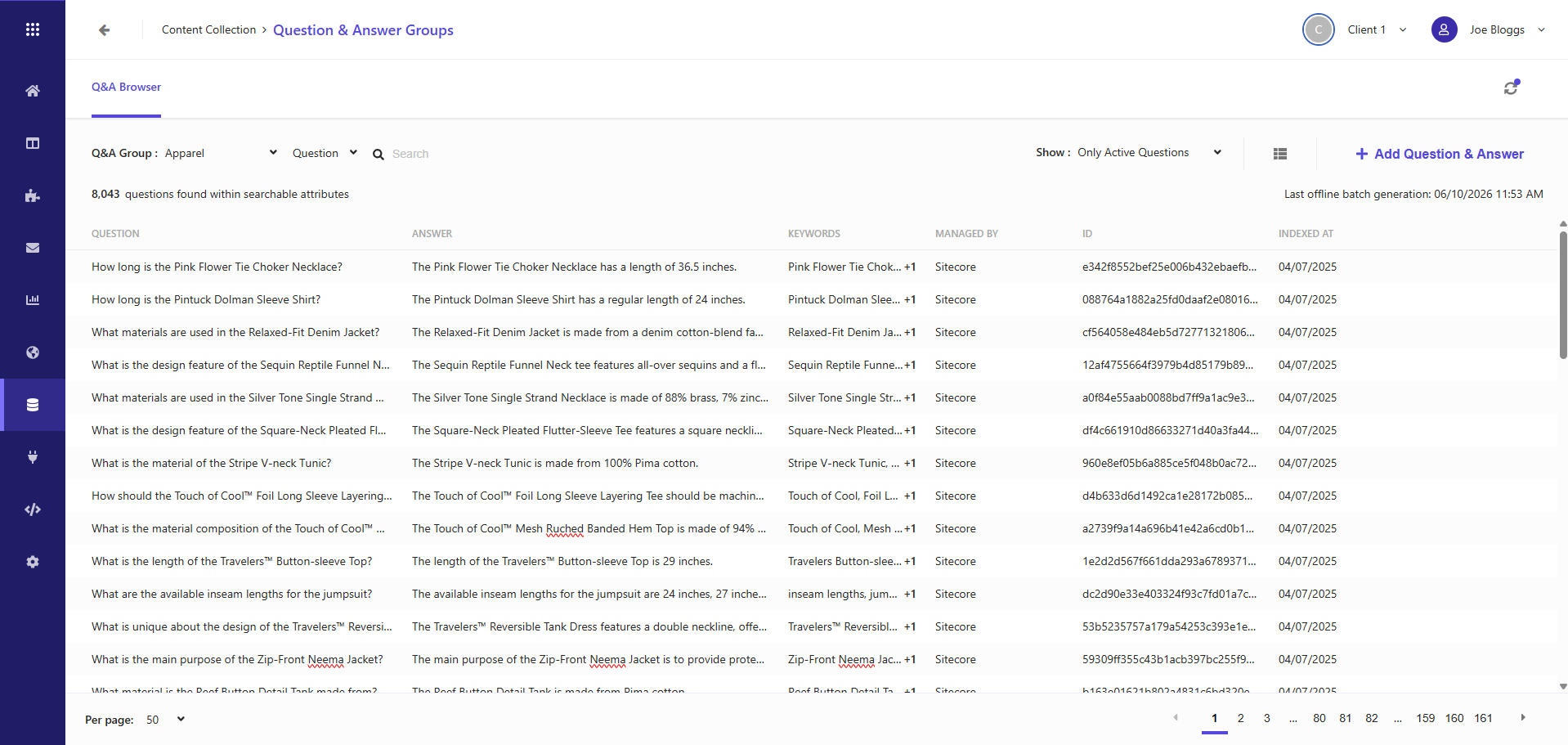
To access it, in the menu bar, click Content Collection > Questions and Answers. The tab displays a list of Q&A items, as well as the following information:
- KEYWORDS - AI-generated keywords related to the Q&A. They can be used to show other commonly searched keywords to your customers.
- MANAGED BY - the source of the Q&A, either Sitecore (generated by Stream) or Manually Updated.
- ID - the ID of the Q&A.
- INDEXED AT - the time the Q&A was indexed.
If a generated Q&A item has been edited or hidden, it will no longer show the Questions and Answers Generated From section on the edit page.
Create questions and answers manually
As well as those generated by AI, you can also manually create your own questions and answers to ensure that content displayed on your websites is comprehensive and relevant.
To create questions and answers manually:
-
In the Q&A Browser, click the Q&A Group drop-down list to select the required Q&A group.
-
Click Add Question and Answer.
-
On the edit page, fill in the following fields:
Field Description QUESTION Question text. ANSWER Answer text. KEYWORDS Any keywords associated with the Q&A. -
Click Save.
Edit questions and answers
You can edit AI generated questions, answers, and keywords at any time. This enables you to refine your customer’s experience, and deliver the results they expect.
To edit questions and answers:
- In the Q&A Browser, hover the mouse over a Q&A item and click Edit
 on the right-hand side of the page.
 - On the edit page, make changes to the corresponding QUESTION, ANSWER, or KEYWORDS in their respective fields and click Save.
Keywords in user input are not processed for textual relevance or stemming when being matched against indexed keywords. They are suited to creating related keywords experiences.
Hide questions and answers
You can hide Q&A items to ensure they are not returned in search results. Q&A items cannot be deleted, but hiding one prevents the answer from being regenerated when prompted by a customer.
To hide questions and answers:
- In the Q&A Browser, hover the mouse over the item and click Hide
 on the right-hand side of the page.