Review or refine a brand kit section
Reviewing the brand kit sections helps you understand how they were filled.
Refining specific sections used by copilots, such as Brand Context, Tone of Voice, and Do's and Don'ts, can help improve responses, especially when these sections are passed to the copilots and contain information relevant to the user's prompt.
If the copilots' responses seem inaccurate, it’s usually more effective to review your brand documents, as they have the most impact on the AI's outputs.
To review or refine your brand kit:
- In the Stream navigation menu, click Brand kits.
- On the Brand Kits page, click the brand kit you want to modify.
- On the Sections tab, click the brand kit section you want to review or refine. Use the options described in the following sections.
Make a brand kit section non-AI-editable
By default, every subsection in a brand kit is AI editable, so its content updates whenever you republish your brand documents or repopulate the sections during content enrichment. If you've made manual edits you want to keep, you can lock any subsection to prevent AI from overwriting your changes.
To make a brand kit section non-AI editable:
-
In the lower-right corner of the subsection, click
 AI editable > Non AI editable.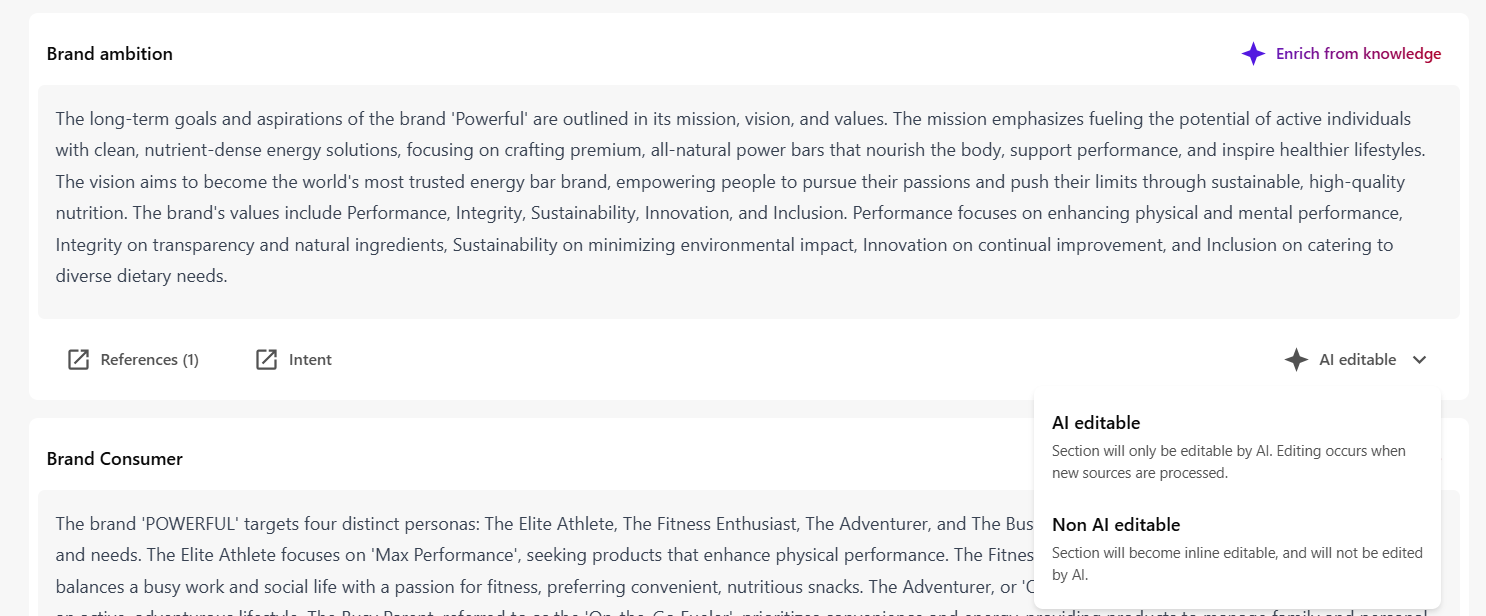
-
In the Switch to Non AI editable dialog, click Confirm.
The subsection is now locked and cannot be updated when you republish brand documents or enrich content. Its intent is also no longer editable.
Change the intent of a brand kit section
The content of each brand kit subsection is generated based on its intent (or prompt). You can edit the default intent to to control what information AI pulls from your brand knowledge when generating content for that subsection.
To change the intent of a brand kit section:
-
Click Intent
 to view or update the intent of a subsection.
 -
In the Intent dialog, update the intent as needed.
TipManually save a copy of the original intent if you want to restore it later.
-
To generate new content for the subsection using the updated intent, click Enrich.
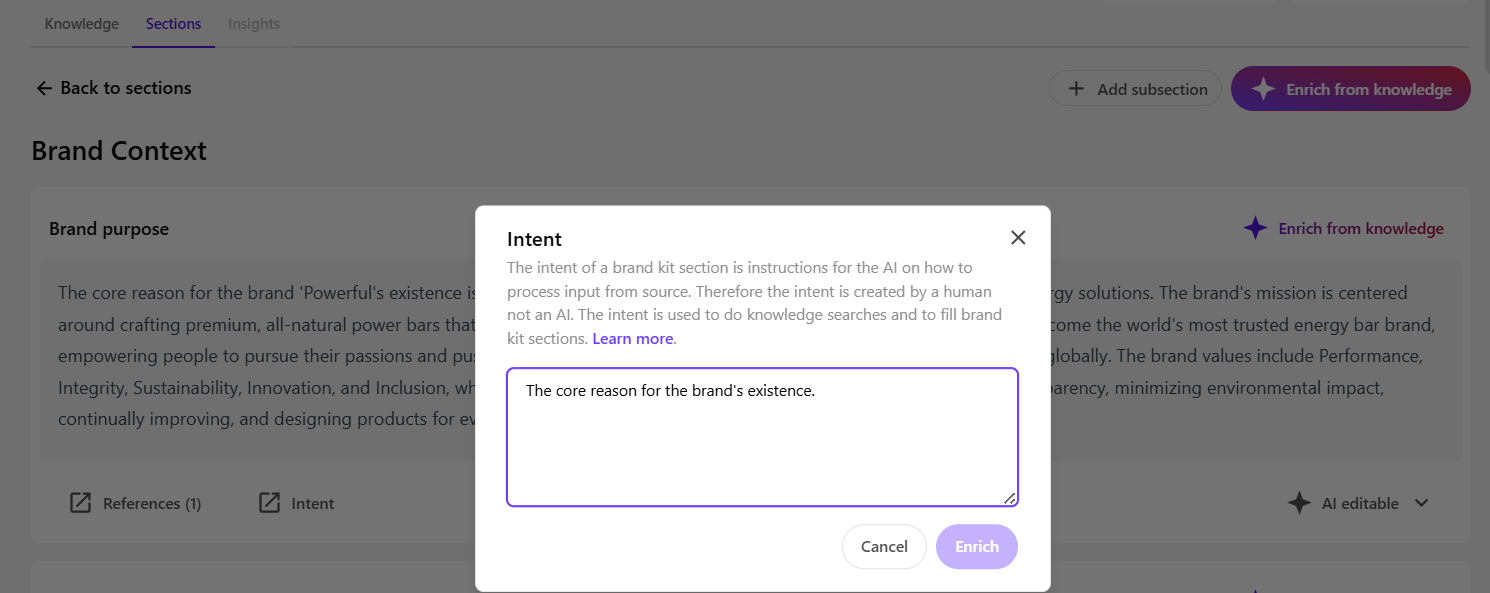
The AI uses your brand knowledge and revised intent to regenerate the content for the subsection.
This process usually takes less than a minute. When it's finished, the new content appears in your chosen brand kit subsection.
-
To prevent your changes from being overwritten during future document republishing or enrichment, mark the subsection Non AI editable.
Enrich content using brand knowledge
Use the Enrich from knowledge option to automatically generate or update content in your brand kit. You can select specific sections or subsections for the AI to populate using your brand knowledge and each section’s defined intent, which guides what kind of information is retrieved.
To use this feature, make sure to upload and publish your documents in the brand kit first. If no brand knowledge is available, enrichment won’t run.
To enrich content using brand knowledge:
-
Open the brand kit you want to update.
-
On the Sections tab, choose the scope you want to enrich:
Note-
If the subsection you want to enrich is marked as non AI editable, the content will not be modified.
-
If no brand knowledge is available, enrichment will not proceed. Make sure to upload and publish at least one document before enriching the brand kit.
-
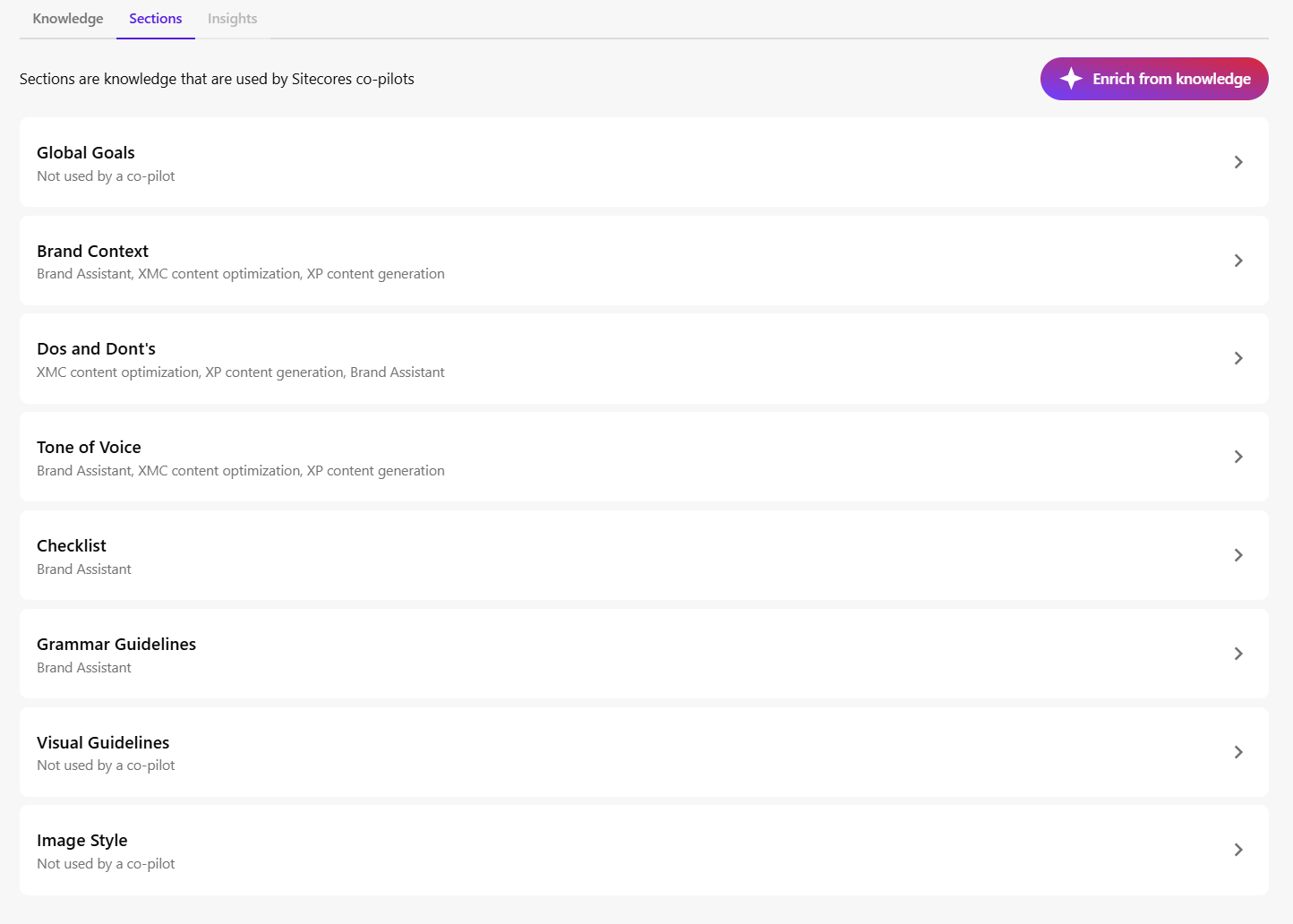
All sections and subsections - in the top-right corner of the Sections tab, click Enrich from knowledge. In the dialog that appears, click Enrich. All sections and subsections within your brand kit will be populated with content.
-
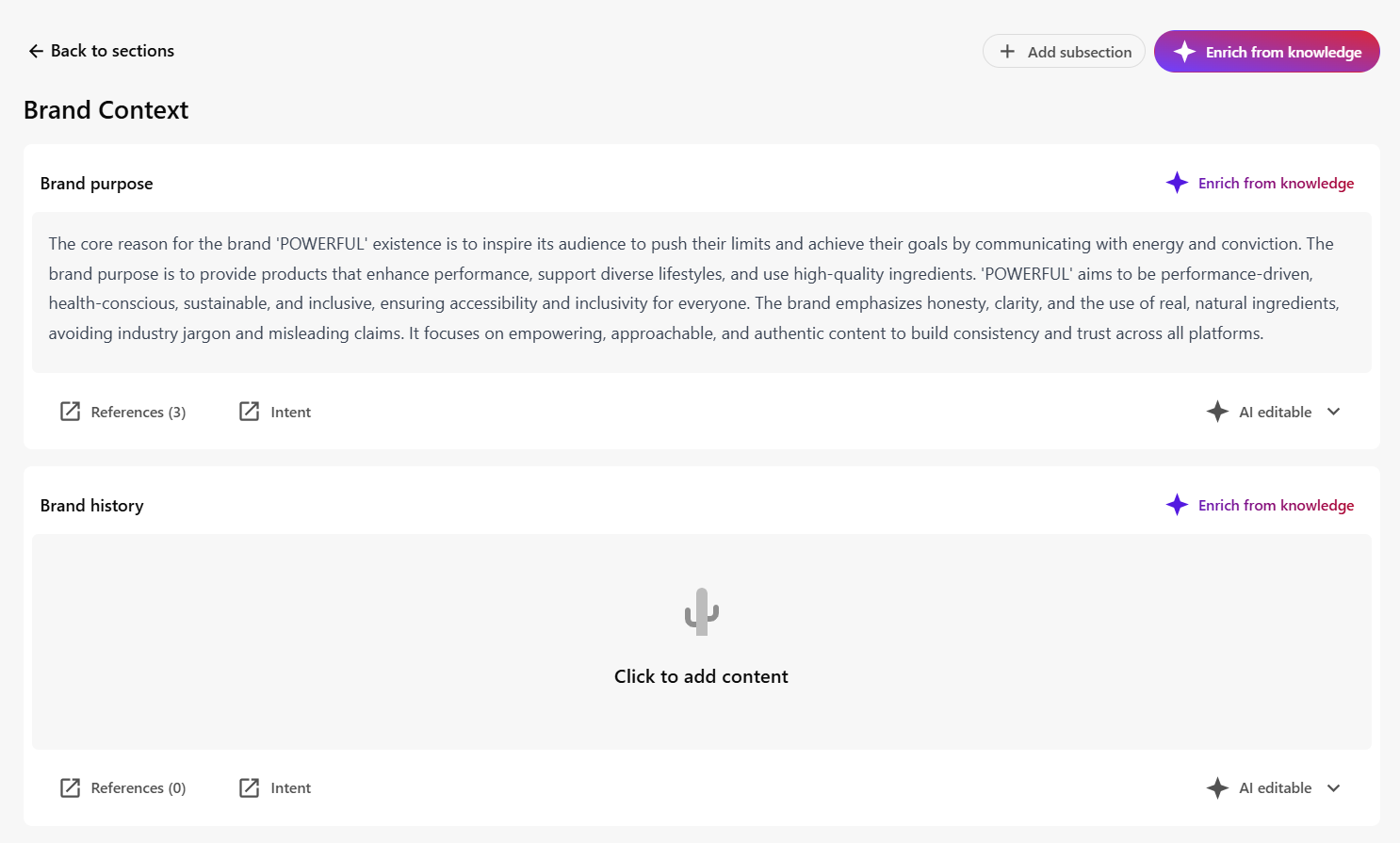
A specific section and its subsections - click the section you want to update. Then, in the top-right corner of that section, click Enrich from knowledge. In the dialog that appears, click Enrich. All subsections within the section will be updated.
-
A single subsection - click the subsection you want to update. In its top-right corner, click Enrich from knowledge. In the dialog that appears, click Enrich to update just that subsection without affecting the rest of the section.
Brand kit enrichment usually takes less than a minute. When it's finished, the newly generated content appears in the selected section or subsection of your brand kit.
-
-
To prevent your changes from being overwritten during future document republishing or enrichment, mark the subsection Non AI editable.
Edit the content in a brand kit section
Each brand kit section contains predefined subsections, each relating to a set of brand guidelines. For example, the Brand Context section has subsections to define the brand's purpose, history, and more.
To edit content in a brand kit subsection:
-
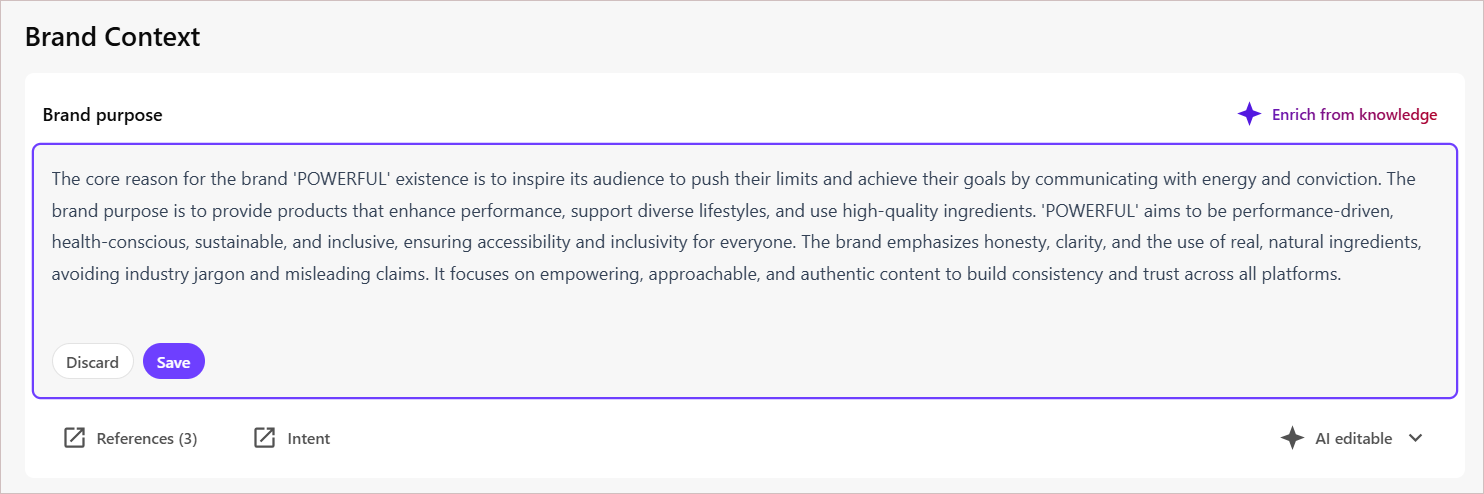
Click the content you want to update. For some subsections, you can click Edit.
-
Make your changes, then click Save to apply the updates.
-
To prevent your changes from being overwritten during future document republishing or enrichment, mark the subsection Non AI editable.
Add a new item within a brand kit section
You can add new content within a brand kit subsection creating a new item.
To add a new item within a brand kit section:
-
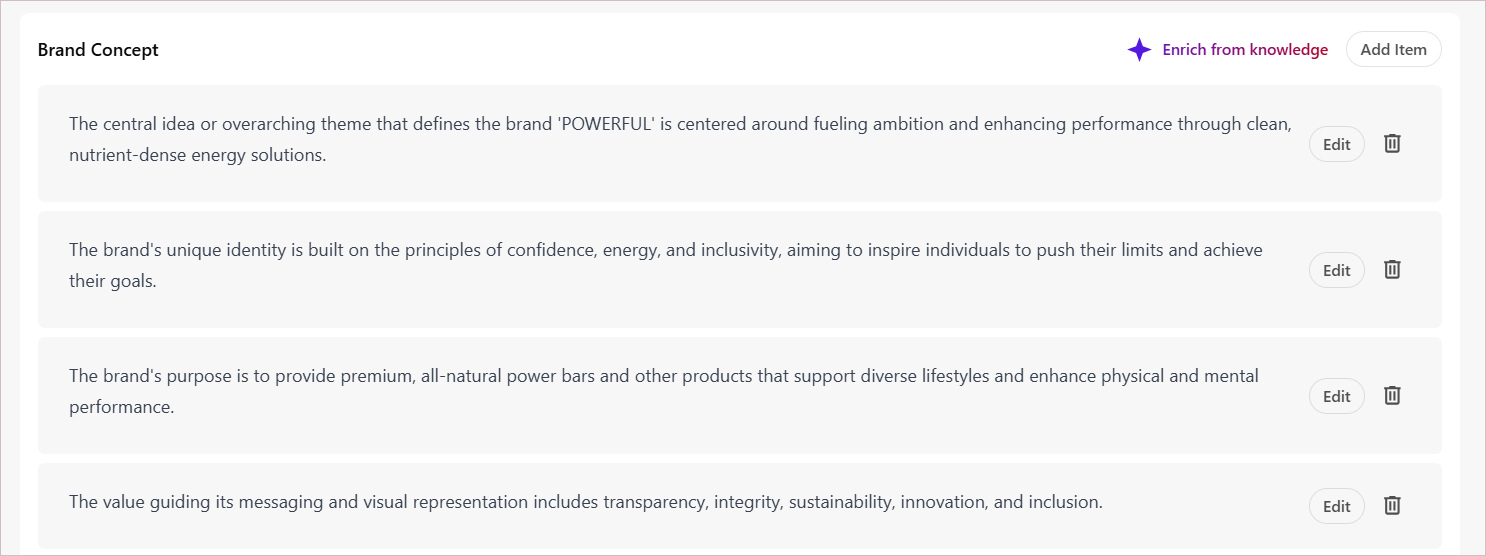
Click Add item in the subsection where you want to insert new content.
-
Enter the details or guidelines, then click Save to apply your changes.
-
To prevent your changes from being overwritten during future document republishing or enrichment, mark the subsection Non AI editable.
Delete content from a brand kit section
You can delete content within a brand kit subsection if it's no longer relevant.
To delete content from a brand kit section:
- Click the Delete
 icon in the subsection with the content you want to remove.
 - In the confirmation dialog, click Delete.
- To prevent your changes from being overwritten during future document republishing or enrichment, mark the subsection Non AI editable.
View source references for a brand kit section
Quickly see which of your uploaded brand documents contributed to each brand kit subsection's content.
To view source references for a brand kit section:
- Click References to display a list of source documents used to generate the content in that subsection.
- To see more details, next to any document in the list, click the arrow icon
 to open the Source Chunks dialog. There you’ll find the exact text snippets the AI drew from, plus a link to view the original document.