Walkthrough: Create a custom index field handler
You can create a custom field handler class, when the default Search plugin does not provide a handler type that suits the new field you want to add to the index. This walkthrough describes how to:
- Create a new field handler to index a new field.
- Add a new field to CE Connect search provider configuration to make it searchable in Sitecore.
Create a custom field handler to index a new field
To create a custom field handler:
The current architecture of search field handlers does not provide the ability to resolve an instance of a pipeline or command. You must add values that the handler requires to the context.
-
Create a class that inherits from the Sitecore.Commerce.Plugin.Search.AbstractIndexFieldHandler class, and implements the
ComposeValuemethod, as shown in the following example: -
To register the custom field handler with the search index, you must add it to the search policy set for the search provider used in your deployment. The policy sets for Azure Search (
PlugIn.Search.Azure.PolicySet-1.0.0.json) and Solr (PlugIn.Search.Solr.PolicySet-1.0.0.json) each contain two policies of the typeSitecore.Commerce.Plugin.Search.ItemIndexablePolicy, Sitecore.Commerce.Plugin.Search. These policies represent the Master and Web databases of the connected Sitecore XP site. You add your custom field handler in the“Fields”collection for both indexes to register the new handler and ensure that your content is indexed in both the Master and the Web databases.The following shows an example of a custom Solr field handler (
"Company.Project.Search.CustomFieldHandler, Company.Project") added to thePlugIn.Search.Solr.PolicySet-1.0.0.jsonfile.The following shows an example of a custom Azure Search field handler (
"Company.Project.Search.CustomFieldHandler, Company.Project") added to thePlugIn.Search.Azure.PolicySet-1.0.0.jsonfile. -
After the configuration changes, bootstrap the Commerce Engine environment to apply the changes.
-
In Microsoft IIS Manager, restart the Commerce Engine minions service (CommerceMinions_Sc).
-
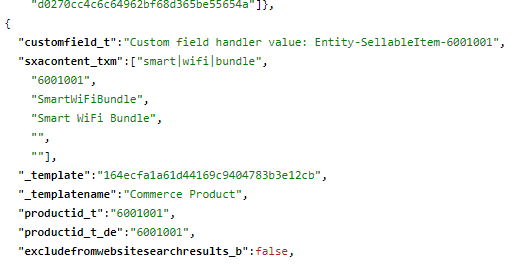
Manually rebuild Sitecore XP indexes. After rebuilding the indexes, the new search handlers are visible in the search index, as shown in the following example:
Add a new field to CE Connect search provider configuration
In order to make the new field searchable in Sitecore, you must add it to the search provider configuration in CE Connect.
To add the new field to the search provider configuration in CE Connect:
-
On your Sitecore service instance, in the
\App_Config\Include\Y.Commerce.Enginefolder, open the search provider config file. For example, for Sorl, open theSitecore.Commerce.Engine.Connectors.Index.Solr.configfile.NoteIf you use Azure as your search provider, open the
Sitecore.Commerce.Engine.Connectors.Index.Azure.configfile. -
In the
FieldMapsection, add the newfieldNamedefinition. In the following example, we add a new field named"exampleexternalsettingproperty". -
Save your changes and bootstrap the Commerce Engine.