Distributed installation script for the Sitecore XM Scaled topology
To simplify your scaled installation on multiple servers, you can use a PowerShell script to install the Sitecore XM Scaled topology. For more information, see Architecture overview in Sitecore documentation.
If you use this script to install the Sitecore XM Scaled topology, each server role must be installed on a separate computer and there must be no previous Sitecore installation on any of these computers.
Distributed installation script prerequisites
To prepare the servers, you must perform the following steps on each server:
-
Enable PowerShell Remoting.
For more information about PowerShell Remoting, see the section Run SIF Remotely.
-
Install all the prerequisites.
For more information about the prerequisites, see the section Install the Prerequisites.
-
Create the
c:\resourcefilesfolder on every machine that will be assigned a Sitecore server role or will run Solr. -
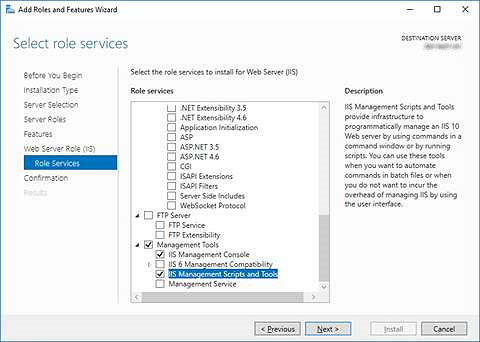
Configure the Web Server Role (IIS).
Run the distributed installation script for the XM Scaled topology
To edit and run the XM topology installation script:
-
Create a folder called
c:\resourcefiles. -
On the Sitecore Experience Platform download site, download the Packages for XM Scaled topology. This file is listed in the Download options for On Premises deployment section. Extract to
c:\resourcefilesfolder allscwdp.zipfiles and all configuration files. -
Save your Sitecore license file in the
c:\resourcefilesfolder aslicense.xml. -
In the
c:\resourcefilesfolder, edit theXM1-Distributed.ps1file script and update each line with the appropriate settings for your environment. -
In a PowerShell command line, navigate to the
c:\resourcefilesfolder and run the following command:
After you have edited and run the installation script, you must complete the post-installation steps described in the chapter Post-installation steps.