Building an Android application using the SDK in Visual Studio for Mac (Xamarin Studio)
This section describes how to install the Universal Tracker SDK and create an Android application in Visual Studio for Mac.
To build an Android application using the Universal Tracker SDK in Visual Studio for Mac:
-
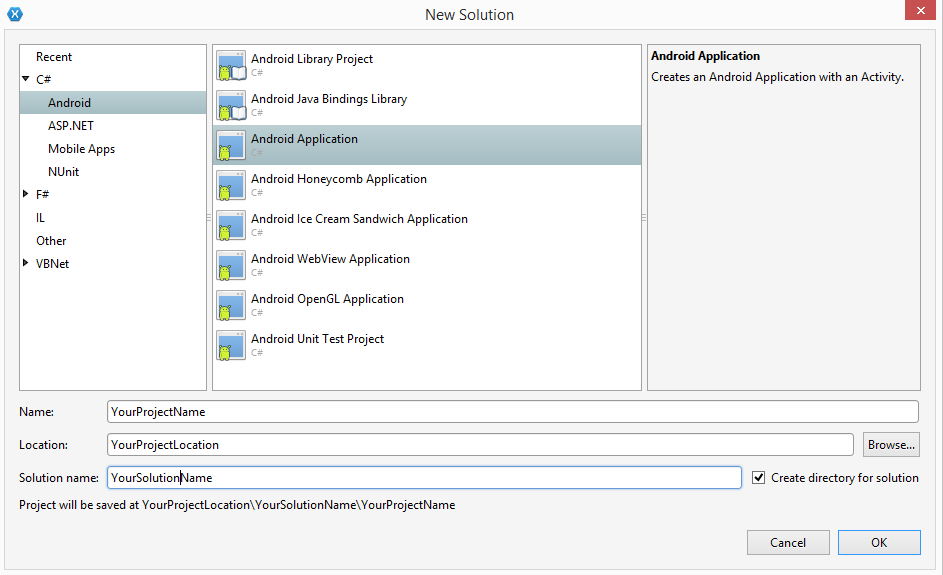
Create a project in Xamarin Studio. In the project creation wizard, select C# > Android > Android Application.
-
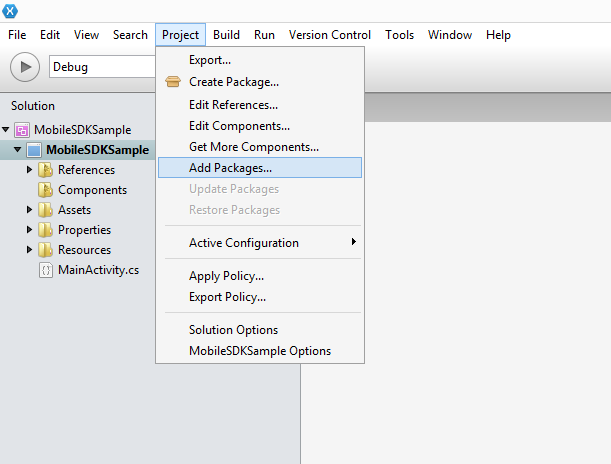
Select Project from the toolbar, and then click Add Packages.
-
In the Add Packages dialog box, enter the Sitecore.UniversalTracker.MobileSDK ID in the search field. The ID is case insensitive.
-
Select the Sitecore.UniversalTracker.MobileSDK in the search result and click Add Package.

Once the package has been added, you can see it in the Packages folder of the project.
Now you can use the Universal Tracker SDK in your application. For example:
On launch, the application should display an alert with the response status code value.