Installing the Universal Tracker SDK using NuGet and MS Visual Studio
To install the Universal Tracker SDK using NuGet and Microsoft Visual Studio:
-
Create a project in Visual Studio. You can create a desktop application, mobile application, Silverlight application, and others. This example describes how to create a console application.
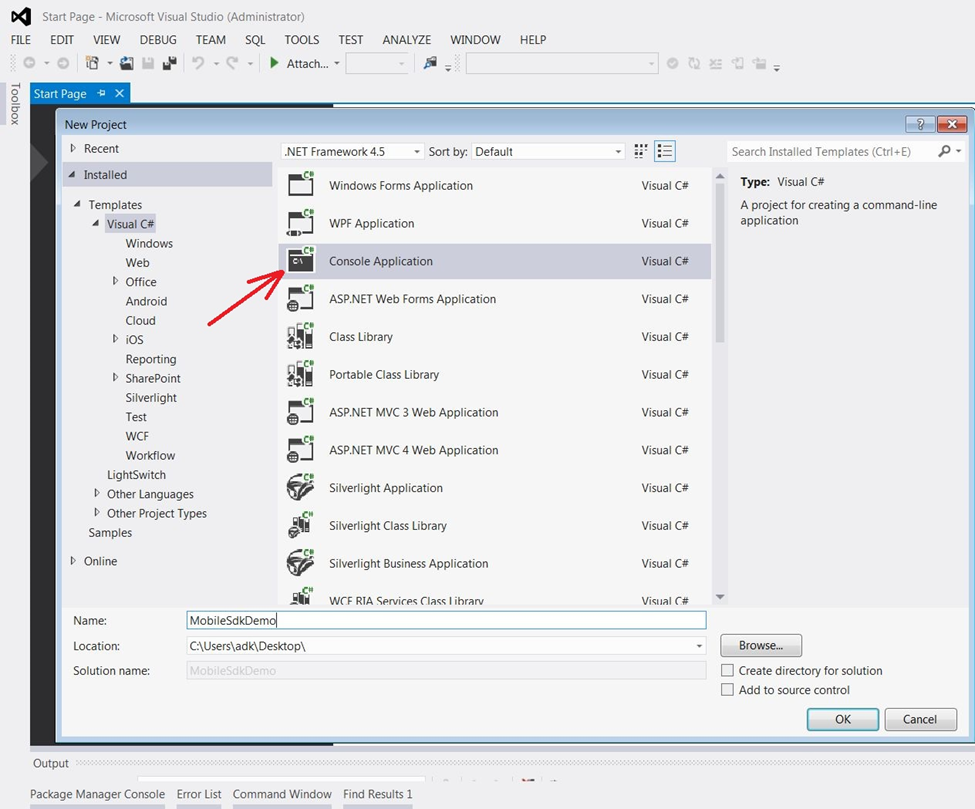
-
In the Solution Explorer window, right-click the project node.
-
In the context menu, click Manage NuGet Packages.
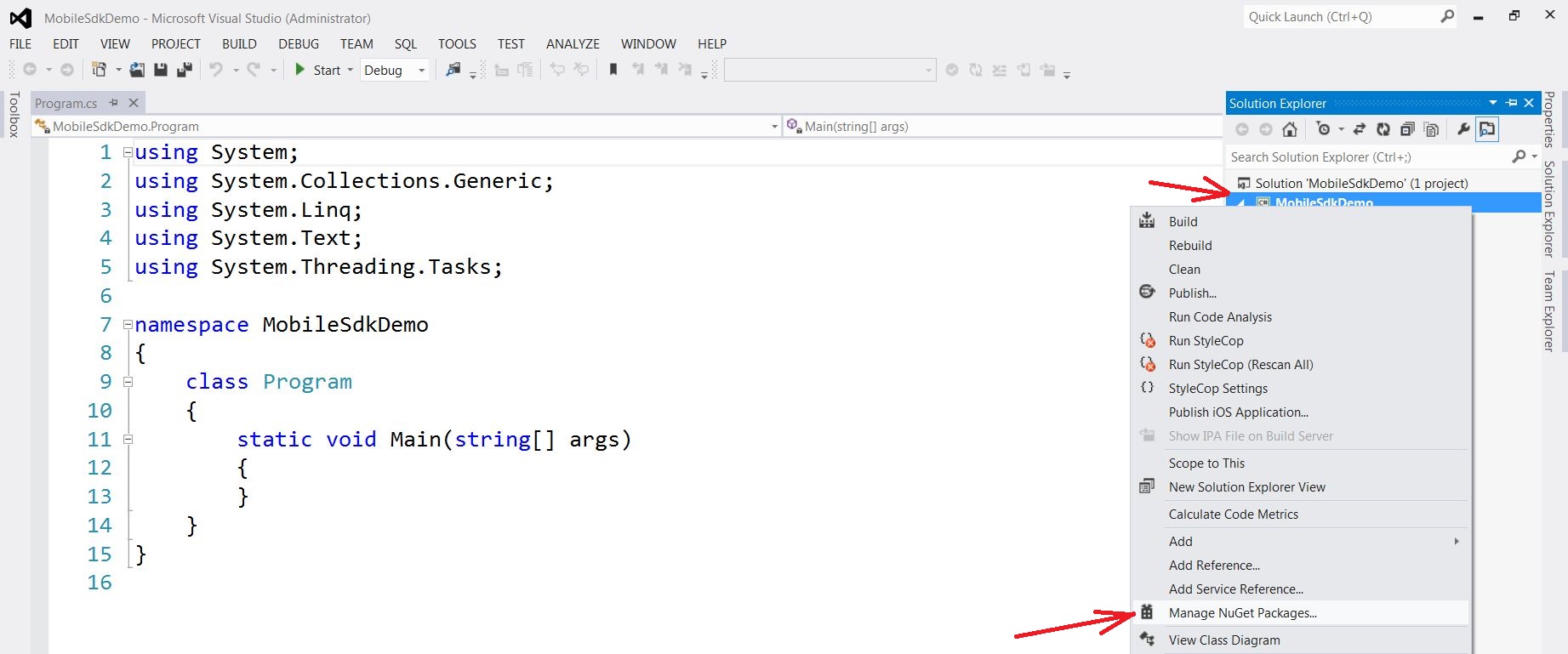
-
In the Manage NuGet Packages dialog box, enter the
Sitecore.UniversalTracker.MobileSDKID in the search field. The ID is case insensitive. -
Select the Sitecore Mobile SDK for Universal Tracker search result and click Install.
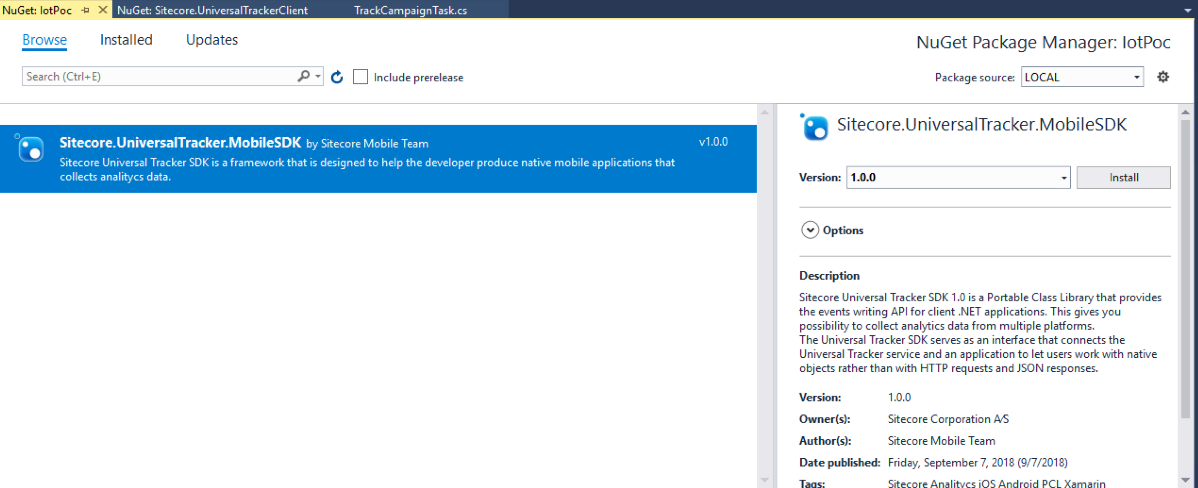
-
Read and accept the license agreements for the UT SDK.
Once the NuGet package has been installed, you can see the updated project references.
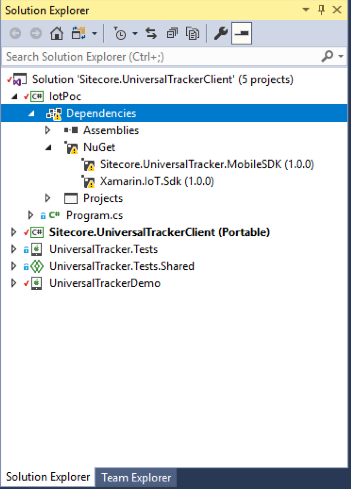
-
In the Visual Studio Code Editor, add the following code to the Main() function of your application:
-
Add the following namespaces to your project to make the code compile properly:
Sample output of the application:
