Add a pipeline step to resolve the target item
The first pipeline step must check if there is an existing Sitecore item that matches the value from the text file row.
If the pipeline finds a matching item, it must set that item as the target object in the pipeline context. This means that during the mapping process, the pipeline updates the matching item with the new values.
If the pipeline does not find a matching item, it must create a new item, and set the new item as the target object in the pipeline context.
To set up these actions in the pipeline:
-
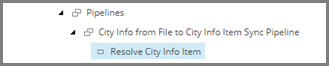
In the Content Editor, navigate to the pipeline item you want to create a step for, for example, City Info from File to City Info Item Sync Pipeline.

-
In the right-hand pane, click Resolve Sitecore Item Pipeline Step. Name the new item Resolve City Info Item. Select the new item.
-
Select the new item.
-
In the right-hand pane, specify the following field values:
Field Value Template for New Item Templates/User Defined/City Information Item Name Value Accessor Data Access/Value Accessor Sets/Providers/File System/City Information File Fields/City from City Information File Endpoint From Sitecore/Sitecore Database Endpoint Identifier Value Accessor Data Access/Value Accessor Sets/Providers/File System/City Information File Fields/Identifier from City Information File Identifier Object Location Pipeline Context Source Resolved Object Location Pipeline Context Target Parent for Item sitecore/content/Cities Matching Field Value Accessor Data Access/Value Accessor Sets/Providers/Sitecore/City Information Item Fields/Identifier on City Information Item -
Save the item.