The SXA script library
SXA includes a number of PowerShell scripts to automate the most common tasks. The Sitecore PowerShell Extensions (SPE) module provides a command line and a scripting environment and enables you to use PowerShell from within Sitecore. In this way, you can run commands and write scripts according to Windows PowerShell syntax. Every SXA module that uses SPE has its own script library in: sitecore\System\Modules\PowerShell\Script Library.
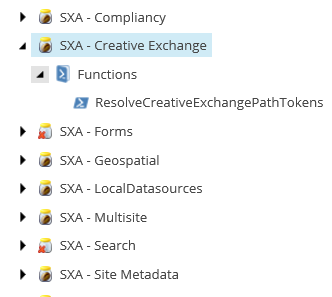
The naming convention for these scripts is: SXA - Module name:
PowerShell scripts can be used to automate tasks that you find yourself doing on a regular basis. To write your own scripts, or view code of existing scripts, use the PowerShell Integrated Scripting Environment (ISE). You can access this tool on the Sitecore Launchpad:
The types of SXA scripts vary from cleanup scripts to cmdlts that add insert options to items:
-
Scaffolding – scripts used during scaffolding to automate the process of site/tenant creation.
-
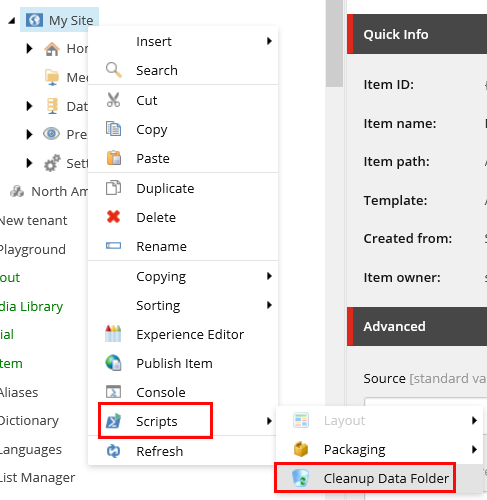
Context Menu – scripts that are available for editors using the Content Editor. For example, the cleanup data sources script:
-
Cmdlets – a lightweight command that is used in SPE and can be reused by other developers.
-
Insert Item – scripts that extend the Insert section in the Content Editor.
The following table describes the available SXA script modules, their functions, descriptions, and type of script:
| Module | Function | Description | Type of script |
|---|---|---|---|
| SXA – Compliancy | AddCookieWarning | Inserts the Cookie Warning rendering to a partial design. | Scaffolding |
| SXA – Creative Exchange | ResolveCreativeExchangePathTokens | Resolves the path tokens in the Creative Exchange FileStorage provider definition item to enable unique paths under the Data folder. This prevents different sites from overwriting the folder content. | Scaffolding |
| SXA – Forms | Set forms folder | Sets the WFFM Forms root folder on the site definition item. This enables every site to have its own forms root folder (by default – in WFFM – there is only one global Forms root folder). | Scaffolding |
| SXA – Geospatial | Assign POI items | Assigns a default rendering variant for POI types. This enables each new site to have the same rendering variants with site-specific IDs. | Scaffolding |
| SXA – LocalDatasources | Cleanup Data Folder | Searches and cleans unused data sources in the Page Data folder. | Context Menu |
| SXA – Multisite | Add Content fields | Decorates new Tenant templates with additional fields. Adds Content and Title fields to a Page template. | Scaffolding |
| Home base template | Adds a base template to the Home template under Tenant templates. Adds a Page template as a base template. | Scaffolding | |
| Set home item title field | Sets the home item title after the site is created. | Scaffolding | |
| Set start item | Sets the start item on the site definition item. By default, the start item is a home item that is the root of all pages. | Scaffolding | |
| SXA – Search | Set default sorting facet | Assigns the Title facet as the default facet to sort data sources. | Scaffolding |
| SXA – Site Metadata | AddBrowserTitle | Inserts the Browser Title rendering to metadata partial design. | Scaffolding |
| AddCustomMetadata | Inserts the CustomMetadata rendering to metadata partial design. | Scaffolding | |
| AddFavicon | Inserts the Favicon rendering to metadata partial design. | Scaffolding | |
| AddOpenGraphMetadata | Inserts the OpenGraph rendering to metadata partial design. | Scaffolding | |
| AddSeoMetadata | Inserts the SeoMetadata rendering to metadata partial design. | Scaffolding | |
| AddStickyNotes | Inserts the StickyNotes rendering to metadata partial design. | Scaffolding | |
| AddTwitterMetadata | Inserts the TwitterMetadata rendering to metadata partial design. | Scaffolding | |
| AddViewport | Inserts the Viewport rendering to metadata partial design. | Scaffolding | |
| SXA – Scaffolding | MultisiteContext/Get-DataItem | The PowerShell wrapper for the IMultiSiteContext interface.Resolves the Data folder for the current site. | Cmdlets |
| MultisiteContext/Get-SettingsItem | The PowerShell wrapper for the IMultiSiteContext interface.Resolves the Settings folder for current site. | Cmdlets | |
| MultisiteContext/Get-SiteItem | The PowerShell wrapper for the IMultiSiteContext interface.Resolves the Site item for the current site. | Cmdlets | |
| MultisiteContext/Get-SiteMediaItem | The PowerShell wrapper for the IMultiSiteContext interface.Resolves the Virtual Media Library for the current site. | Cmdlets | |
| MultisiteContext/Get-TenantItem | The PowerShell wrapper for the IMultiSiteContext interface.Resolves the Tenant item for the current site. | Cmdlets | |
| PresentationContext/Get-PageDesignsItem | The PowerShell wrapper for the IPresentationContext interface.Resolves the Page Designs folder for the current site. | Cmdlets | |
| PresentationContext/Get-PartialDesignsItem | The PowerShell wrapper for the IPresentationContext interface.Resolves the Partial Designs folder for the current site. | Cmdlets | |
| Add-BaseTemplate | Cmdlet that adds a base template. | Cmdlets | |
| Add-FolderStructure | Cmdlet that recreates the folder for a given path structure if it does not exist. | Cmdlets | |
| Add-InsertOptionsToItem | Cmdlet that adds InsertOptions (Masters) to an item. | Cmdlets | |
| Add-InsertOptionsToTemplate | Cmdlet that adds InsertOptions (Masters) to a Template item. | Cmdlets | |
| Get-PartialDesign | Returns the first Partial Design in the Partial Designs folder. | Cmdlets | |
| Test-ItemIsPartialDesign | Checks whether the item inherits from PartialDesignTemplate. | Cmdlets | |
| Test-ItemIsSiteDefinition | Checks whether the item inherits from SiteDefinitionTemplate. | Cmdlets | |
| New-Site | Contains all the functions used to create a new site. | Cmdlets | |
| New-Tenant | Contains all the functions used to create a new tenant. | Cmdlets | |
| Site | Adds script to the Insert options in a context menu that lets users create a new site. Appears when the following rules are met:<br>Rule 1<br>where the item template is SiteFolder<br>Rule 2<br>where the item template is Tenant<br> | Insert item | |
| Tenant | Adds script to the Insert options in a context menu that lets users create a new tenant. Appears when the following rules are met:<br>Rule 1<br>where the itemID is equal to Content<br>Rule 2<br>where the item template is Tenant Folder<br> | Insert item |