Use the Experience Profile search
The Experience Profile search helps you search for groups of contacts or a specific contact. This provides you with insight into the value per visit that contacts generate, the channels and device types that they use to visit your websites, and the goals or outcomes that they convert while interacting with your content. This information helps you to target and segment your contacts, and then to provide them with timely and relevant information.
The search results provide you with the following information about contacts:
| Information | Details |
|---|---|
| Name | The contact's name |
| Email address | The contact's email address |
| Value (Latest value) | The engagement value that the contact accumulated on their last visit to your website |
| Value (total) | The contact's total engagement value |
| Number of visits | The total number of visits that the contact has made to your website |
| Value per visit | The average engagement value per visit that the contact generated |
| Visit duration | The amount of time that the contact spent on your website |
| Last interaction | The amount of time that has passed since the contact last visited your website |
It is possible to add or remove information from the search results.
There are two ways that you can search for a contact in the Experience Profile.
- Faceted search – filter your contacts based on date, channel, outcome, and goal.
- Text search – enter text to find specific contacts
Faceted search
To perform a faceted search:
-
In the Experience Profile, on the Search page, select the Filter button.
-
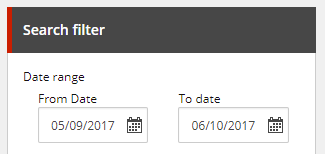
In the Search filter window, under Date range, in the From date and To date date pickers, select the date range that covers your search.
-
Select a facet category check box, for example, Channels.
-
Select the check boxes of the specific facet or facets that you want to filter on from the drop-down list. Click Apply to apply the search facets.
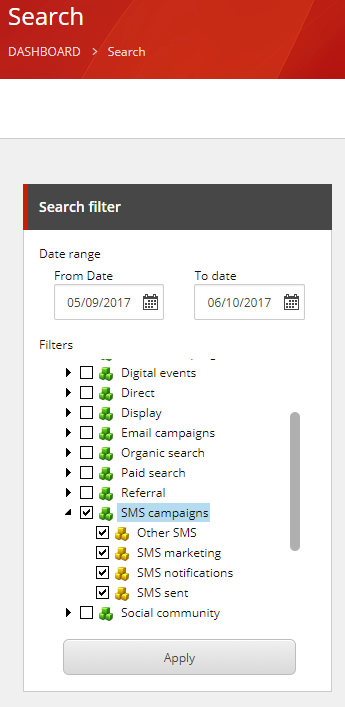
The search returns a list of all contacts that visited the site in the date range and triggered one or more of the selected campaigns at any point in time.
Text search
By default, it is not possible to search for personally identifiable information (PII) such as contact name. However, an administrator can enable indexing of PII sensitive data. By default, search is also disabled for anonymous contacts, because this operation consumes a lot of processing power due to the amount of data. However, it is possible for an administrator to enable indexing of anonymous data.
To perform a text search:
-
In the Experience Profile, on the Dashboard, select the Filter button.
-
In the Search text field, enter your search text and click the Search
 icon.
icon.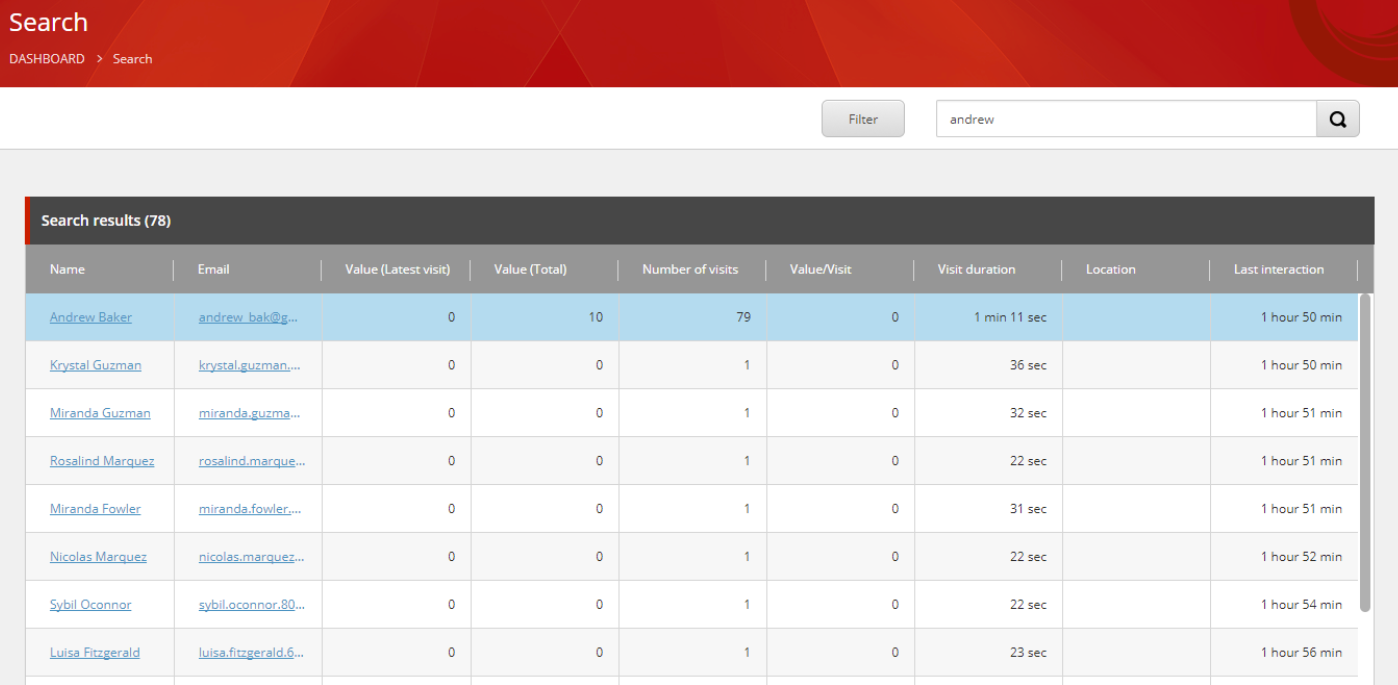
The results of your search appear as a list.
NoteBy default, you can only search for full text (that is, an exact name or email address). An administrator can enable partial search as follows: in the
Sitecore.ExperienceProfile.configfile, change theExperienceProfile.UsePartialTextSearchsetting toTrue.
Add or remove columns from the search results
You can add or remove columns to change the information that displays in the search results.
To add or remove columns in the search results:
- Open Sitecore Desktop from the Launchpad.
- Switch to the core database.
- Open Content Editor and navigate to /sitecore/client/Applications/ExperienceProfile/Search/PageSettings/SearchResults.
- Add or remove child items under the SearchResults item. These child items determine which columns are shown in the search results.