Walkthrough: Creating a dynamic bundle
This topic walks you through the steps required to create a dynamic bundle where you combine sellable items into a package deal. This example uses the SXA Storefront and the sample Habitat catalog. In this scenario, you create the Habitat Smartphone bundle.
This walkthrough describes how to:
- Create a dynamic bundle.
- Assign a list price to a dynamic bundle.
- Assign a unit prices to bundle items.
Create a dynamic bundle
To create the dynamic bundle:
-
In Sitecore XC Business Tools, on the Merchandising dashboard, in the Catalogs section, select the Habitat_Master catalog.
-
On the Habitat_Master catalog details page, in the Sellable Items section, click the drop-down arrow and then click Add Bundle.
-
In the Add Bundle dialog box, in the Bundle Type field, click Dynamic and then click the check mark to confirm your selection.
-
In the Add Bundle dialog box, enter bundle information in the following mandatory fields (all the other fields are optional):
Field Value Description Product id 1991B The unique identifier for the product. Name SmartphoneBundle The internal name for the bundle. Display name Habitat Smartphone bundle The product name as displayed on the Sitecore SXA Storefront. -
To confirm your changes, click the check mark. The new bundle is listed in the Sellable Items section of the catalog details page.
-
In the Sellable Items section, click the newly created bundle name (SmartphoneBundle).
-
Add base items to the bundle. To associate an item to the bundle, on the bundle details page, in the Sellable Item section, click Associate, and specify the details shown in the following table. Repeat this step for each of the items listed.
Sellable Item Description Default Quantity Maximum Quantity Upgradable Optional 6042308 Habitat Odyssey 16GB 4G LTE 1 5 Yes No 6042382 Anti-fingerprint screen protector 1 5 No Yes 6042376 2' Micro USB Lightening Charging Cable 1 5 No No 6042061 Wireless Skinnybuds Headphones 1 5 No Yes -
Add upgrade items. To associate upgrade items offered as alternatives to the upgradable base item Habitat Odyssey 16GB smartphone, in the Habitat Odyssey 16GB 4G LTE section, click Associate, and specify the details shown in the following table. Repeat this step for each of the items listed.
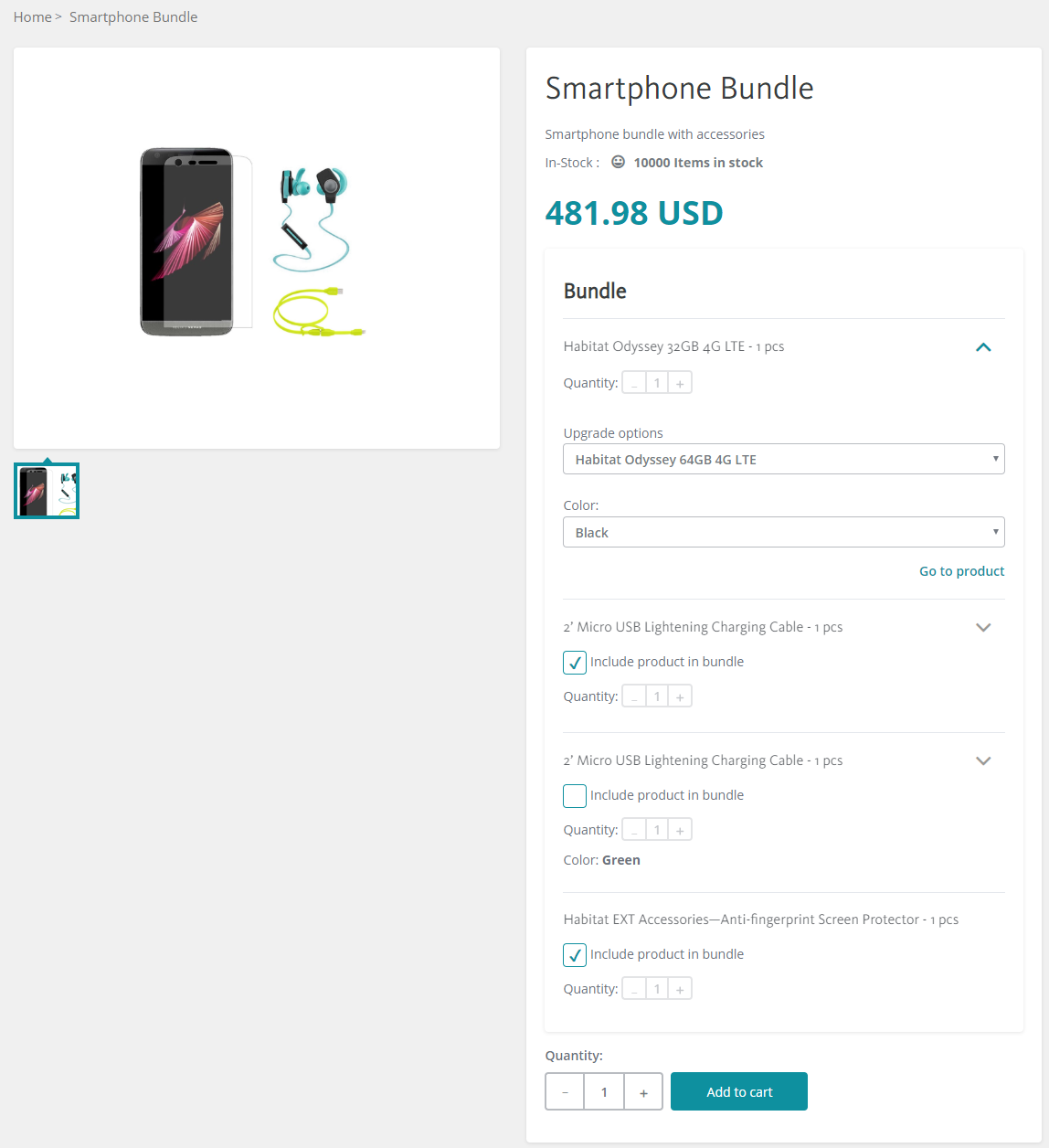
In the Habitat catalog, the Habitat Odyssey 16GB 4G LTE smartphone is available in five colors. Each color is defined as a product variant. In this example, to make the item available in all colors, add the main product to the bundle.
Sellable Item Description Default Quantity Maximum Quantity 6042313 Habitat Odyssey 32GB 4G LTE 1 5 6042318 Habitat Odyssey 64GB 4G LTE 1 5
You can either associate the main sellable item or specific variants of a sellable item to the bundle.
To provide shoppers the ability to choose a specific variant such as a phone color on the storefront, for example, you must add the main sellable item.
If you add a specific variant to the bundle, then only that variant is available within the bundle.
Assign a list price to the bundle for manual pricing
To use manual pricing on a bundle, you must assign a base price to the bundle itself. The bundle base price can use a list price or a price card. The price assigned at the bundle level is the default price displayed to shoppers on the storefront for the bundle base package. If you do not define a price at the bundle level, then the bundle uses automatic pricing.
To add a list price to the bundle for manual pricing:
-
On the Habitat Smartphone bundle page, in the List Pricing section, click Add.
NoteAlternatively, you can assign a price to the bundle using a price card.
-
In the Add List Price dialog box, leave the currency in its default value (USD) and in the List Price field, enter the bundle price, for example, 495.00.
-
Click the check mark to confirm your changes.
Because you assigned a list price to the dynamic bundle, it now uses manual pricing. With manual pricing, you must assign a unit price to each of bundle base items.
Assign a unit price to bundle items
When you use manual pricing, you must assign a unit price to each bundle base item included, including items marked as optional or upgradable.
Unit price is mandatory for base items only. You cannot publish a dynamic bundle if base items do not have a unit price assigned.
The use of unit price for upgrade items is optional.
To add a unit price:
-
To add a unit price to base a item, in the Sellable Items section, click the first base item to highlight it, click the drop-down arrow, and then click Set Unit Price.
NoteThe Set Unit Price action in the drop-down menu is only available after you have assigned a price at the bundle level.
-
In the Set Unit Price dialog, in the Unit Price field, enter the price.
NoteThe unit price of base items is used to recalculate the bundle price, for example when a shopper adds or removes optional items from the bundle.
-
Click the check mark to confirm your changes.
NoteRepeat these steps to assign a unit price to each base items, and optionally to upgradable items, that are part of the bundle.
-
Optionally, you can assign a unit price to bundle items you added as upgrades. Expand the view that was created for the upgradable item, click the upgrade item, and repeat Step 2 and Step 3 to set the unit price.
ImportantIf you added the main sellable item as an upgrade item (as opposed to a specific variant), and you do not set a unit price for the upgrade, the bundle price is recalculated using the main sellable item price, regardless of the variant selected by the shopper on the storefront.
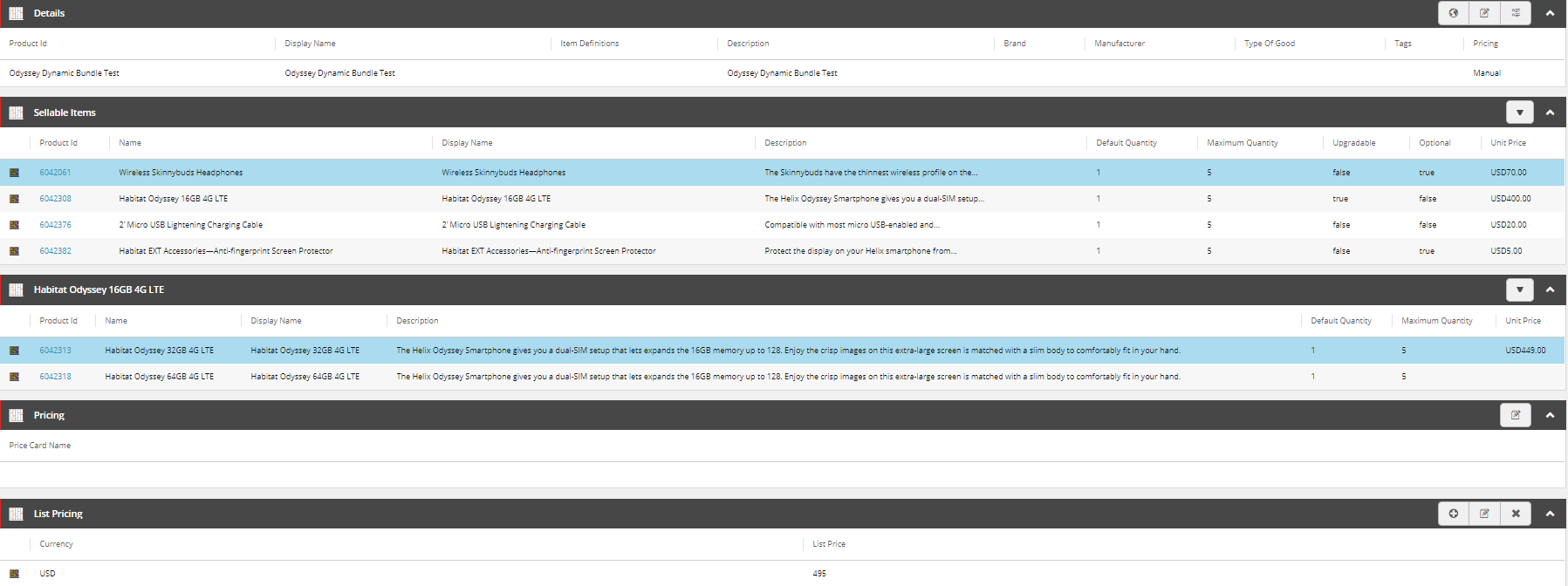
Example of base item and upgrade item views
The following is an example of how the Merchandising tool displays base items views and upgrade item views in a dynamic bundle configuration.
The Sellable Items section view contains the bundle base items. Base items can be optional or upgradable.
The Habitat Odyssey 16GB 4G LTE section view contains items configured as possible upgrades, in this case in lieu of the Habitat Odyssey 16GB 4G LTE phone that is configured an upgradable base item.