Add a (reusable) image
SXA comes with a library of predefined renderings to make page design easy. You can add content to your pages by dragging renderings from the Toolbox to the page. This topic describes how to add images to your pages.
Image rendering
The Image rendering adds images to the page that you only want to use once. When you add your images, SXA stores the image in a data source item under the Data folder of the page:
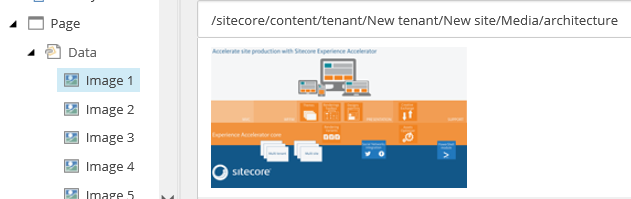
To add the Image rendering to a page:
-
Open the Toolbox. In the Media section, click Image. When you click and start dragging the rendering, the placeholders where you can drop the rendering light up in blue. Alternatively, you can use the touch panel to drag renderings to the page with your finger, or you can click the Rendering icon on the Home tab.
-
Position the rendering above the desired placeholder, and when the placeholder lights up in blue, drop the rendering on the page.
-
To select the image from the Media Library, click Edit image properties and fill in the relevant fields.
Section Property Description Caption When filled, text is displayed under the image. URL Enter the URL directly, or use one of the other options. Insert link Insert a link to Sitecore items. Clicking the image will redirect the user. Insert media link Navigate to the media item that you want to link to and specify any additional properties for the link. Insert external link Enter the URL for the external website that you want to insert a link to and specify additional properties. Insert anchor To add a link that goes to a specific section of a page, you first need to place an anchor at the section you want to link to, then use an anchor link to allow visitors to get to that section without having to scroll. Insert email Insert an email address. Clicking the image will open an email directed to the specified email address. Insert JavaScript Enter the JavaScript link that you want to insert and specify the relevant properties for the link. Clear Clears the URL field. Image Enter the path to the image item directly, or use one of the other options. Browse Click to find image in the Media Library. Properties Click to change the image properties. Clear Remove the image. Refresh Refresh the image. External image link Specify a link to direct to an image on a different page. -
To change the image properties, click Modify image appearance.
-
In the Image Properties dialog box, you can define the following fields:
- Alternate Text: Provide textual alternative for the image that is displayed if the image file is not loaded.
- Default Alternate Text: Standard Sitecore field that you must not modify.
- Width and Height: In the Dimensions section, you can change the width and height of the image.
- Keep Aspect Ratio: When selected, maintains the aspect ratio when resizing images.
- Horizontal Space: Sets the space between the image and the surrounding text in the horizontal direction.
- Vertical Space: Sets the space between the image and the surrounding text in the vertical direction.
Image (Reusable) rendering
It can be very convenient to reuse images across your pages. For example, you might want to use logos, profile pictures, or product images in many different locations. Reusable images are saved in the Data folder of the site: Site/Data/Images.
To add the Image (Reusable) rendering to the page:
-
Open the Toolbox. In the Media section, click Image (Reusable).
When you click and start dragging a rendering, the placeholders where you can drop the rendering light up in blue. Alternatively, you can use the touch panel to drag renderings to the page with your finger, or you can click the Rendering icon on the Home tab.
-
Position the rendering above the desired placeholder, and when the placeholder lights up in blue, drop the rendering on the page.
-
In the Select the Associated Content dialog box, select the image and then click OK.