Set up External Data Feed with Azure Event Hubs and Power BI
To configure Content Hub, you must either be a superuser or have the necessary permissions granted to you through user group policies.
This walkthrough shows how to configure Sitecore Content Hub's External Data Feed with Azure Event Hubs and visualize entity lifecycle events in Power BI.
- Make sure that you have an Azure subscription and access to configure resources in Azure.
This walkthrough describes how to:
- Create resources in Azure
- Configure Content Hub ExternalDataFeed
- Prepare data for Power BI with Stream Analytics
- Build a Power BI report
Create resources in Azure
- In the Azure portal, create a resource group if you do not already have one.
- In the resource group, create an Event Hubs resource. This creates an Event Hubs Namespace.
- When the deployment is complete, go to the resource and create an Event Hub inside that Namespace.
- Go to the Events Hub Instance > Settings > Shared access policies and create a policy.
- Copy the Primary connection string. You will use it for the
saslPasswordsetting when you configure Content Hub.
Configure Content Hub ExternalDataFeed
After creating the required Azure resources, you need to configure Content Hub to send events to the Event Hub you created.
To configure Content Hub:
-
In Content Hub, configure the ExternalDataFeed > Export setting with the following:
The Export setting defines which entity definitions send events.
-
Click Save.
-
Configure the ExternalDataFeed > Transport setting with the following:
-
Click Save.
-
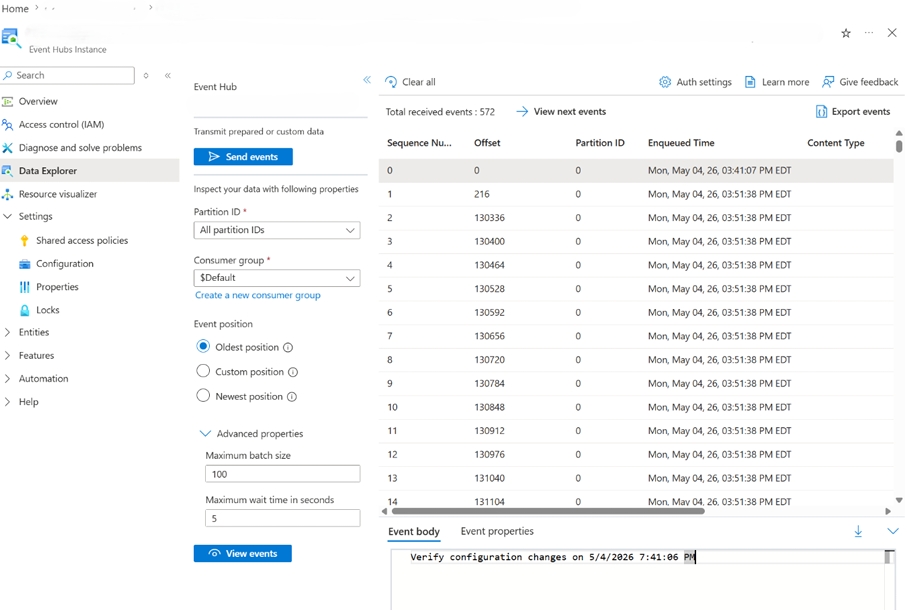
Go to your Events Hub Instance > Data Explorer and check for incoming events.
Prepare data for Power BI with Stream Analytics
After configuring Content Hub, you need to create and configure Stream Analytics.
To prepare data for Power BI with Stream Analytics:
-
In the resource group you created earlier, create a Stream Analytics job resource.
-
When the deployment is complete, go to the resource and then Job topology > Query.
-
On the Query page:
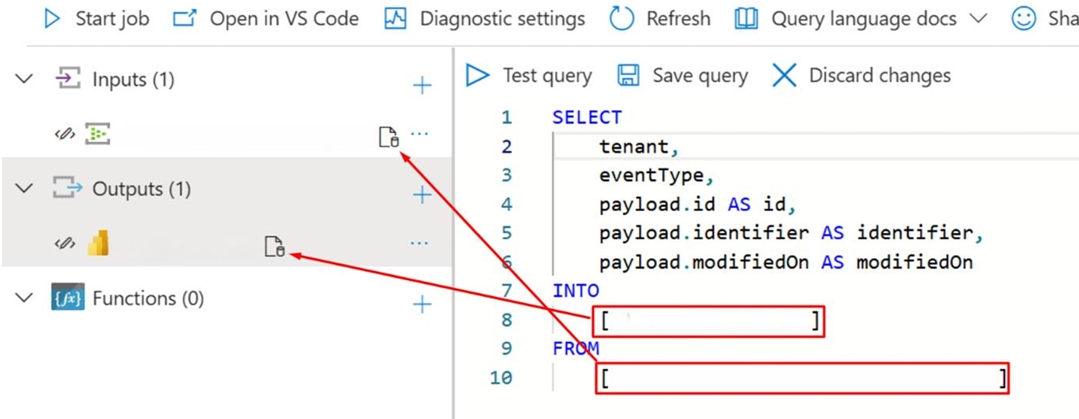
- Add an Input of type Event Hub. Use the Event Hub namespace and Event Hub name that you created earlier.
- Add an Output of type Power BI. For the Authentication mode, use Managed Identity: System assigned.
-
Add the following query, then test and save it, and start the Stream Analytics job.
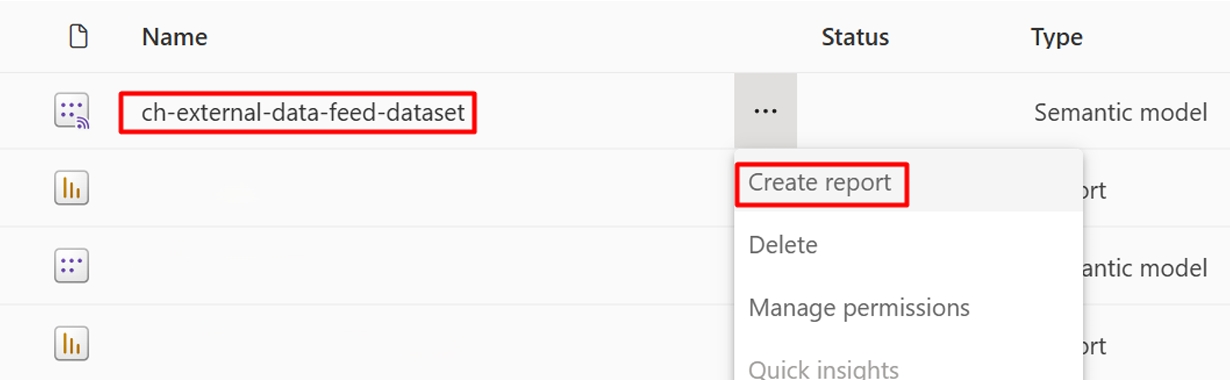
After a few minutes, a streaming dataset is created in your Power BI environment.
Build a Power BI report
After the streaming dataset appears in Power BI, you can create reports and add visuals for event monitoring.
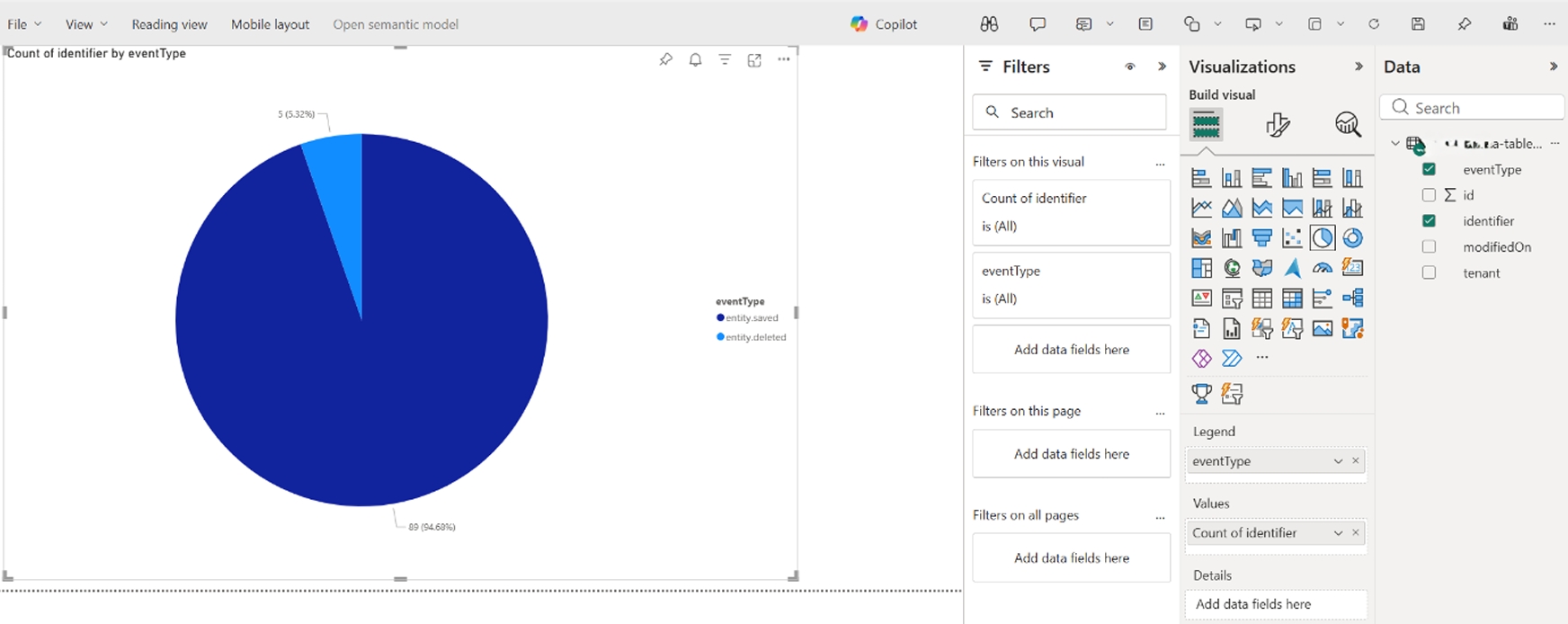
For example, here is a pie chart to visualize the Entity saved and Entity deleted events: