Configure parallel and sequential approvals
For more flexible and advanced state flow configuration, you can add parallel and sequential approvals to a state flow.
Make sure that:
-
You are a superuser or have the Read, Create, Update, and Delete permissions on the
SC.Automation.Gateentity and the ManageStateFlowGate permission on the target entity definition. For more information, see permissions for parallel and sequential approvals. -
The entity definition is assigned a state flow that has a transition with the Conditional transition option enabled.
-
The entity details page has a StateMachine viewer component with the Show gate configuration switch turned on.
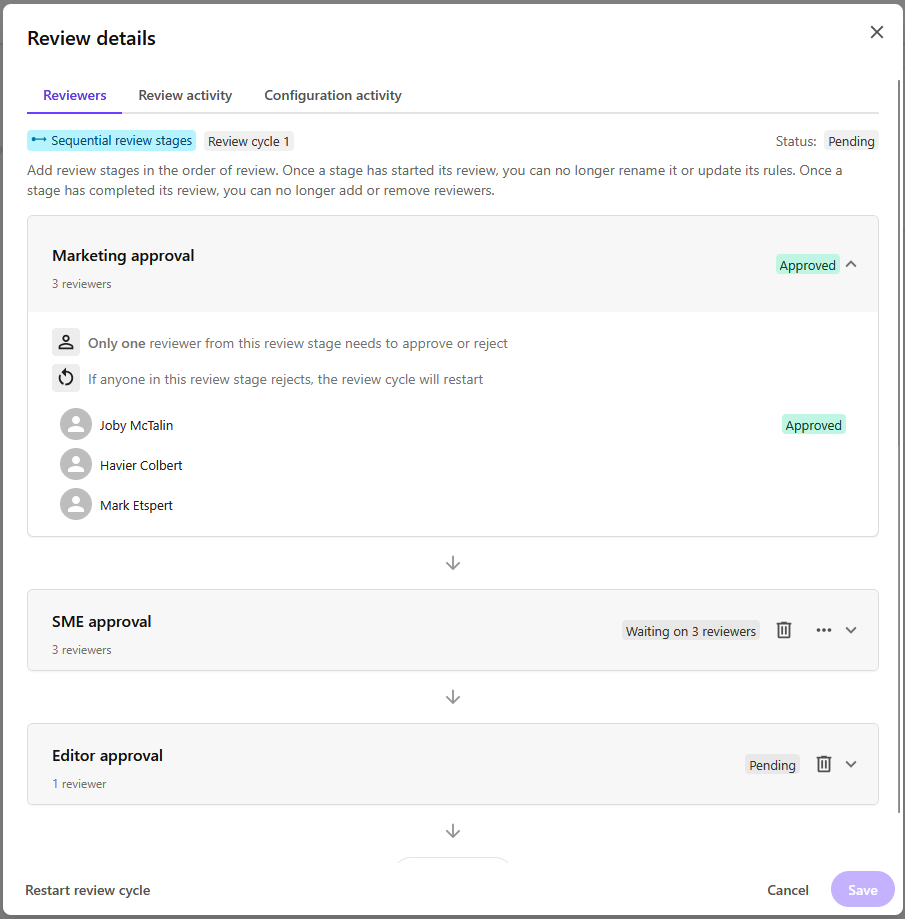
To configure a parallel or sequential approval:
-
Open the entity details page where you want to configure the parallel or sequential approval.
-
On the state where you want to configure a parallel or sequential approval, click Add reviewers.
-
In the Select review type dialog, click the type of approval you want to add, then click Continue.
-
Sequential review stages: stages must be reviewed in sequence. The next review stage can't start until the current one finishes.
-
Parallel review stages: every stage can be reviewed at the same time.
-
-
In the Add reviewers dialog, click the review stage name to rename it.
-
To add reviewers to a stage, click Reviewers, then click Add user groups or Add users. Select the users or user groups you want to add, then click Add.
-
After adding the desired users and user groups, the Rules tab will be visible in the review stage. Click the Rules tab and select the desired Decision rule.
-
Only one reviewer from this review stage needs to approve or reject - if a single reviewer approves or rejects, the review stage will be approved or rejected.
-
Everyone in this review stage must approve or reject - all users need to approve or reject before the review stage is approved or rejected. If any reviewer rejects, the review stage will not be approved.
-
-
If you selected a sequential approval, select the desired Rejection rule.
-
Restart from the first review stage - if the stage is rejected, the review process restarts from the first review stage.
-
Restart from this review stage - if the stage is rejected, the review process restarts from this review stage.
-
-
To add another review stage, click Review stage, and perform steps 4 to 7.
-
When you have added all the review stages and assigned all the reviewers, click Save.