Example - nested entity details
To configure Content Hub, you must either be a superuser or have the necessary permissions granted to you through user group policies.
This example shows how you can display the fields from an Entity details component that is nested inside a Search component in the inline preview.

The following pre-configured formats are available for date/time fields:
|
Format |
Output |
Example |
|---|---|---|
|
Default Locale |
Mon dd, yyyy |
Dec 8, 2025 |
|
Locale Variant One |
dd/mm/yyyy |
12/03/2025 |
|
Locale Variant Two |
Mon dd, yyyy, hh:mm |
Dec 3, 2025, 2:17 PM |
|
Locale Variant Three |
Month date, yyyy at hh:mm |
December 3rd, 2025 at 2:17 PM |
|
Locale Variant Four |
Day, Month dd, yyyy hh:mm |
Wednesday, December 3, 2025 |
|
ISO-8601 |
yyyy-MM-ddThh:mm:ss.sssZ |
2025-11-11T14:30:36.833Z |
|
From now |
Relative format |
8 days ago |
-
Add a Search component to the page.
-
Add an Entity details component to the same page.
To configure the page components:
-
On the menu bar, click Manage
 .
. -
On the Manage page, click Pages and select the page you want to modify.
-
On the Layout tab, next to the Entity details component, click More actions
 > Settings.
 -
In the Settings dialog, turn on the Nested switch and click Save.
-
Click the Entity details component to open its details page.
-
On the Settings tab, in the Source drop-down list, click Choose definition and, in the Definition drop-down list, click Asset (M.Asset).
-
On the Members tab, turn on the Overview switch.
-
In the Visible members section, turn on the switch next to the members you want visible in the inline preview and click Save.
NoteIf you don't see the member you want in the Visible members section, you can create new members as required.
-
Click the Search component to open its details page.
-
In the Views section, turn on the Inline preview switch.
-
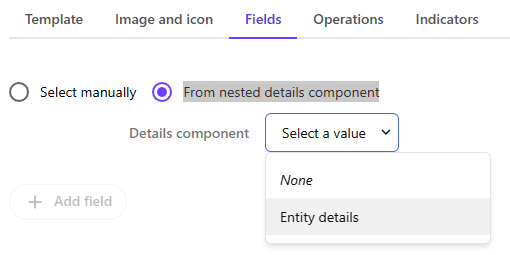
On the Fields tab, select From nested details component, then in the Details component drop-down list, click the entity details component you added earlier.
-
Click Save and close.
Now, when you open an inline preview from the modified page, you'll see the fields that you specified in the Entity details component.