- Client-side interactions with SitecoreAI APIs
Combine multiple operations
Required extension points: SitecoreAI Page builder context panel
Required SDK packages: client, xmc
Required API access: SitecoreAI APIs
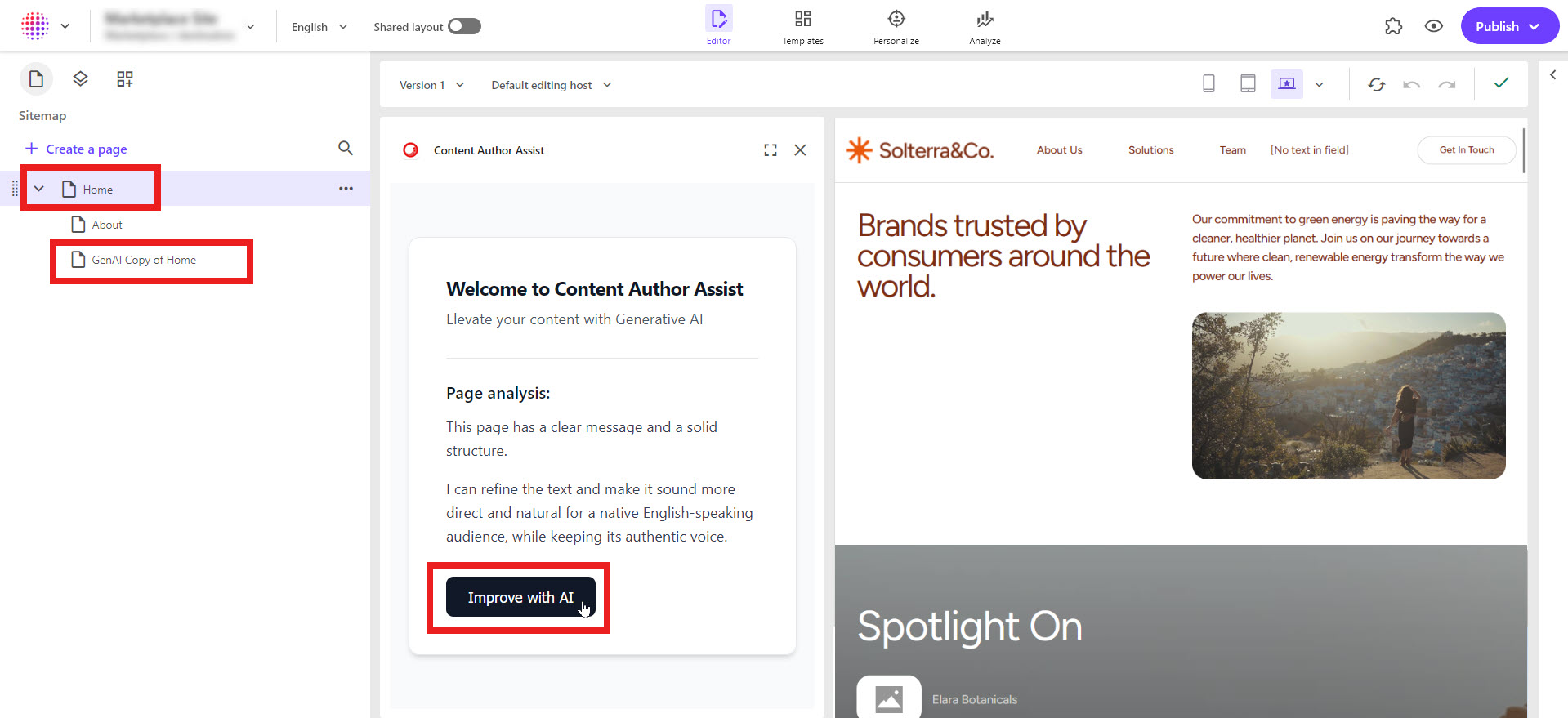
In this walkthrough, you combine multiple queries and mutations to build a complex interaction between a Marketplace app and the SitecoreAI Page builder. When the user clicks a button, your app creates a subpage under the currently open page and navigates to it so the user can start working with it straight away.
Consider building such an interaction if your app creates pages, for example, a duplicate of an existing page improved with generative AI.
This walkthrough describes how to:
-
Complete the SDK quick start and initialize the
xmcpackage. -
Open your Marketplace app in the SitecoreAI Page builder context panel extension point.
-
We recommend that you familiarize yourself with single operations, such as opening a different page and making a GraphQL query.
Query the necessary contexts
Before you can create a subpage, you must query the application context to access the Context ID of your SitecoreAI environment, and the page context to access the details about the currently opened page. Because the user can open a different page any time, you also need to subscribe to page events to keep the page context up to date.
To query the application context and page context:
-
In the SDK initialization code where you run the
useMarketplaceClienthook, in the main function, create state variables for the application context and the page context. If you're using TypeScript, import their types from theclientpackage:ReactNext.js (Pages Router) -
In the Effect Hook where you initialize the Marketplace, query the application context and store the response data in state:
-
After the application context query, query the page context and store the response in state, then save your changes.
This script also subscribes to page events.
-
In the SitecoreAI Page builder, open your web browser's console, refresh the page, then open your Marketplace app.
-
In the console, find logs for
application.contextandpages.contextand inspect the objects. Because you subscribed to page events, thepages.contextobject changes as you open different pages in the site tree.
Create a subpage
After querying the necessary contexts, you make a GraphQL query that creates a subpage under the currently opened one.
To create a subpage using GraphQL:
-
In your code editor, prepare the file you were editing in the previous procedure for a new
GraphQLQuerycomponent. To do this, import the component and pass it the necessary data in the return statement, then save your changes. You create the component in the next step.ReactNext.js (Pages Router) -
Create the component, for example,
src/components/GraphQLQuery.tsx, then save your changes. If you're using TypeScript, also importClientSDKfrom the client package: -
In the
makeGraphQLQueryfunction, retrieve the Context ID from the application context: -
Below the Context ID script, prepare the GraphQL query string for creating a subpage:
This query string is for creating a page with the following details:
- The
nameis GenAI copy of plus the name of the currently opened page. - The
parentis the currently opened page. - The
templateIdis same as that of the currently opened page.
- The
-
After the GraphQL query string, make the mutation using the query string and the Context ID, then save your changes:
Redirect to the new subpage
After creating the subpage, you retrieve its ID and redirect the user to it.
To open the new subpage:
-
In your code editor, in the
GraphQLQuerycomponent, in themakeGraphQLQueryfunction, below the mutation function, paste the following code, then save your changes:This script:
- Retrieves the ID of the newly created subpage from the GraphQL response.
- Makes a mutation to open the page with that ID:
client?.mutate("pages.context", {<...>})
-
In the SitecoreAI Page builder, refresh the page, then open your Marketplace app.
-
In the Marketplace app, click Create subpage & redirect. Your app now creates a subpage and redirects you to it.
Next steps
You've now combined multiple queries to build an app that creates a subpage under the currently opened one and immediately redirects the SitecoreAI user to it.
Next, you can:
- Explore the Authoring and Management GraphQL API to make more complex queries and mutations. For example, to update the contents of the new subpage.
- Develop the functionality of your app that generates new page content based on the existing one.