Use debug mode in Sitecore Personalize
If you enable the debug feature flag, you can view data in a table or JSON format on certain screens. This is useful when troubleshooting configurations, to access all the data in the configuration, either in tabular or JSON format.
To use debug mode:
-
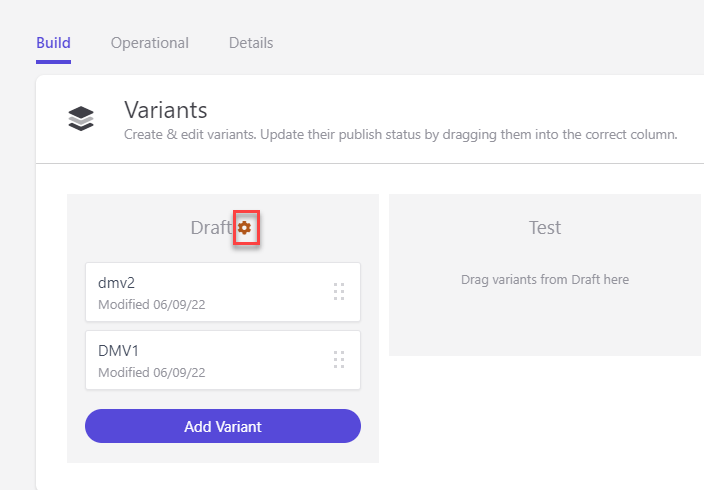
Next to the data you want to access, click
 . There are multiple areas within the Sitecore Personalize application that include the debug option.
For example, the following image shows the debug feature that is available for a decision model variant.
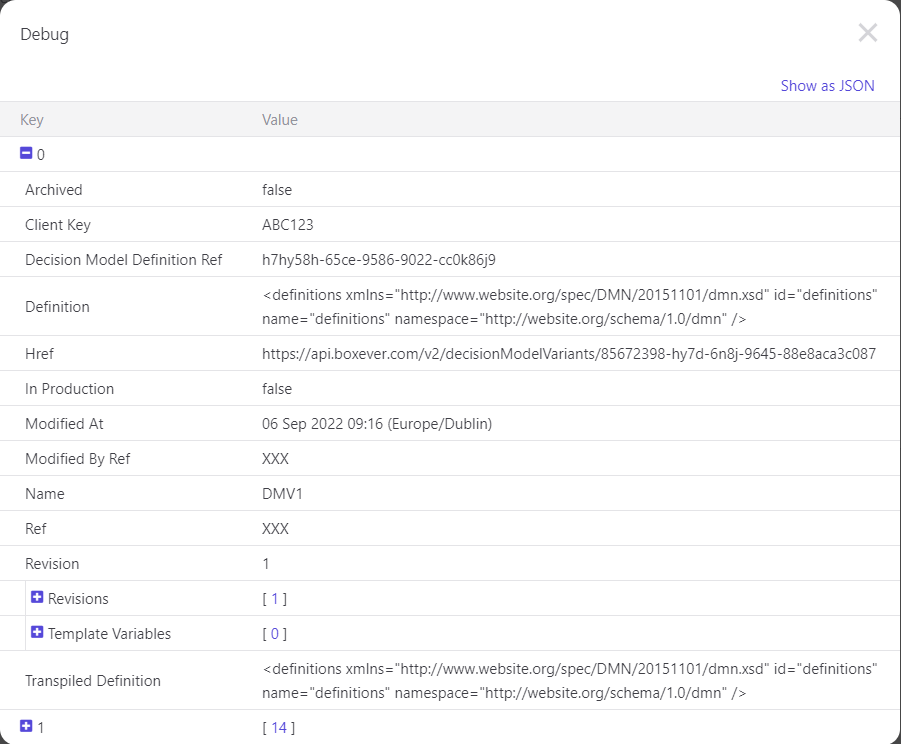
The Debug window opens, showing data in table format, as shown in the next image.
-
To expand a data node, in the table, click
 .
.
-
To see the data in JSON format, click Show as JSON. A JSON representation of data displays.
-
To download the JSON to a local destination, click
 then click Download. Alternatively, to copy the JSON to the clipboard, click Copy all.
 -
To close the window, click
 .
.