Get started with the Agentic studio
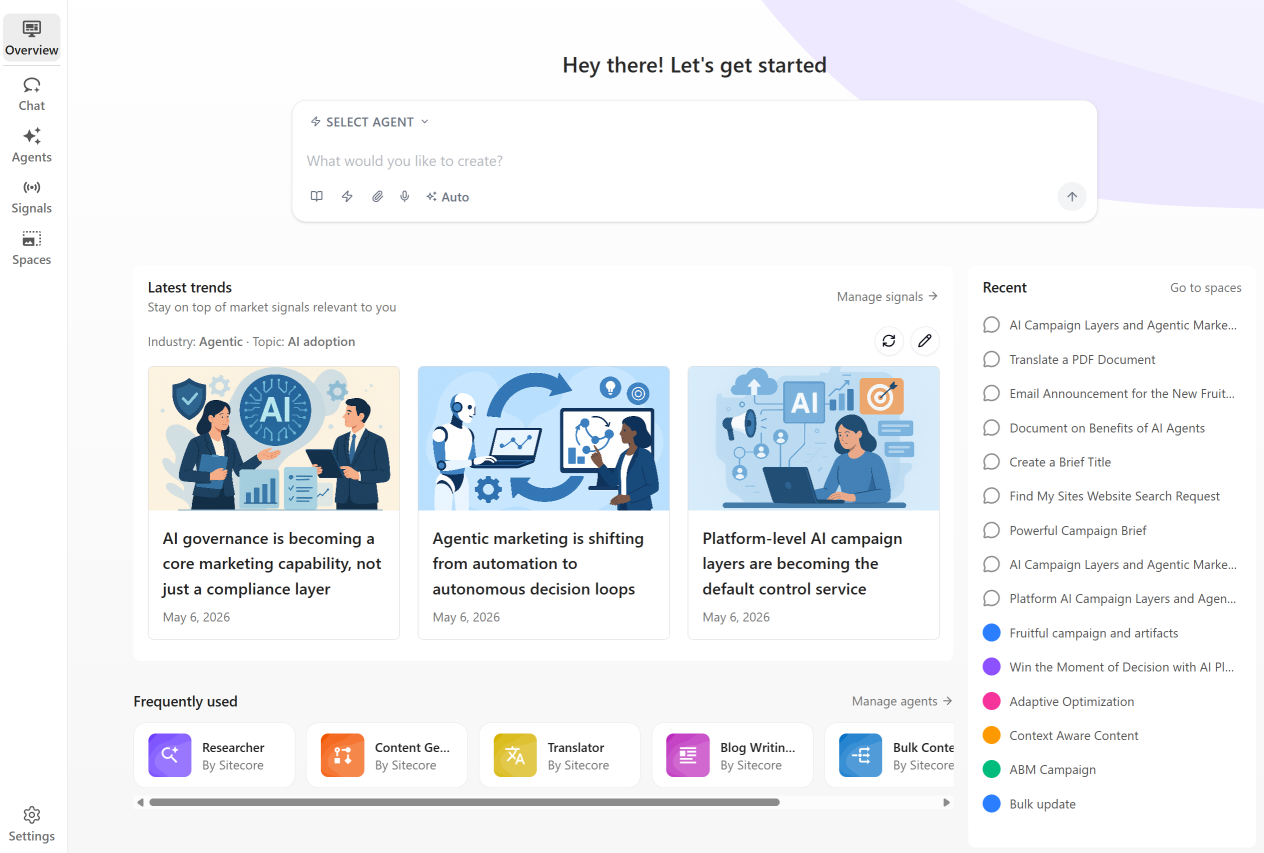
Start your Agentic studio experience on the Overview page where you'll find everything you need to ideate, create briefs, plan, and execute campaigns with intelligent assistance. From here, you can ask AI for help, automate individual tasks, coordinate multi-step workflows, or continue previous work.
To access the Overview page, in the navigation menu, click Agentic and then, in the left sidebar, click  Overview. Begin by following this basic workflow:
-
In the Chat interface, enter a prompt that uses natural language and states a clear outcome. Keep your prompt simple and concise. Be sure to specify important keywords and constraints.
-
Choose an agent if the task you want to complete is specific.
-
Add context if the output needs to respect brand guidelines or requires source material.
-
Submit your request.
-
Click the generated artifact to review the output.
-
As required, repeat and refine your request.
To learn about the various tools available, see the Agentic studio toolkit.
To use Agentic studio and all its features, verify that you have fulfilled the necessary requirements.
Chat
The Chat at the top of the Overview page is a conversational workspace where you can collaborate with AI to think, create, solve, and explore. Use it to develop ideas, refine messaging, make decisions, and run the most appropriate agent or tool.
To guide the chat conversation, start by selecting an agent if you want the AI agent to complete a specific task. Then, provide the agent with the context and source material it needs to process your request. The following capabilities determine which information the chat uses, which actions it takes, and how requests are processed.
|
Icon |
Capability |
Description |
|---|---|---|
|
|
Select an agent |
Choose a prebuilt or custom agent to handle your task. Depending on the agent, you may need to configure parameters and can optionally select items (pages, artifacts briefs, or CSV files) for the agent to act on. |
|
|
Add context |
Add sources that ground the AI. This helps it better understand your request and produce more relevant results. Context represents the information used to guide and inform the AI, giving you more control over how outputs are generated. |
|
|
Skills & Tools |
Add reusable agent skills for specialized tasks. These can include custom or system skills, such as campaign planning, competitive analysis, or CSV and text extraction. Skills are created in Agentic studio settings. All users can create skills; however, only Admins can share them. Enable agents to perform actions in using natural language. This includes retrieving and managing sites, creating and updating pages, editing content, and other marketing tasks. Use official Sitecore documentation as reference material. This helps the AI give accurate, product-specific answers and cite trusted Sitecore sources. Use built-in chat tools to extend what the AI can do. For a list of Agentic Studio tools, see the Agentic Studio toolkit. |
|
|
Items |
Add items such pages, content items, artifacts, and external files to use in support of the conversation. This icon is available when you open an agent from the Agents page. |
|
|
Parameters |
Set parameters, such as channels, target audiences, and content formats. This icon is available when you open an agent from the Agents page. |
|
|
Attach files |
Add one or more files related to your request. The AI can use attached briefs, documents, or drafts to generate more accurate and tailored responses. |
|
|
Voice input |
Speak your prompt instead of typing it. |
|
|
Model type |
Select the default, fast, or expert model type to control how AI handles your request. |
|
|
Submit |
Click to submit your prompt and generate a response. |


After you submit your request and it has been processed, the generated artifacts are available on the Chat page. Click an artifact to open it and review the contents. You can continue the conversation and refine outputs, copy results, or ask follow-up questions or copy the chat to a space for collaboration and further work.
For more detailed descriptions of Chat capabilities, including examples, see Chat features and tools.
Latest trends
AI-driven research insights are displayed in the Latest trends section. This helps you stay informed and support marketing decisions. Each insight is a market signal that appears as a card with an image, descriptive title, and creation date.
-
To set your preferences for market signals by Topic, Industry, and Prompt, click Edit signal preferences
 .
. -
To refresh signals and regenerate insights, click Refresh signals
 .
. -
To view the full insight, explore the findings, and take action or interact with it in chat click a signal. You can explore the insight, continue the conversation with AI, and plan next steps.
-
To browse all market insights generated for your selected subject and industries on the Signals page, click Manage signals .
Frequently used
This section gives you quick access to available agents.
-
Each agent appears as a card with its name and icon.
-
Select a card to open the agent and start a new run.
-
Click Manage agents to open the Agents page where you can browse the full list of available agents.
Recent
The Recent list gives you easy access to chats you have recently generated or spaces you have visited. Chats are identified with an icon  as are spaces
  . To manage spaces, click Go to spaces.