Managing campaigns
The Campaigns page in Strategy serves as the central hub for managing marketing campaigns.
A campaign represents a key marketing initiative, goal, or activity that your team aims to accomplish, such as product launches, website updates, seasonal promotions, or digital ad strategies. Creating a campaign is the first step in planning and organizing work, setting objectives, and assigning responsibilities across your team.
Campaigns brings together all campaign activities together so teams can plan, organize, and track work in one place. From here, you can create campaigns, add deliverables and tasks, edit campaign details, and monitor progress using different views to track status, workload, and timelines.
You can also take advantage of AI-powered features, such as suggested deliverables or brand-guideline checks, to help keep work consistent and efficient.
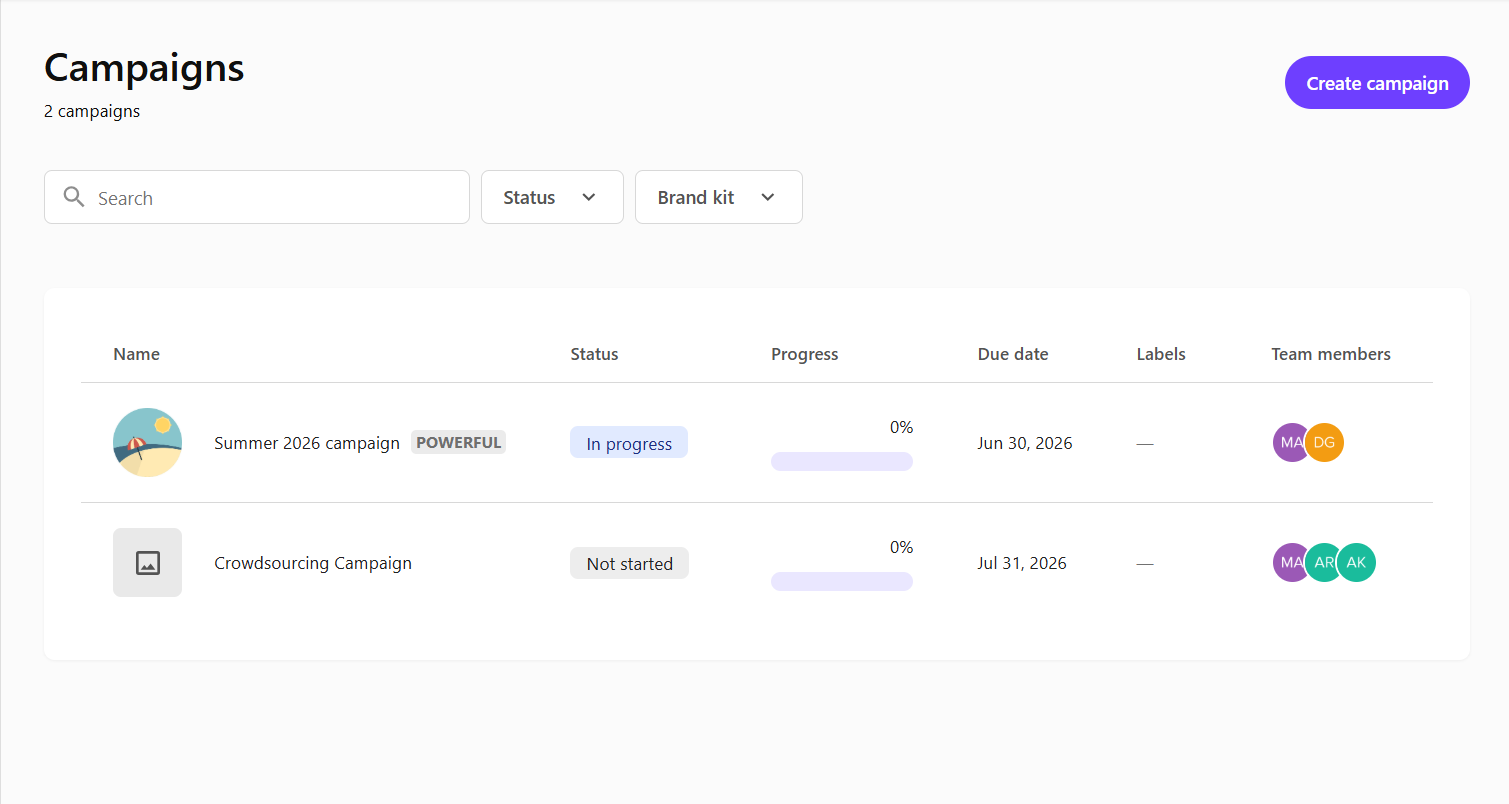
To open Campaigns, in the navigation menu, click Strategy. Then, in the left sidebar, select Campaigns.
The Campaigns page shows all campaigns in your organization, including their status, progress, due date, labels, and team members. You can sort or filter campaigns by status and brand kit.
Campaign management process
Before creating a campaign, you usually start with a brief, which defines goals and creative direction. The campaign then turns that strategy into coordinated deliverables and tasks that can be tracked across the team.
The campaign management process usually includes the following steps:
-
Create a campaign - define the main objective, initiative, or requirement for your campaign and set its duration.
-
Add deliverables to a campaign - specify the outcomes needed to complete the campaign and determine where they fit in the marketing funnel.
-
Add tasks to a deliverable - split the deliverable into individual tasks by providing task details, assigning tasks to team members, selecting duration and priority.
-
Edit a campaign's details - update information after creation, such as adding members, setting the status, and adjusting the duration. You can also view briefs associated with a campaign.
-
Monitor your tasks and campaign - keep track of your own tasks or view the campaigns you're part of. Use different views to track progress, assess workload distribution, review timelines, update statuses, and identify bottlenecks.
Marketing initiative: Running a digital ad campaign launch
Campaign name: Spring Product Awareness Campaign
Tools used: Strategy, Page builder Personalize mode, Analytics
Tasks assigned to team members:
-
Prototype campaign component's variant for a designer
-
Create corresponding component's variants for a developer
-
Create audience segments for a marketer
-
Build personalized page variant for a content author
-
Track performance using real-time analytics and compare variant effectiveness for a marketer
Outcome: Streamlined collaboration across marketing, content teams, and developers. Faster go-to-market, and improved conversion tracking.
Campaign overview
Selecting a campaign from the Campaigns page opens the Overview page, which displays key information:

-
Top-left - view the campaign's status, thumbnail, name, labels, description, and selected brand kit.
-
Top-right - add or remove team members, or click the horizontal ellipsis icon
 to edit the campaign details or delete the campaign.
 -
Progress bar - the purple bar shows task completion (for example 9%). It also displays the elapsed time (for example, Day 8 of 44), which means the campaign is on its 8th day out of a 44-day duration, ending on June 30th.).
The following sections describe the available tabs on the Overview page.
Deliverables
By default, the Overview page opens on the Deliverables tab. From there, you can switch between four views: List, Kanban, Timeline, and Funnel to manage different aspects of your campaign.
List
The List tab displays campaign details in a structured format, showing deliverables and tasks with due dates, assignees, and statuses.
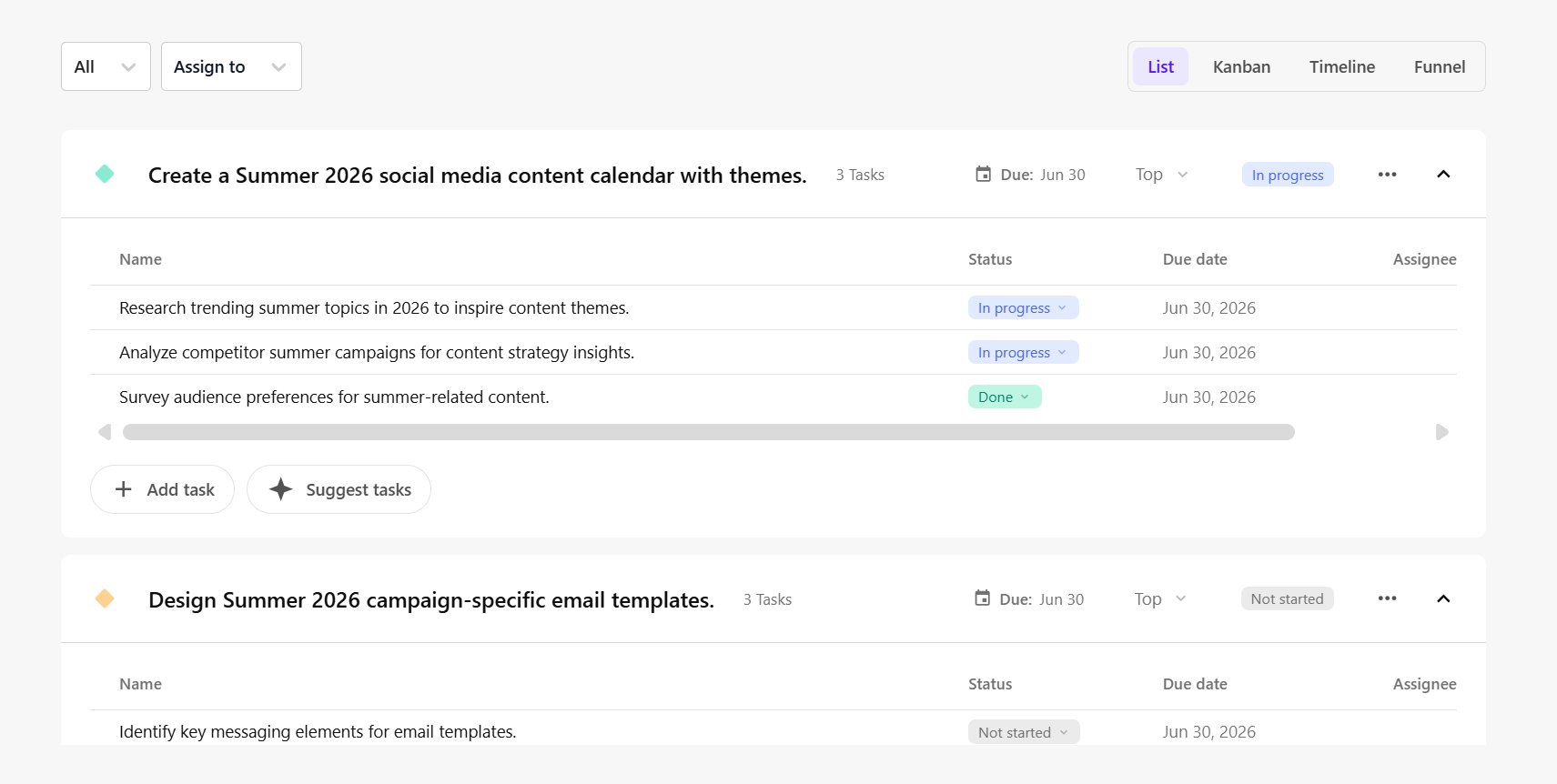
On this tab, you can :
-
Manage campaign entities - view, edit, or add deliverables and tasks.
-
Use AI-powered suggestions - to let AI generate deliverables for your campaign, click Suggest deliverables. To generate task suggestions, click Suggest tasks.
-
Filter tasks and deliverables - use filters to view entities by due date, assignee, and funnel stage.
-
Expand or collapse deliverables - expand deliverable sections to view tasks, or collapse them to focus on high-level details.
Kanban
The Kanban tab organizes campaign deliverables and tasks visually in a board with color-coded columns for each status.
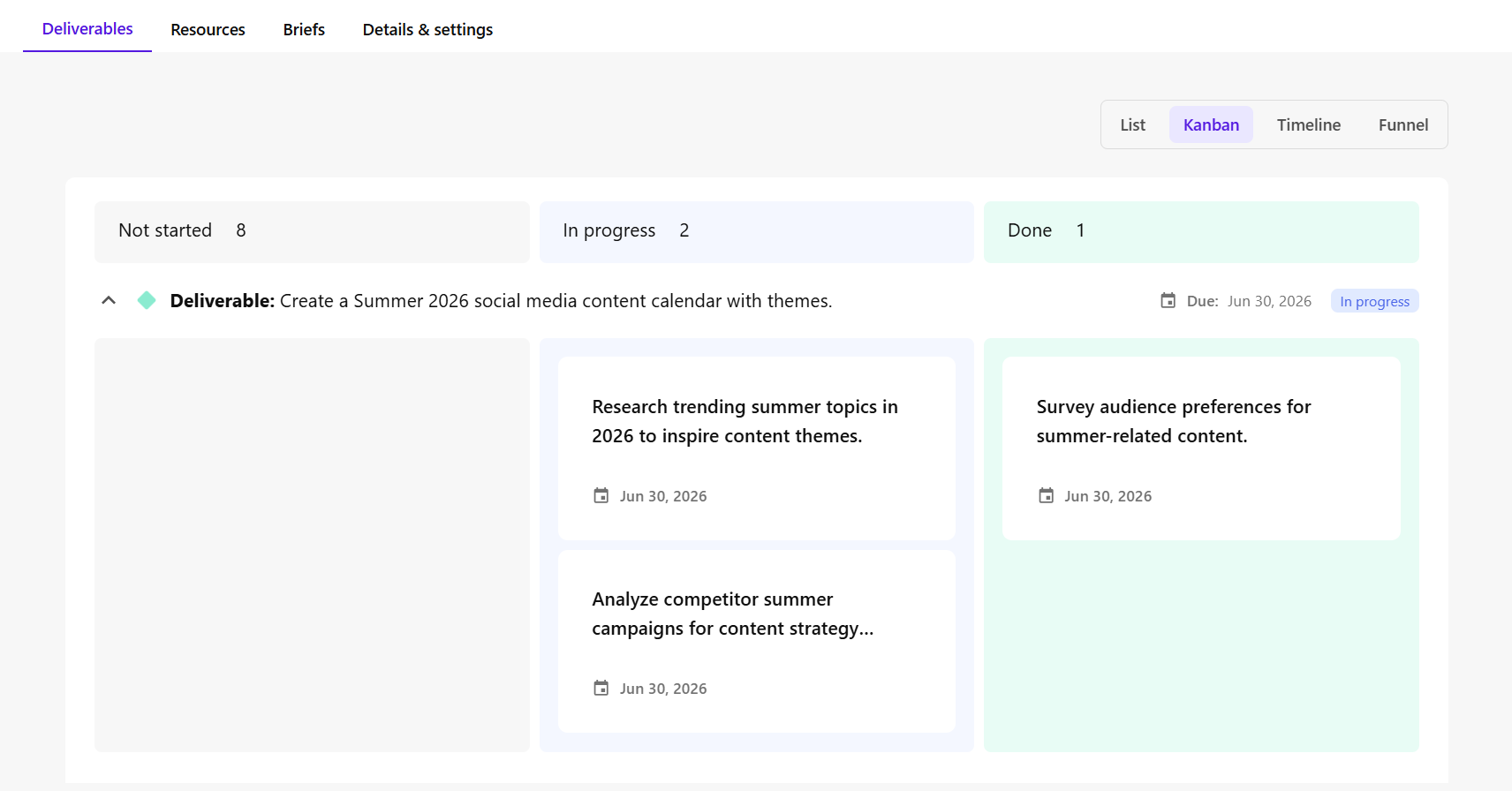
On this tab, you can:
-
View tasks by deliverable - see tasks grouped under each deliverable header, showing details such as names, assignees, due dates, and statuses.
-
Update task status - drag task cards between columns like Not started, In progress, or Completed to reflect progress.
-
Expand or collapse deliverables - expand deliverable sections to view tasks, or collapse them to focus on high-level details.
Timeline
The Timeline tab lets you view all campaign work on a timeline to monitor scheduling, deadlines, and dependencies.
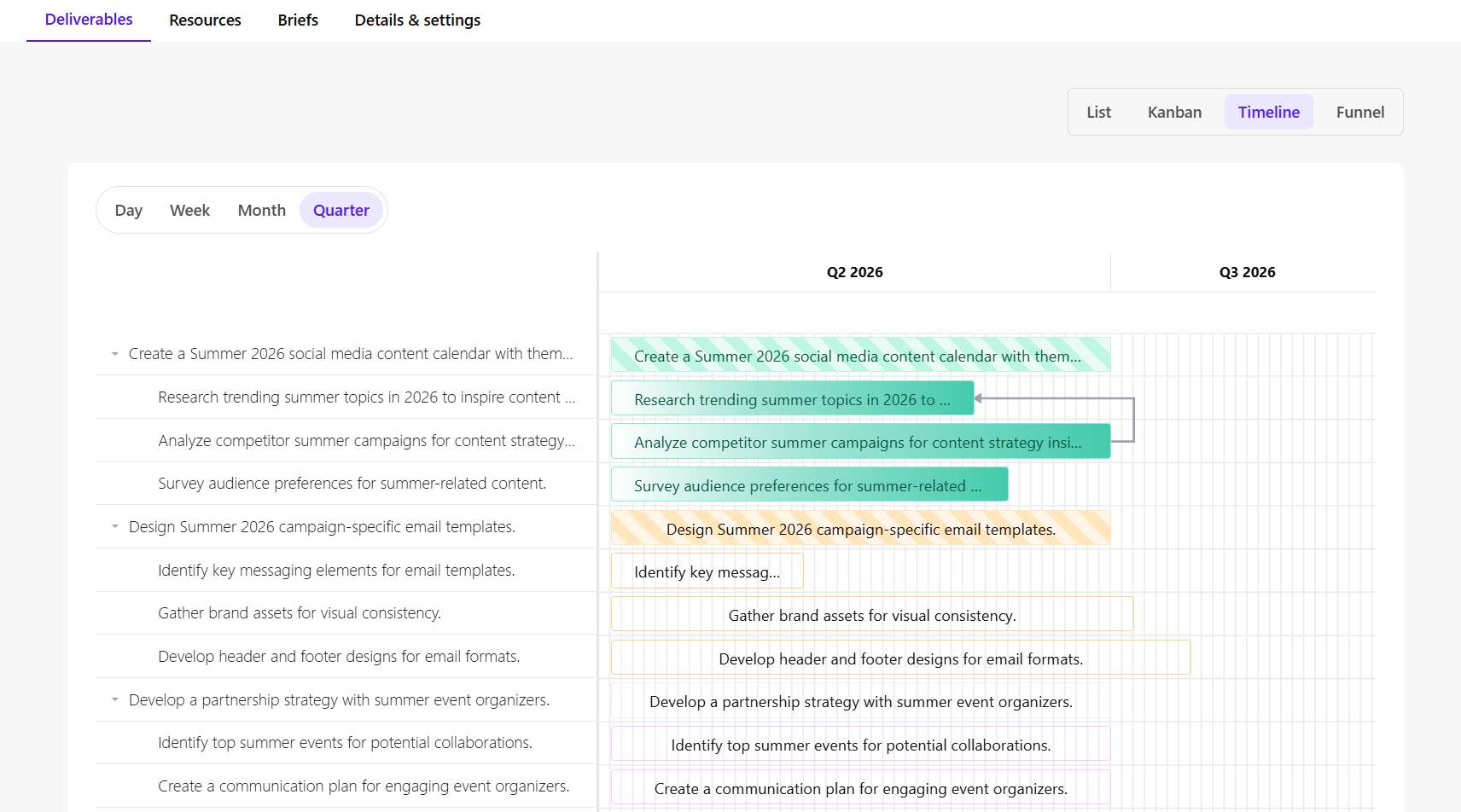
On this tab, you can:
-
Track progress using visual indicators - monitor the status and start dates of tasks and deliverables using color-coded indicators.
-
Filter view by time period - use filters to view the timeline by Day, Week, Month, or Quarter for a clearer overview of schedules. It is set to a Day view by default.
-
See start and end date via tooltips - hover over any bar to display a tooltip showing its due date.
-
Adjust duration of a task - drag the ends of any bar to lengthen or shorten it, dates update instantly.
-
Shift a task without changing its length - drag the entire bar to move it earlier or later while preserving its duration.
-
View dependencies - view dependencies on each task or deliverable bar. Dependencies are shown by arrows connecting the tasks.
-
Expand or collapse deliverables - expand deliverable sections to view tasks, or collapse them to focus on high-level details.
-
Quickly view and edit details - click any task or deliverable to open its full details in the right-hand pane.
Funnel
The Funnel tab organizes deliverables by their intended stage in the marketing funnel. These stages represent the customer journey, starting with awareness of your brand and leading to a purchase:
-
Top (or awareness stage) - introduce your brand to a broad audience.
-
Middle (or consideration stage) - nurture customer interest and guide them toward a decision.
-
Bottom (or conversion stage) - drive prospects to take action, such as purchases or sign-ups.
As customers progress through the funnel, the number of people decreases. Many enter at the top, but fewer reach the bottom.
The Funnel tab helps you align campaign deliverables with your marketing objectives.
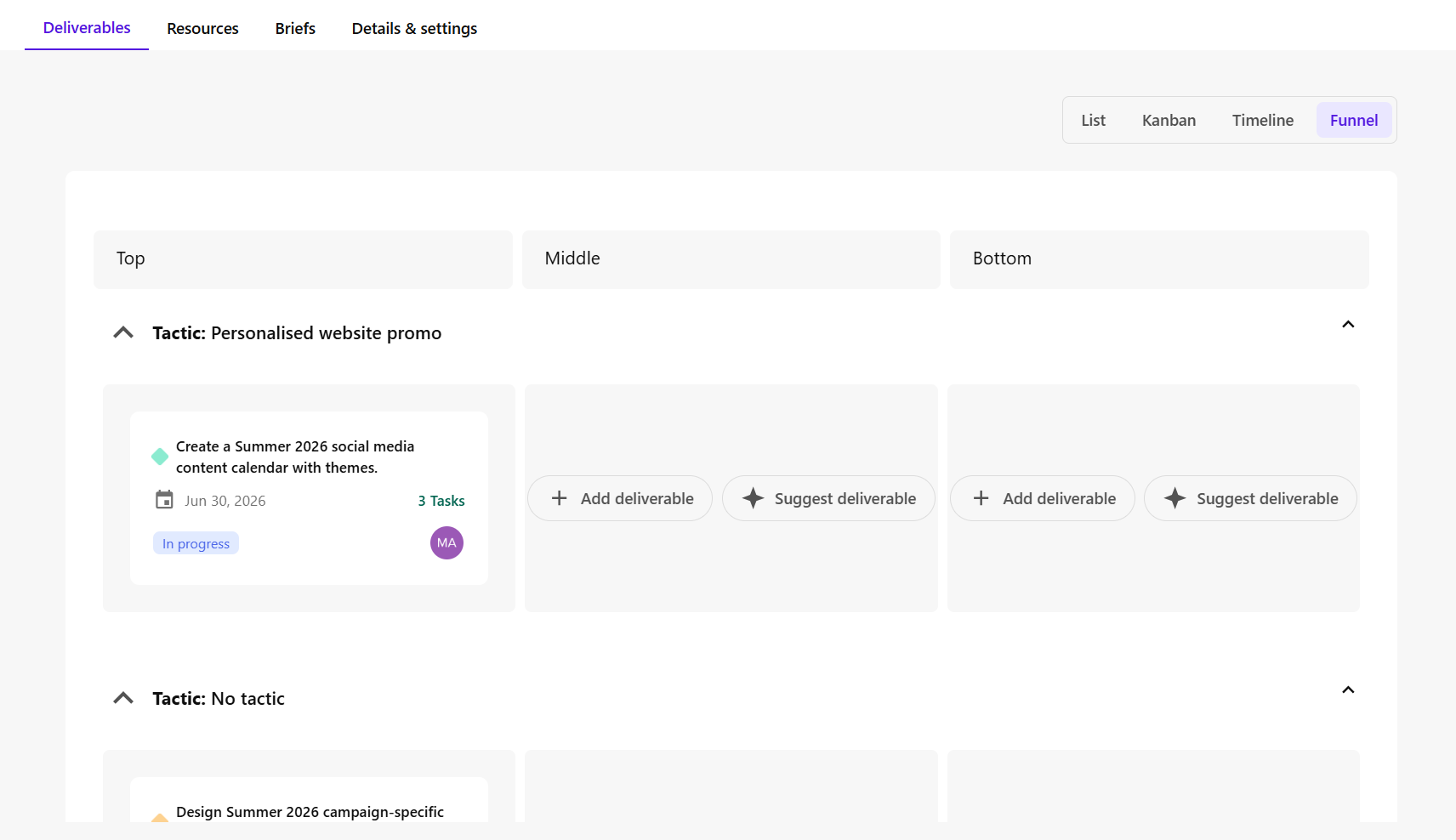
On this tab, you can:
-
Identify gaps in the funnel - spot missing tactics or ensure all funnel stages are adequately covered with corresponding deliverables. Add deliverables manually or use AI.
-
View deliverables by tactic - see deliverables grouped under each tactic header, showing details such as names, number of tasks, due dates, and statuses. Deliverables with no tactics assigned are grouped together for easy identification.
-
Update funnel stage - drag deliverables between the Top, Middle, or Bottom columns to change their marketing funnel stage.
-
Use AI-powered suggestions - to let generate deliverables for any uncovered stages or missing tactics, click Suggest deliverable.
-
Expand or collapse tactics - expand tactic sections to view related deliverables, or collapse them to focus on high-level details.
Resources
The Resources tab consolidates all campaign-related documents and images.
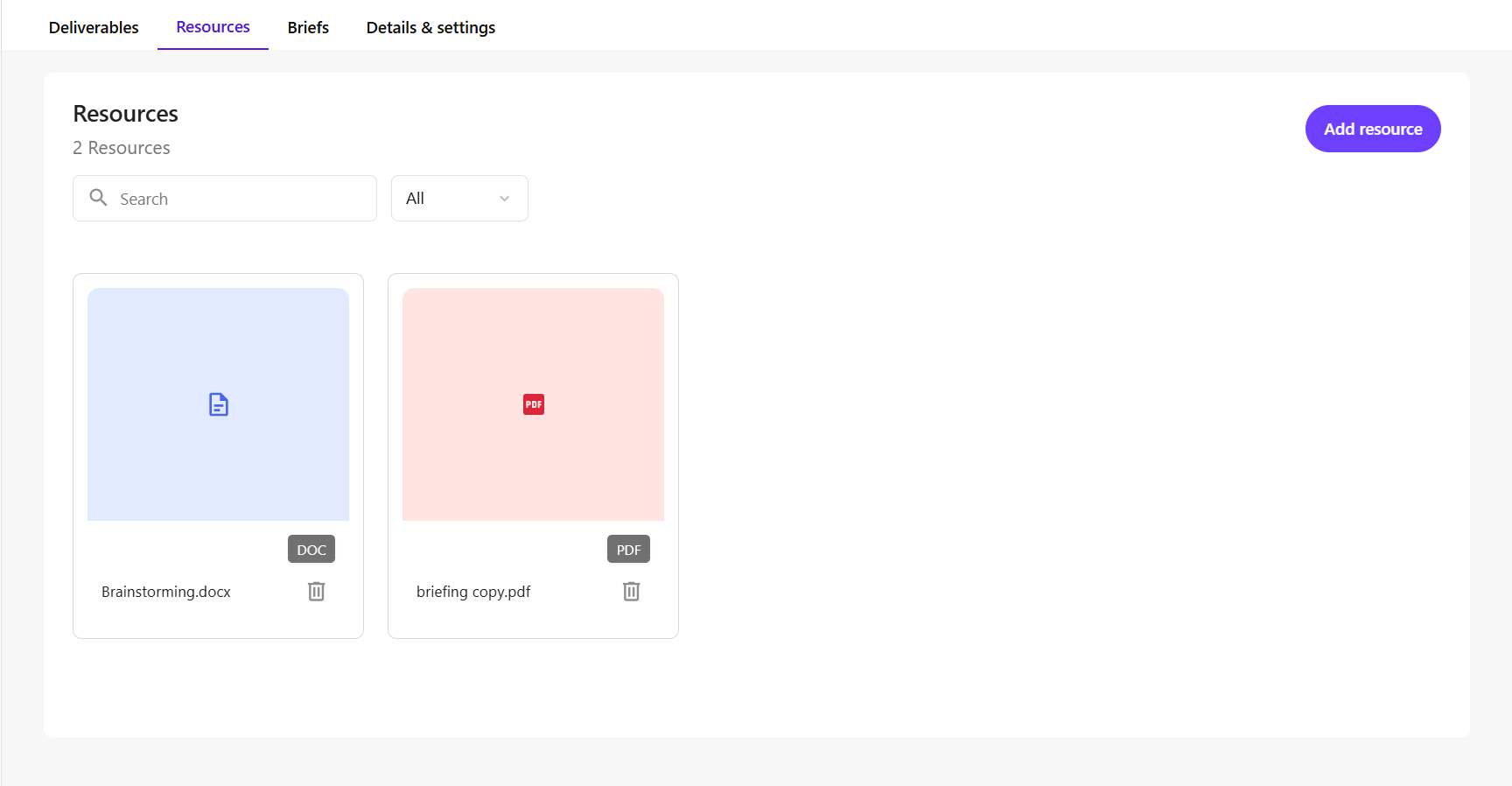
On this tab, you can:
-
Upload campaign resources - to add documents and image files relevant to your campaign, click Add resource. These resources are specific to the campaign, and different from the files attached to individual tasks.
-
Search and filter resources - quickly find specific files using the search bar, or filter by type, such as Document, or Image.
-
Preview or download campaign file - view file details like names and formats at a glance. To open a preview of an image or to download a copy of a document, click its thumbnail.
-
Delete resources - to permanently delete campaign resources you no longer need, click Delete
 .
.
Briefs
The Briefs tab lets you view briefs associated to your campaigns in one place. Each brief captures key details such as objectives, target audiences, messages, and creative requirements.
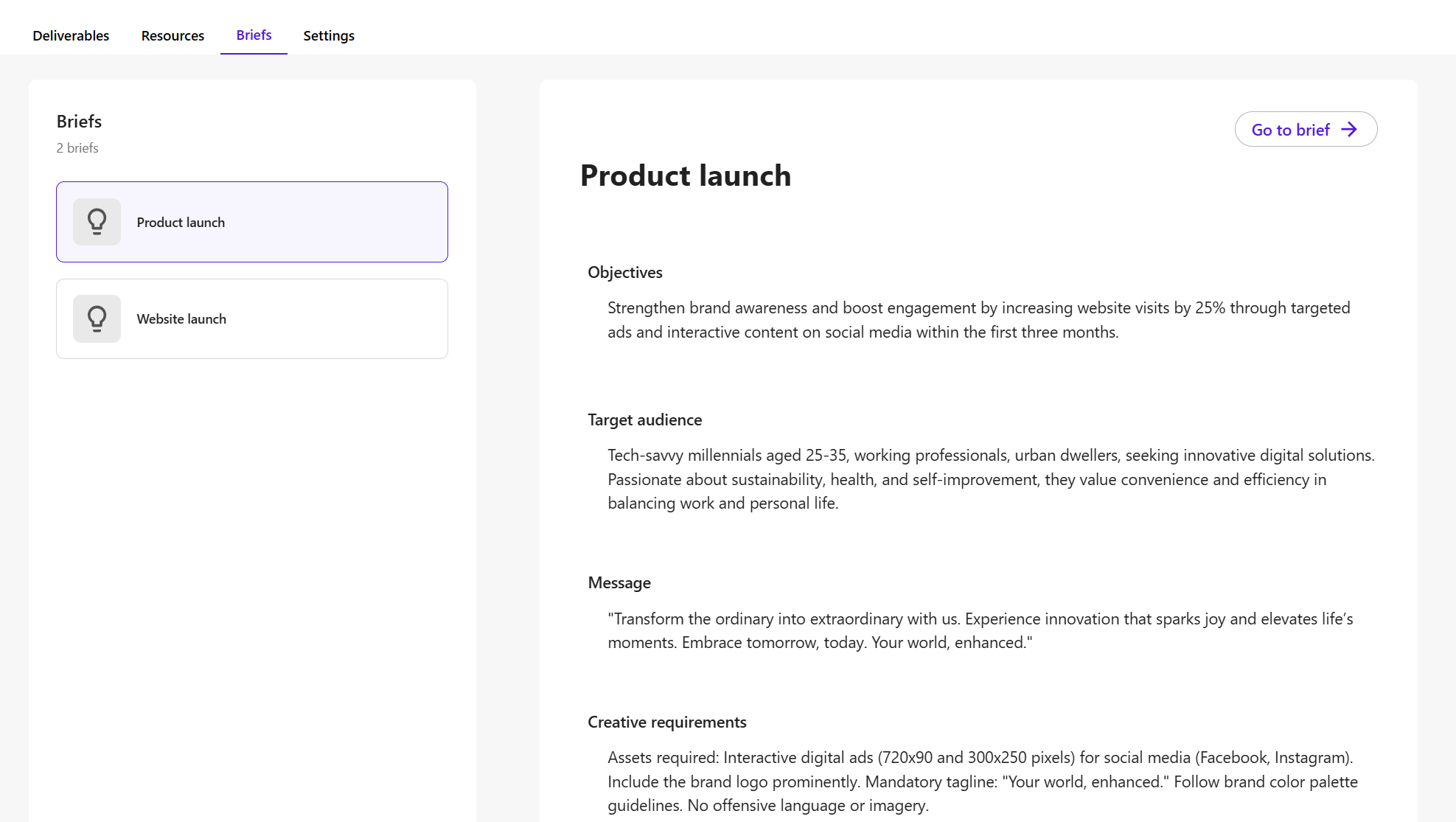
On this tab, you can:
-
Preview a brief - select a brief to open a preview. The available briefs can include briefs linked from the brief details page and briefs that were converted into campaigns.
-
Click Go to brief to open the full brief and make edits on the brief details page.
Details & settings
The Details & settings tab lets Admins manage sites and campaign membership.
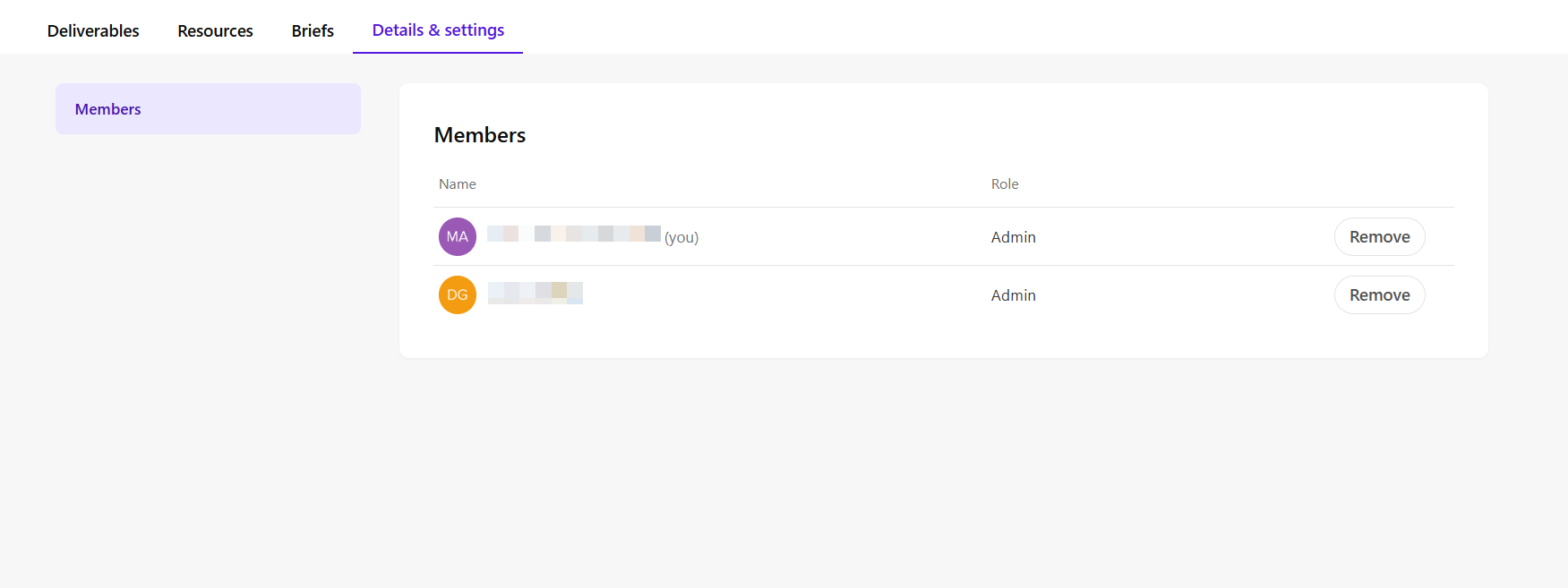
On this tab, Admins can:
-
Remove themselves or other campaign team members.