Strategy overview
The Overview page in Strategy gives marketing teams a personalized dashboard to stay on top of their workload. From here, you can track briefs, monitor campaign progress, check upcoming campaigns, view tasks, and use the calendar to manage deliverable priorities.
To access, in the navigation menu, click Strategy. Then, in the left sidebar, select Overview.
The page includes these sections: Pinned channels, Insights across all sites, Briefs snapshot, Upcoming campaigns, and Deliverable calendar.
The below the navigation menu lets you access the features in the Agentic studio.
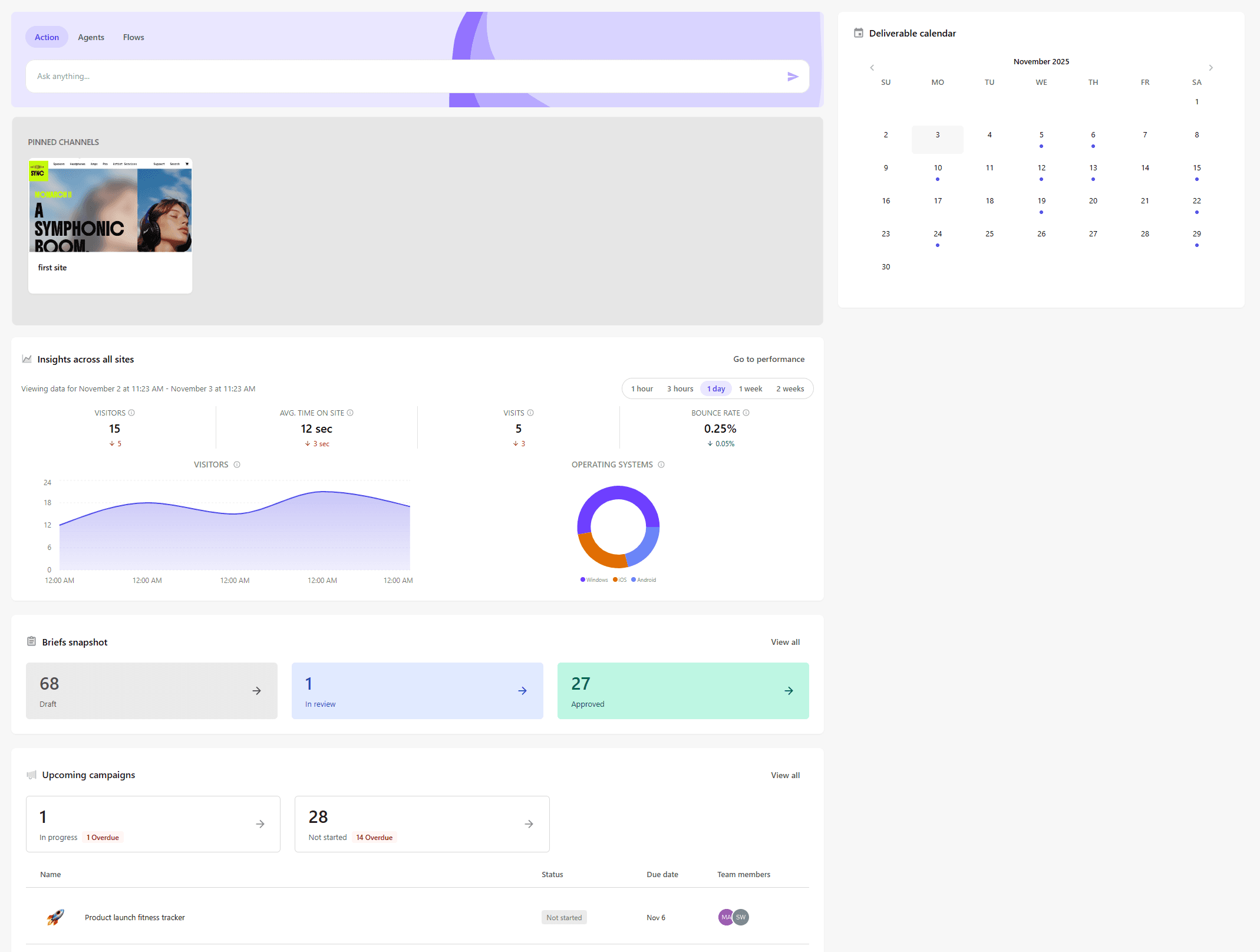
Pinned channels
Keep your most important channels within easy reach by pinning them to the top of your workspace.
-
View and manage pinned channels for quick access and organization.
-
Jump between pinned sites and site collections without switching pages or searching.
-
Click Start pinning channels to choose which ones to keep front and center.
Insights across all sites
View performance data for all your sites to understand traffic and engagement trends.
-
Track key metrics like visitors, visits, average time on site, and bounce rate.
-
Adjust the time range (1 hour to 2 weeks) to explore different performance periods.
-
Hover over the charts to see specific data points.
-
Click Go to performance to open the full analytics dashboards for detailed insights.
Briefs snapshot
Shows briefs you're involved in, organized by status. This helps you track the flow of briefs and ensure campaigns have the inputs they need.
-
See the total number of briefs in different statuses (Draft, In review, Approved).
-
Click the tiles showing the number and status to open the list of briefs filtered by that status on the Briefs page.
-
Click View all to go the Briefs page and open the full briefs list.
Upcoming campaigns
Lists upcoming campaigns you are involved in, organized by status. This section provides a clear overview of what’s coming up in your campaign schedule.
-
See the total number of campaigns scheduled for the current week, grouped by status (In progress, Not started), with overdue campaigns highlighted.
-
Click the tiles showing the number and status to open the list of campaigns filtered by that status on the Campaigns page.
-
View a list of upcoming campaigns that includes the name, status, due date, and team members.
-
Click a campaign in the list to open its Overview page, where you can review details and access different campaign views.
-
Click View all to go to the Campaigns page and see a complete list of campaigns you are a member of.
Deliverable calendar
Located in the right-hand pane, this calendar highlights deliverable dates to help you keep priorities aligned across campaigns.
-
Deliverables are shown in a monthly calendar view, allowing you to see due dates in context.
-
Color-coded markers indicate deliverables that are not started, in progress (purple) and overdue (red) for each day.
-
Click a date with a deliverable to view its tasks. Then click
 to open the tasks on the Campaigns page.
 -
Navigation controls allow you to move between months to plan ahead.