Managing translation terms in Glossary and Localization
The Glossary and Localization section in the brand kit lets you define how specific terms should be handled during translation in .
Use it to ensure consistent messaging, accurate translations, and brand control across all localized marketing content, such as landing pages, campaigns, and site pages.
To apply glossary terms during site or page translation, the site must have a brand kit assigned. For more details, see How translation works.
As soon as a term appears in the glossary, the Do’s and Don’ts you may have previously configured in the brand kit are ignored for translation.
When to add terms
Add terms to the Glossary and Localization section when you want to control how specific words or phrases appear across languages.
Common use cases:
-
Ensure consistent messaging - use to ensure specific terms are translated consistently into their approved local equivalents across all pages.
Example: Get started is always translated as Kom i gang in Danish.
-
Protect brand and product names - use when brand, product, or campaign names should remain unchanged across all languages.
Example: The term Powerful stays the same in all languages to preserve branding.
-
Maintain tone and positioning - use when a term should reflect the intended meaning, not a literal translation.
Example: Premium plan is translated as Premium-abonnement in Danish (not a direct word-for-word translation)
-
Preserve branded phrases or slogans - use when phrases are part of your brand voice and should not be altered.
Example: Do not translate the slogan Built for bold ideas.
How glossary terms are applied during translation
During site or page translation, the AI applies guidance in the following order:
-
Uses terms defined in the Glossary and Localization section first.
-
If no terms glossary terms exist, falls back to terminology rules in the Dos and Don'ts section, if available.
-
if neither is available or no brand kit is assigned to the site, it translates the content using general language understanding.
This ensures glossary terms take priority and are applied consistently.
Add a new term for translation
You can add terms to define how specific words or phrases should be translated or preserved during translation.
-
In the navigation menu, click Design. Then, in the left sidebar, select Brand kits.
-
On the Brand Kits page, click the relevant brand kit.
-
On the Sections tab, click Glossary and Localization.
-
If this is your first time adding a term, click Select source language, and choose the language that all glossary terms must be written in.
WarningAfter you set a source language, you cannot change it.
-
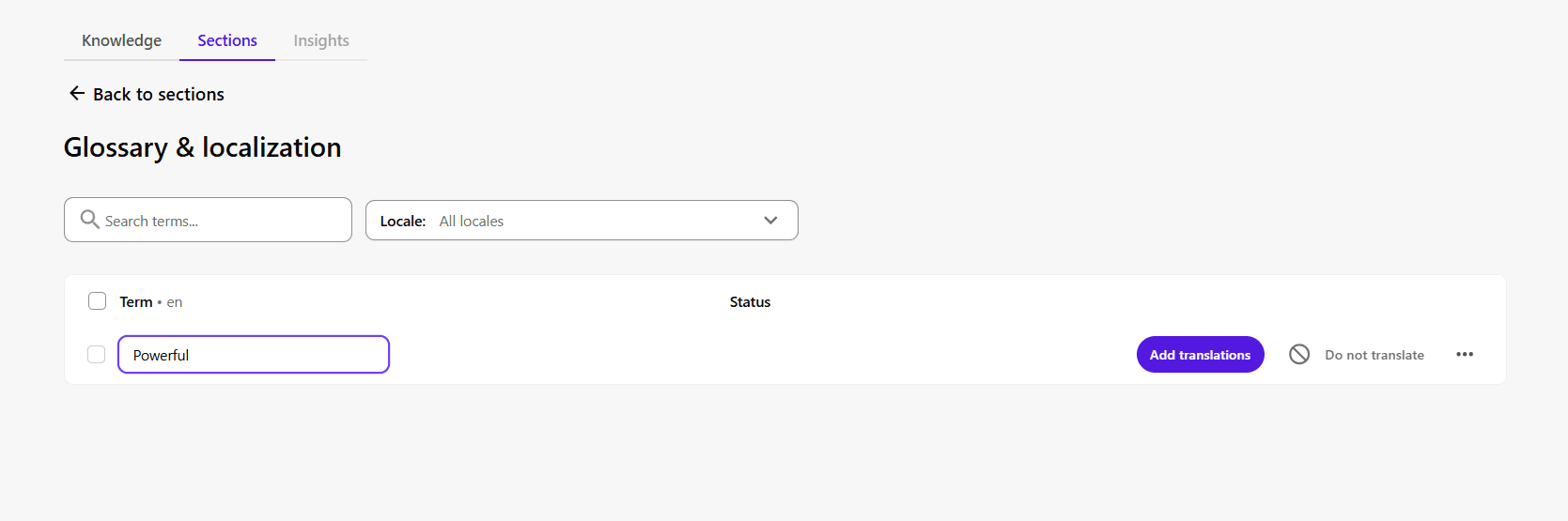
Click Add term, and enter the word or phrase.
-
Choose how the term should be handled
-
Add translations for each target language - use when a term should have a specific, approved translation.
-
Click Add translations. A list of site languages appears as rows below the term (for example, English, Danish).
-
Click Add translation to add the equivalent word or phrase until all required translations are defined (for example, Get started, is Kom i gang in Danish). To retain the same term for a target language, click Copy source.
-
-
Do not translate - use when a term should always remain unchanged across all languages.
-
Click Do not translate (for example, Summer Boost Campaign remains unchanged in all languages).
-
-
Once defined, terms are automatically applied during translation to ensure consistent and accurate results.
Edit translations for each target language
You cannot edit the original glossary term, but you can update its translations. If the term itself is incorrect, delete it and add a new one.
To edit translations:
-
In the navigation menu, click Design. Then, in the left sidebar, select Brand kits.
-
On the Brand Kits page, click the relevant brand kit.
-
On the Sections tab, click Glossary and Localization.
-
Locate the term and click the translation you want to edit.
-
Enter the updated word or phrase, and click Enter.
Delete a term
You can delete a term if it is no longer relevant. This removes all associated translations and cannot be undone.
To delete a term:
-
In the navigation menu, click Design. Then, in the left sidebar, select Brand kits.
-
On the Brand Kits page, click the relevant brand kit.
-
On the Sections tab, click Glossary and Localization.
-
Locate the term you want to delete.
-
Click the actions menu > Delete term.
-
In the confirmation dialog, click Delete.