Rules
Feature availability is part of a phased rollout. Your organization may not see this functionality yet. It will become available when your environment is included in the rollout.
Search results are ordered by a relevancy score, a single value calculated dynamically from factors like textual relevance, personalization, and ranking. Items with a higher relevancy score rank higher in search results.
Rules allow you to influence the relevancy score for certain items or impact the order in which items are displayed in search results. Rules are applied to a source, and are configured when creating or editing that source.
The rules available in SitecoreAI are:
|
Rule |
Impact |
Use |
|---|---|---|
|
Boost |
Increases the relevance of an item or a group of items, making them appear higher in the results list. |
Increases the visibility of certain content. |
|
Bury |
Decreases the relevance of an item or a group of items, making them appear lower in the search results. |
Reduces the visibility of certain content. |
|
Pin |
Sets the position of a particular item in search results, overriding other search filters. |
Highlights content that is important or relevant for your visitors, or highlights content regardless of user search input. |
Rules that are higher in the order will override conflicting rules beneath them. You can change the order in which your rules are triggered by changing their position in the Boost/Bury Rules menu.
Add boost or bury rules to your source
You can add boost or bury rules to a source during source creation, or by editing a source.
To add a boost or bury rule to your source:
-
On the menu bar, click Content > Search sources, and then click the source you want to apply a boost or bury rule to.
-
In the Boost/Bury Rules menu, click Add new rule.
-
In the Name field, enter a name for your rule.
-
Optionally, in the Description field, enter a description for your rule.
-
In the Keywords field, enter a keyword this rule applies to, and press Enter. Alternatively, to apply the rule to all keywords, turn on the All Keywords switch.
-
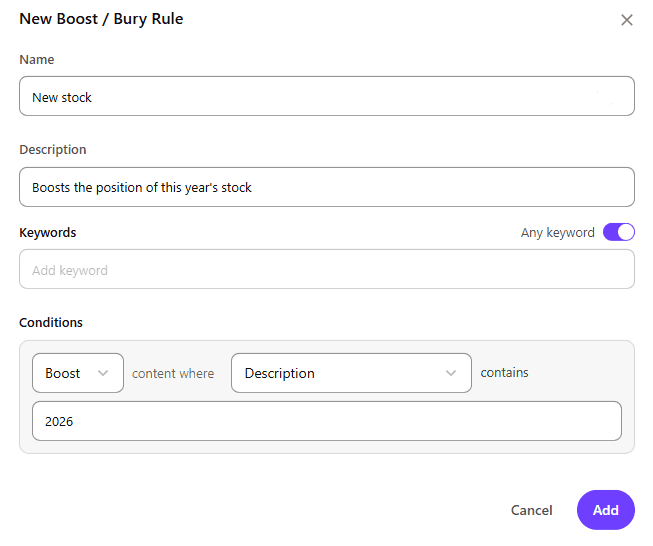
In the Rule drop-down list, select the type of rule you want to apply (for example,
Boost). -
In the Fields drop-down list, choose a field the rule evaluates (for example,
description) -
In the Value field, enter a value that triggers the rule (for example,
2026)The above is an example of a boost rule where the description contains "2026".
When semantic reranking is enabled, boost and bury rules will override semantic relevancy.
Add pin rules to your source
When a content item is pinned to a slot, it appears in search results in that position regardless of its relevancy score. You can add pin rules to a source by editing that source.
To add a pin rule to your source:
-
On the menu bar, click Content > Search sources, and then click the source you want to apply a pin rule to.
-
In the Pinning Rules menu, click Add new pin.
-
In the Name field, enter a name for your rule.
-
Optionally, in the Description field, enter a description your rule.
-
In the Keywords field, enter a keyword this rule will apply to. Alternatively, to apply the rule to all keywords, turn on the all keywords switch.
-
In the Fields drop-down list, choose a field to be checked against the rule condition (for example,
title.) -
In the Content Item drop-down list, select a content item (for example,
welcome page) -
In the Slot field, enter a slot number (for example,
2.)The above is an example of a pin rule where a content item with the title "welcome page" is pinned to slot 2, meaning it is the second item displayed in the search results.
When semantic reranking is enabled, items pinned to a slot will remain pinned to that slot, regardless of semantic relevance.