Working with the landing page editor
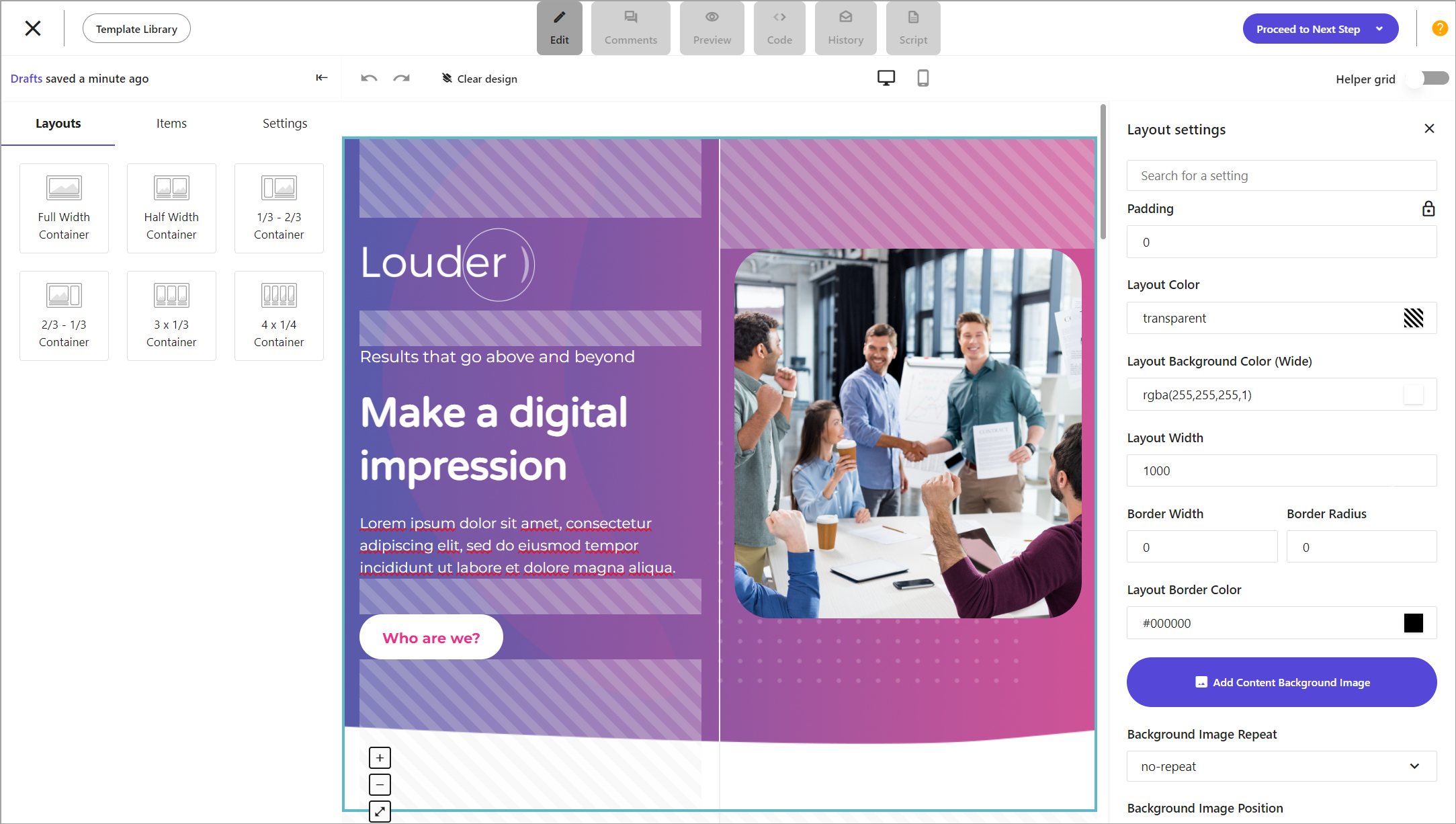
The landing page editor allows you to easily add or edit the layout and items of your landing pages. The editor consists of four main sections: the top menu, the left pane, the editing area, and the right pane.
Top menu
When building your landing pages, you can switch between the different modes in the top menu and use the available options. The top menu is always visible whichever mode you are in. The following table lists the modes and other available buttons in the top menu:
| Name | Description |
|---|---|
| Edit | Default mode when you open the editor. This mode allows you to edit and customize the structures and items in your newsletter. |
| Comments | Comments mode allows you to add comments to a landing page design and collaborate with team members. |
| Preview | Preview mode allows you to see what your landing page looks like on a mobile device, tablet, or desktop. |
| Code | Code mode gives a read-only view of the HTML code of your landing page. You can also copy the HTML code or download and upload JSON files. |
| History | History mode opens a pane with a list of saved drafts of your landing pages. You can select a draft and load it to revert your landing page to that version. |
| Script | Script mode allows you to create your own script for your landing pages or customize the script using existing structures and items. |
| Close | Closes and autosaves the current landing page and exits the editor. |
| Template Library | Opens the landing page template library from the editor. |
| Proceed to Next Step | Allows you to update the template and exit the editor. You can also save a landing page as a template or save a landing page as a draft. |
| Draft status | Indicates when your design was last saved either automatically or manually. The editor autosaves drafts every 30 seconds. |
| Hide/Unhide | Hides or unhides the left pane at any time. Useful when you need to increase your workspace to edit your landing page. |
 | Undo. Allows you to undo changes you made to your newsletter design. |
 | Redo. Allows you to redo undone changes to your newsletter design. |
 | Desktop view. This default view of the editor allows you to edit the desktop version of your landing page. |
 | Mobile view. Allows you to edit the mobile version of your landing page, without affecting the desktop version. |
| Clear design | Clears the design of your landing page and reverts to an empty template so you can start from scratch. |
| Helper grid | When switched on, the editing area shows what layout and items you can add to your design. |
Left pane
By default, the left pane is displayed in the landing page editor. It consists of the three separate tabs: Layout, Items, and Settings. You can use the left pane to switch between the tabs to create a layout, add items, or customize the general settings of your landing pages.
Editing area
The editing area is the main workspace in the landing page editor where you can edit and customize the layouts and items on your landing pages, preview your landing pages on different devices, or add comments for collaboration.
Right pane
The right pane is displayed in the landing page editor when you click an item or a layout in the editing area. This pane contains the settings you can use to customize an item or a layout. You can close the right pane at any time by clicking  . This can be useful when you need to increase your workspace to edit your landing page.