Deploy a new Sitecore instance on Azure with Azure Monitoring and Alerts Basic
The Azure Monitoring and Alerts Basic module uses Azure Monitor to track whether specific resources are performing within acceptable boundaries. Azure Monitor is a tool that combines Log Analytics and Application Insights to collect and analyze telemetry so you can better understand and maximize the performance of your applications. Different types of resources have different thresholds and different time periods to check for. By default, Azure Monitoring and Alerts Basic creates a number of alerts specifically for each of the Sitecore topologies.
Prerequisites
Before you can deploy a Sitecore environment on Azure with Azure Monitoring and Alerts Basic, you must:
-
Work through Getting started with the Sitecore Azure Toolkit.
-
Work through Deploy a new Sitecore environment to the Azure App service, Specifically work through the following sections:
- Plan your environment
- Prepare WebDeploy packages
- Download and configure an environment template
-
Install the latest version of PowerShell (minimum 6.0.0) – To upgrade your PowerShell module, run:
Update-Module -Name AzureRM -RequiredVersion 6.0.0 -Force -
(Optional if you require a fully functional application level monitoring solution) Application Insights.
Add the Azure Monitoring and Alerts Basic module
To add the Azure Monitoring and Alerts Basic module, you must inject it into the parameters.json file for your specific topology. To inject the module into the parameters.json file:
- Ensure you have a
parameters.jsonfile for your Sitecore environment. - In the
parameters.jsonfile, add themodulesparameter. - Also in the
parameters.jsonfile for your Sitecore configuration, insert the configuration snippet, for the Monitoring module, into themodulesparameter. Use the snippet from the next section: Configure the Monitoring module.
Configure the Monitoring module
To integrate the deployment of the Azure Monitoring and Alerts Basic module into the Sitecore environment deployment,
-
In the
azuredeploy.parameters.jsonfile, add the following snippet to themodulesparameter. -
Populate the parameters for the Azure Monitoring and Alerts Basic module.
Parameter Instructions templateLinkIn Github, go to the Monitoringmodule, and use the URL of the Azure Monitoring and Alerts Basic template, azuredeploy.json. Alternatively, you can download the Azure Monitoring and Alerts Basic ARM templates and upload them to your storage account.OmsWorkspaceMetricsRetentionDaysEnter the custom metrics retention days. The value in days = between 30to730.OmsWorkspaceAlertRecipientsTo receive alerts, enter your email address. If you want to use more than one email address, then use a semi colon ";" as a separator. OmsWorkspaceLocationSpecify the location where you want to provision your log analytics. First check which regions are supported. applicationInsightsLocationSpecify the location where you want to provision your Application Insights. First check which regions are supported.
Invoke the deployment command
To invoke the PowerShell deployment command and initiate provisioning:
-
In PowerShell, open the Azure Toolkit folder, and load the Azure Toolkit module: Import-Module
.\tools\Sitecore.Cloud.Cmdlets.psm1-Verbose. -
Use the command
Add-AzureRMAccount, to add an Azure account to your PowerShell session. -
If you have access to multiple subscriptions, select the subscription that you want to deploy into. For example:
Set-AzureRMContext -SubscriptionName "<name of your subscription>". -
To start provisioning, use the
Start-SitecoreAzureDeploymentcommandlet:The
Start-SitecoreAzureDeploymentcommandlet uses the following parameters:- Parameter: Description
Location: The Azure datacenter where you want to deploy your resources from. The Azure datacenter compatibility table lists the Microsoft Azure datacenters that the Sitecore Experience Platform supports deployment to.Name: The name of the resource group for your new environment. The name can refer to a new or existing resource group, and is usually the same as the deployment ID.ArmTemplateUrl: The URL of the ARM template file for the environment configuration that you want to deploy.ArmParametersPath: The local path to the populatedparameters.jsonfile for the template that you selected.LicenseXmlPath: The path to the Sitecore license file that you want to deploy to the environment.SetKeyValue: (Optional) Use this parameter in a script to deploy several environments a common set of default parameter values in the azuredeploy.parameters.json file.Supply environment specific parameter values in the command line.The value of this parameter is a hashtable that contains a subset of parameters described in the azuredeploy.parameters.json file. Any values that you specify in the command line for this parameter override the values specified in the azuredeploy.parameters.json file For example, to set or override the value in the deploymentIdparameter, enter:
Deployment example
The following PowerShell script demonstrates how to use Sitecore Azure Toolkit to deploy Sitecore to Azure with the Azure Monitoring and Alerts Basic module.
Remove Azure Monitor from Sitecore
If you no longer require Azure Azure Monitor you can remove it.
If you only want to remove the Azure Monitor resource group, do not delete the resource group it is within, otherwise you will also remove Sitecore. If this happens, you can Invoke the deployment command to redeploy Sitecore.
Delete the Application Insights availability alerts
To delete the Application Insights availability alerts:
-
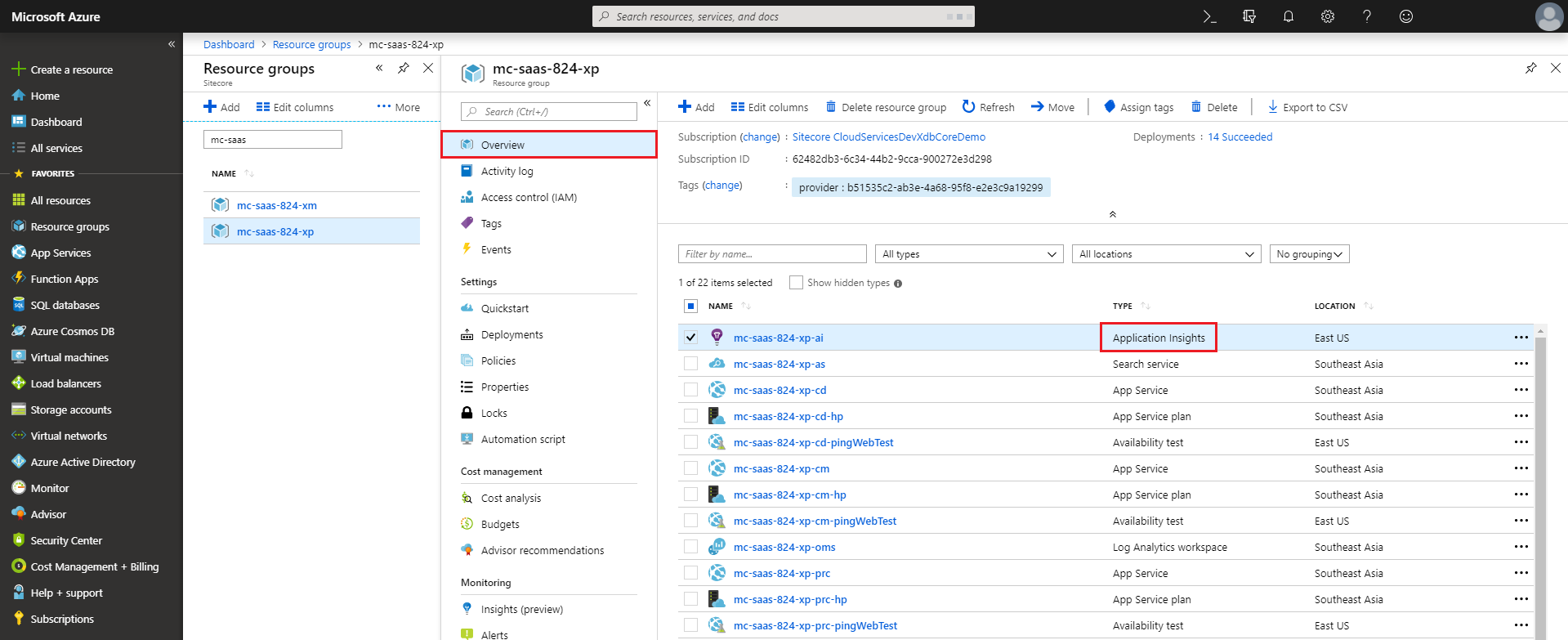
In the Microsoft Azure portal, click Resource groups to see all available resource groups.
-
Click your deployed resource group to see all of the available resources for that group, then in Overview, select Application Insights.
-
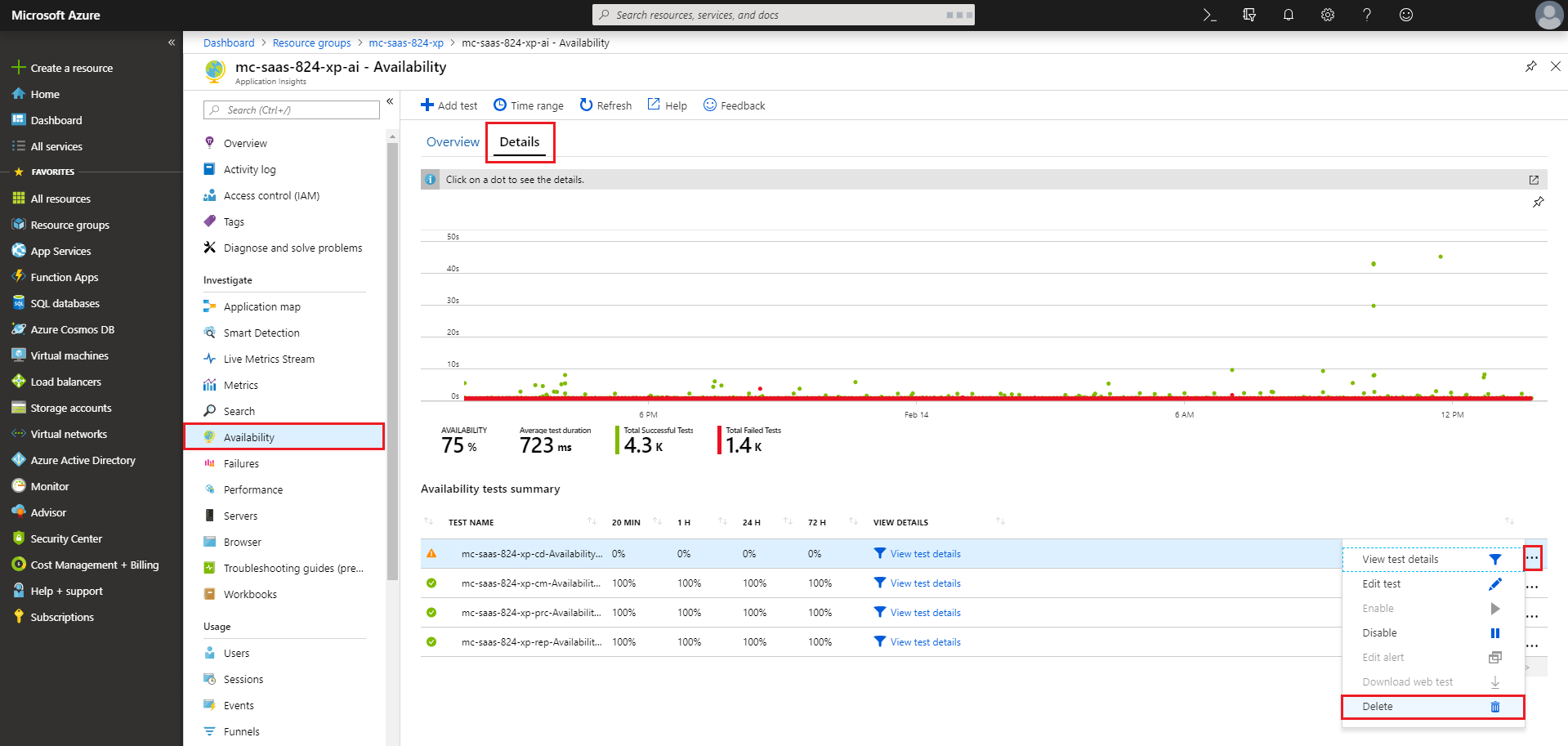
In the menu on the left, click Availability, then Details to see all the Tier 4 alerts, the Availability test alert, or the Ping test alert.
-
Under Available tests summary, to the right of the test you want to delete, click (...), and Delete.
Delete the associated metric alerts
To delete the associated metric alerts:
-
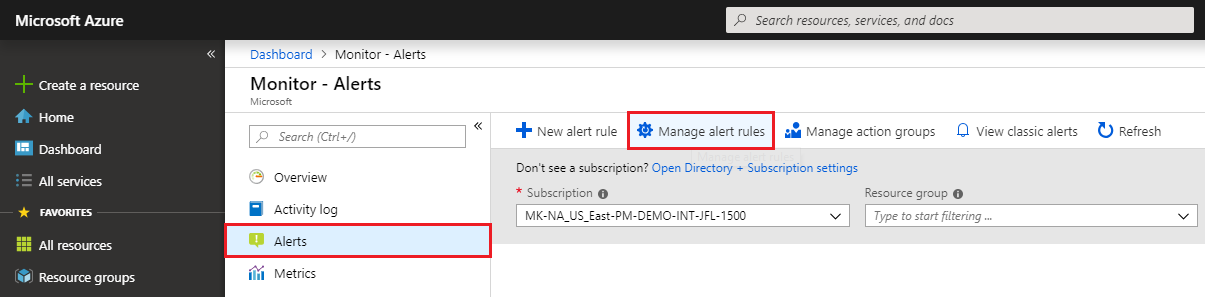
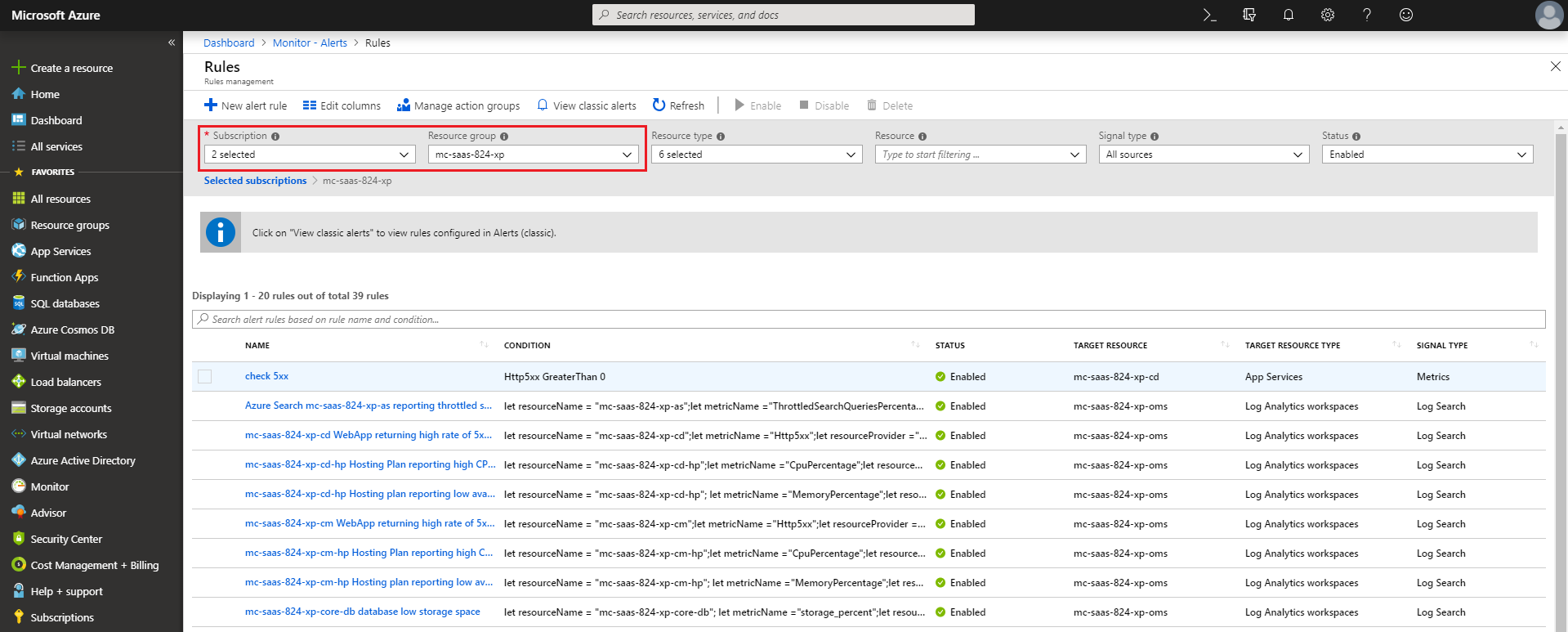
In the Microsoft Azure portal, click Monitor, then Alerts.
-
Click Manage alert rules, then select the appropriate subscription and resource group to see all the Tier 1, Tier 2, and Tier 3 metric alerts.
-
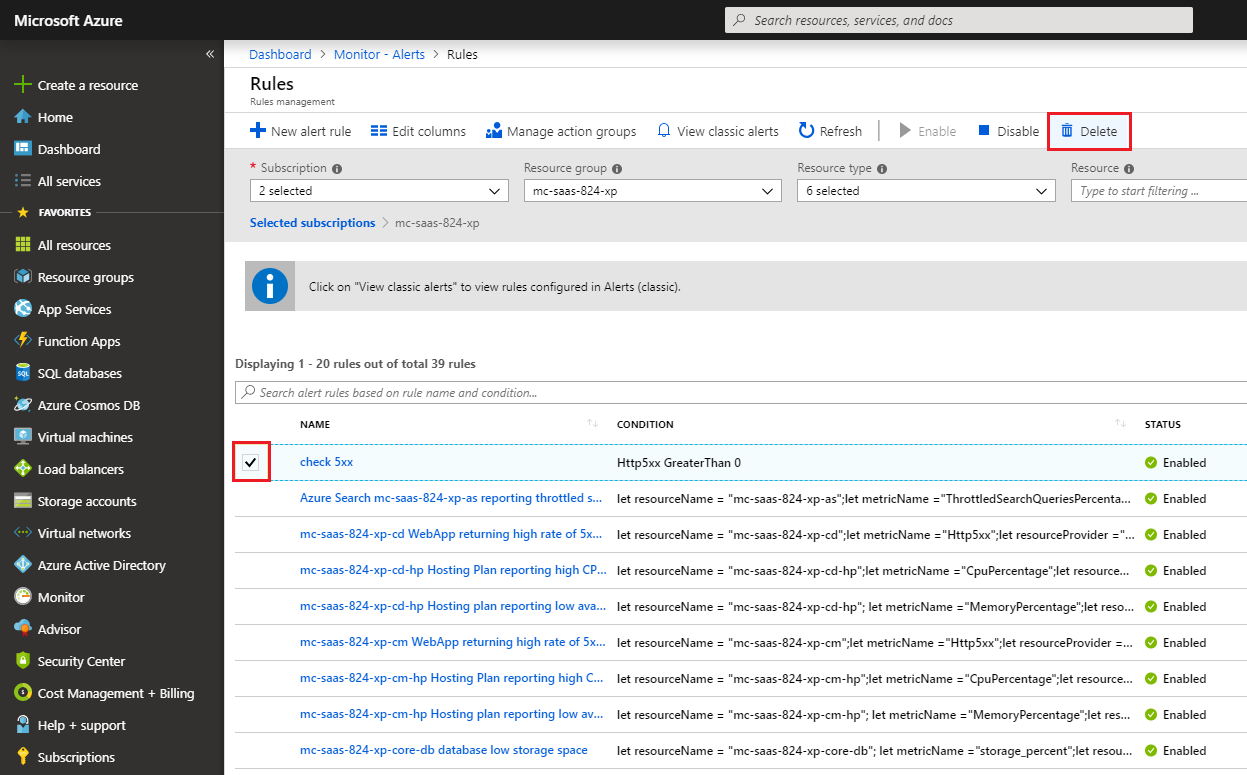
Select the checkbox next to the metric alert that you want to delete, then click Delete.
Delete the Search Services Performance overview
If you are using a Solr search provider with your Sitecore deployment, you must also delete the Search Services Performance view. To delete the Search Services Performance overview:
-
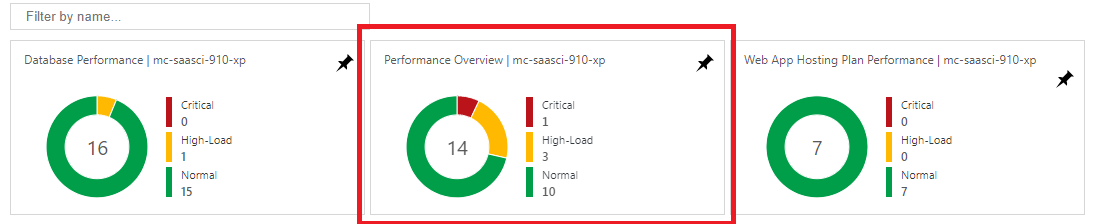
In your OMS workspace, click the Performance Overview tile.
-
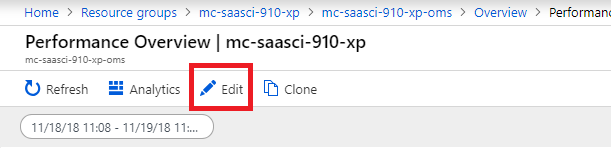
In Performance Overview, click Edit.
-
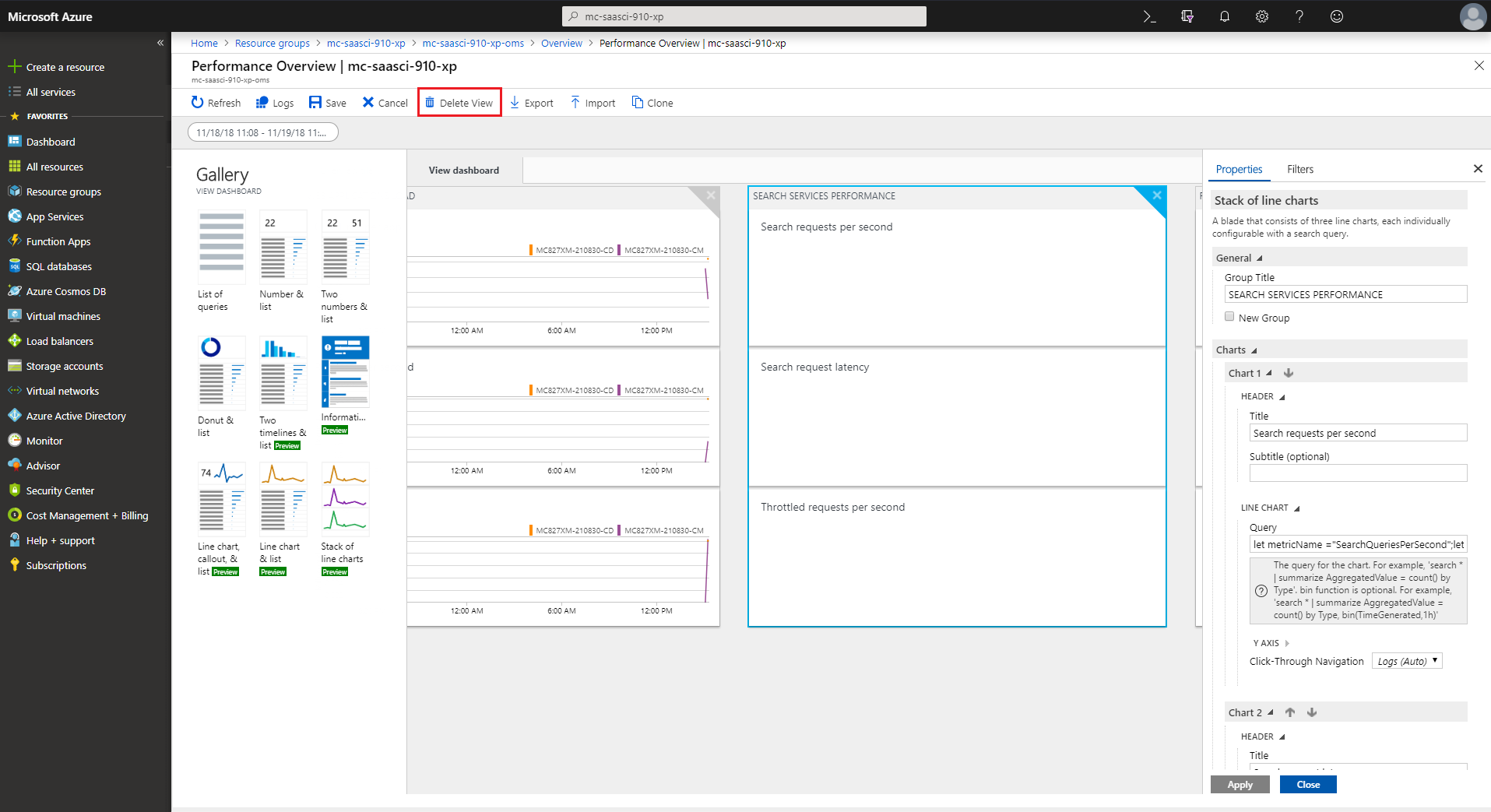
In View dashboard, click on the Search Services Performance overview, then click Delete view.