Walkthrough: Creating a Power BI dashboard for Sitecore on Azure
The Sitecore on Azure Power BI Health Dashboard is an example that you can use as inspiration when creating your own bespoke Power BI Dashboard for your Sitecore on Azure solution. You can create your own Power BI queries and reports based on Sitecore performance counters that suit the requirements of your Sitecore solution, and then collect the highlights into a Power BI dashboard.
Prerequisites
Before you can create a Power BI dashboard for Sitecore on Azure, you must:
- Run your Sitecore installation on a Microsoft Azure® subscription.
- Install the Microsoft Power BI Desktop application.
- (optional) Configure, for example, the Sitecore on Azure Power BI Health Dashboard.
- (optional) Configure, for example, the Sitecore on Azure Power BI Health Reports.
Also, ensure you are familiar with the following:
- Sitecore on Azure Power BI queries, particularly that the Sitecore on Azure Power BI Health Dashboard and reports use two major types of queries:
fxDetailed List- for chartsGroupedfx Summary- for tiles
- The Analytics function in Application Insights - a powerful search and query tool.
- Tables in Power BI - including how you can use the data, gathered from queries, in these tables to visualize data.
- Functions in Power BI - including how to create custom functions.
- Query parameters - to customize common operations including filtering the contents of reports.
Locate the fxDetailedList query in Sitecore on Azure Health Reports
Sitecore Power BI reports use the results of fxDetailedList queries to compile data tables. Sitecore visualizes these data tables as, for example, line charts, bar charts, or pie charts for the Sitecore on Azure Power BI Health Dashboard and reports.
To locate the query that is associated with a chart in the Sitecore on Azure Health reports, you must set up the Sitecore on Azure Power BI Health Reports, locate the query associated with a specific chart, then explore the query editor and the fxDetailedList function.
Set up Sitecore on Azure Power BI Health Reports
To set up Sitecore on Azure Power BI Health Reports:
- Download the Sitecore on Azure Power BI Health Reports and use the instructions in the Configure the Sitecore on Azure Power BI Health Reports topic.
- Open the Sitecore
Power BI Health Reports.pbitfile on the Power BI desktop.
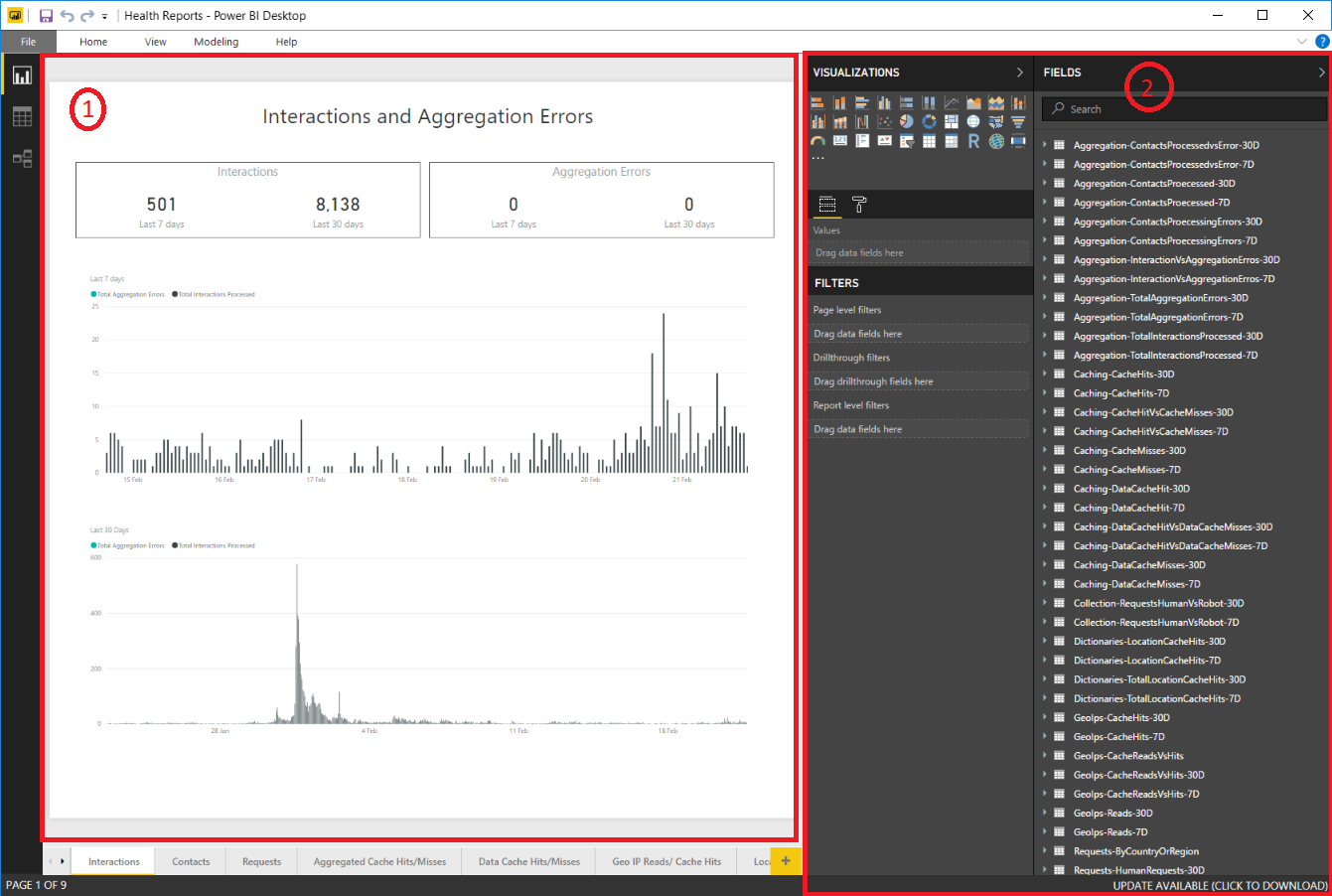
The following screenshot shows the Power BI Desktop application report template file, specifically (1): the Interactions report tab with data visualized as tiles and charts, and (2): the list of Visualizations, Filters, Fields, and queries.
Locate the query associated with a specific chart
To locate the query associated with a specific chart:
-
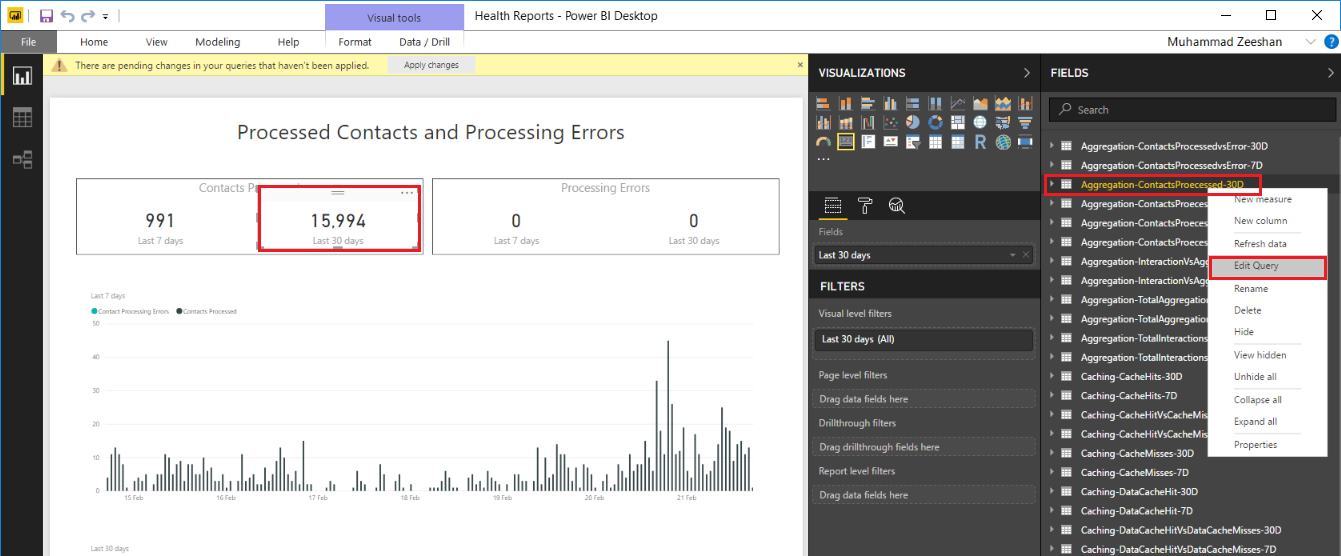
On the Interactions tab (1), click a chart from the report. Power BI highlights the related query for you in the Fields list.
-
Right-click the highlighted query and click Edit Query. Power BI opens the Query Editor.
-
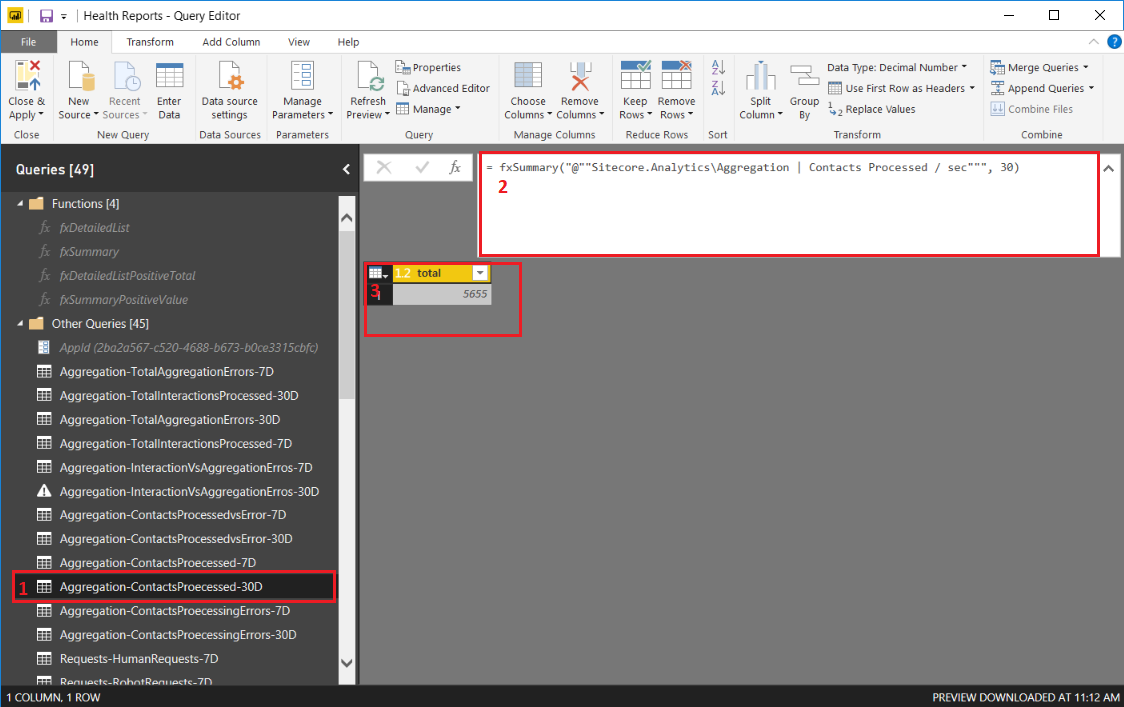
In the Query Editor, in the Other Queries list, you can view your query text and the results of the query in table format.
Explore the fxDetailedList function for detailed list queries
To explore the fxDetailedList function for detailed list queries:
Open the Query Editor, click Functions, fxDetailedList. When you use the fxDetailedList function, Power BI accepts the following parameters:
-
NameFilter- a comma-delimited list of strings that match the names of the Sitecore metrics that are included in the results, for example:"Sitecore.Analytics\Aggregation | Contacts Processed / sec", "Sitecore.Analytics\Aggregation | Contact Processing Errors / sec " -
AgeInDaysFilter- a number indicating the oldest record to be retrieved (in days). For example, 7 indicates the query filters out records older than 7 days. -
BinningInterval- a time expression to apply when grouping records retrieved by the query, for example, 1d means 1 day, 1h means 1 hour.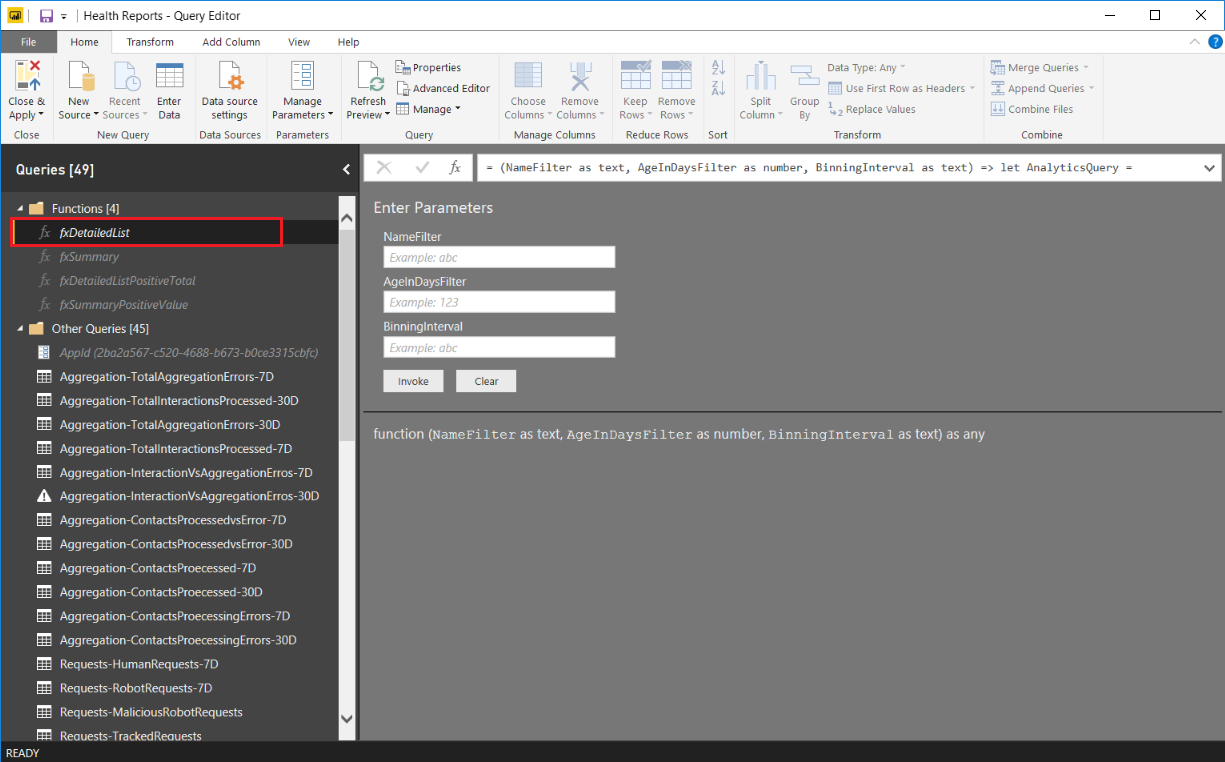
Locate the fxSummary query in Sitecore on Azure Health Reports
The Sitecore Power BI reports use fxSummary queries to retrieve data that the Sitecore on Azure Health Reports display as a number. You can view the fxSummary query associated with any of the tiles in the reports.
To locate the fxSummary query in the Sitecore on Azure Health Reports, you must locate the query associated with a specific title, then explore the Query Editor and the fxSummary function.
To locate the fxSummary query in Sitecore on Azure Health Reports:
-
To locate the query associated with a specific tile, click a tile in the report. Power BI highlights the related query in the Fields list.
-
Right-click the highlighted query and select Edit Query.
-
In the Query Editor you can explore your queries by clicking Queries, Other Queries. Sitecore Power BI highlights your query and you can see the query text and the result of the query in a table format.
-
To explore the
fxSummaryfunction, in the Query Editor, click Functions and then click fxSummary. When you use thefxSummaryfunction, Power BI accepts the following parameters:NameFilter- a comma-delimited list of strings that match the names of the Sitecore metrics that are included in the results, for example:"Sitecore.Analytics\Aggregation | Contacts Processed / sec"AgeInDaysFilter- a number indicating the oldest record that Power BI will retrieve (in days). For example, 7 indicates that the query filters out records older than 7 days.
Explore Sitecore metrics in Application Insights
Sitecore stores all monitored metrics in the Application Insights customMetrics table. To use the Sitecore metrics, you must understand how to get a list of all the metrics that Sitecore collects, and how to get metrics based on a Sitecore role.
To explore Sitecore metrics in Application Insights:
-
Log in to the Azure portal and select your relevant subscription.
-
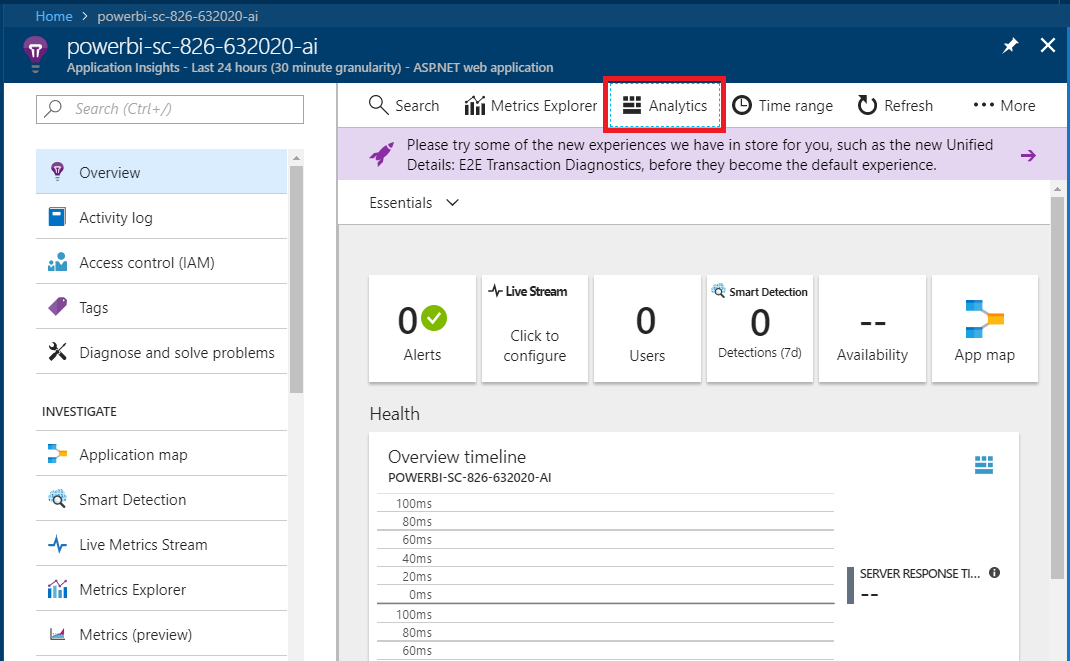
Open Application Insights and click Analytics.
-
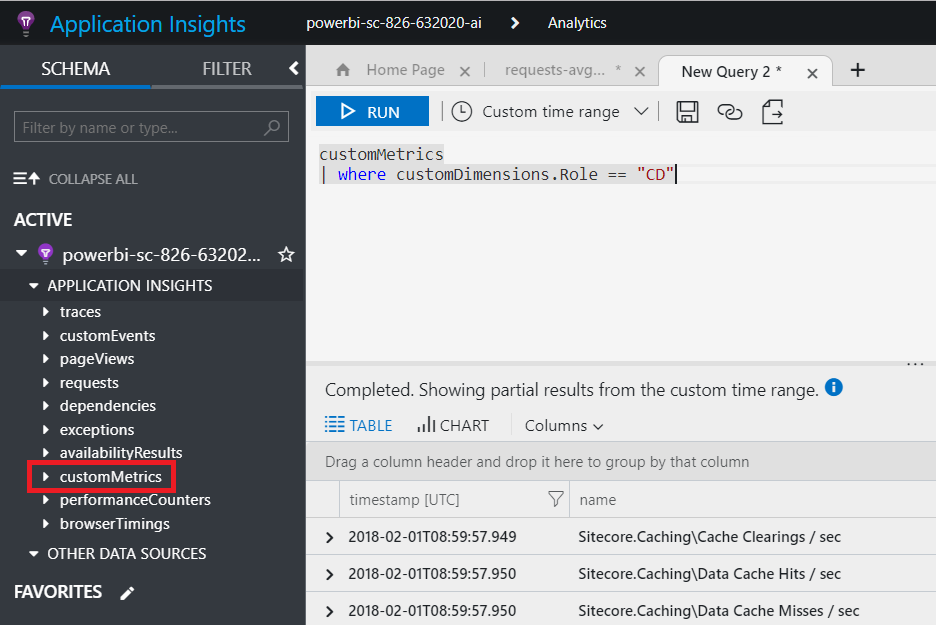
In Analytics, click Active, Application Insights, and then click customMetrics to see the table.
-
To see the list of metrics that Sitecore collects, open the customMetrics table. All of the metrics that Sitecore collects include the text string "Sitecore" in the name property. For example, the following analytics query returns a list of all the Sitecore metrics:
-
To get metrics by Sitecore role, all of the metrics that Sitecore collects include a text string that specifies the role name for the metric in the customDimensions.Role property. For example, the following query returns metrics that have been segmented based on role, specifically the “CD” role:
-
To view custom metrics values, many metrics store the number of items processed per second. Sitecore calculates such values by dividing the total number of items processed by the total number of seconds used when processing. You can view the records, including timestamp, name, and value, in the order that Sitecore created them.
Create a new report
To create a new report in Power BI, you must create an Analytics query in Application Insights, export the query in Power BI format, import the query into the Power BI Desktop application, then create a report using that query.
To create a new report:
-
To create an analytics query in Application Insights, log in to the Azure portal and select the relevant subscription.
-
Open Application Insights and select Analytics.
-
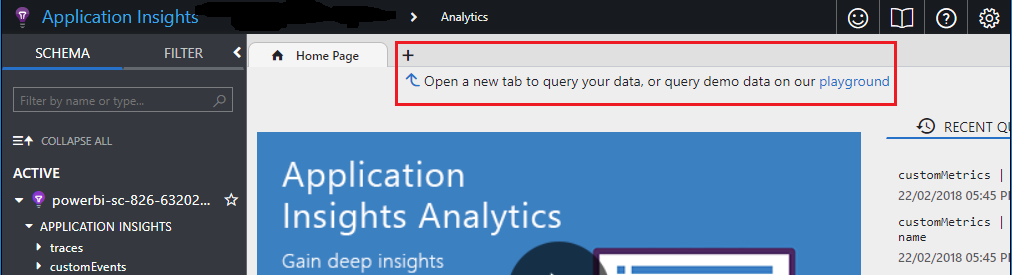
Click ‘+’, to open the Analytics Query Editor.
-
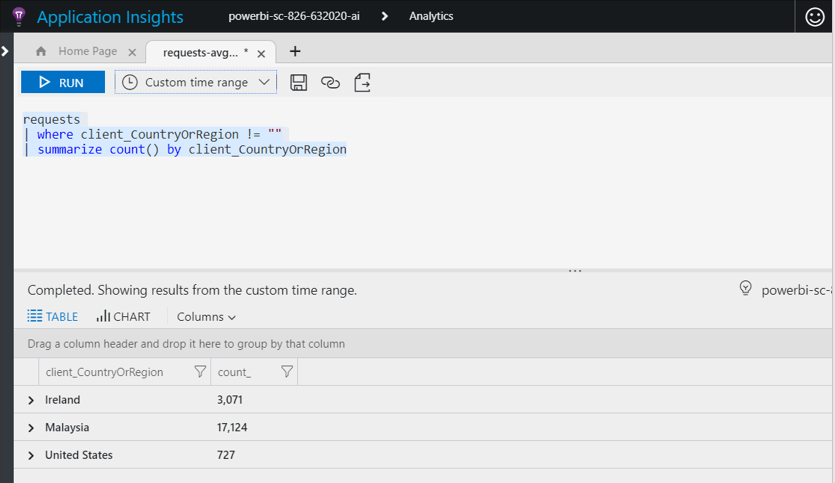
In the Analytics Query Editor, enter your query text and click Run to see the results.
-
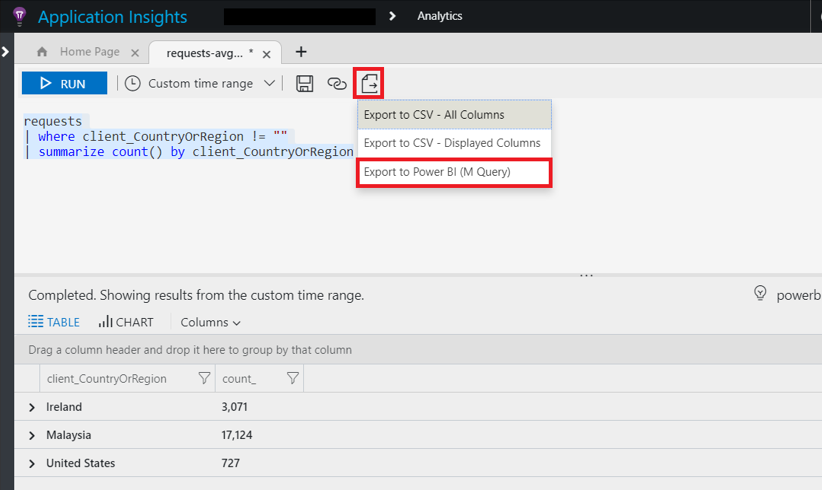
To export your query in Power BI format, click the following icon and select Export to Power BI (M Query):
-
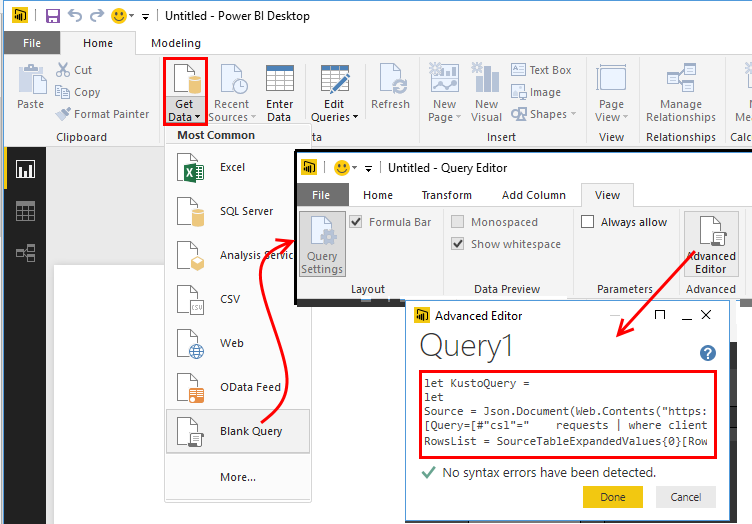
To import the query into the Power BI desktop application, on the Power BI Desktop, on the Home tab, click Get Data, Blank Query.
-
In the Query Editor, on the View tab, click Advanced Editor.
-
In the Advanced Editor, paste in your exported M Language script and then click Done.
-
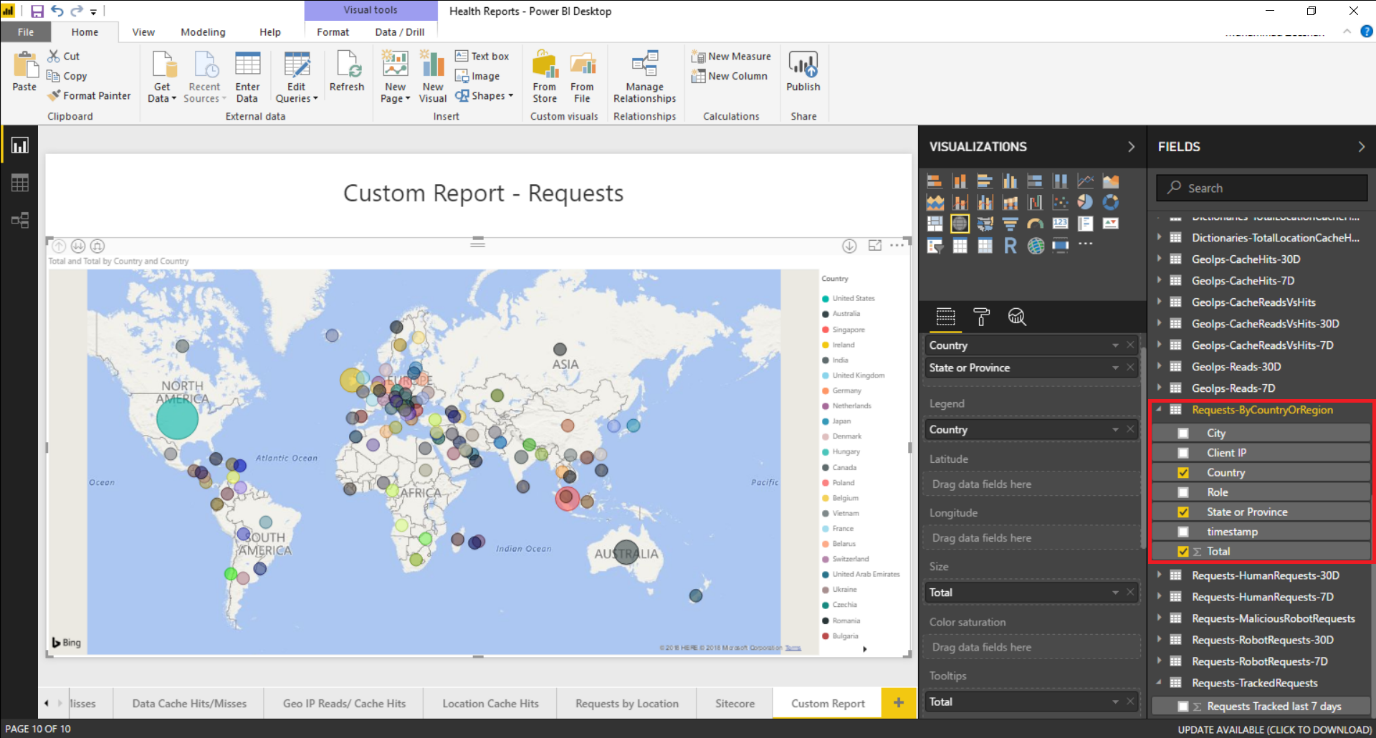
To create a report using the query, in Visual tools, Custom Report, select a visualization for your query, for example, Requests-ByCountryOrRegion, and then select the fields for the x-axis, y-axis, tooltips, and segmenting dimension.