Handle submit action errors for forms
When a form submit action fails to run, the default error message associated with the submit action displays on the form and the user is unable to submit the form. You can change the default error message associated with a submit action to best suit your needs.
Submit action error messages let the user know about errors that occur during a submit action. When these errors occur the user cannot submit the form. Erasing the error messages does not help the form submit proceed.
Change the default error message for a submit action error
This procedure shows you how to change the default error message for a submit action, using the Save Data action as an example. When you create a form, the Save Data submit action saves the form data to the Forms database.
To change the default error message:
-
In the Content Editor, go to /sitecore/System/Settings/Forms/Submit Actions.
-
In the content tree, click Save Data and, in the Settings section, in the Error Message field, enter the new message and save your changes.
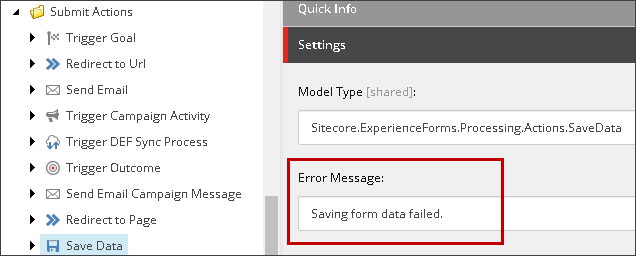
Create a conditional form submit error message
If you want a more specific error message, you can create a custom submit action to conditionally set the error message, and display the default error message if the conditions are not met.
To create a conditional error message:
-
To change a form submit error message from a save action programmatically, create a custom Save Data action that overrides the
ExecuteActionmethod of theSubmitActionBaseclass. Here you can assign customized error messages that override the predefined submit error message. -
Inside your custom
Save Data submit actionclass, you must manage the value of the error messages based on the different conditions. For example: -
To replace the default Save Data action, go to /sitecore/System/Settings/Forms/Submit Actions, click Save Data and, in the Settings section, in the Model Type field, replace the current value with your custom
Save Data actionclass name.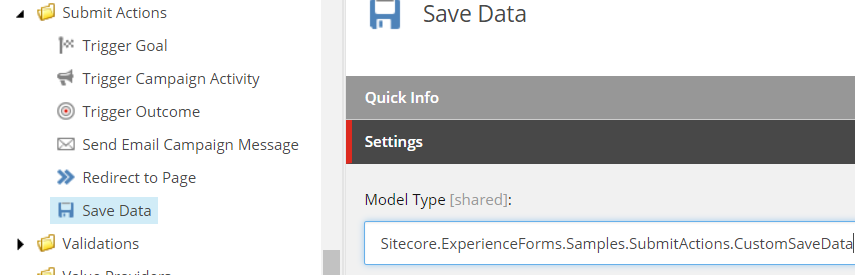
You can also create a new submit action item.