Add a set of value accessors for the source file
To read values from the source file, you must create a value accessor for each value. Each value accessor represents a specific value from a row in the source file. You group related value accessors into value accessor sets, which can contain one or more value accessors.
Create a folder for the value accessor set
Create a folder for the value accessor set
Under a tenant, value accessor sets are organized by provider. Each provider has its own folder. You must create a folder to hold the value accessor sets for the new provider.
To create a folder for the value accessor set:
-
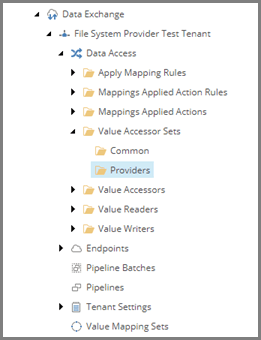
In the Content Editor, navigate to /sitecore/System/Data Exchange/File System Provider Test/Data Access/Value Accessor Sets/Providers.
-
To add a new set, in the right-hand pane, on the Folder tab, click File System Value Accessor Sets.
NoteThis template is a command template. It does not prompt for the item name. The command template automatically assigns the item the name File System.
Create a value accessor set
Create a value accessor set
Next, you must create a value accessor set that represents all of the values you want to read from a row in the source file.
To create a value accessor set:
-
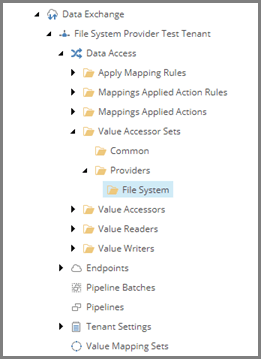
Navigate to the new File System folder.
-
To add a new set, on the Folder tab, click Array Value Accessor Set. Name it City Information File Fields.
Create the value accessors
Create the value accessors
For each value you want to read from a row in the source file you must have a separate value accessor. When a row is read from the source file, it is split into an array. Each value accessor represents a position in that array.
To create the value accessors:
-
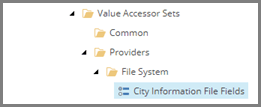
In the content tree, navigate to the City Information File Fields item.
-
To add an accessor, on the Folder tab, click Array Value Accessor. Name it Identifier from City Information File.
-
In the right-hand pane, set the following field value:
Field
Value
Position
0
-
Save the item.
-
Repeat steps 1 to 4 to add two more Array Value Accessor items:
Item name
Position value
Country from City Information Item
1
City from City Information Item
2