Create a template for target items
In this walkthrough each row from the source text file represents information about a city. The data synchronization process maps the data from the text file to a Sitecore item. In order to store this information you must create a Sitecore template to store this information, add an icon to the template, and assign the data fields to the template.
Create a template
Create a template
To create a template:
-
In the Content Editor, navigate to Templates.
-
On the menu ribbon, on the Home tab, in the Insert group, click New Template.

-
In the Select name dialog, enter the following values:
Name
City Information
Base template
Templates/System/Templates/Standard Template
-
Click Next.

-
In the Location dialog, select Templates/User Defined. Click Next. In the confirmation dialog, click Close.
-
In the confirmation dialog, click Close.
Set an icon on the template
Set an icon on the template
To set an icon:
-
In the Content Editor, in the content tree, select the new template, for example, Templates/User Defined/City Information.
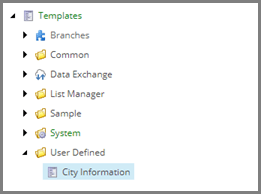
-
In the right-hand pane, on the Content tab, click the icon next to title.
-
Click the icon next to title.

-
In the Change Icon dialog, in the Icon field, enter, for example,
Office/32x32/pin.png -
Click OK.
Add a field to a template
Add a field to a template
To add a field:
-
To add a new template section, on the Builder tab, type Data in the Add a new section field.
-
In the Data section, add the following fields:
Name
Type
Shared
Identifier
Single-Line Textselected
Country
Single-Line TextCity
Single-Line TextWhen you have finished, the section looks like the following:

-
Save the item.