Access the environment variables for a site
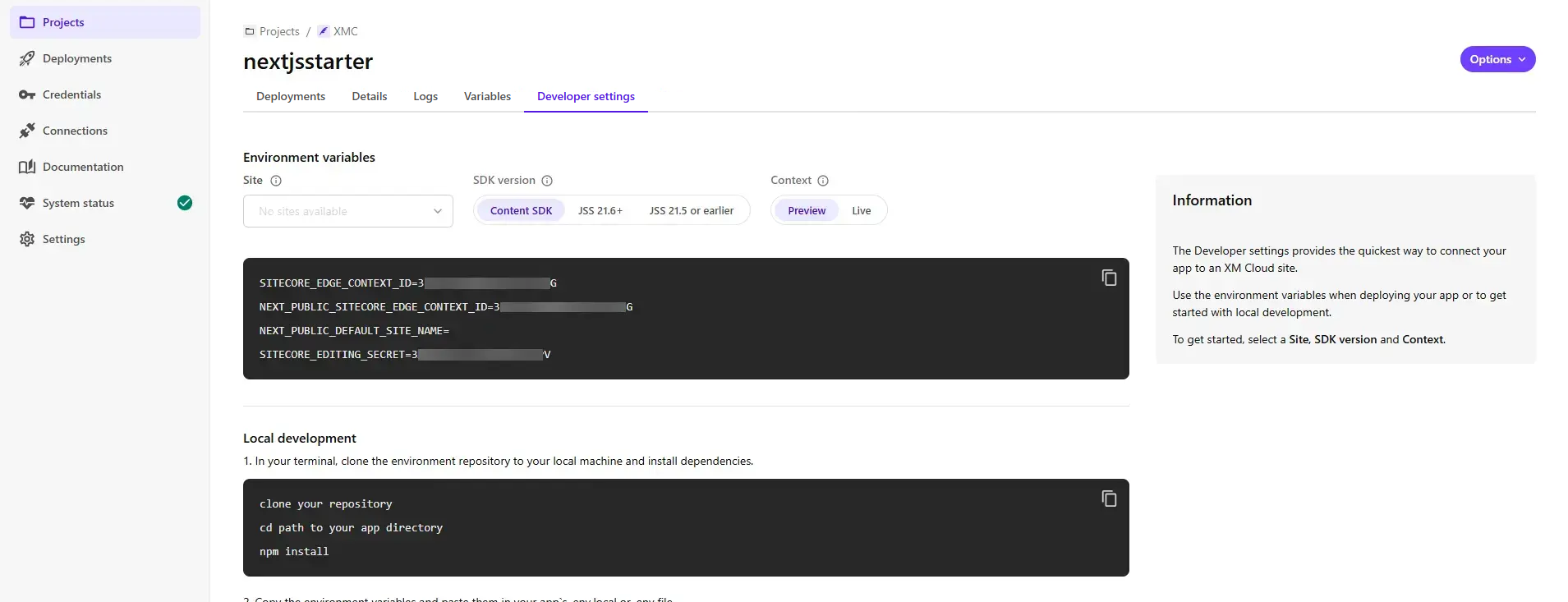
The Deploy app's Developer settings tab provides environment variables that let you connect your app to a site running in an environment.
Use these environment variables to get started with local development without Docker containers or deploy your app to a hosting platform such as Vercel.
Tip
To set up a local development environment based on Docker containers, see Set up your full-stack SitecoreAI local development environment.
Before you begin
- If your app is based on JSS (instead of Content SDK), make sure it includes the JSS add-on for Next.js.
To access the environment variables for a site:
- On the navigation pane of the Deploy app, click Projects.
- On the Projects page, click the project that contains the environment where you want to view the site's environment variables.
- Click the name of the relevant environment.
- In the Developer settings tab, In the Site drop-down menu, choose the site you want your app to connect to. The drop-down menu lists all sites, including each site in a multisite application setup. If using a multisite setup, choose the site you want to use as the app's default site.
- In the SDK version selector, choose the appropriate version of JSS or Content SDK. You can find your JSS app's version in the
versionproperty of thepackage.jsonfile. - If your app uses Content SDK or JSS 21.6+, in the Context selector, select one of the following:
- Preview - grants access to all content, including drafts and unpublished content.
- Live - grants access to published content. Use this for production apps.
If you have suggestions for improving this article, let us know!