Profile import
Feature availability is part of a phased rollout. Your organization may not see this functionality yet. It will become available when your environment is included in the rollout.
Profile import lets you add profile data to SitecoreAI by uploading a JSON Lines (JSONL) file containing all your records. This documentation refers to such a file as a batch file.
Use profile import when you need to:
- Migrate data from an external CRM or customer data platform into SitecoreAI.
- Onboard new data from a partner or third-party system.
- Bulk update existing profiles with new contact information or custom attributes.
- Synchronize data periodically from an external source of truth.
- Delete profile data in bulk to fulfil privacy or data-subject deletion requests.
How it works
You can import and monitor data using the API or the Profile import page. In production environments, the Upload batch button is not available; you can only upload batch files through the API.
To help users identify and resolve processing errors before submitting additional batches, only one batch can be processed at a time. This prevents users from uploading many files and repeatedly failing all of them before identifying the root cause.
Profile import uses the following process to import your data:
- Upload - you upload a JSONL file to the Profile Import API, or through the SitecoreAI UI in non-production environments. The API validates the file and returns a
batchIdthat you use to track the batch. The batch enters theQUEUEDstate. - Processing - the system picks up the queued batch and processes each record in the file. During processing, the batch is in the
RUNNINGstate. Each record goes through identity resolution to determine whether to create a new profile or update an existing one. - Completion - when processing finishes, the batch moves to a final state:
COMPLETEDif all records succeeded,COMPLETED_WITH_ERRORSif some records failed, orFAILEDif the batch encountered a system error. - Results - you view the results in the Profile import page or download a results file that contains the outcome for each record, including the profile ID for successful records and error codes for failed records.
Supported data
Profile import currently supports the following record types:
- Profiles - create or update profiles through the
/v1/batchesendpoint. Each record goes through identity resolution to match existing profiles or create new ones. - Profile deletions - permanently delete profiles by uploading a batch to the same
/v1/batchesendpoint withoperationType=DELETE. See Delete profiles in bulk.
The Profile import page
For security reasons, the Upload batch button is available only in non-production environments. Production imports require authenticated API access.
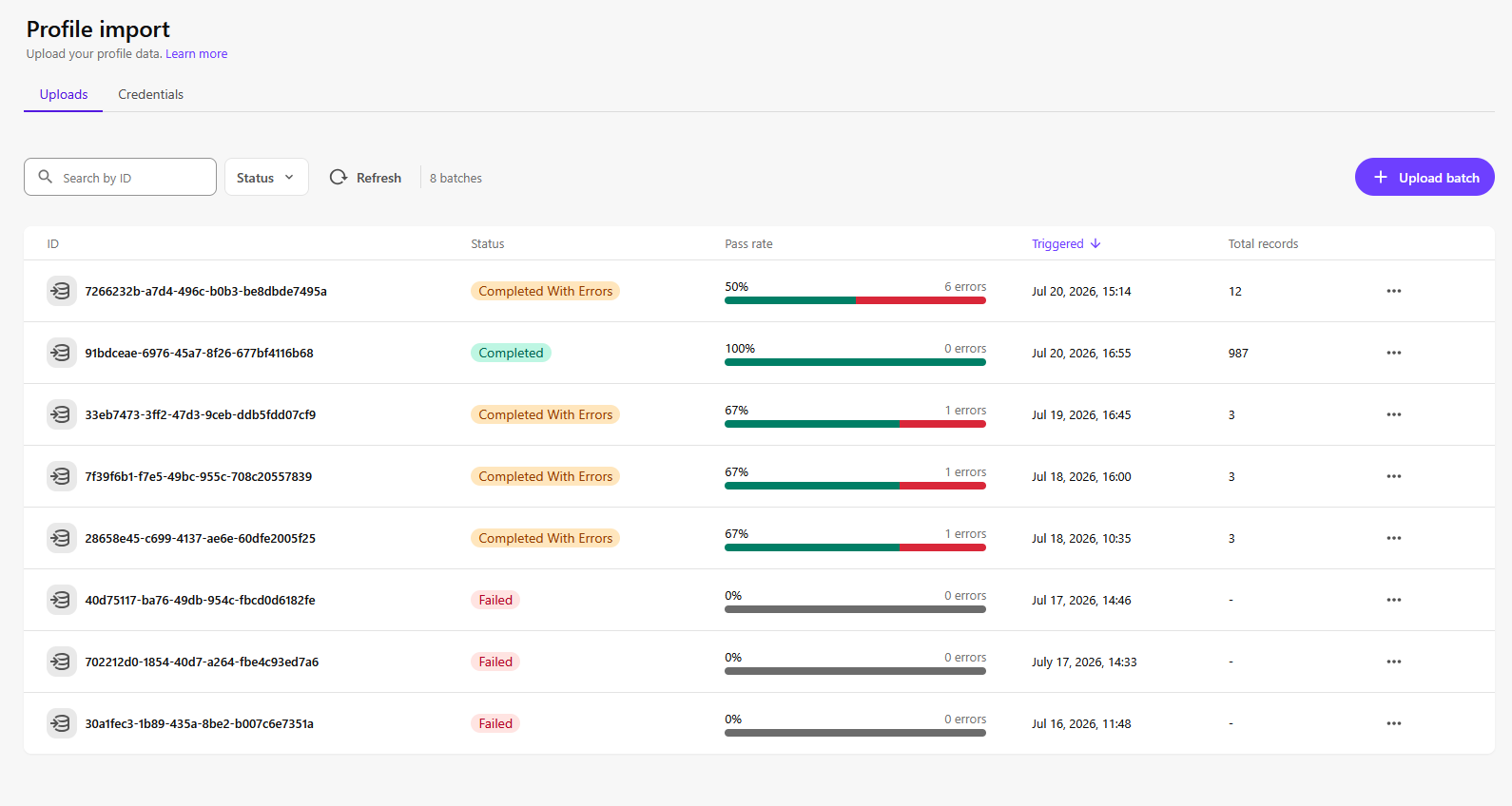
The Profile import page shows the status and history of your imports and lets you manage credentials for the Profile Import API. In non-production environments, you can also upload batch files directly from the page.
To access the Profile import page, in SitecoreAI, go to Performance > Settings > Profile import.
Limitations
- File size - maximum 100 MB per batch file.
- Concurrent batches - only one batch per environment can be in the
QUEUEDorRUNNINGstate at a time. You must wait for the current batch to complete before uploading another. - File format - input files must be UTF-8 encoded JSON Lines (JSONL) format, with one JSON object per line.
- Retry attempts - if a system error prevents the entire batch from being processed, the system automatically retries the batch up to 3 times. After 3 failed attempts, the batch is marked as permanently
FAILED. Individual record failures are not retried. - Writable fields - for profile records, only the
contactandextensionsfields are written to the profile. Other fields are used to validate records, match profiles, and update identifiers. - In production environments, you can't upload batch files using the Profile import page - in non-production environments, you can upload a batch file through the Profile import page or the Profile Import API. For security reasons, the Upload batch button is not available in production environments, so you must use the API.