1. Primitive UI components

AccordionFacets

Primitive UI components in Search UI Components package, are headless, building blocks used to create the headless widget templates for React applications. You can use them to scaffold your custom widgets.

Anatomy

For a complete implementation, put together parts of the UI component as shown in the following code block.

import { AccordionFacets } from '@sitecore-search/ui';

const MyAccordionFacetsComponent = () => (
  <AccordionFacets.Root>
        <AccordionFacets.Facet>
            <AccordionFacets.Header>
                <AccordionFacets.Trigger>Header</AccordionFacets.Trigger>
            </AccordionFacets.Header>
            <AccordionFacets.Content>
                <AccordionFacets.ValueList>
                    <AccordionFacets.Item>
                        <AccordionFacets.ItemCheckbox>
                            <AccordionFacets.ItemCheckboxIndicator><CheckIcon /></AccordionFacets.ItemCheckboxIndicator>
                        </AccordionFacets.ItemCheckbox>
                        <AccordionFacets.ItemLabel>Facet Value Checkbox Label</AccordionFacets.ItemLabel>
                    </AccordionFacets.Item>
                </AccordionFacets.ValueList>
            </AccordionFacets.Content>
        </AccordionFacets.Facet>

        <AccordionFacets.Facet>
            <AccordionFacets.Header>
                <AccordionFacets.Trigger>Header 2</AccordionFacets.Trigger>
            </AccordionFacets.Header>
            <AccordionFacets.Content>
                <AccordionFacets.ValueList>
                    <AccordionFacets.Item>
                        <AccordionFacets.ItemToggle>
                            <AccordionFacets.ItemLabel>Facet Value Toggle Label</AccordionFacets.ItemLabel>
                        </AccordionFacets.ItemToggle>
                    </AccordionFacets.Item>
                </AccordionFacets.ValueList>
            </AccordionFacets.Content>
        </AccordionFacets.Facet>
    </AccordionFacets.Root>
);

Using the component

The following tabs show the screenshot and describe use of the AccordionFacets primitive component.

Screenshot
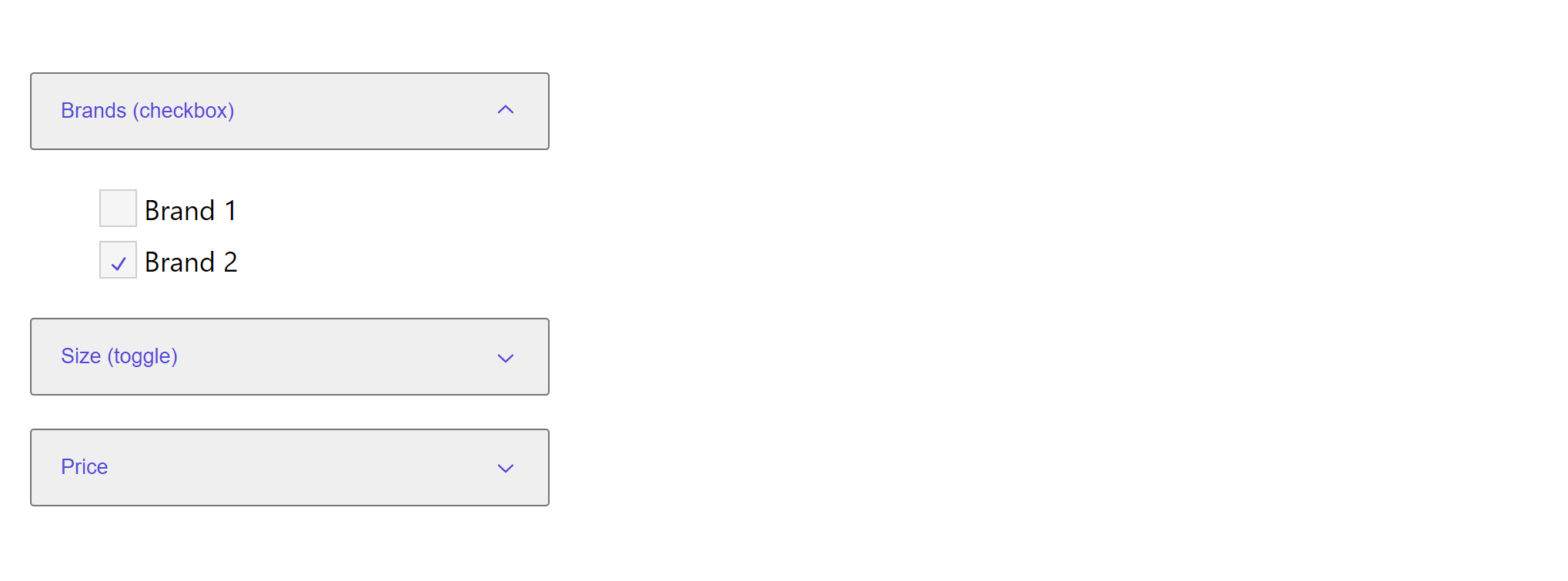
Screenshot of a styled AccordionFacets primitive component.

Plain component

In your React application, paste the following code block then modify the primitives to match your needs.

() => (
  <AccordionFacets.Root
    defaultFacetTypesExpandedList={[facetList1.facetId]}
    onFacetTypesExpandedListChange={onFacetTypesExpandedListChange}
    onFacetValueClick={onFacetValueClick}
  >
    <AccordionFacets.Facet facetId={facetList1.facetId}>
      <AccordionFacets.Header>
        <AccordionFacets.Trigger>Brands</AccordionFacets.Trigger>
      </AccordionFacets.Header>
      <AccordionFacets.Content>
        <AccordionFacets.ValueList>
          <AccordionFacets.Item {...createFacetValue(facetList1.facetId, 0, false)}>
            <AccordionFacets.ItemCheckbox>
              <AccordionFacets.ItemCheckboxIndicator>
                <CheckIcon />
              </AccordionFacets.ItemCheckboxIndicator>
            </AccordionFacets.ItemCheckbox>
            <AccordionFacets.ItemLabel>Brand 1</AccordionFacets.ItemLabel>
          </AccordionFacets.Item>

          <AccordionFacets.Item {...createFacetValue(facetList1.facetId, 1, true)}>
            <AccordionFacets.ItemCheckbox>
              <AccordionFacets.ItemCheckboxIndicator>
                <CheckIcon />
              </AccordionFacets.ItemCheckboxIndicator>
            </AccordionFacets.ItemCheckbox>
            <AccordionFacets.ItemLabel>Brand 2</AccordionFacets.ItemLabel>
          </AccordionFacets.Item>
        </AccordionFacets.ValueList>
      </AccordionFacets.Content>
    </AccordionFacets.Facet>

    <AccordionFacets.Facet facetId={facetList2.facetId}>
      <AccordionFacets.Header>
        <AccordionFacets.Trigger>Colors</AccordionFacets.Trigger>
      </AccordionFacets.Header>
      <AccordionFacets.Content>
        <AccordionFacets.ValueList>
          <AccordionFacets.Item {...createFacetValue(facetList2.facetId, 0, false)}>
            <AccordionFacets.ItemToggle>
              <AccordionFacets.ItemLabel>Blue</AccordionFacets.ItemLabel>
            </AccordionFacets.ItemToggle>
          </AccordionFacets.Item>

          <AccordionFacets.Item {...createFacetValue(facetList2.facetId, 1, true)}>
            <AccordionFacets.ItemToggle>
              <AccordionFacets.ItemLabel>Red</AccordionFacets.ItemLabel>
            </AccordionFacets.ItemToggle>
          </AccordionFacets.Item>
        </AccordionFacets.ValueList>
      </AccordionFacets.Content>
    </AccordionFacets.Facet>
  </AccordionFacets.Root>
)

Styled component

In your React application, paste the following code block, then modify the styled primitives to match your needs.

() => {
  const FacetStyled = styled(AccordionFacets.Facet)`
    max-width: 300px;
    font-family: ${theme.vars.typography.fontFamilySystem};
  `;

  const ItemCheckboxStyled = styled(AccordionFacets.ItemCheckbox)`
    all: unset;
    background-color: ${theme.vars.palette.grey['100']};
    width: 20px;
    height: 20px;
    display: flex;
    align-items: center;
    justify-content: center;
    border: 1px solid ${theme.vars.palette.grey['400']};

    &:hover {
      background-color: ${theme.vars.palette.grey['200']};
    }
    &:focus {
      box-shadow: 0 0 0 2px ${theme.vars.palette.grey['900']};
    }
  `;

  const ItemToggleStyled = styled(AccordionFacets.ItemToggle)`
    all: unset;
    background-color: ${theme.vars.palette.grey['100']};
    width: 40px;
    height: 35px;
    display: flex;
    align-items: center;
    justify-content: center;
    border: 1px solid ${theme.vars.palette.grey['400']};
    font-size: ${theme.vars.typography.fontSize1.fontSize};
    margin-right: ${theme.vars.spacing.s};

    &:hover {
      background-color: ${theme.vars.palette.primary.main};
      color: ${theme.vars.palette.primary.contrastText};
    }
    &:focus {
      box-shadow: 0 0 0 2px ${theme.vars.palette.grey['900']};
    }

    &[data-state='on'] {
      background-color: ${theme.vars.palette.primary.main};
      color: ${theme.vars.palette.primary.contrastText};
    }
  `;

  const ItemCheckboxIndicatorStyled = styled(AccordionFacets.ItemCheckboxIndicator)`
    color: ${theme.vars.palette.primary.main};
    width: 15px;
    height: 15px;
  `;

  const ValueListStyled = styled(AccordionFacets.ValueList)`
    list-style: none;
    li {
      padding: ${theme.vars.spacing.xs} 0;
    }

    &[data-orientation='horizontal'] {
      display: flex;
      flex-direction: row;
    }
  `;

  const ItemCheckboxLabelStyled = styled(AccordionFacets.ItemLabel)`
    padding-left: ${theme.vars.spacing.xs};
  `;
  const ItemStyled = styled(AccordionFacets.Item)`
    display: flex;
    align-items: center;
  `;

  const HeaderStyled = styled(AccordionFacets.Header)`
    display: flex;
  `;
  const TriggerStyled = styled(AccordionFacets.Trigger)`
    align-items: center;
    color: ${theme.vars.palette.primary.main}; //var(--sdc-palette-primary-main);
    display: flex;
    font-size: ${theme.vars.typography.fontSize1.fontSize};
    height: 45px;
    justify-content: space-between;
    line-height: 1;
    padding: 0 ${theme.vars.spacing.m};
    flex: 1 1 0;
  `;

  const ChevronStyled = styled(ChevronDownIcon)`
    color: ${theme.vars.palette.primary.main};
    transition: transform 300ms cubic-bezier(0.87, 0, 0.13, 1) 0s;

    [data-state='open'] & {
      transform: rotate(180deg);
    }
  `;

  const RangeFacetRootStyled = styled(RangeFacet.Root)`
    position: relative;
    display: flex;
    align-items: center;
    user-select: none;
    touch-action: none;
    width: 100%;
    height: 20px;
  `;

  const RangeFacetTrackStyled = styled(RangeFacet.Track)`
    background-color: lightgrey;
    position: relative;
    flex-grow: 1;
    border-radius: 9999px;
    height: 3px;
  `;

  const RangeFacetRangeStyled = styled(RangeFacet.Range)`
    position: absolute;
    background-color: black;
    border-radius: 9999px;
    height: 100%;
  `;

  const RangeFacetThumbStyled = styled(RangeFacet.Thumb)`
    display: block;
    width: 20px;
    height: 20px;
    background-color: white;
    box-shadow: 0 2px 10px grey;
    border-radius: 10px;
    font-family: 'Raleway', 'Helvetica Neue', Verdana, Arial, sans-serif;
    font-size: 10px;
    line-height: 20px;
    text-align: center;
    cursor: pointer;

    &:hover {
      background-color: violet;
    }

    &:focus {
      outline: none;
      box-shadow: 0 0 0 5px grey;
    }
  `;

  const AccordionTrigger = React.forwardRef(({ children, ...props }, forwardedRef) => (
    <HeaderStyled>
      <TriggerStyled {...props} ref={forwardedRef}>
        {children}
        <ChevronStyled aria-hidden />
      </TriggerStyled>
    </HeaderStyled>
  ));

  return (
    <AccordionFacets.Root
      defaultFacetTypesExpandedList={[facetList1.facetId]}
      onFacetTypesExpandedListChange={onFacetTypesExpandedListChange}
      onFacetValueClick={onFacetValueClick}
    >
      <FacetStyled facetId={facetList1.facetId}>
        <AccordionTrigger>Brands (checkbox)</AccordionTrigger>
        <AccordionFacets.Content>
          <ValueListStyled>
            <ItemStyled {...createFacetValue(facetList1.facetId, 0, false)}>
              <ItemCheckboxStyled>
                <ItemCheckboxIndicatorStyled>
                  <CheckIcon />
                </ItemCheckboxIndicatorStyled>
              </ItemCheckboxStyled>
              <ItemCheckboxLabelStyled>Brand 1</ItemCheckboxLabelStyled>
            </ItemStyled>

            <ItemStyled {...createFacetValue(facetList1.facetId, 1, true)}>
              <ItemCheckboxStyled>
                <ItemCheckboxIndicatorStyled>
                  <CheckIcon />
                </ItemCheckboxIndicatorStyled>
              </ItemCheckboxStyled>
              <ItemCheckboxLabelStyled>Brand 2</ItemCheckboxLabelStyled>
            </ItemStyled>
          </ValueListStyled>
        </AccordionFacets.Content>
      </FacetStyled>

      <FacetStyled facetId={facetList2.facetId}>
        <AccordionTrigger>Size (toggle)</AccordionTrigger>
        <AccordionFacets.Content>
          <ValueListStyled orientation="horizontal">
            <ItemStyled {...createFacetValue(facetList2.facetId, 0, false)}>
              <ItemToggleStyled>
                <AccordionFacets.ItemLabel>M</AccordionFacets.ItemLabel>
              </ItemToggleStyled>
            </ItemStyled>

            <ItemStyled {...createFacetValue(facetList2.facetId, 1, true)}>
              <ItemToggleStyled>
                <AccordionFacets.ItemLabel>L</AccordionFacets.ItemLabel>
              </ItemToggleStyled>
            </ItemStyled>

            <ItemStyled {...createFacetValue(facetList2.facetId, 2, true)}>
              <ItemToggleStyled>
                <AccordionFacets.ItemLabel>XL</AccordionFacets.ItemLabel>
              </ItemToggleStyled>
            </ItemStyled>
          </ValueListStyled>
        </AccordionFacets.Content>
      </FacetStyled>
      <FacetStyled facetId="facetId3">
        <AccordionTrigger>Price</AccordionTrigger>
        <AccordionFacets.Content>
          <RangeFacetRootStyled facetId="facetId3" defaultValue={[0, 100]} max={100} min={0} onRangeChange={() => {}}>
            <RangeFacetTrackStyled>
              <RangeFacetRangeStyled></RangeFacetRangeStyled>
            </RangeFacetTrackStyled>
            <RangeFacetThumbStyled />
            <RangeFacetThumbStyled />
          </RangeFacetRootStyled>
        </AccordionFacets.Content>
      </FacetStyled>
    </AccordionFacets.Root>
  );
}

API Reference

This section describes the component or component parts displayed in the anatomy structure. For every component, you will find:

  • Components to which you can add it as a child.
  • Components you can add as its child.
  • Details of any properties you can set.

AccordionFacets.Root

The AccordionFacets.Root component contains all the parts of an accordion.

Children: AccordionFacets.Facet

NameDescription
onFacetClickThe callback that fires when user click on any facet value item.
facetTypesExpandedListThe controlled stateful value of the accordion items whose contents are expanded.
defaultFacetTypesExpandedListThe value of the items whose contents are expanded when the accordion is initially rendered. Use defaultFacetTypesExpandedList if you do not want to control the state of an accordion.
onFacetTypesExpandedListChangeThe callback that fires when the state of the accordion changes.

AccordionFacets.Facet

The AccordionFacets.Facet component contains all the parts of a collapsible section.

Parent: AccordionFacets.Root

Children: AccordionFacets.Header and AccordionFacets.Content

NameDescription
asChildChanges the component to the HTML tag or custom component of the only child. This will merge the original component props with the props of the supplied element/component and change the underlying DOM node.

AccordionFacets.Header

The AccordionFacets.Header component wraps an AccordionFacets.Trigger. Use the asChild property to update it to the appropriate heading level for your page.

Parent: AccordionFacets.Facet

Children: AccordionFacets.Trigger

NameDescription
asChildChanges the component to the HTML tag or custom component of the only child. This will merge the original component props with the props of the supplied element/component and change the underlying DOM node.

AccordionFacets.Trigger

The AccordionFacets.Trigger toggles the collapsed state of its associated item.

Parent: AccordionFacets.Header

NameDescription
asChildChanges the component to the HTML tag or custom component of the only child. This will merge the original component props with the props of the supplied element/component and change the underlying DOM node.

AccordionFacets.Content

The AccordionFacets.Content contains the collapsible content for an item.

Parent: AccordionFacets.Facet

Children: AccordionFacets.ValueList

NameDescription
asChildChanges the component to the HTML tag or custom component of the only child. This will merge the original component props with the props of the supplied element/component and change the underlying DOM node.

AccordionFacets.ValueList

The AccordionFacets.ValueList contains the complete list of facet values.

Parent: AccordionFacets.Content

Children: AccordionFacets.Item

AccordionFacets.Item

The AccordionFacets.Item contains the logic for the facet value item.

Parent: AccordionFacets.ValueList

Children: AccordionFacets.Checkbox, AccordionFacets.ItemLabel, and AccordionFacets.ItemToggle

AccordionFacets.ItemCheckbox

The AccordionFacets.ItemCheckbox contains all the parts of a checkbox.

Parent: AccordionFacets.ValueList

Children: AccordionFacets.Checkbox

AccordionFacets.ItemCheckboxIndicator

The AccordionFacets.ItemCheckboxIndicator renders when the checkbox is in a selected or indeterminate state. You can style this element directly, or you can use it as a wrapper to put an icon into, or both.

Parent: AccordionFacets.Checkbox

AccordionFacets.ItemLabel

The AccordionFacets.ItemLabel renders an accessible label associated with controls. It could contain an icon or text.

Parent: AccordionFacets.Item

AccordionFacets.ItemToggle

The AccordionFacets.ItemToggle can contain an icon or text.

Parent: AccordionFacets.Item

Children: AccordionFacets.ItemLabel

If you have suggestions for improving this article, let us know!