Walkthrough: Setting contact and interaction facets
This walkthrough is part two of the Extending the xConnect collection model walkthrough series. To complete this walkthrough, you must first complete walkthrough part one.
The Sitecore default facets are listed in the collection model reference documentation.
If a facet requires any properties, you must pass them by the facet constructor. If the property is not in the constructor, it is not mandatory.
This walkthrough describes how to:
- Set a facet on a contact
- Set a facet on an interaction
In Sitecore 9.1.0, in the Sitecore.Xdb.Common.Web namespace:
-
Certificate**WebRequest**HandlerModifierOptionsbecameCertificate**HttpClient**HandlerModifierOptions. -
Certificate**WebRequest**HandlerModifierbecameCertificate**HttpClient**HandlerModifier.
Set a facet on a contact
To set a facet on a contact:
-
In Visual Studio, in Solution Explorer, double-click the
Program.csfile and replace the content with the following code:using Sitecore.XConnect; using Sitecore.XConnect.Client; using Sitecore.XConnect.Client.WebApi; using Sitecore.XConnect.Collection.Model; using Sitecore.XConnect.Schema; using Sitecore.Xdb.Common.Web; using System; using System.Collections.Generic; using System.Threading.Tasks; namespace Sitecore.Documentation { public class Program { // From <xConnect instance>\App_Config\AppSettings.config const string CERTIFICATE_OPTIONS = "StoreName=My;StoreLocation=LocalMachine;FindType=FindByThumbprint;FindValue=???"; // From your installation const string XCONNECT_URL = "https://???XConnect.local"; private static void Main(string[] args) { MainAsync(args).ConfigureAwait(false).GetAwaiter().GetResult(); System.Console.ForegroundColor = ConsoleColor.DarkGreen; System.Console.WriteLine(""); Console.WriteLine("END OF PROGRAM."); Console.ReadKey(); } private static async Task MainAsync(string[] args) { CertificateHttpClientHandlerModifierOptions options = CertificateHttpClientHandlerModifierOptions.Parse(CERTIFICATE_OPTIONS); var certificateModifier = new CertificateHttpClientHandlerModifier(options); List<IHttpClientModifier> clientModifiers = new List<IHttpClientModifier>(); var timeoutClientModifier = new TimeoutHttpClientModifier(new TimeSpan(0, 0, 20)); clientModifiers.Add(timeoutClientModifier); var collectionClient = new CollectionWebApiClient( new Uri(XCONNECT_URL + "/odata"), clientModifiers, new[] { certificateModifier } ); var searchClient = new SearchWebApiClient( new Uri(XCONNECT_URL + "/odata"), clientModifiers, new[] { certificateModifier } ); var configurationClient = new ConfigurationWebApiClient( new Uri(XCONNECT_URL + "/configuration"), clientModifiers, new[] { certificateModifier } ); var cfg = new XConnectClientConfiguration( new XdbRuntimeModel(CollectionModel.Model), collectionClient, searchClient, configurationClient ); try { cfg.Initialize(); // Print xConnect if configuration is valid var arr = new[] { @" ______ __ ", @" / \ | \ ", @" __ __ | $$$$$$\ ______ _______ _______ ______ _______ _| $$_ ", @"| \ / \| $$ \$$ / \ | \ | \ / \ / \| $$ \ ", @"\$$\/ $$| $$ | $$$$$$\| $$$$$$$\| $$$$$$$\| $$$$$$\| $$$$$$$ \$$$$$$ ", @" >$$ $$ | $$ __ | $$ | $$| $$ | $$| $$ | $$| $$ $$| $$ | $$ __ ", @" / $$$$\ | $$__/ \| $$__/ $$| $$ | $$| $$ | $$| $$$$$$$$| $$_____ | $$| \", @"| $$ \$$\ \$$ $$ \$$ $$| $$ | $$| $$ | $$ \$$ \ \$$ \ \$$ $$", @" \$$ \$$ \$$$$$$ \$$$$$$ \$$ \$$ \$$ \$$ \$$$$$$$ \$$$$$$$ \$$$$ " }; Console.WindowWidth = 160; foreach (string line in arr) Console.WriteLine(line); } catch (XdbModelConflictException ce) { Console.WriteLine("ERROR:" + ce.Message); return; } // Initialize a client using the validated configuration using (var client = new XConnectClient(cfg)) { try { var offlineGoal = Guid.Parse("ad8ab7fe-ab48-4ea9-a976-ae7a268ae2f0"); // "Watched demo" goal var channelId = Guid.Parse("110cbf07-6b1a-4743-a398-6749acfcd7aa"); // "Other event" channel // Identifier for a 'known' contact var identifier = new ContactIdentifier[] { new ContactIdentifier( "twitter", "myrtlesitecore" + Guid.NewGuid().ToString("N"), ContactIdentifierType.Known ) }; // Print out the identifier that is going to be used Console.WriteLine("Contact Identifier: " + identifier[0].Identifier); // Create a new contact with the identifier Contact knownContact = new Contact(identifier); PersonalInformation personalInfoFacet = new PersonalInformation(); personalInfoFacet.FirstName = "Myrtle"; personalInfoFacet.LastName = "McSitecore"; personalInfoFacet.JobTitle = "Programmer Writer"; client.SetFacet<PersonalInformation>( knownContact, PersonalInformation.DefaultFacetKey, personalInfoFacet ); client.AddContact(knownContact); // Create a new interaction for that contact Interaction interaction = new Interaction(knownContact, InteractionInitiator.Brand, channelId, ""); // Add events - all interactions must have at least one event var xConnectEvent = new Goal(offlineGoal, DateTime.UtcNow); interaction.Events.Add(xConnectEvent); // Add the contact and interaction client.AddInteraction(interaction); // Submit contact and interaction - a total of two operations await client.SubmitAsync(); // Get the last batch that was executed var operations = client.LastBatch; // Loop through operations and check status foreach (var operation in operations) { Console.WriteLine( operation.OperationType + operation.Target.GetType().ToString() + " Operation: " + operation.Status ); } Console.ReadLine(); } catch (XdbExecutionException ex) { // Deal with exception } } } } } -
Edit the
CERTIFICATE_THUMBPRINTand theXCONNECT_URLconstants. -
Save the
Program.csfile. -
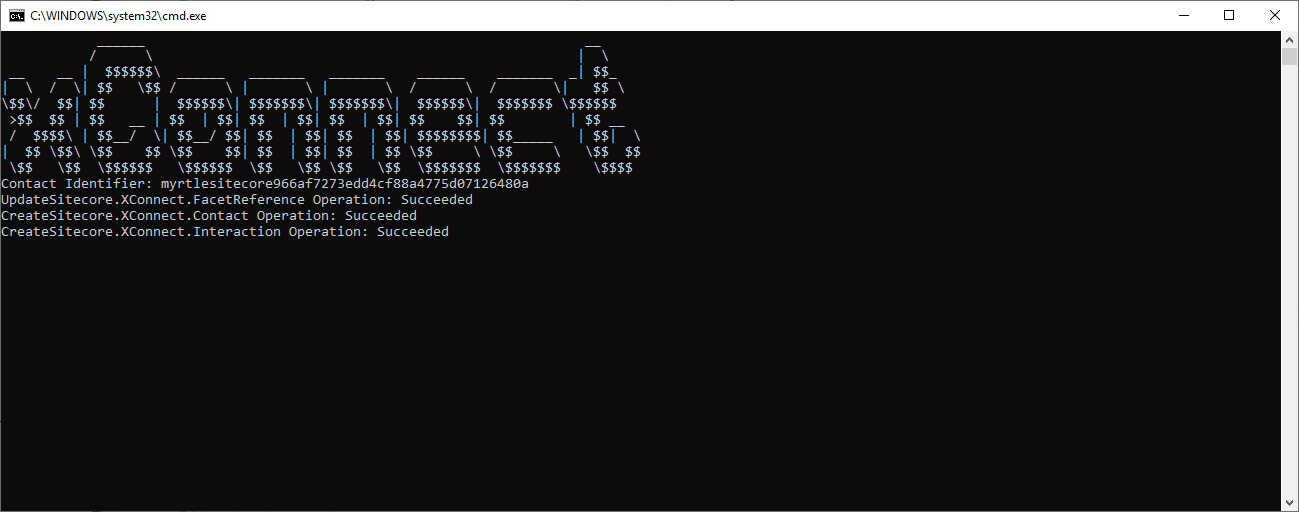
Press F5 to run the app. If the connection is established, the app writes the following in the terminal:
- The contact identifier.
- That the facet was set on the contact.
- That the contact was added.
- That the interaction with the event was added.
Set a facet on an interaction
To set a facet on an interaction:
-
In Visual Studio, in Solution Explorer, double-click the
Program.csfile and replace the content with the following code:using Sitecore.XConnect; using Sitecore.XConnect.Client; using Sitecore.XConnect.Client.WebApi; using Sitecore.XConnect.Collection.Model; using Sitecore.XConnect.Schema; using Sitecore.Xdb.Common.Web; using System; using System.Collections.Generic; using System.Threading.Tasks; namespace Sitecore.Documentation { public class Program { // From <xConnect instance>\App_Config\AppSettings.config const string CERTIFICATE_OPTIONS = "StoreName=My;StoreLocation=LocalMachine;FindType=FindByThumbprint;FindValue=???"; // From your installation const string XCONNECT_URL = "https://???XConnect.local"; private static void Main(string[] args) { MainAsync(args).ConfigureAwait(false).GetAwaiter().GetResult(); System.Console.ForegroundColor = ConsoleColor.DarkGreen; System.Console.WriteLine(""); Console.WriteLine("END OF PROGRAM."); Console.ReadKey(); } private static async Task MainAsync(string[] args) { CertificateHttpClientHandlerModifierOptions options = CertificateHttpClientHandlerModifierOptions.Parse(CERTIFICATE_OPTIONS); var certificateModifier = new CertificateHttpClientHandlerModifier(options); List<IHttpClientModifier> clientModifiers = new List<IHttpClientModifier>(); var timeoutClientModifier = new TimeoutHttpClientModifier(new TimeSpan(0, 0, 20)); clientModifiers.Add(timeoutClientModifier); var collectionClient = new CollectionWebApiClient( new Uri(XCONNECT_URL + "/odata"), clientModifiers, new[] { certificateModifier } ); var searchClient = new SearchWebApiClient( new Uri(XCONNECT_URL + "/odata"), clientModifiers, new[] { certificateModifier } ); var configurationClient = new ConfigurationWebApiClient( new Uri(XCONNECT_URL + "/configuration"), clientModifiers, new[] { certificateModifier } ); var cfg = new XConnectClientConfiguration( new XdbRuntimeModel(CollectionModel.Model), collectionClient, searchClient, configurationClient ); try { cfg.Initialize(); // Print xConnect if configuration is valid var arr = new[] { @" ______ __ ", @" / \ | \ ", @" __ __ | $$$$$$\ ______ _______ _______ ______ _______ _| $$_ ", @"| \ / \| $$ \$$ / \ | \ | \ / \ / \| $$ \ ", @"\$$\/ $$| $$ | $$$$$$\| $$$$$$$\| $$$$$$$\| $$$$$$\| $$$$$$$ \$$$$$$ ", @" >$$ $$ | $$ __ | $$ | $$| $$ | $$| $$ | $$| $$ $$| $$ | $$ __ ", @" / $$$$\ | $$__/ \| $$__/ $$| $$ | $$| $$ | $$| $$$$$$$$| $$_____ | $$| \", @"| $$ \$$\ \$$ $$ \$$ $$| $$ | $$| $$ | $$ \$$ \ \$$ \ \$$ $$", @" \$$ \$$ \$$$$$$ \$$$$$$ \$$ \$$ \$$ \$$ \$$$$$$$ \$$$$$$$ \$$$$ " }; Console.WindowWidth = 160; foreach (string line in arr) Console.WriteLine(line); } catch (XdbModelConflictException ce) { Console.WriteLine("ERROR:" + ce.Message); return; } // Initialize a client using the validated configuration using (var client = new XConnectClient(cfg)) { try { var offlineGoal = Guid.Parse("ad8ab7fe-ab48-4ea9-a976-ae7a268ae2f0"); // "Watched demo" goal var channelId = Guid.Parse("110cbf07-6b1a-4743-a398-6749acfcd7aa"); // "Other event" channel // Identifier for a 'known' contact var identifier = new ContactIdentifier[] { new ContactIdentifier( "twitter", "myrtlesitecore" + Guid.NewGuid().ToString("N"), ContactIdentifierType.Known ) }; // Print out the identifier that is going to be used Console.WriteLine("Contact Identifier: " + identifier[0].Identifier); // Create a new contact with the identifier Contact knownContact = new Contact(identifier); PersonalInformation personalInfoFacet = new PersonalInformation(); personalInfoFacet.FirstName = "Myrtle"; personalInfoFacet.LastName = "McSitecore"; personalInfoFacet.JobTitle = "Programmer Writer"; client.SetFacet<PersonalInformation>( knownContact, PersonalInformation.DefaultFacetKey, personalInfoFacet ); client.AddContact(knownContact); // Create a new interaction for that contact Interaction interaction = new Interaction(knownContact, InteractionInitiator.Brand, channelId, ""); // Add events - all interactions must have at least one event var xConnectEvent = new Goal(offlineGoal, DateTime.UtcNow); interaction.Events.Add(xConnectEvent); IpInfo ipInfo = new IpInfo("127.0.0.1"); ipInfo.BusinessName = "Home"; client.SetFacet<IpInfo>(interaction, IpInfo.DefaultFacetKey, ipInfo); // Add the contact and interaction client.AddInteraction(interaction); // Submit contact and interaction - a total of two operations await client.SubmitAsync(); // Get the last batch that was executed var operations = client.LastBatch; // Loop through operations and check status foreach (var operation in operations) { Console.WriteLine( operation.OperationType + operation.Target.GetType().ToString() + " Operation: " + operation.Status ); } Console.ReadLine(); } catch (XdbExecutionException ex) { // Deal with exception } } } } } -
Edit the
CERTIFICATE_THUMBPRINTand theXCONNECT_URLconstants. -
Save the
Program.csfile. -
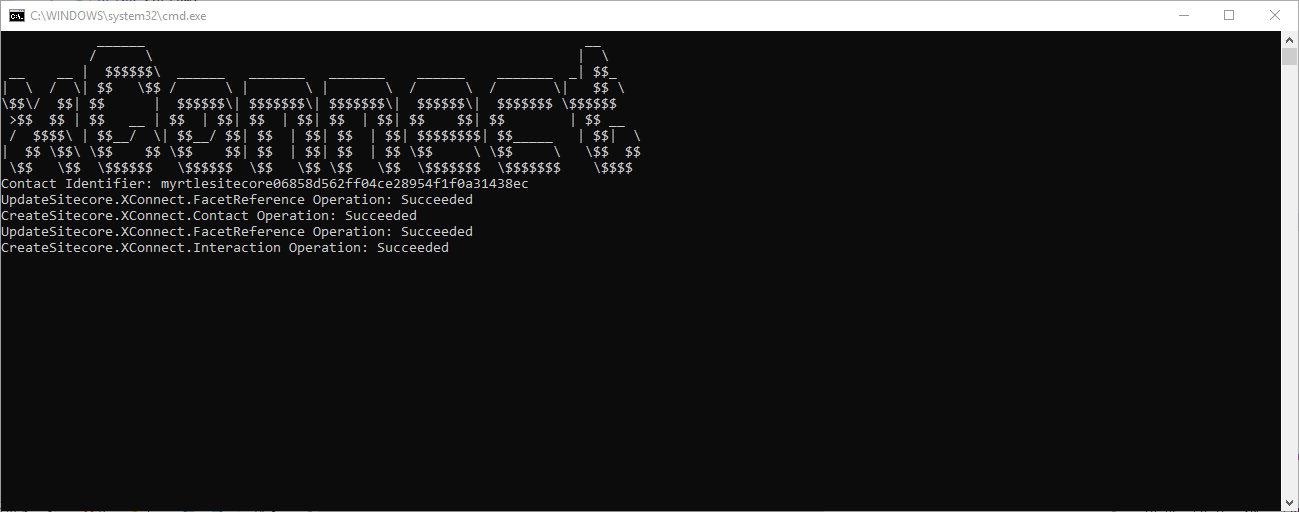
Press F5 to run the app. If the connection is established, the app writes the following in the terminal:
-
The contact identifier.
ImportantMake a note of the contact identifier. You need it in the next walkthrough.
-
That the facet was set on the contact.
-
That the contact was added.
-
That the facet was set on the interaction.
-
That the interaction with the event was added.
-
Go to the next walkthrough to learn how to get contact.