Walkthrough: Creating a register page
This walkthrough is part one of the Prefilling forms walkthrough series and describes how to create a register page.
This walkthrough describes how to:
- Set up the Visual Studio project
- Create the register user submit action class
- Create the Register User Action Editor item
- Add the text rendering parameters
- Create the Register User submit action item
- Create the Register Form
- Create the MVC Layout
- Add the register form to the web page
To follow the example in this walkthrough, you must have the Sitecore Rocks Visual Studio plugin. The plugin is compatible with Visual Studio 2019 or earlier.
Set up the Visual Studio project
Start by creating a sample project in Visual Studio.
To set up a Visual Studio project:
-
In Visual Studio, create an ASP.NET web project and name it
ValueProviderSample. -
Add the following references:
Sitecore.ExperienceFormsSitecore.ExperienceForms.MvcSitecore.KernelSitecore.AnalyticsSitecore.MvcSitecore.MVC.Analytics
This project is used for all walkthroughs in the Prefilling forms series.
Create the register user submit action class
Next, create a folder for all the custom submit action implementations.
To create a register user submit action class:
-
In the
ValueProviderSampleproject, add a folder named SubmitActions. -
In the SubmitActions folder, create another folder and name it RegisterUser.
-
Create a class named
RegisterUserDataand add it to the RegisterUser folder. This is the data structure class used for ourRegisterUser Submit Actionimplementation. -
Go to the root of the project and create a folder named Helper.
-
Create a static
FieldHelperclass and add it to the Helper folder that you just created. This helper class is used to get values from form fields. -
Create the
RegisterUserclass and add it to the RegisterUser folder. Inherit this class from theSubmitActionBaseclass and override the abstractExecutemethod.
Create the Register User Action Editor item
Before you can create the Register User submit action item, you must create the SPEAK control editor for mapping the form fields to the RegisterUserData.
For the example in this walkthrough, you must have the Sitecore Rocks Visual Studio plugin. The plugin is compatible with Visual Studio 2019 or earlier.
To create the Register User Action Editor item:
-
In your Visual Studio project, create a folder and name it
Scripts. -
Create a JavaScript file and name it
RegisterUser.js. This file is used for the Register User Action Editor item.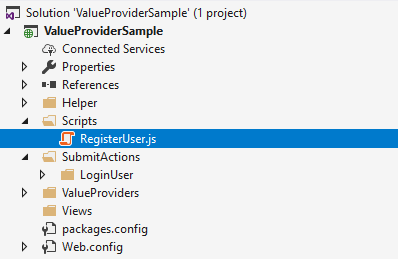
-
Copy the following script to the file:
-
In Visual Studio, open Sitecore Explorer and establish a connection to your Sitecore instance. Using Sitecore Rocks Folder Sync, deploy the
RegisterUser.jsfile to your website in the following folder:sitecore/shell/client/Applications/FormsBuilder/Layouts/Actions.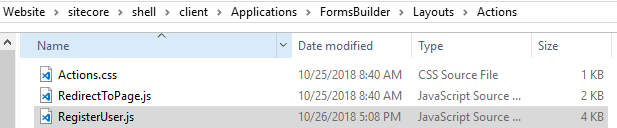
-
To create a Register User Action Editor Sitecore item, in your Sitecore Explorer, expand the core database and go to
sitecore/shell/client/Applications/FormsBuilder/Layouts/Actions. -
Right-click Actions, click Add, and click New item.
-
In the Add New Item dialog box, search for and click
Speak-BasePage, enter the name RegisterUser, and click OK.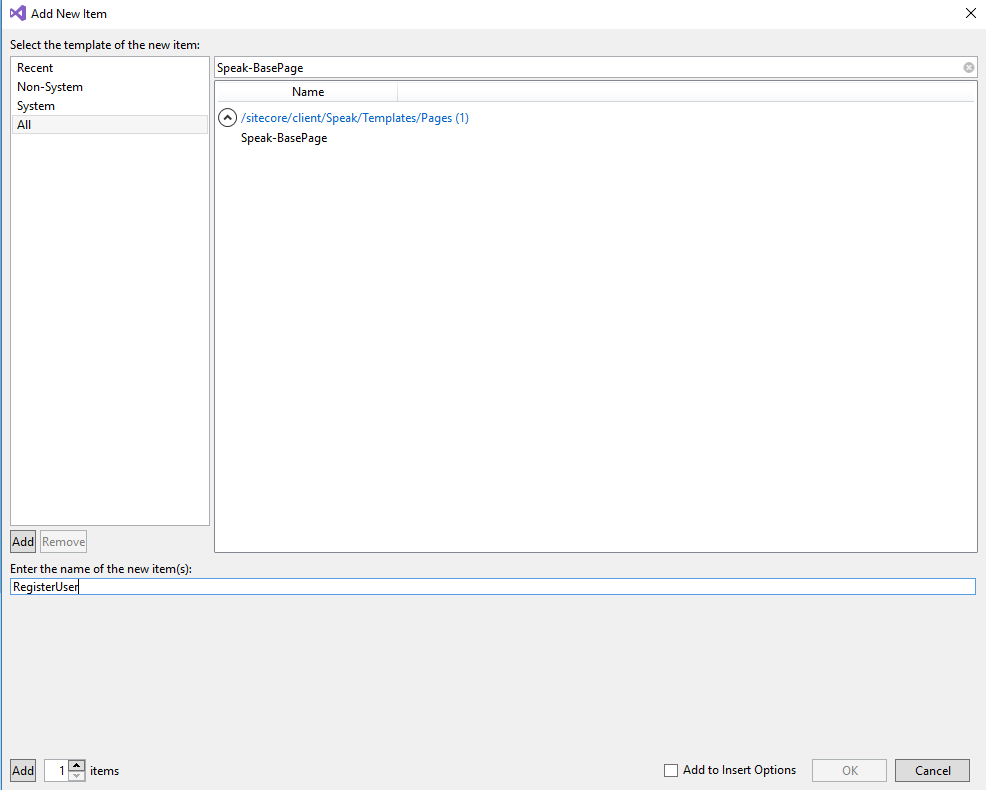
-
Right-click the RegisterUser item you just created and click Tasks, and click Design Layout.
-
On the Design Layout tab of the item that you just added, update the Layout field to
Speak-FlexLayout. -
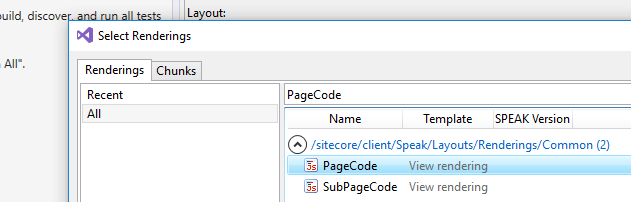
In the upper-left corner, click Add Rendering and insert a PageCode rendering.
-
Open the properties window of the
PageCoderendering. Update thePageCodeScriptFileNamevalue to the file location of theRegisterUser.jsfile. For example:/sitecore/shell/client/Applications/FormsBuilder/Layouts/Actions/RegisterUser.js. -
Update the
SpeakCoreVersionvalue toSPEAK 2-x.
-
Then, proceed to these renderings in the Design Layout window.
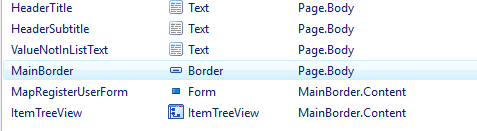
Add the text rendering parameters
To add the text rendering parameters:
-
Go to the
RegisterUser Action Editoritem you just created, and add aPageSettingsitem. -
Go to the
PageSettingsitem, and search for and click the Text Parameters rendering, and click Add to add the following three items:HeaderTitle,HeaderSubtitle, andValueNotInListText.NoteYou must use the
sitecore/client/Business Component Library/version2 -
For each of the three items, click and edit the following fields:
-
IsVisible – Deselect
-
Edit the text:
HeaderTitle- Map form fields to user registration data.HeaderSubtitle- Map the fields in the form to the user profile details.ValueNotInListText- Value not in the selection list.
-
-
Go to the
PageSettingsitem, add a folder, and name itMapRegisterUserForm. -
Search for and click
FormDropList Parameters, click Add to add:- Password
- FullName
-
Update the field values of these items according to the following table:
FormDropList Parameter ValueFieldName DisplayFieldName FormLabel BindingConfiguration Email itemId name Email emailFieldId/SelectedValuePassword itemId name Password passwordFieldId/SelectedValueFullName itemId name Full Name fullNameFieldId/SelectedValue -
In Sitecore Explorer, go to the
PageSettingsitem and add an ItemTreeView Parameters item and name it ItemTreeView. -
Update the StaticData field values of the
ItemTreeViewitem by clicking Browse. -
Go to
/sitecore/system/Setttings/Security/Profiles, click theProfilesfolder,and click OK.
-
Set the Database field value to core.
-
Finally, add a
Page-Stylesheet-Fileitem and name it Stylesheet. Update the Stylesheet field value to/sitecore/shell/client/Applications/FormsBuilder/Layouts/Actions/Actions.css: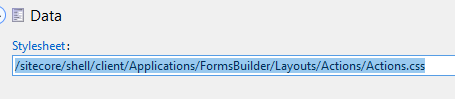
Your rendering list now looks like the following:
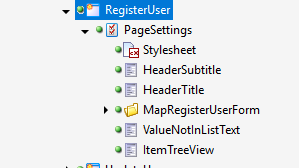
Create the register user submit action item
To create the register user submit action item:
-
In the Content Editor, go to sitecore/System/Settings/Forms/Submit Actions.
-
Right-click Submit Actions, click Insert, and click Insert from template.
-
Click the
/System/Forms/Submit Actiontemplate, in the Item Name field, enter the name Register User and click Insert.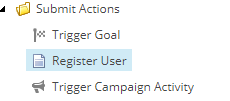
-
Go to the item you just created and in the Settings section, in the Model Type field, set the value to your RegisterUser class type name:
ValueProviderSample.SubmitActions.RegisterUser.RegisterUser -
In the Error Message field, enter the error message: Register user failed!
-
In the Editor field, click the editor you just created:
RegisterUser.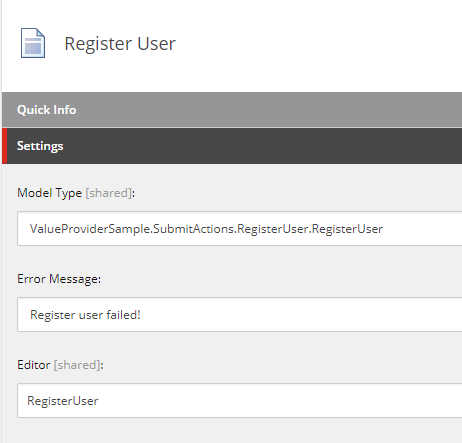
-
Save the item.
Create the register form
To create a form:
-
On the Forms dashboard, click Create.
-
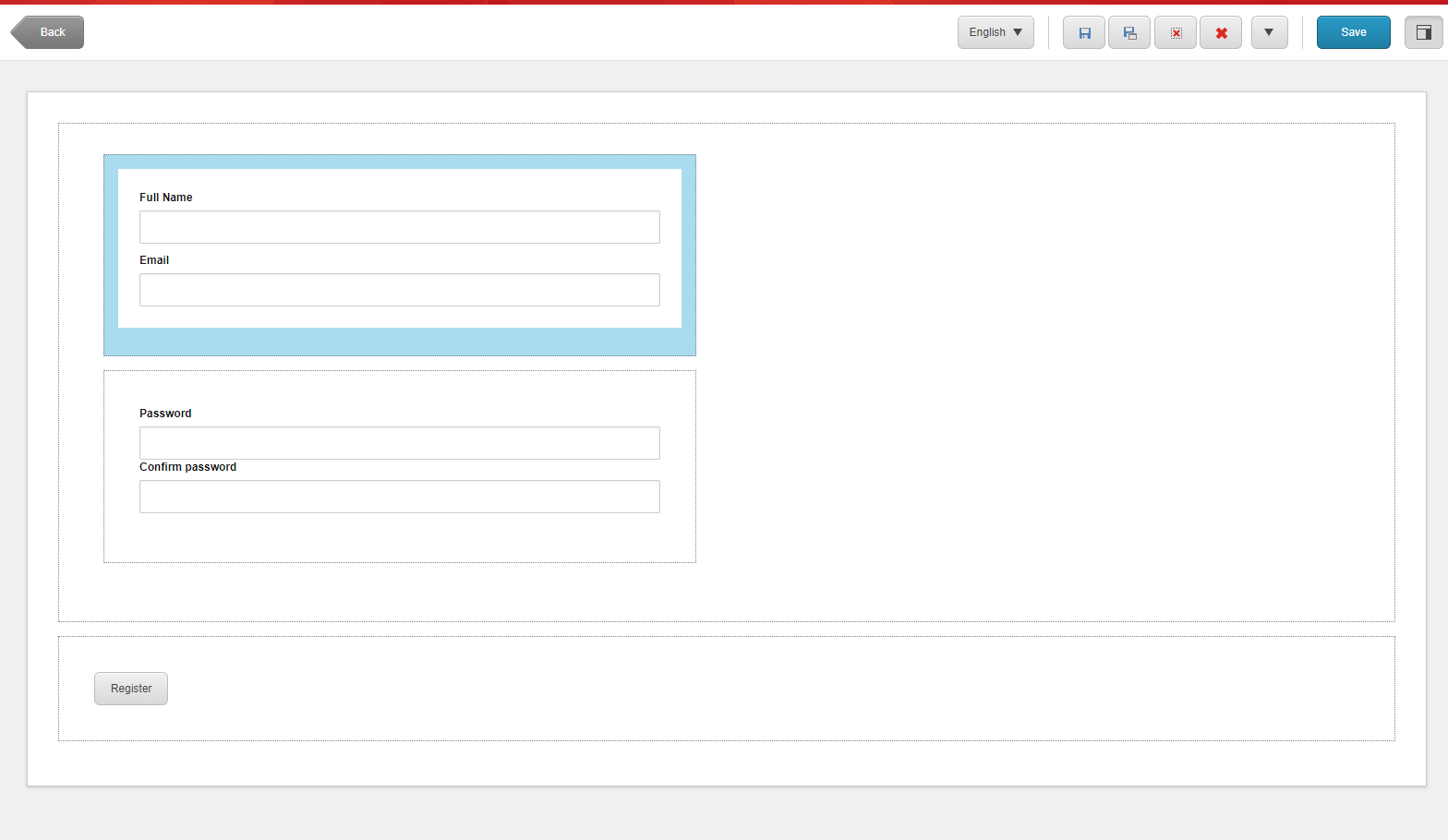
Create a form with the following fields:
Type Label Field Name CSS class Single-line text Full Name Full Name form-control Email Email Email form-control Password Confirmation Password Password Confirmation form-control Submit Button Register Submit Button btn btn-default -
Optionally, add some sections to group the form fields:
Field Name Form field (s)/Section(s) CSS class UserDataSection EmailSection, PasswordSection form-group col-md-6 EmailSection Full Name, Email form-group PasswordSection (Password Confirmation) form-group SubmitSection Submit Button form-group col-md-12 The form will look like this:
-
To add a Submit button on your form, in the Form elements pane, in the Structure section, drag the Submit button element to the form.
-
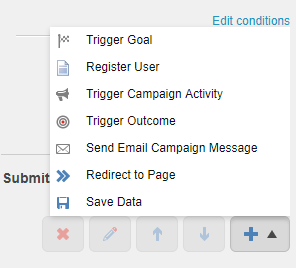
Click Submit actions and click Register User.
-
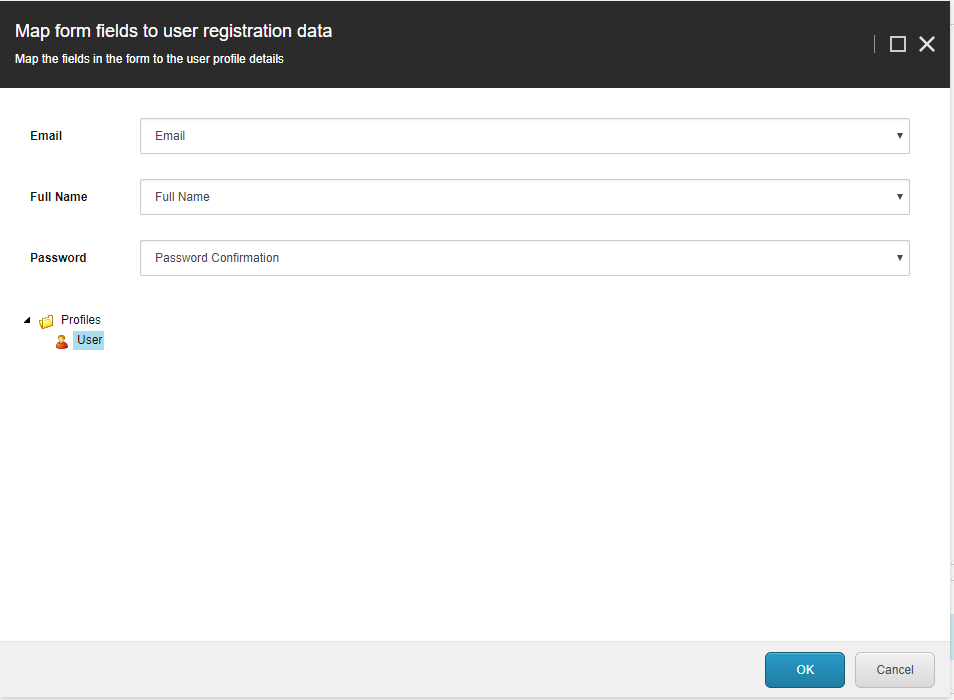
In the Map form fields to user registration data dialog box, select the corresponding form fields.
-
Expand the tree view, click the User node and click OK.
-
Save the form and name it: Register Form.
Create the MVC Layout
Before you can add the form to a web page, you must create an MVC Layout.
To create an MVC Layout:
-
In your website
Viewsfolder, create a folder and name itValueProvider.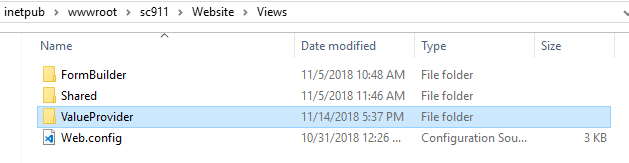
-
In the Content Editor, go to Layout/Layouts, and insert a layout folder and name it
Value Provider.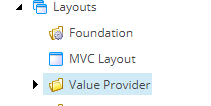
-
Right-click the
Value Providerfolder and click Insert and MVC Layout. -
Name the layout MVC Layout and place it in the
Value Providerfolder that you created earlier. -
Go to your Visual Studio project and create a folder named
Views. -
Create an empty view without model named
MVC Layout.cshtml. The name of the View must be the same as the name of the MVC layout that you created in the Content Editor: -
Create another empty view named
_LoginPartial.cshtmland copy the following code. -
In the same folder, create a file named
Mvc OuterLayout.cshtmland copy the following code to the file:Your
Viewsfolder looks like this: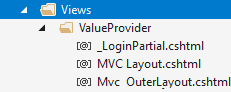
-
Deploy all Views to your
Views/ValueProviderfolder in your website using Sitecore Rock Folder Sync.
Add the register form to the web page
To add the register form to the web page:
-
Go to /sitecore/Content, right-click Home, click Insert, click Sample item.
-
Enter Register and click OK.
-
On the Presentation tab, click Details. In the Layout Details dialog box, click the default layout to change it.
-
In the Device Editor dialog box, from the drop-down list, click
Layouts/MVC Layout. -
On the Controls tab, remove all the renderings, and click Add.
-
Go to Renderings/System/Forms and click Mvc Form. In the Select a Rendering dialog box, in the Add to Placeholder field, enter main, and then click Select.
-
On the Controls tab, click the MVC form control and click Edit. In the Data Source field, click Browse and select the form you want to add to the page. For this example, click Register Form.
-
Publish the form, layouts, and items along with their children in previous steps.
NoteMake sure the workflow state of the items is in the Approved state.
-
Load the register page in a browser and register a user.
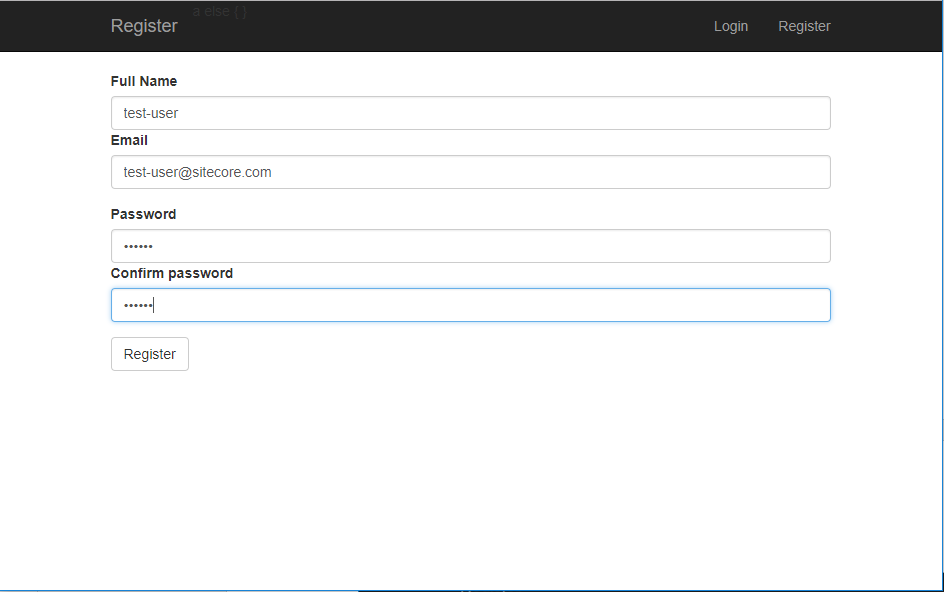
Go the next walkthrough to learn how to create a login and logout page.