Walkthrough: Creating a custom submit action that updates contact details
You can use the submit button for navigation (previous and next buttons), to submit the form, and/or to trigger submit actions. To all submit buttons, whether used for navigation or for submitting the form, you can add submit actions. For example, the submit action Save data added to the next button makes sure the data is saved to the Forms database when a contact clicks Next to move on to the next page of the form.
By default, you can add the Trigger Goal, Trigger Campaign Activity, Trigger Outcome, Redirect to Page, and Save Data submit items. This walkthrough describes how to create a custom submit action that enables you to select the form fields used to update the contact details.
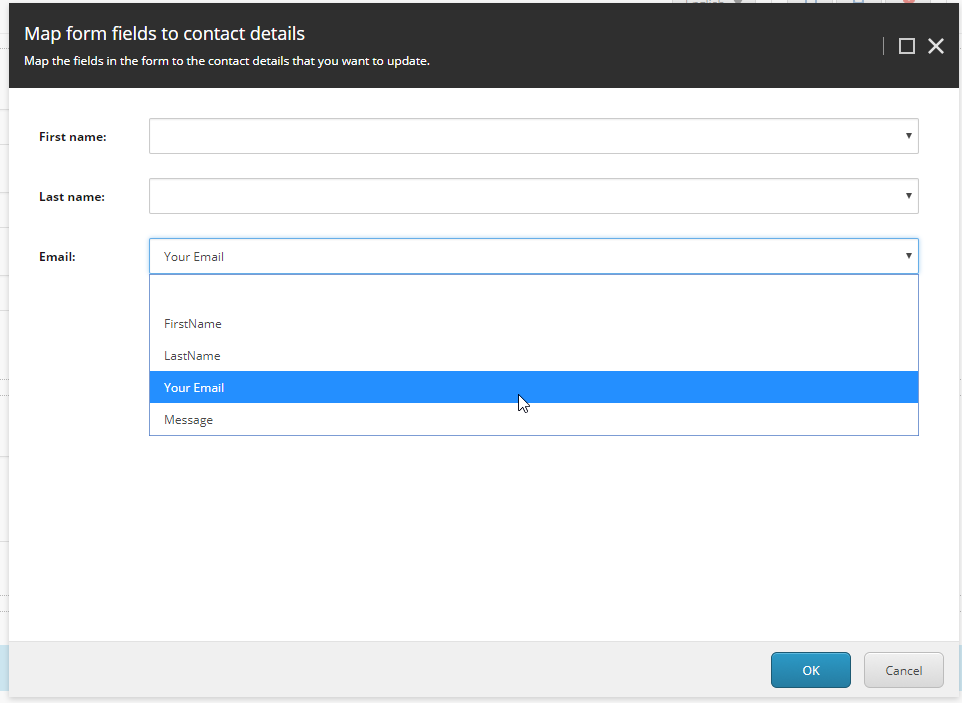
This walkthrough describes one example of building a custom submit action. Depending on your experience and preferences, you might prefer to do things differently.
Create a submit action class
To submit a form (page), a contact must click the Submit button. You can add different types of actions to perform when a user clicks Submit. For example, the Save Data submit action ensures that data is saved to your database, and the Trigger Campaign Activity submit action selects a preset campaign activity.
In this walkthrough, you create the Update Contact submit action.
The submit action stores the parameters of the JSON object that is passed to the action. The JSON object is parsed into an instance of the type specified in the TParametersData class, in this case, the UpdateContactData class. Therefore, in this example, you create a derived class UpdateContact that inherits from SubmitActionBase
To create a submit action class:
-
Create the
UpdateContactDataclass: -
Create the
UpdateContactclass: -
Build and copy the DLL to your Sitecore instance’s
<root>/bindirectory.
Create the SPEAK editor control
The next step is to create the UI that enables mapping the form fields to the contact details fields. For Sitecore Forms, submit action editors are located in the core database:
/sitecore/client/Applications/FormsBuilder/Components/Layouts/Actions
In this example, you must have the Sitecore Rocks Visual Studio plugin. The plugin is compatible with Visual Studio 2019 or earlier.
To create the control:
-
In the core database, navigate to /sitecore/client/Applications/FormsBuilder/Components/Layouts/Actions
-
Right-click Actions, click Add, and then click New Item.
-
Select the /sitecore/client/Speak/Templates/Pages/Speak-BasePage template, and in the Enter the name of the new item field, enter UpdateContact and click OK.
-
Set BrowserTitle and __Display name to: Update contact.
-
Right-click the UpdateContact item you just created and click Tasks, and click Design Layout.
-
In the Layout dialog box, navigate to /sitecore/client/Speak/Layouts/Layouts and select the Speak-FlexLayout layout and click OK.
-
In the upper-left corner, click Add Rendering and in the Select Renderings dialog box, click All and search for PageCode (
/sitecore/client/Speak/Layouts/Renderings/Common/PageCode):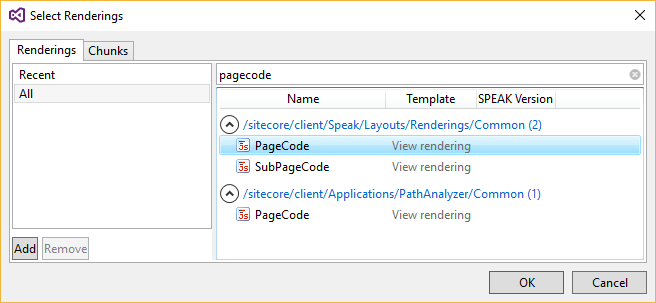
-
Select
PageCodeand click OK. -
In the PageCode properties, set the
PageCodeScriptFileNameproperty to the JavaScript path that contains the page code script: /sitecore/shell/client/Applications/FormsBuilder/Layouts/Actions/UpdateContact.js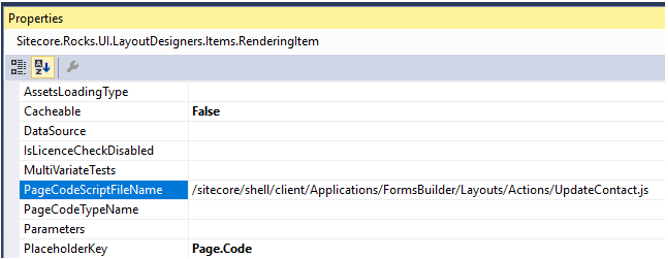
-
Set the SpeakCoreVersion property to
Speak 2-x. -
Search for and select the Text View rendering (
/sitecore/client/Business Component Library/version 2/Layouts/Renderings/Common/Text) and click Add to add the HeaderTitle, HeaderSubtitle, and ValueNotInListText item in the Id fields of each renderings property. -
For the three items, in the Properties section, set the following ID properties:
-
IsVisible – False
-
PlaceholderKey – Page.Body
NoteThese items are used as texts that set the action editor dialog title, subtitle, and the not found value. If you fill in the text property here, the texts will be visible in all languages but will not be localizable.
-
-
Add the following renderings:
- MainBorder of type Border (
/sitecore/client/Business Component Library/version 2/Layouts/Renderings/Containers/Border). - MapContactForm of type Form (
/sitecore/client/Business Component Library/version 2/Layouts/Renderings/Forms/Form). Set the FieldsLayout property to 1-1-1-1 and set the PlaceholderKey property to MainBorder.Content.
Your rendering list now looks like this:
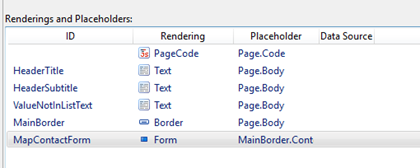
- MainBorder of type Border (
Add a folder that contains parameters for the editor
Next, you must add a folder that contains the parameters for the editor. To add the PageSettings folder:
-
In the core database, navigate to /sitecore/client/Applications/FormsBuilder/Components/Layouts/Actions, and right-click the UpdateContact item you created earlier, click Add, and click New item.
-
Search for and select the PageSettings template (
/sitecore/client/Speak/Templates/Pages/PageSettings), enter the name PageSettings and click OK. -
Right-click the PageSettings item that you just created and click Add, New Item.
-
Select the /sitecore/client/Business Component Library/version 2/Layouts/Renderings/Common/Text/Text Parameters template and click Add three times and name the items exactly the same as in the IDs in the layout you created previously:
- HeaderTitle – double-click and in the Text field enter: Map form fields to contact details.
- HeaderSubtitle – double-click and in the Text field enter: Map the fields in the form to the contact details that you want to update.
- ValueNotInListText – double-click and in the Text field enter: value not in selection list.
-
Navigate to /sitecore/client/Applications/FormsBuilder/Components/Layouts/Actions/UpdateContact and right-click the PageSettings item that you just created.
-
Click New Folder and name it MapContactForm.
-
Click the MapContactForm folder and add three FormDropList Parameters templates (
/sitecore/client/Business Component Library/version 2/Layouts/Renderings/Forms/Form/Templates/FormDropList Parameters) with the following field values:FormDropList Parameter ValueFieldName DisplayFieldName FormLabel BindingConfiguration FirstNameitemId name First name firstNameFieldId/SelectedValue LastNameitemId name Last name lastNameFieldId/SelectedValue EmailitemId name Email emailFieldId/SelectedValue -
Right-click the UpdateContact item, then click Tasks > Design Layout to navigate to the UpdateContact layout. Set the Form rendering ConfigurationItem property to the ID of the MapContactForm folder that contains the FormDropList parameters.
NoteTo populate a DropList field in the editor UI, set the DataSource property in the parameters template to a path like /sitecore/system/Marketing Control Panel/Automation Plans or a folder containing campaign items.
-
Navigate to /sitecore/client/Applications/FormsBuilder/Components/Layouts/Actions/UpdateContact and right-click the PageSettings item that you created earlier.
-
Add a new item named Stylesheet of type Page-Stylesheet-File (
/sitecore/client/Speak/Templates/Pages/Page-Stylesheet-File):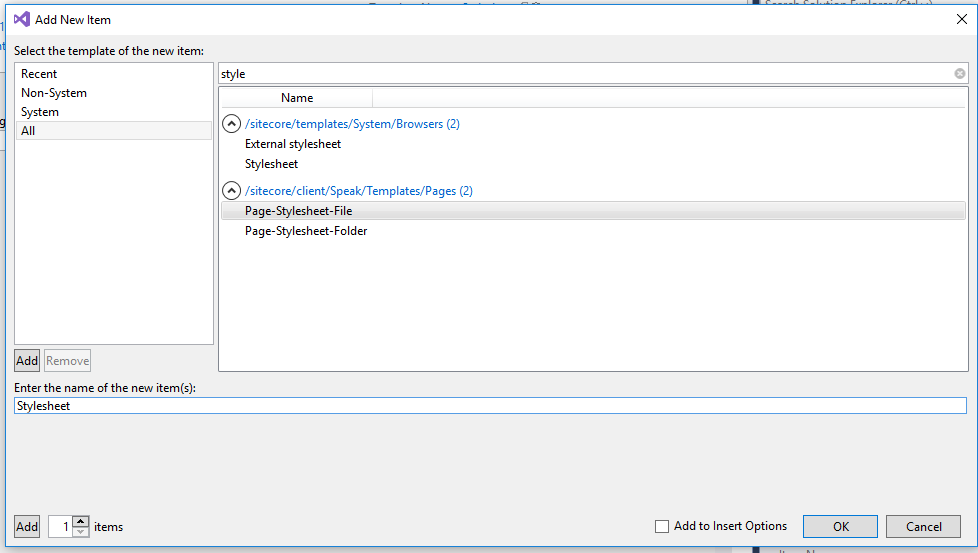
-
Click the new stylesheet item and set the Stylesheet value to: /sitecore/shell/client/Applications/FormsBuilder/Layouts/Actions/Actions.css
Create the client script for the editor
Now you must create the client script for the editor. In a previous step, when you created the UpdateContact item, you set the path to the script as follows:
To create the script:
-
Use the base Submit actions editor script. The Submit actions editor script always has the following base:
-
Use the
EditActionSubAppRenderercomponent. The editors are loaded in a frame in a Speak dialog by theEditActionSubAppRenderercomponent. They must pass the dialog header title and subtitle to the parent, and set when the submit button is enabled.In this example, to create a submit action that updates contact details, you use a script that finds the canvas component
FormDesignBoard, gets the data from the fields on the form canvas and transforms them to a simple array: empty item, followed by items with itemId and name properties. This is why, in the FormDropList Parameters items, you filled in the ValueFieldName and DisplayFieldName fields with itemId and name. The script works as follows:initialized– collects the data from the fields into an array. Then it finds all form drop lists and sets their IsSelectionRequired property to falseloadDone– iterates the form controls, and sets their dynamic data to the fields array. If the current submit action Parameters property value is not in the fields list (for example, if the field is deleted, or the form copied), it includes an id - value not in the selection list item in the array. Then it binds the SPEAK form to the Parameters object.getData– when the submit button is clicked, thegetDatafunction is called. It iterates the form data to collect the new Parameters object. Empty selections (field mappings) are omitted.
Your final script should look like this:
Create a submit action item
To create the submit action item:
- In the Master database, navigate to /sitecore/system/Settings/Forms/Submit Actions
- Right-click Submit Actions, click Insert, and click Insert from template.
- Select the /System/Forms/Submit Action template, in the Item Name field, enter the name Update Contact Details and click Insert.
- Navigate to the item you just created and in the Settings section, in the Model Type field, set the value to the class type name. For example,
Sitecore.ExperienceForms.Samples.SubmitActions.UpdateContact. - In the Error Message field, enter an error message, for example, Update contact failed!
- In the Editor field, select the editor that you just created, for example, Update contact.
- In the Appearance section, select the icon that you want to display in the Form elements pane.
In the Form elements pane, when you click Add a submit action, you can now select the Update Contact Details action.