Associate campaigns with an item using a rule
You can associate campaigns with items using rules. A rule consists of a condition that, when met, triggers an action. For example, when a specific page or one of its descendant pages is visited, the content from one or more campaigns is shown.
The condition can also include tags that are assigned to items. For example, if a page with a specific tag is visited, it can trigger campaigns.
After defining a rule that triggers campaigns, you can define a new rule that personalizes the campaign content. For example, if a visitor keeps revisiting the same page, but you only want to display the campaign once, then you must set up a personalization rule that hides the campaign content, or parts of it, when the page is revisited.
To associate campaigns with an item:
-
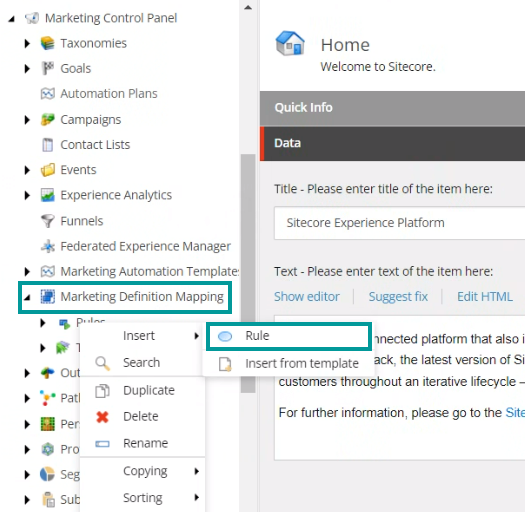
In the content tree, navigate to sitecore/Content/System/Marketing Control Panel and expand Marketing Definition Mapping.
-
Right-click Rules and click Insert > Rule.
-
In the dialog box, enter a name for the rule, for example, Campaign rule, and then click OK.
-
On the Content tab, in the Data section, click Edit rule.
-
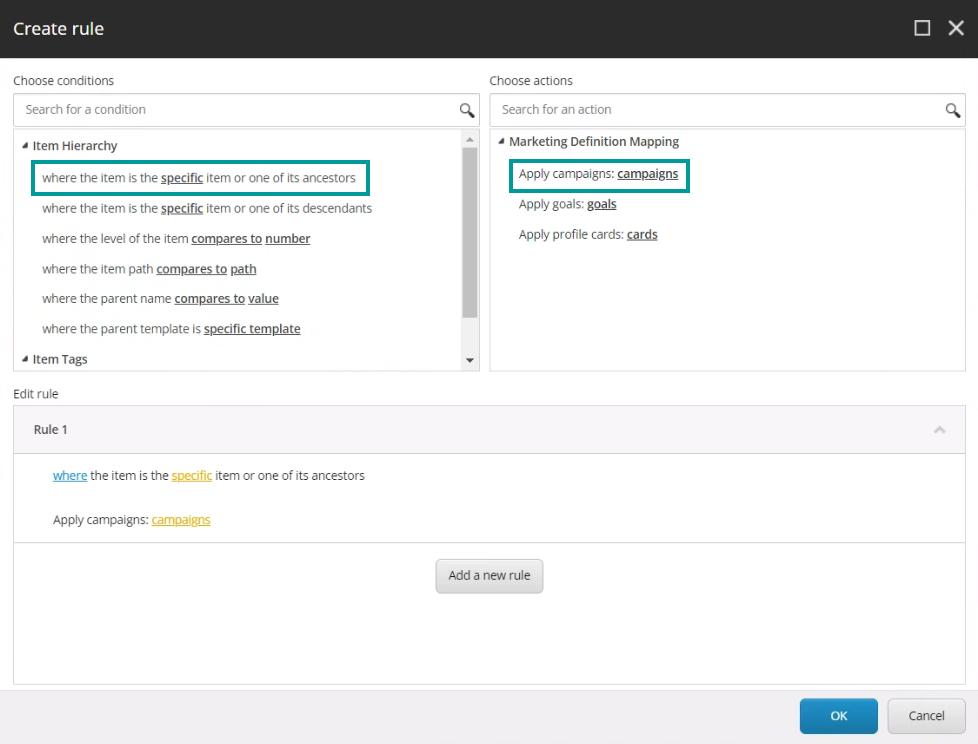
In the Create rule dialog box:
- Select the condition you want to use, for example, where the item is the specific item or one of its ancestors.
- Select the Apply campaigns: campaigns action.
 Note
NoteTo select tags instead of items, in step 5, scroll down to Item Tags and select the where the specific tag is assigned to the item condition.
-
In the Edit rule section:
- To select the item for the condition, click the specific link.
- To select the campaign you want to trigger, click the campaigns link. You can select multiple campaigns.
- Double-click the campaigns to move them to the Selected column.
Now the item and campaigns are shown in the rule statement.
-
Save and publish the changes.