Create and deploy a goal
Goals are activities that contacts can perform on your website. You can associate goals with campaign activities and events and then use them to track how contacts engage with your website.
When you create a goal, it is subject to a workflow. A goal must be in the final workflow state to be deployed and published to your website. You must deploy the new goal before it becomes available in the Marketing Control Panel and you can associate it with a content item or a campaign.
To create a goal:
-
In Marketing Control Panel, in the content tree, click Goals.
-
On the Home tab, in the Insert group, click Goal to create a new goal.
-
In the dialog box that appears, enter a name for the goal.
On the Content tab, you can enter more detailed information about the goal, such as engagement value points or a description.
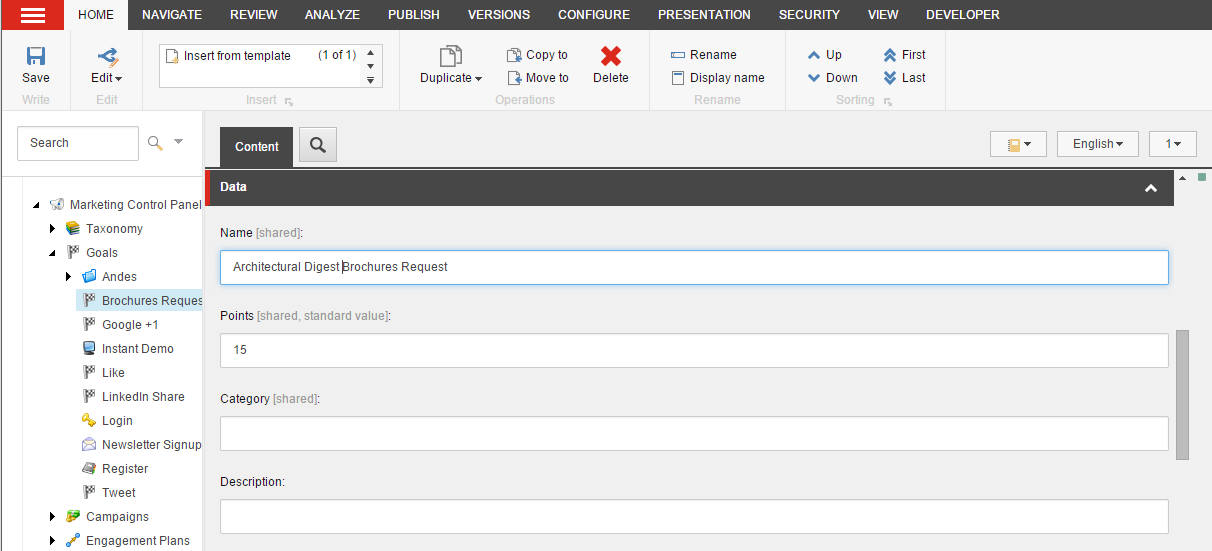
Field Value Name Enter the name of your goal Points Enter the number of engagement value points that you want to assign to a contact when they achieve this goal. Description Enter a clear description of the goal. Image Select an image that will be displayed in the Experience Profile when the goal has been triggered. IsLiveEvent Select this checkbox to ensure that the goal is submitted to the Marketing Automation Engine as soon as it is triggered, rather than at the end of the session. IsSystem Select this checkbox if the page event describes a system event.
For administrators and advanced users only.Category Assign the goal to a category. IsAuthorFeedback Select this checkbox if the page events associated with this goal are of interest to content authors. IsFailure Select this checkbox to define the event as a failure.
For administrators and advanced users only.IsGoal Select this checkbox to ensure that the goal appears in the Content Editor, Goals dialog. You can then associate the goal with a content item. Show in Xfile as Latest Event Select this checkbox to ensure the goal shows on the list of latest events on the Experience Profile, Show in Events Select this checkbox to ensure the goal shows on the list of events on the Experience Profile, Rule Select the rule that should be evaluated when the page event associated with this goal is triggered. In the Classification section, you can associate taxonomies with the goal.
-
Click Save.
-
To deploy the goal, on the Review tab, in the Workflow group, click Deploy.
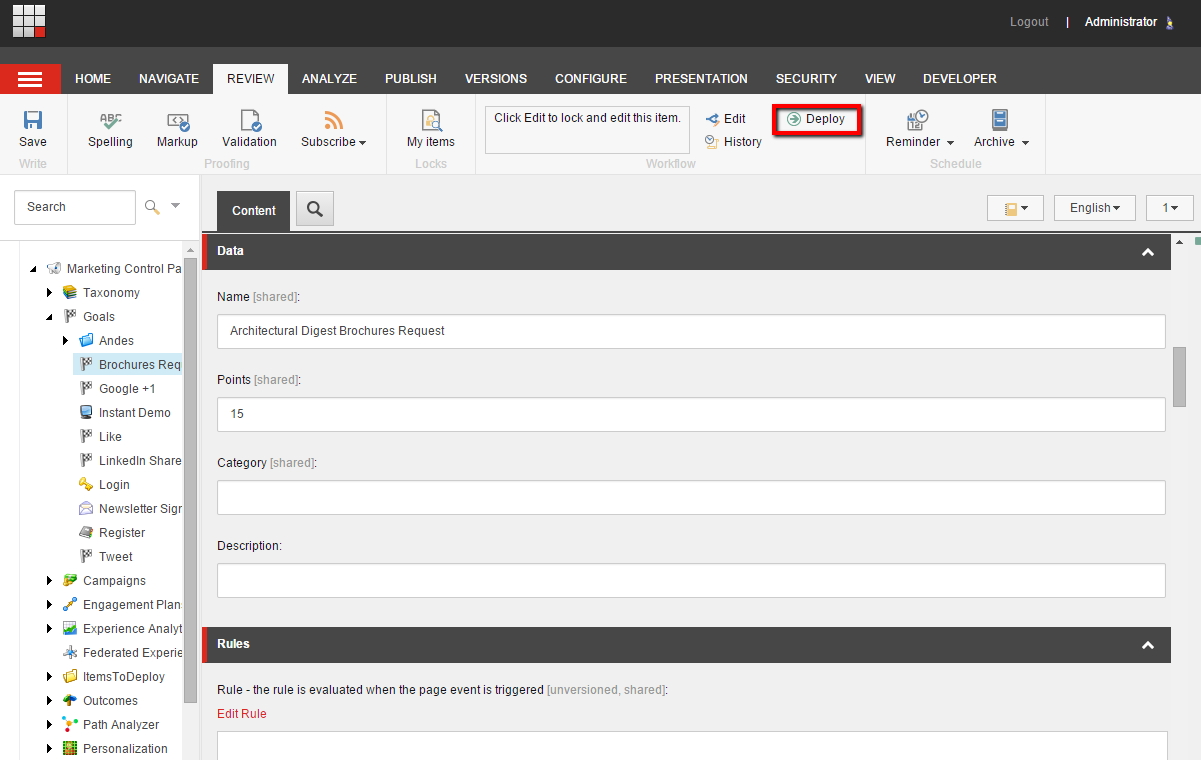
Now you can associate the goal with content items and campaigns.
-
To publish the goal, on the Publish tab, in the Publish group, click Publish.