- Scripts
Debug a script using Visual Studio Code
To debug a script:
-
To pull the script from Content Hub into your working directory, run the following command:
-
Open your working directory.
-
On the activity bar, click the Run and Debug icon or use the keyboard shortcut Ctrl+Shift+D.
-
From the Configuration list in the Run view, click the Debug Script configuration.
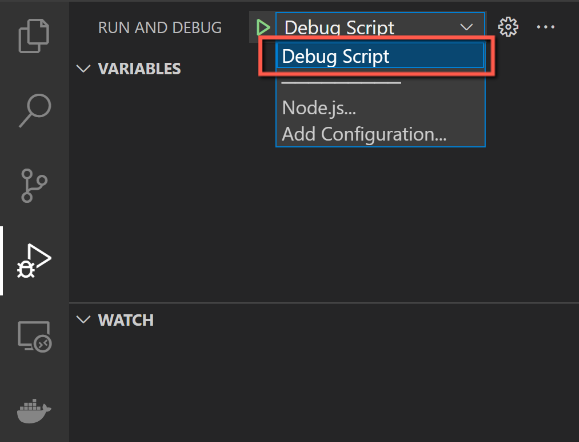
-
Set the launch configuration and breakpoints.
-
Press F5 to start the debug session.
-
When prompted to attach to a process, select the process ID that is shown in the terminal output of the CLI command.
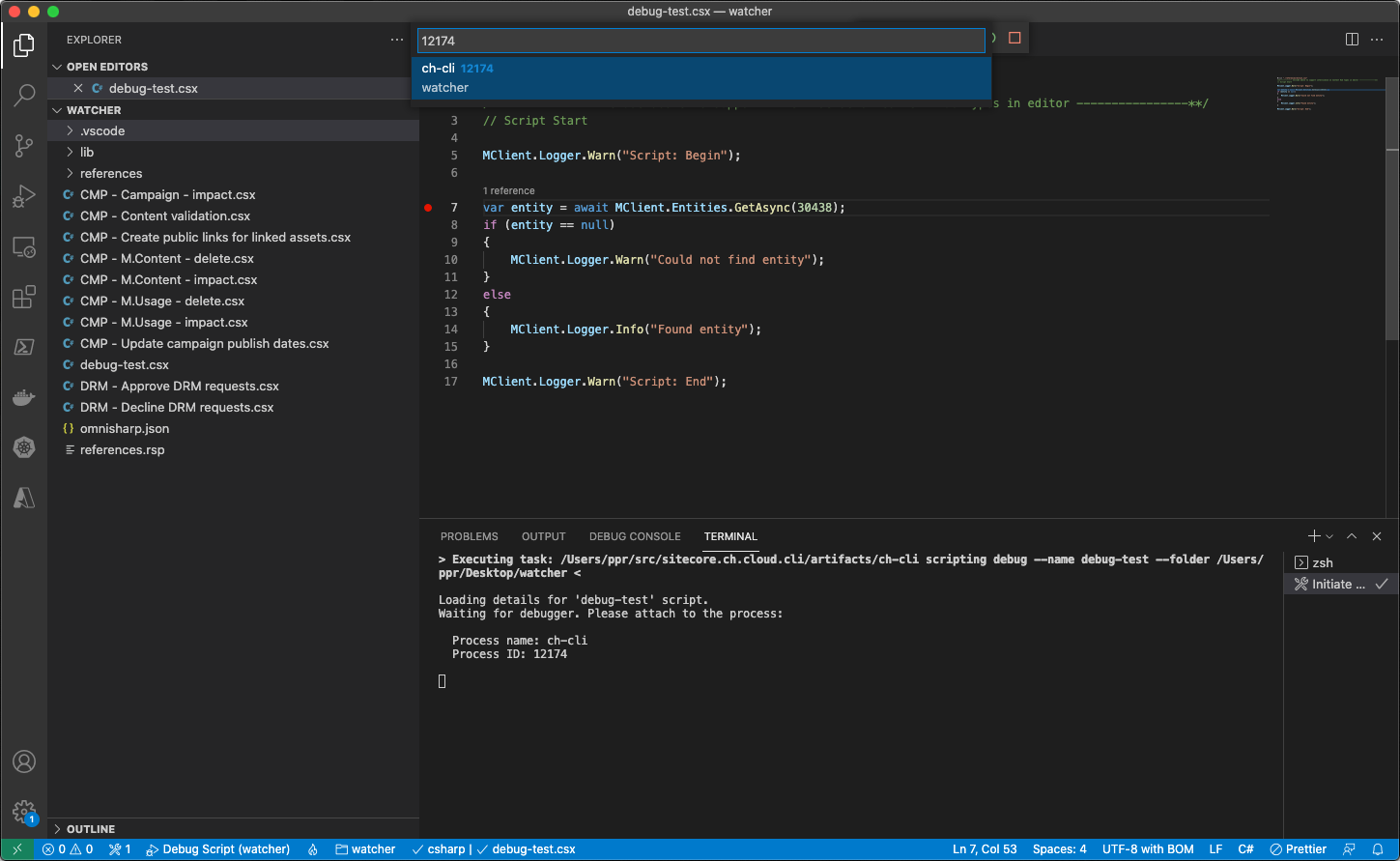
-
In your Content Hub instance, trigger the script to start debugging.
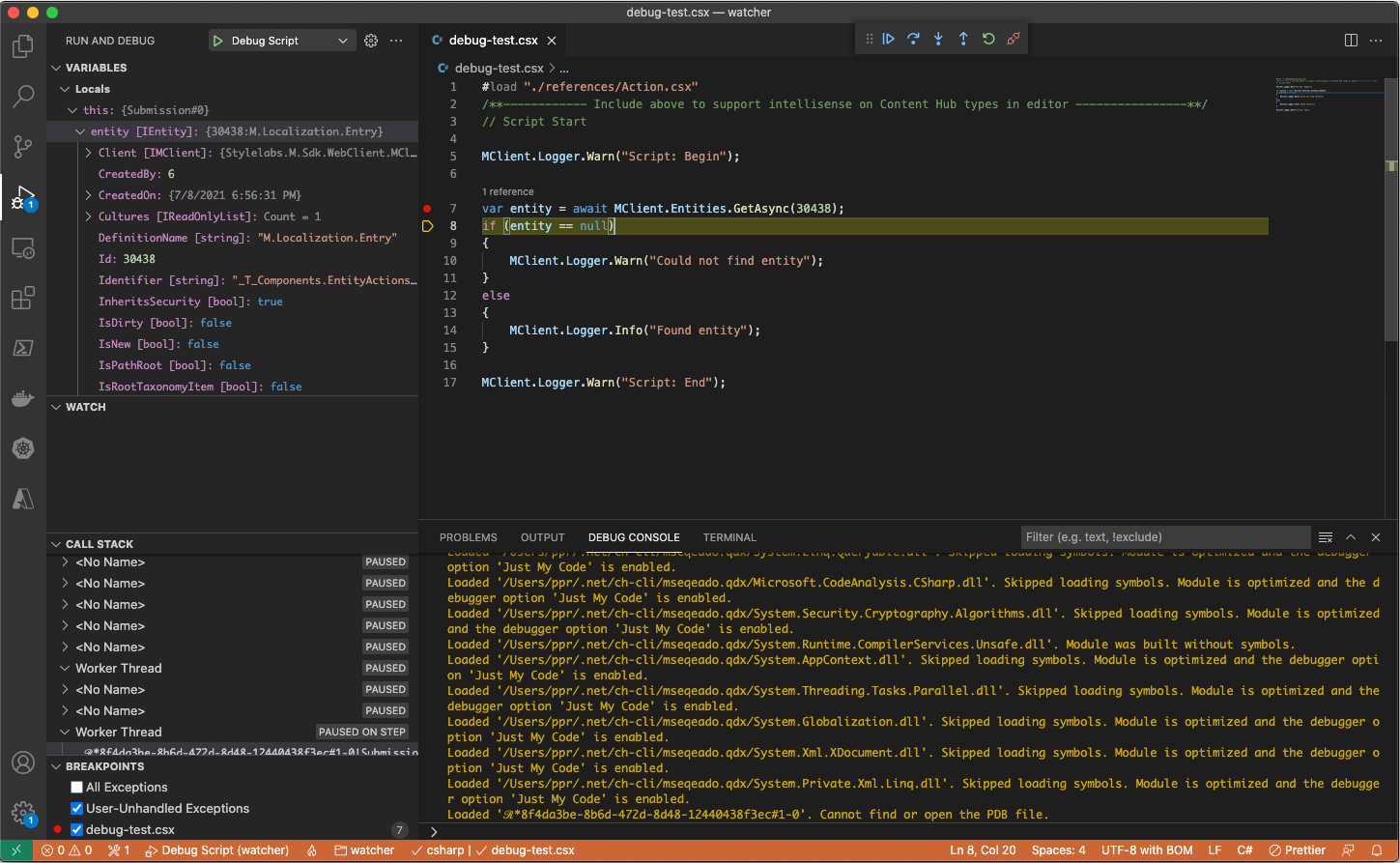
To learn more about Visual Studio Code's built-in debugger, refer to Microsoft's knowledge base article.
When initiating a debugging session for a script, a lock entity of entity definition M.ScriptDebugLock is created to indicate that a debug session is in progress. After the script runs to completion, the lock is removed to allow processing of further executions by Content Hub itself.
Certain events on the local machine, including but not limited to process termination and network or connectivity issues can cause the lock entity to be not properly cleaned up. In this case, you can either find and remove the entity manually or use the following command:
ch-cli scripting cancel-debug -n <YOUR_SCRIPT_NAME>
Known limitations
Inspecting global variables
When you debug a script, the global variables Context and MClient are populated. However, due to a limitation in Roslyn, it is currently not possible to inspect those variables in the Variables or Watch sections of Visual Studio Code.
If you need to inspect the Context or MClient variables, one option is to re-assign them and use them throughout your script, as shown in the following example.
When debugging an action script, Context.ChangeTracker is not supported.