Media transformations
Content Hub lets you transform media (such as images, photos, or artwork) by appending parameters to the URL generated when you create a public link.
You can create a public link on all asset types. Media transformations, however, are only supported with the following file formats: jpeg, png, gif (including animations), webP (including animations), and heic.
Media transformation parameters are case sensitive. When adding them to the URL format, you must also append transform=true.
Here are some examples of common media transformations. The list is not exhaustive. For the full list of available transformations, see the Cloudflare documentation.
background
Adds a background color underneath the image. This parameter applies only to images with transparency (for example, PNG files). You can use a hex code to specify the background color (for example, background=%23FF0000) or the color itself (for example, background=red).
URL format

blur
Applies blurring to the entire image. The intensity of the blur is determined by the parameter value, which can range from 1 (lowest) to 250 (highest).
URL format

brightness
Multiplies the brightness level of the image by a factor, where a value of 1.0 equals no change, a value of 0.5 equals half brightness, and a value of 2.0 equals twice as bright. The value must be greater than 0.
URL format

contrast
Multiplies the contrast level of the image by a factor, where a value of 1.0 equals no change, a value of 0.5 equals lower contrast, and a value of 2.0 equals higher contrast. The value must be greater than 0.
URL format

fit
Affects how the image is resized and works in conjunction with the image width or height. All resizing modes preserve the original aspect ratio. The available modes are:
contain- resizes the image to be as large as possible within the givenwidthorheightwhile preserving the aspect ratio. If you only provide a single dimension (for example, only thewidth), the image is resized to exactly match that dimension.cover- resizes the image to fill the entire area of width and height. If the image has an aspect ratio different from the ratio of width and height, it is cropped to fit.crop- shrinks and crops the image to fit within the area specified by width and height. The image is never enlarged by this mode. For images smaller than the given dimensions, it is the same as scale-down. For images larger than the given dimensions, it is the same as cover.scale-down- similar tocontain, but the image is never enlarged. If the image is larger than the givenwidthorheight, it will be resized. Otherwise, its original size is kept.
URL format
gamma
Increases the image exposure by a factor, where a value of 1.0 equals no change, a value of 0.5 darkens the image, and a value of 2.0 lightens the image. 0 is ignored.
URL format

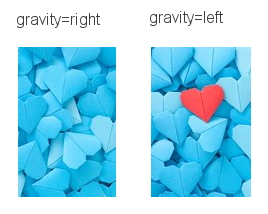
gravity
Use when cropping an image with fit=cover or fit=crop. This parameter defines the side or point that should not be cropped.
Options are:
gravity=auto- selects a focal point based on saliency detection (using maximum symmetric surround algorithm).gravity={SIDE}- selects a side (gravity=left,gravity=right,gravity=top,gravity=bottom), which will not be cropped.gravity={COORDINATES}- selects coordinates specified on a scale from0.0(top or left) to1.0(bottom or right),0.5being the center, around which the image is cropped. The X and Y coordinates must be separated by lowercasexin the URL. For example,0x1refers to the bottom left corner,0.5x0.5refers to the exact center, and 0.5x0.33 refers to a point in the top third of the image.
URL format
height
Sets the maximum height of the image in pixels. Exact behavior depends on the fit mode.
URL format
rotate
Rotates the image by 90, 180, or 270 degrees.
URL format

sharpen
Applies a sharpening filter to the entire image. The intensity of this filter is determined by the parameter value, which can range from 0 (none) to 10.
URL format
trim
Trims one or more edges of the image by a specified number of pixels using the format top;right;bottom;left, such as 100;0;100;0. This transformation is applied before any resizing or rotation of the image, and it takes DPR into account. In the following example, the top of the image is trimmed by 800 pixels.
URL format

width
Sets the maximum width of the image in pixels. Exact behavior depends on the fit mode.
URL format