Add a multilist with search field to a data template
When you configure data templates, you create the schema for content items that use this data template. Developers add fields to a data template, and set up the configuration that determines the behavior of those fields. One of those field types is multilist with search, which is used to help content editors quickly locate content items in large data sets.
Content editors use the multilist with search field to select multiple items from a searchable list within the content tree. The field includes dynamic filtering capabilities, allowing editors to quickly locate and select items based on various criteria such as item name, template, field values, and language using a range of filters and queries. This topic describes how to how to add a multilist with search to a data template.
You use the Source column in a multilist with search field to add a query that filters the content tree, to help content editors quickly find the relevant content. If the Source is empty, when content editors create new content based on this template, they will be able to enter a simple search query to search the entire content tree.
To add a multilist with search type field to a data template:
-
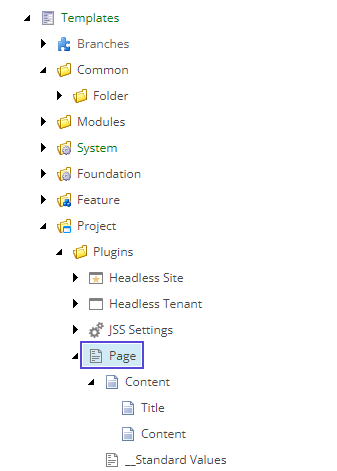
In the Content Editor, expand the Templates folder and click the data template that you want to add a field to, or create a new template.
-
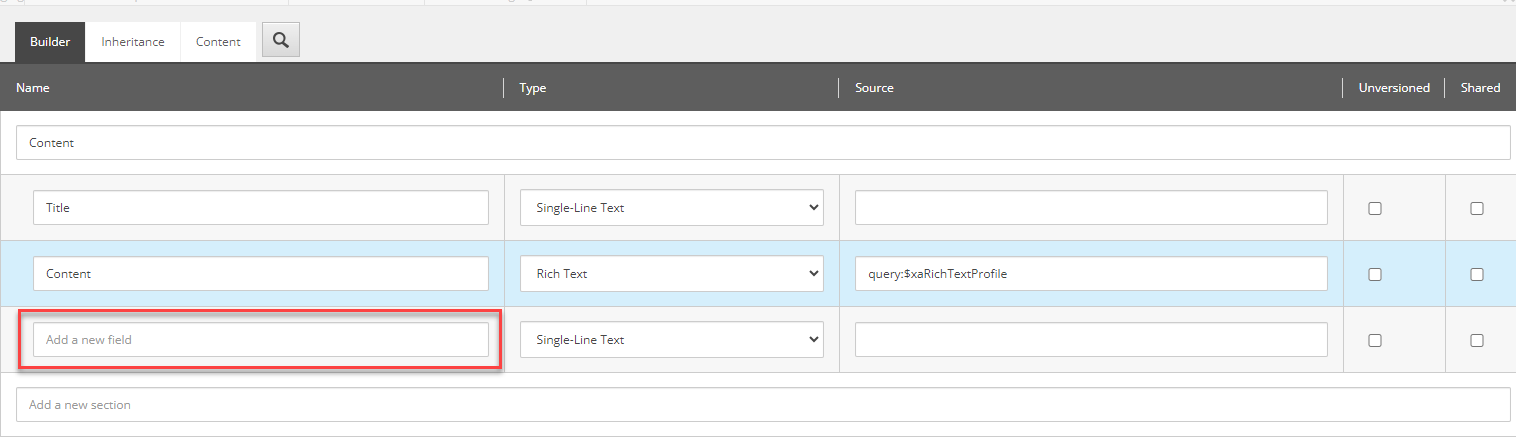
On the Builder tab, in the section where you want to add the field, in the Name column, click Add a new field and enter the name of the new data template field.
-
In the Type column, select Multilist with Search.
-
Add a query In the Source column. This column accepts various query options that filter the content tree for the relevant results.
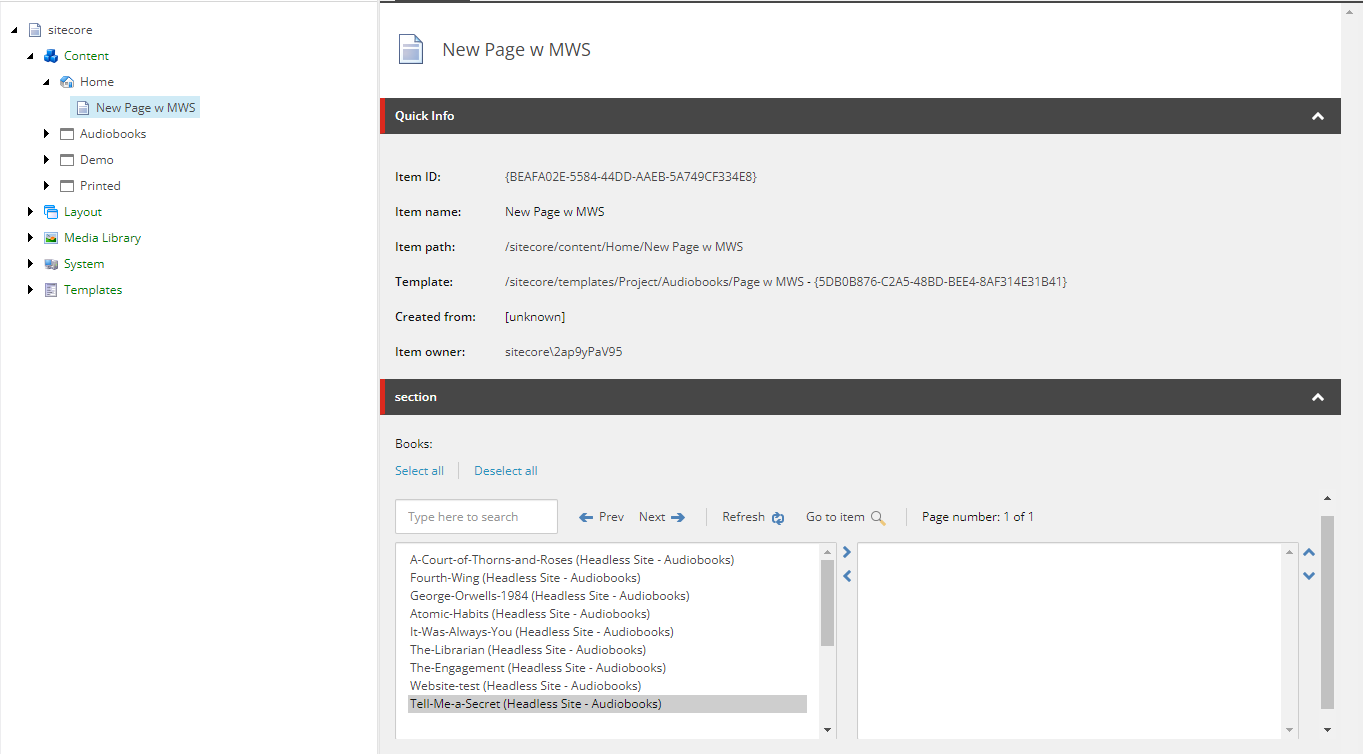
Content editors then create an item based on this data template and use the multilist field to find and select multiple items from the content tree. For example, you've set up a filter that ensures only audiobook products are displayed in the multilist field. When the content editor creates a page which showcases audiobook products, only relevant products are displayed in the list of options:
Troubleshooting
After you apply a query to the multilist with search field in the data template, but the field content options are blank or shows the entire tree, check the error log to help you understand what might need to be changed.
Example error log: