Create or edit a widget
A widget is a self-contained, reusable UI component. Widgets work best when the expected data is clear. The widget template defines the visual structure, while the widget prompt guides the agent to produce data that matches the widget schema. This lets agents generate consistent, interactive results instead of one-off text responses.
Common uses for widgets include:
-
Persona audit scorecards
-
SEO scorecards
-
Brand compliance summaries
-
Account profile cards
-
Campaign performance dashboards
-
Market signal insight panels
The widget schema defines what data or context the widget needs (for example, a page URL, a brand brief, or a set of content items), what the widget displays (for example, an SEO score, AI-generated recommendations, market signals, or performance metrics), and what the user can do with the output, such as apply or edit results or regenerate the data.
You must be an Admin to create a widget schema.
Create a widget template
To create a widget template:
-
In the navigation menu, click Agentic and then, in the left sidebar, click
 Settings .
 -
In the left-hand pane, click
 Widgets.
 -
On the Widgets page, click
 Create widget.
 -
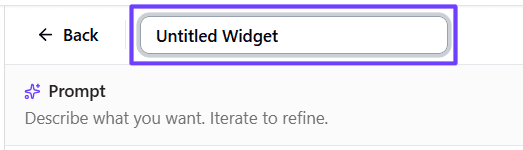
At the top of the page, click in the title field and define a title for the widget.
-
In the lefthand Prompt pane, in the chat, describe the widget you want to build. Alternatively, click one of the predefined prompts.
-
Click Submit
 .
. -
Use the following tabs to preview, modify, and test your widget:
-
Preview - shows how the widget will look when rendered.
-
JSON - displays the widget definition where you can edit, copy, and debug configuration details.
-
Schema - defines the fields, types, and required values used by the widget for inputs and outputs.
-
Visual - displays a visual editor where you can build or edit the widget structure.
-
Stream - lets you test the widget and see the widget outcome in real time while it executes.
-
-
If you are happy with the widget, click
 Save Widget.
Edit a widget
Admins can update a widget to refine how it works or its metadata.
To edit a widget:
-
In the navigation menu, click Agentic and, in the left sidebar, click Settings
. -
In the left-hand pane, click
Widgets. -
On the Widgets page, find the widget you want to edit.
-
Click the Actions
 > Edit.
 -
Update the widget details or JSON structure as needed.
-
Click
Update Widget.